How to Enable or Disable BitLocker Auto-Unlock in Windows 11

You enable or disable bitlocker-to-unlock-your-windows-11-pc-automatically/" class="sal-link" rel="noopener" target="_blank" data-sal-id="2610">BitLocker auto-unlock in Windows 11 to have encrypted drives automatically decrypt upon signing into your PC.
BitLocker is Windows’ built-in drive encryption feature, safeguarding your data from unauthorized access. Auto-unlock lets you bypass entering a password for specific BitLocker-encrypted drives after you log into Windows 11.
This convenient feature works for various drive types, including your system drive, fixed internal drives, and removable drives like USB flash drives. For instance, you can set your secondary internal drive to auto-unlock using BitLocker.
How to Turn On or Off BitLocker Auto-Unlock Using Control Panel
Follow these easy steps:
- Click the Start button. Type
Control Panel. Open it. - Go to System and Security. Then click BitLocker Drive Encryption.
- Find the drive you want to change in the list. It will say “BitLocker On”.
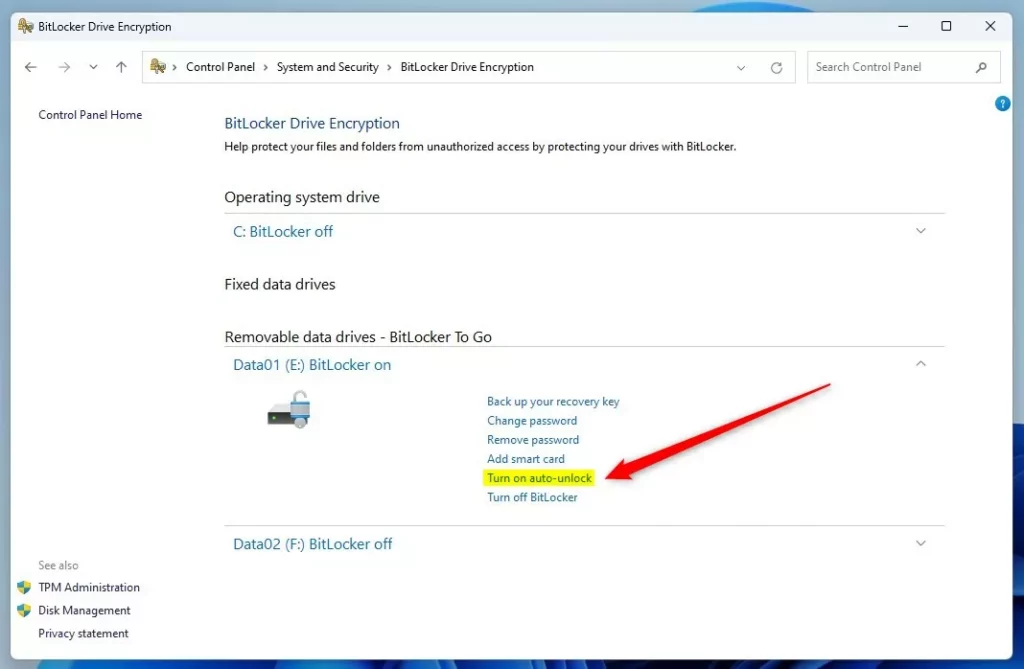
- To turn auto-unlock on, click Turn on auto-unlock next to that drive.
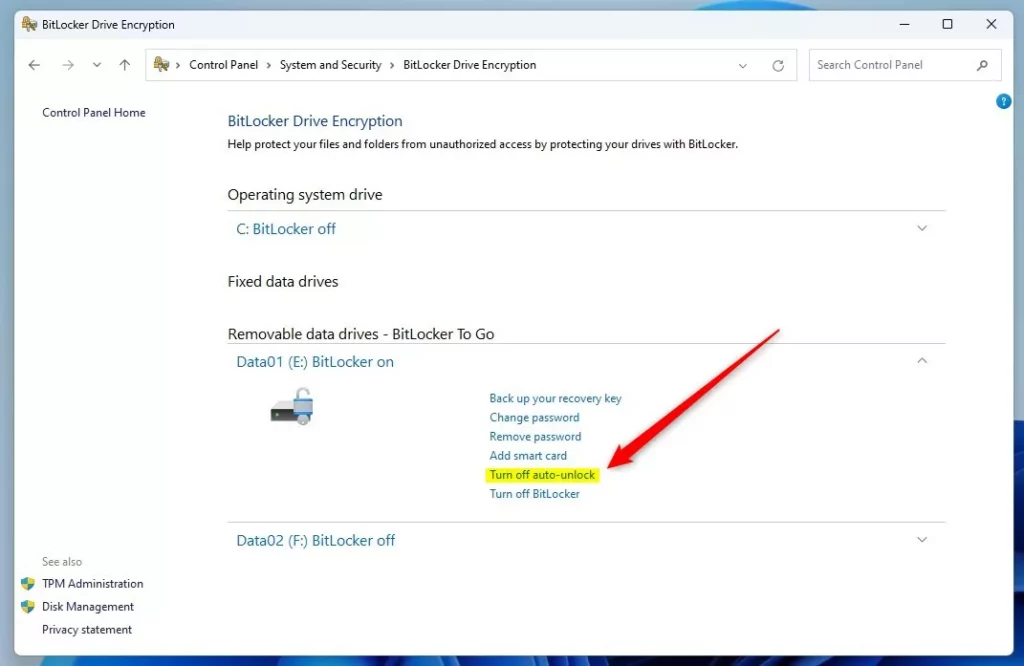
- To turn auto-unlock off, click Turn off auto-unlock.
Here’s what it looks like when you turn auto-unlock on for a fixed drive:
And here’s the screen when auto-unlock is turned off:
How to Turn On or Off BitLocker Auto-Unlock Using Commands
If you like using commands, you can do this with either Command Prompt or PowerShell. Here’s how:
Step 1Open Windows Terminal
Right-click the Start button. Choose Windows Terminal. You can also open Windows Terminal guide if you want help.
Step 2Use the Commands
FLAG: Admin privileges required for this step.
To turn on auto-unlock for a drive (replace E with your drive letter):
manage-bde -autounlock -enable E:To turn off auto-unlock for a drive:
manage-bde -autounlock -disable E:How to Turn On or Off BitLocker Auto-Unlock Using PowerShell
You can also use PowerShell. This is another tool for running commands on Windows.
FLAG: Admin privileges required for this step.
Open PowerShell. Type PowerShell in the Start menu. Click the app. See this guide if you need help.
To turn on auto-unlock, type this command and press Enter (replace E: with your drive letter):
Enable-BitLockerAutoUnlock -MountPoint "E:"To turn off auto-unlock, type this command and press Enter:
Disable-BitLockerAutoUnlock -MountPoint "E:"That’s it! Your drive will now either unlock automatically when you sign in or require you to unlock it manually. It depends on what you chose.
Summary
- BitLocker helps keep your data safe by encrypting your drives.
- Auto-unlock lets your encrypted drives open automatically after you log into Windows. This saves time.
- You can easily turn auto-unlock on or off through the Control Panel, Command Prompt, or PowerShell.
- Turning off auto-unlock adds an extra layer of security. Turning it on makes accessing your files faster.
- If you want to learn more about setting up BitLocker, here’s a helpful guide: How to Turn On BitLocker in Windows 11.
Was this guide helpful?

About the Author
Richard
Tech Writer, IT Professional
Richard, a writer for Geek Rewind, is a tech enthusiast who loves breaking down complex IT topics into simple, easy-to-understand ideas. With years of hands-on experience in system administration and enterprise IT operations, he’s developed a knack for offering practical tips and solutions. Richard aims to make technology more accessible and actionable. He's deeply committed to the Geek Rewind community, always ready to answer questions and engage in discussions.



No comments yet — be the first to share your thoughts!