How to Uninstall Windows Updates in Windows 11

You uninstall Windows updates in Windows 11 to fix issues caused by a problematic patch.
A Windows update is a software package released by Microsoft that contains fixes, improvements, or new features for Windows 11. Sometimes, these updates can introduce new bugs or conflicts, leading to performance problems or instability.
For instance, a recent cumulative update like KB5034201 might trigger unexpected behavior. If you suspect a recently installed update is the culprit behind your PC’s woes, removing it can often resolve the problem.
You can quickly access a list of installed updates through the Settings app and choose to uninstall specific ones. This process allows you to revert your system to a more stable state.
Open Settings, navigate to Windows Update > Update history, click Uninstall updates, select the problematic update, and click Uninstall. Alternatively, use Control Panel > Programs > View installed updates.
How to Uninstall Windows Updates in 🪟 Windows 11
Here are simple ways you can remove updates from your Windows 11 computer.
Method 1Use the Settings App
You can uninstall updates right from the Windows Settings.
- Click the Start button (the Windows logo) at the bottom-left corner of your screen.
- Select Settings from the menu. Or press Windows key + I on your keyboard to open Settings quickly.
- In Settings, click Windows Update on the left side.
- On the right, click Update history.
- Scroll down and click Uninstall updates under Related settings.
- You’ll see a list of recent updates. Find the one you want to remove, click it, then click the Uninstall button.
- Follow the instructions and restart your computer if asked.

Opening the Settings app from the Start menu.
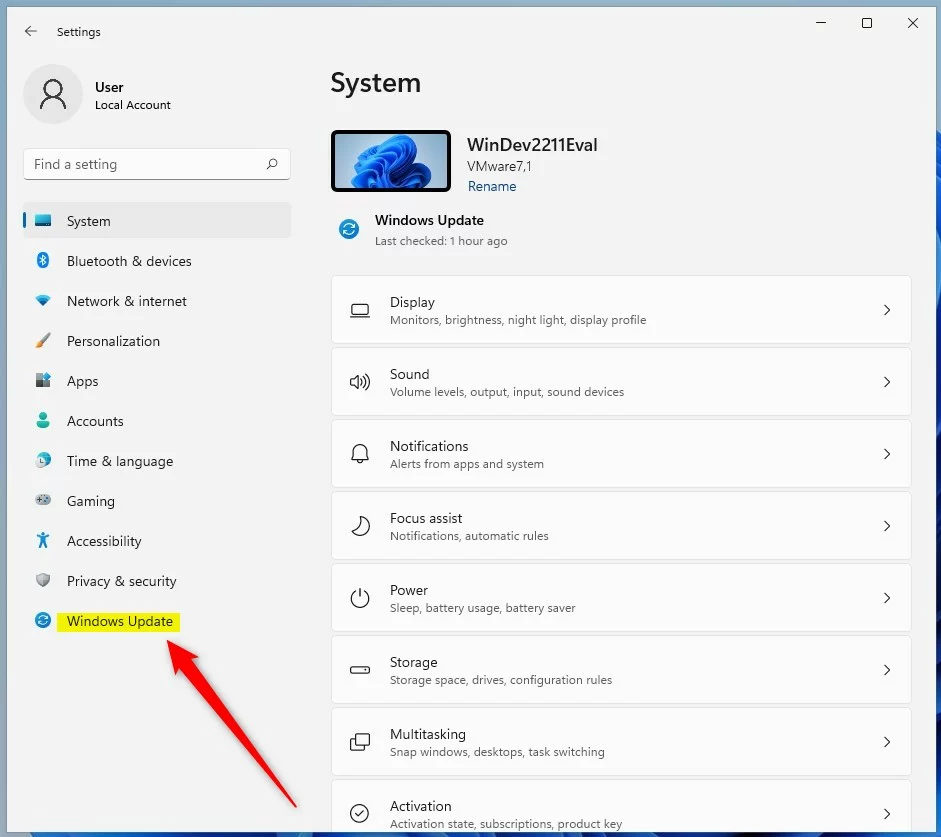
Click Windows Update in the Settings app.
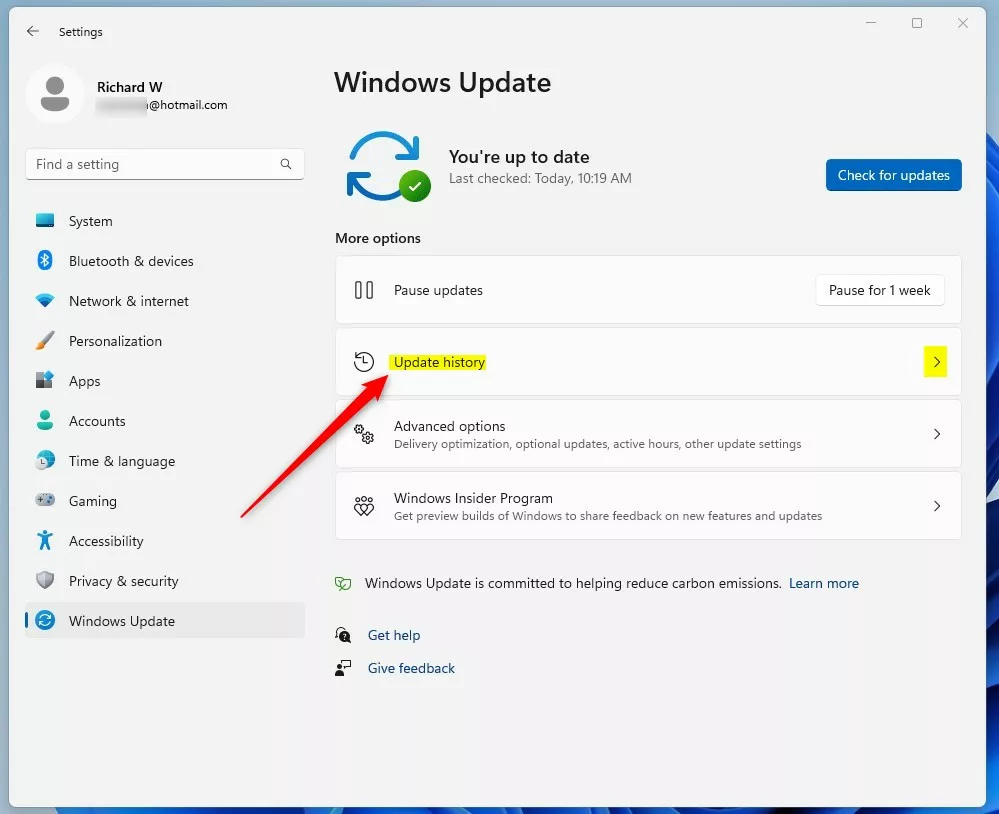
Click Update history to see installed updates.
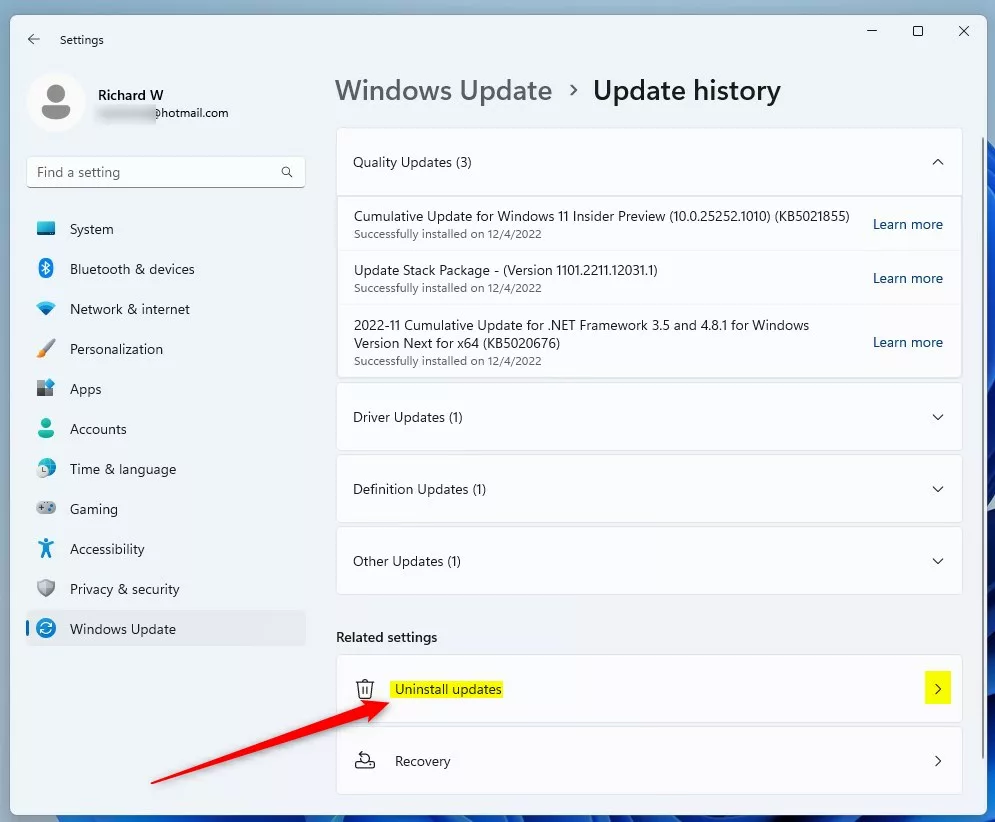
Click Uninstall updates to see the list of updates you can remove.
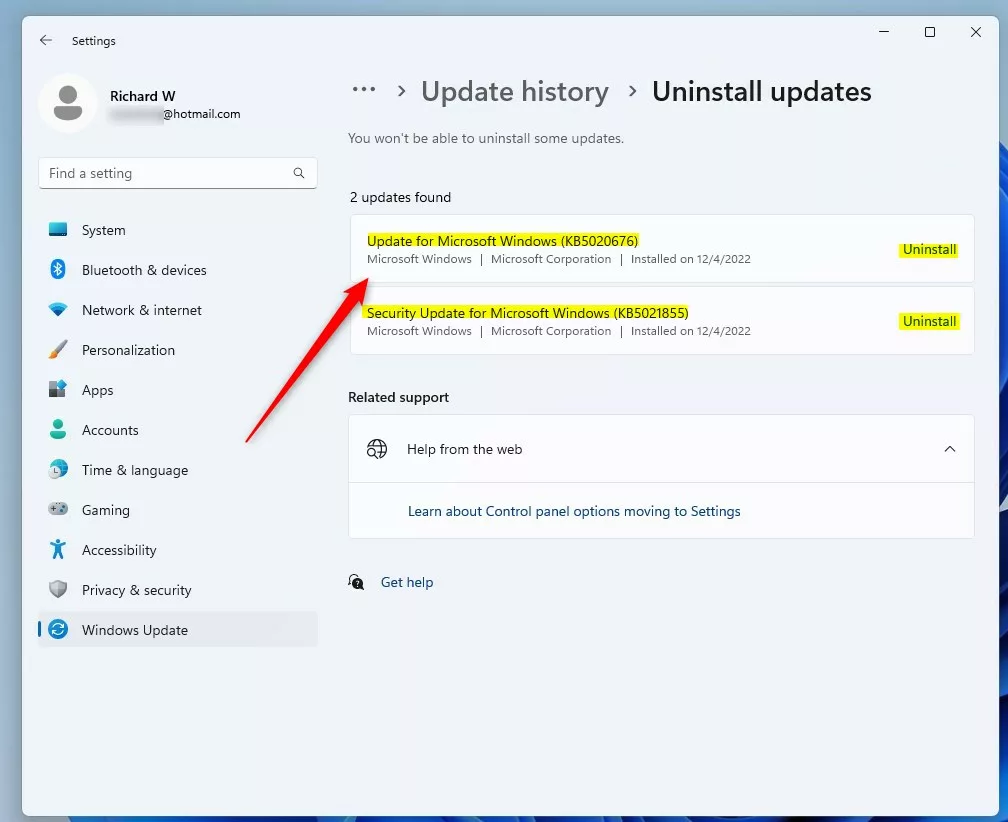
Select an update and click Uninstall.
Method 2Use the Control Panel
If you prefer, you can also uninstall updates through the Control Panel.
- Open Control Panel. You can search for it in the Start menu.
- Go to Programs, then click Programs and Features.
- On the left side, click View installed updates.
- You will see a list of updates. Select the one you want to remove, then click Uninstall at the top.
- Follow the instructions and restart your PC if needed.
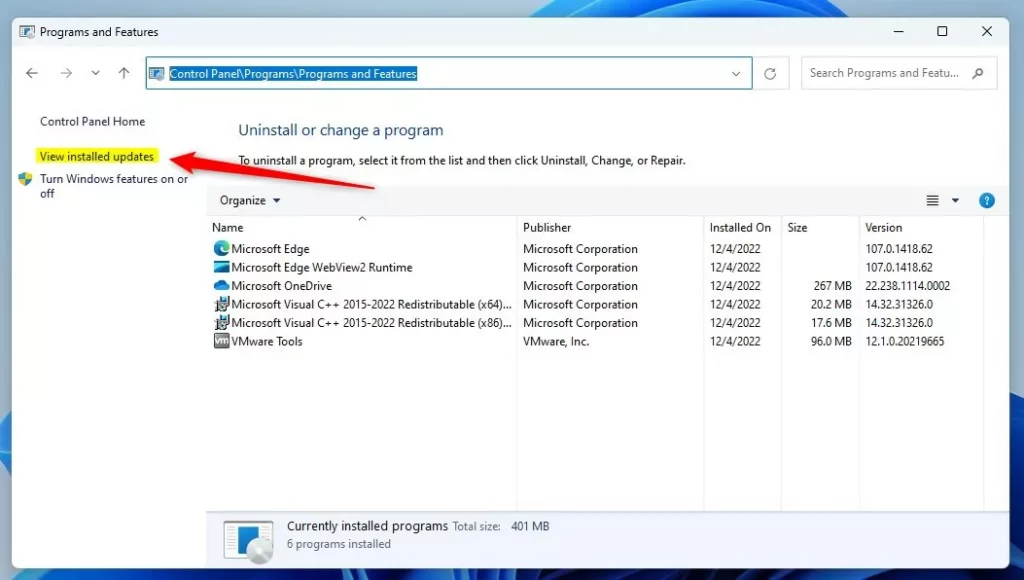
Viewing installed updates in Control Panel.
Method 3Use Advanced Startup (If You Can’t Log In)
⚠️ This step requires admin privileges.
If Windows won’t start properly, you can uninstall updates from the Advanced Startup menu.
- Turn off your PC completely.
- Turn it back on and as soon as Windows starts loading, press and hold the power button to force shutdown. Repeat this 2-3 times until you see the Advanced Startup screen. (You can also use a Windows recovery USB or follow this guide: How to Boot to Advanced Startup in Windows 11.)
- On the Advanced Startup screen, click Troubleshoot.
- Click Advanced options.
- Select Uninstall Updates.
- Choose either Uninstall latest quality update or Uninstall latest feature update, depending on the update you want to remove.
- Follow the instructions and restart your PC.
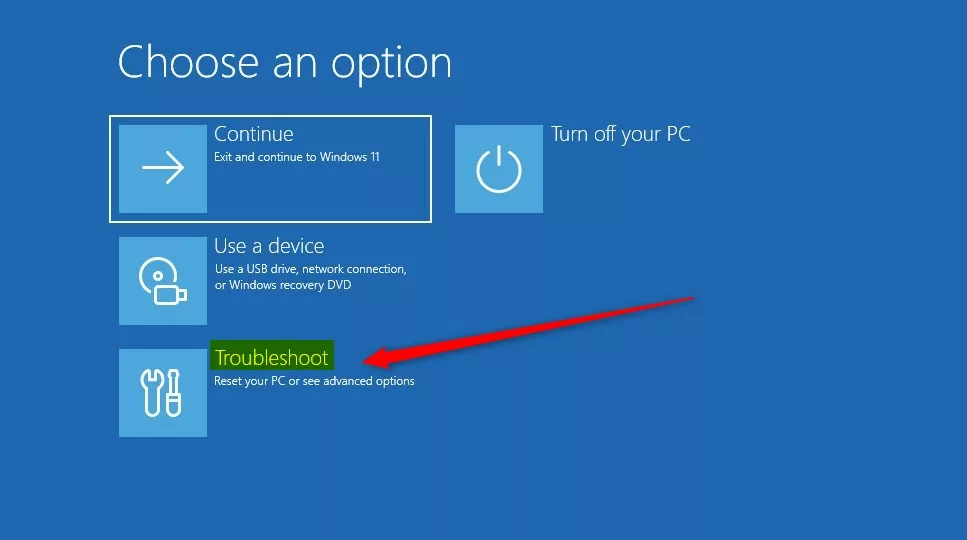
Advanced Startup menu – Troubleshoot option.
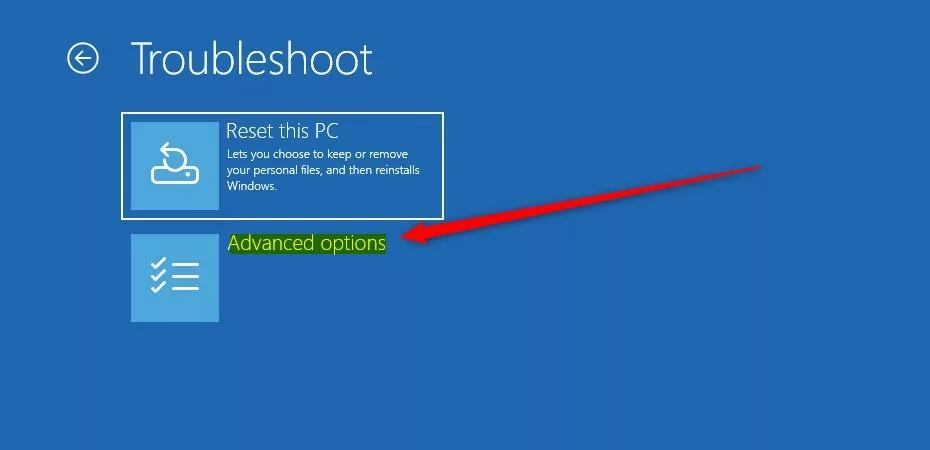
Advanced options menu.
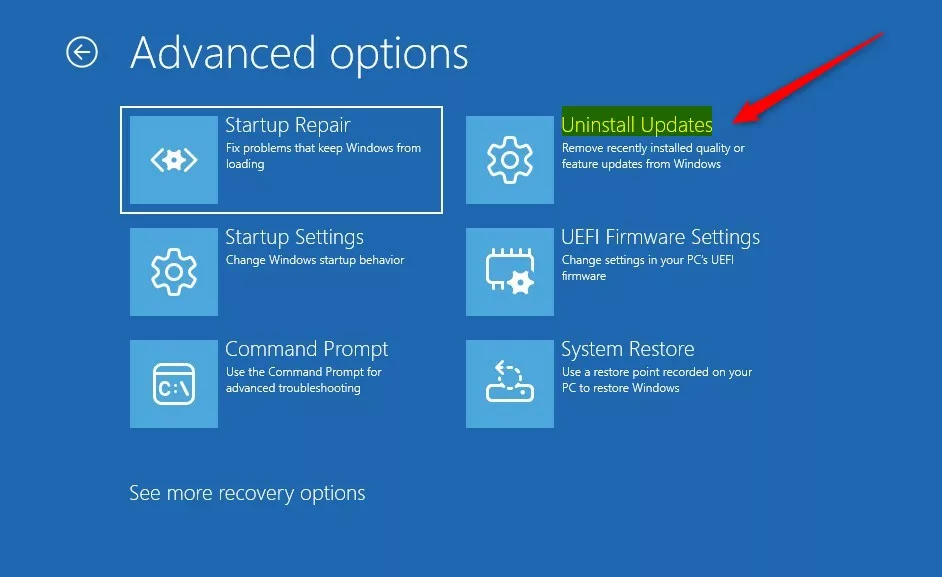
Select Uninstall Updates.
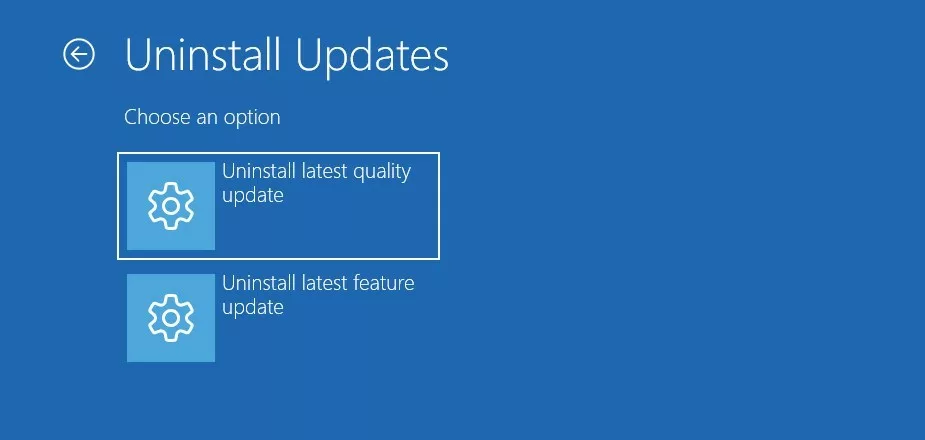
Choose which update to uninstall.
What are Quality and Feature Updates?
Feature updates are big updates that come about twice a year. They add new features and improvements.
Quality updates are smaller, regular updates that fix bugs and security problems.
Usually, uninstalling the latest quality update is enough to fix problems.
Summary
- You can uninstall Windows updates using the Settings app, Control Panel, or Advanced Startup menu.
- Be careful when uninstalling updates. It’s best to only do this if you’re sure the update is causing trouble.
- If you’re unsure, ask someone experienced or a professional for help.
- Keep your computer backed up to avoid losing important files if something goes wrong.
- Following these steps will help you fix update problems and get your Windows 11 PC working properly again.
Was this guide helpful?

About the Author
Richard
Tech Writer, IT Professional
Richard, a writer for Geek Rewind, is a tech enthusiast who loves breaking down complex IT topics into simple, easy-to-understand ideas. With years of hands-on experience in system administration and enterprise IT operations, he’s developed a knack for offering practical tips and solutions. Richard aims to make technology more accessible and actionable. He's deeply committed to the Geek Rewind community, always ready to answer questions and engage in discussions.


No comments yet — be the first to share your thoughts!