How to Reset Apps in Windows 11

You reset-an-app-to-default-in-windows-11/" class="sal-link" rel="noopener" target="_blank" data-sal-id="5996">reset an app in settings-of-library-in-windows-11/" class="sal-link" rel="noopener" target="_blank" data-sal-id="37212">Windows 11 by restoring it to its original factory settings, erasing its data and configurations.
This process acts as a powerful troubleshooting step when an application behaves unexpectedly or is unresponsive, essentially giving it a fresh start. It’s particularly useful for built-in Windows apps, like the Microsoft Store, which cannot be uninstalled in the traditional sense.
Before you commit to resetting, which will delete all user data associated with the app, you can try repairing it first. Windows 11 offers a repair option that attempts to fix corrupted files without wiping your settings.
How to Reset an App Using Windows Settings
This is the easiest way to reset an app. Follow these simple steps:
- Open the Settings app. Click the Start menu button (the Windows icon in the bottom-left corner) and then click Settings. Or, press
Windows key + Ion your keyboard to open it quickly.
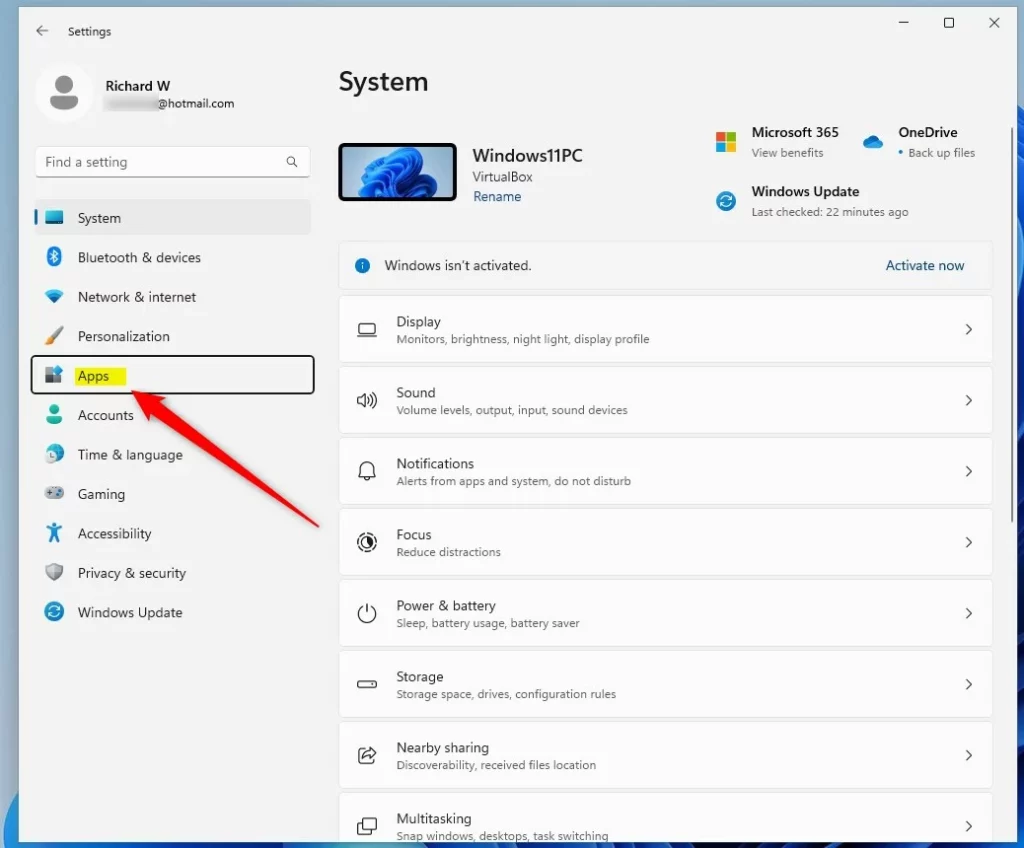
- In the Settings window, click Apps from the left side menu.
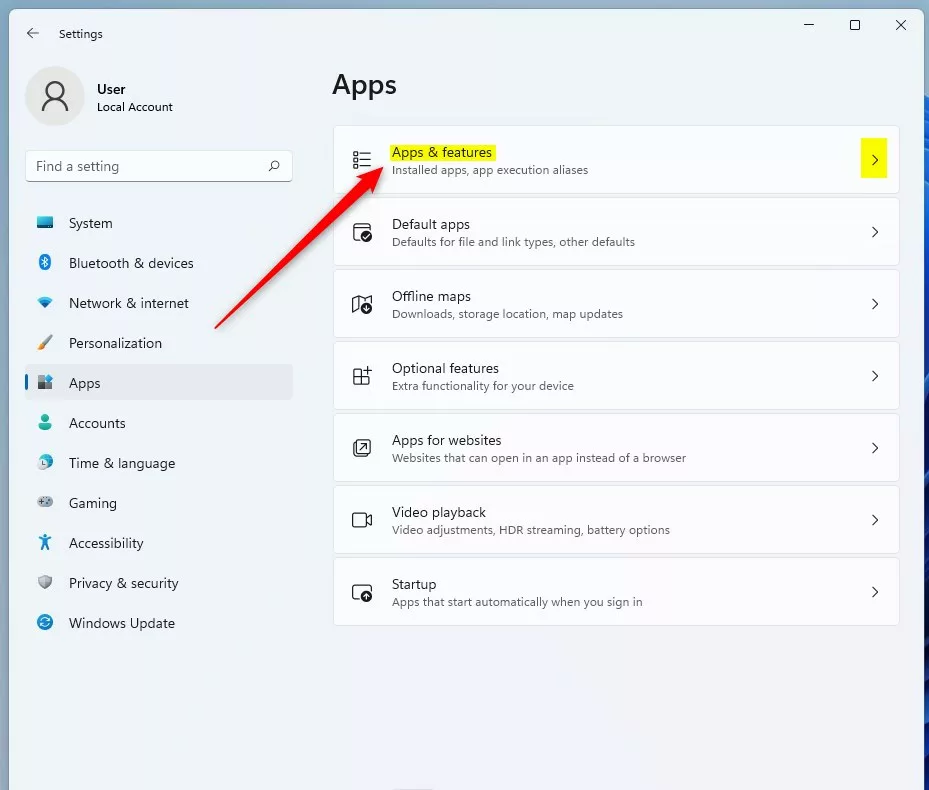
- Next, click on Installed apps (or it may say Apps & features) on the right side.
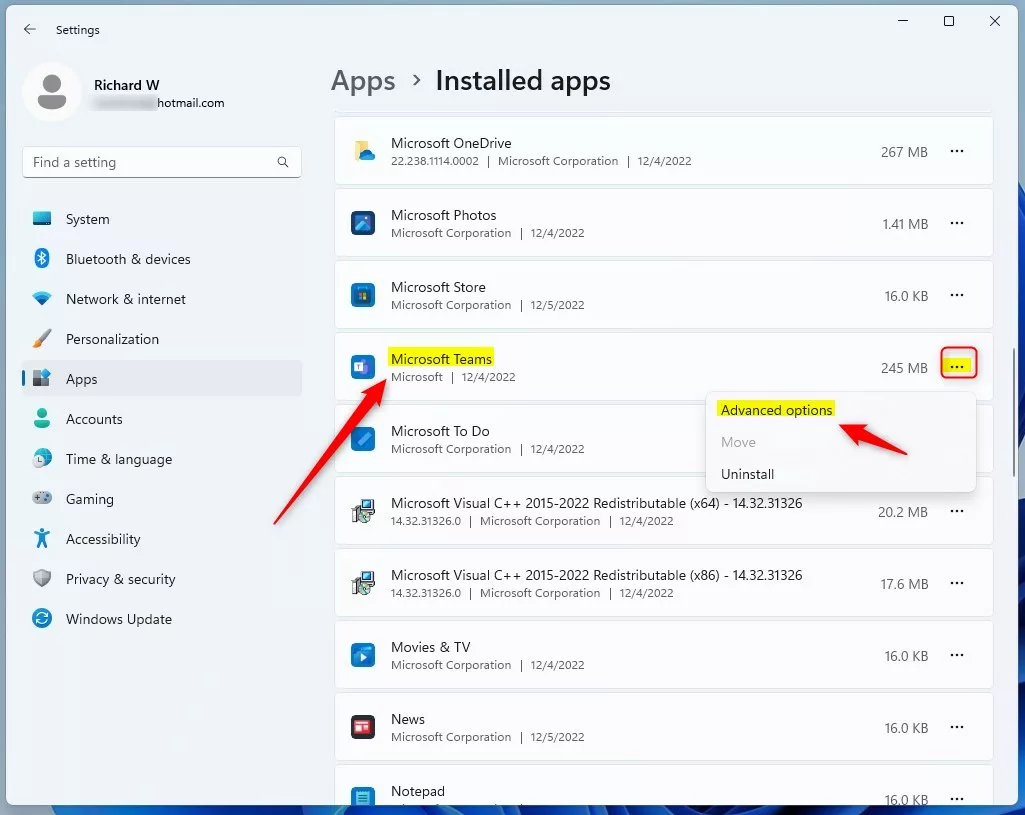
- Find the app you want to reset. Click the three dots (More options) button next to that app, then click Advanced options.
- In the Advanced options page, click the Terminate button to close the app completely.
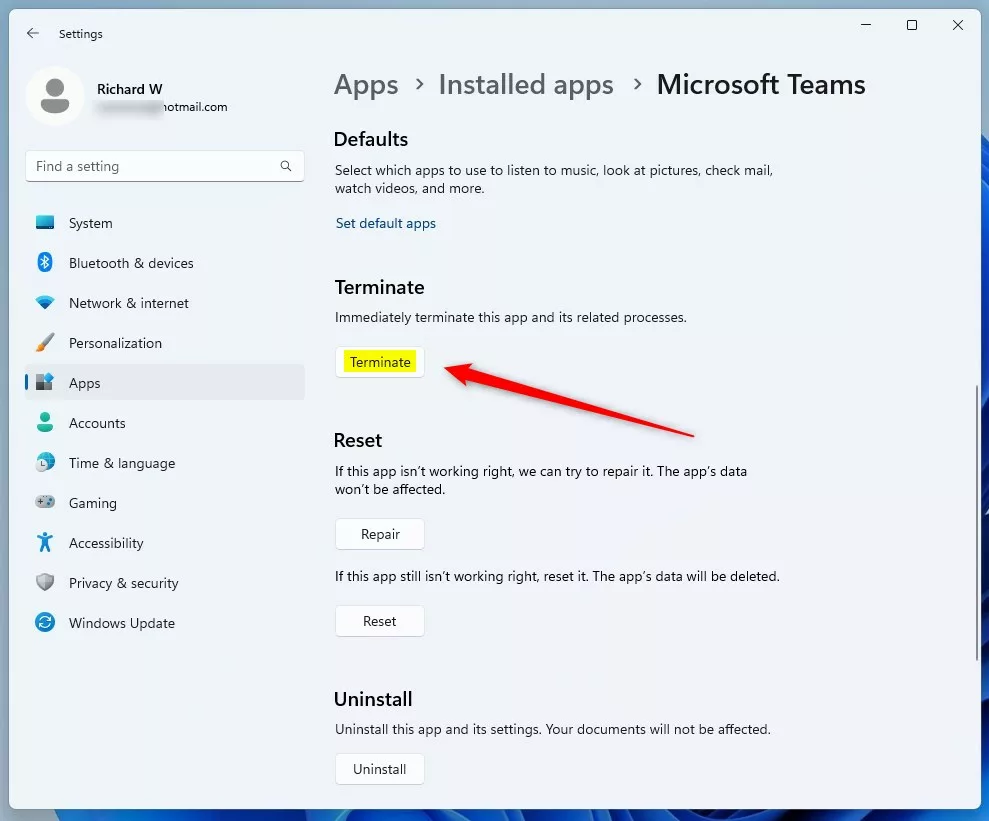
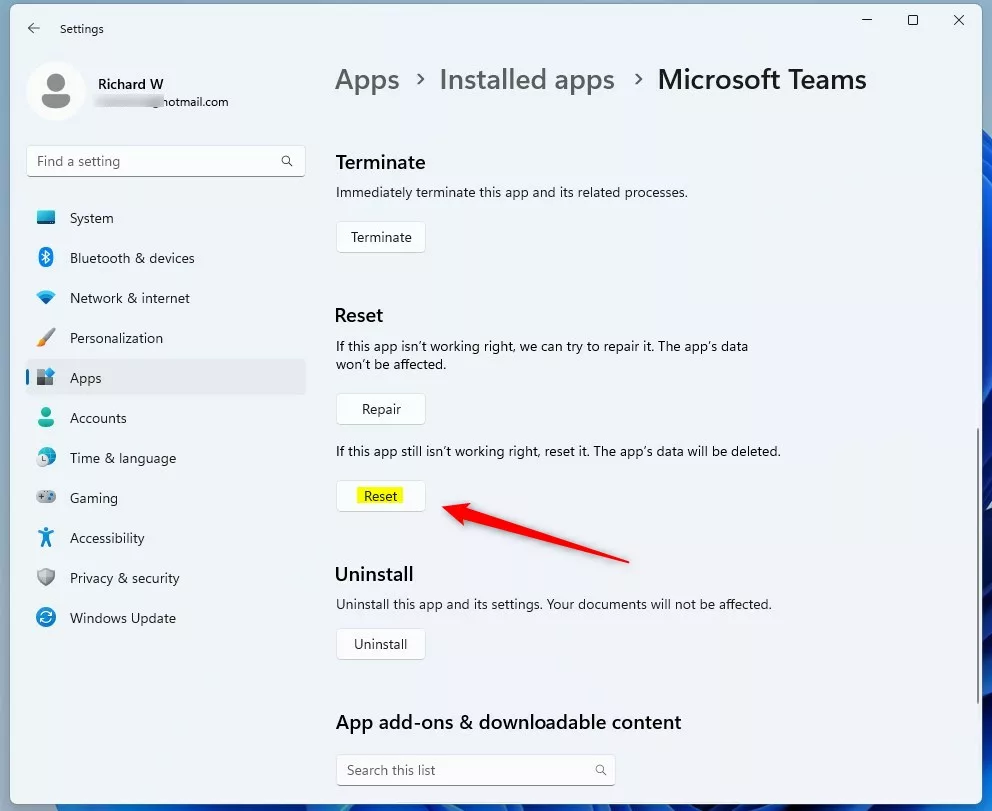
- Now, click the Reset button.
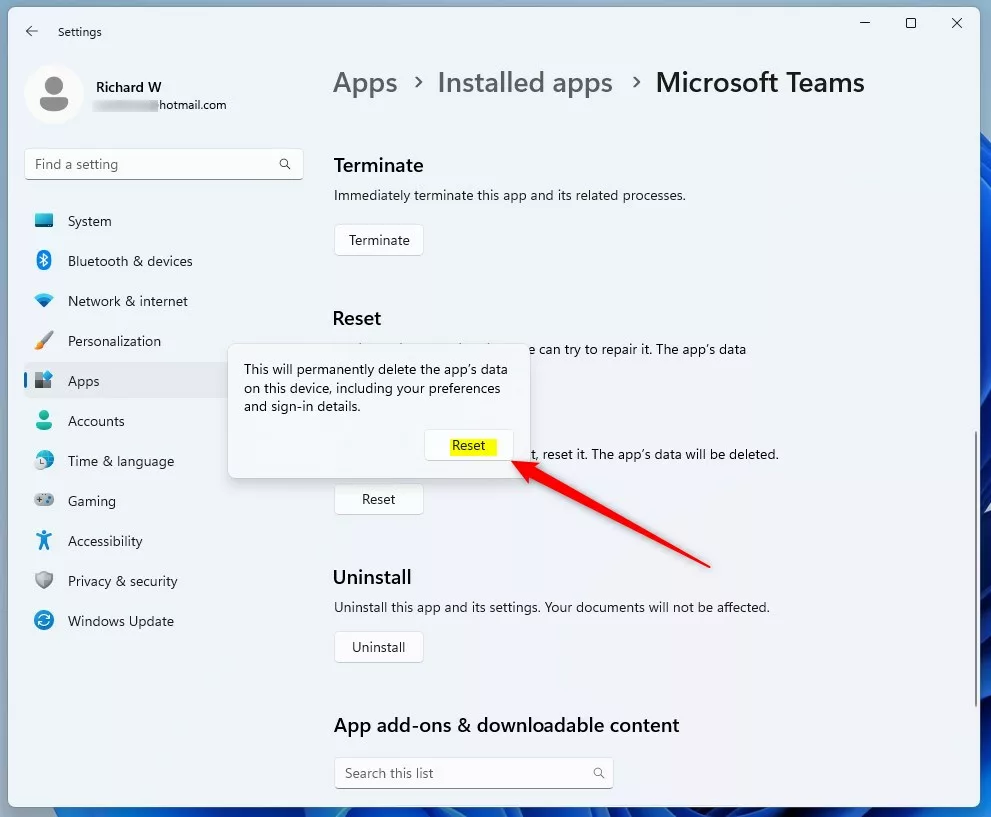
- When asked to confirm, click Reset again.
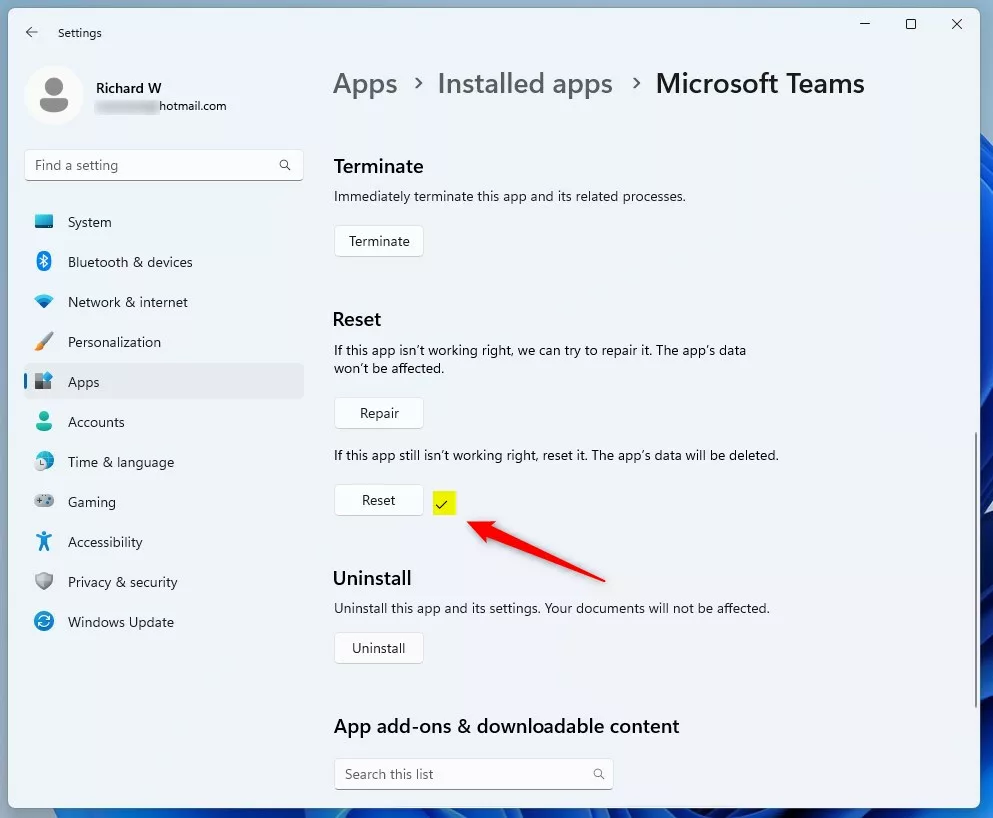
- Wait a few moments. When done, you’ll see a checkmark next to the Reset button. Your app is now reset and ready to use.
How to Reset Apps Using PowerShell (Advanced Users)
If you prefer using commands or want to reset apps that don’t show the reset option in Settings, you can use Windows PowerShell. Here’s how:
- ⚠️ Requires Admin Privileges: Open PowerShell as an administrator. Search for PowerShell in the Start menu, right-click it, and select Run as administrator.
- Type the following command to see a list of all installed apps:
Get-AppxPackage | Select Name - Scroll through the list to find the app you want to reset. Note the exact name.
- To reset the app, use this command. Replace
AppNamewith the app’s real name:Get-AppxPackage *AppName* | Reset-AppxPackage - The app will reset to its default settings.
Important Things to Remember
- Resetting an app deletes all its data and settings permanently. Make sure you back up anything important before you reset.
- If you just want to fix small problems, try repairing the app first instead of resetting.
- Using PowerShell is more advanced and should be done carefully.
- If you run into any problems or have tips, feel free to share in the comments below!
Summary
Resetting an app in Windows 11 can fix many problems. You have two ways to do it. The first way uses Windows Settings and is easier for most people. Just open Settings, find your app, click the three dots, pick Advanced options, and click Reset. The second way uses PowerShell and is for advanced users. Both methods erase all the app’s data and settings and put it back to how it was when you first installed it. Try resetting your app the next time it’s acting up. Your app should work smoothly again.
Was this guide helpful?

About the Author
Richard
Tech Writer, IT Professional
Richard, a writer for Geek Rewind, is a tech enthusiast who loves breaking down complex IT topics into simple, easy-to-understand ideas. With years of hands-on experience in system administration and enterprise IT operations, he’s developed a knack for offering practical tips and solutions. Richard aims to make technology more accessible and actionable. He's deeply committed to the Geek Rewind community, always ready to answer questions and engage in discussions.



No comments yet — be the first to share your thoughts!