How to Customize Quick Settings in Windows 11

You customize Windows 11 Quick Settings to display the toggles you use most often, like Wi-Fi, Bluetooth, or Brightness.
Quick Settings provides instant access to common system controls from a single panel, eliminating the need to navigate the full Settings app for everyday tasks.
This feature, accessible by clicking the network, volume, or battery icons, allows you to quickly manage essential functions.
By default, Windows 11 shows a set number of icons, but you can easily add or remove these shortcuts to personalize your experience and streamline your workflow.
Open Quick Settings by pressing Windows key + A or clicking the network, volume, or battery icons. Click the pencil icon to edit, then add or remove buttons as needed. Click Done to save your personalized panel.
What Is the Quick Settings Panel?
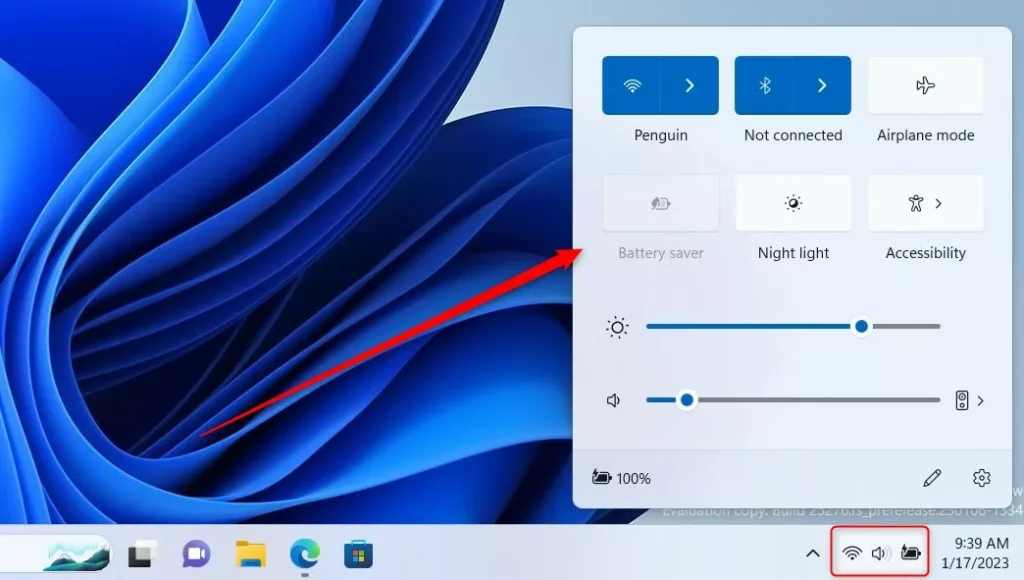
It’s a small window that opens when you click the battery, sound, or network icon in the bottom right corner. Here’s what you can control with it:
- Volume control
- Screen brightness
- Wi-Fi and Bluetooth
- Airplane mode
- Night light (makes your screen warmer at night)
- Battery saver
- And more…
You can also open Quick Settings by pressing Windows key + A.
How to Add or Remove Buttons in Quick Settings
Why do this? Adding your favorite buttons makes it faster to change settings you use every day.
What happens? Your Quick Settings panel will only show the buttons you want, in the order you choose.
Follow these easy steps:
- Press
Windows key + Aon your keyboard to open the Quick Settings panel. Or click the battery, sound, or network icon at the bottom right of your screen. - In the Quick Settings panel, click the pencil icon that says Edit quick settings.
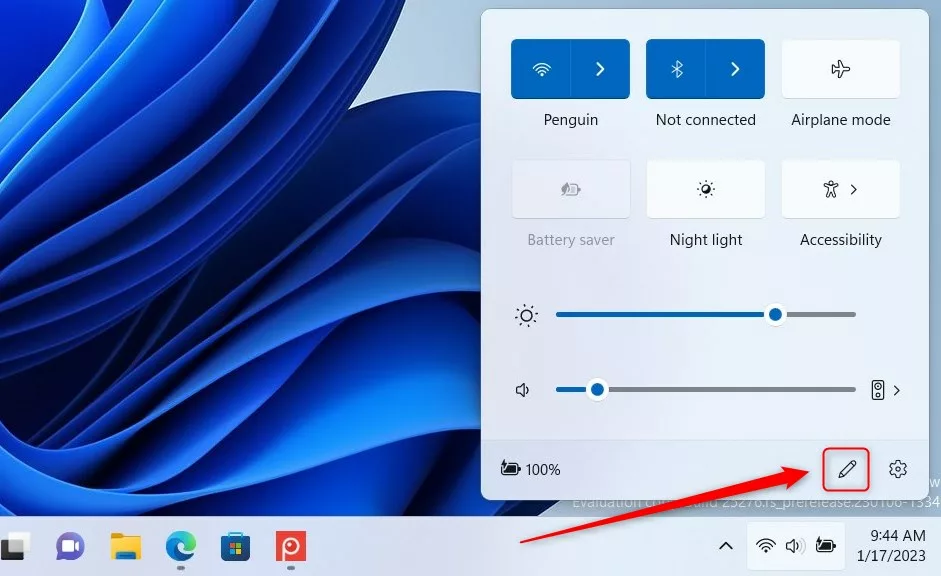
windows quick settings edit button - To add a new button, click the Add button.
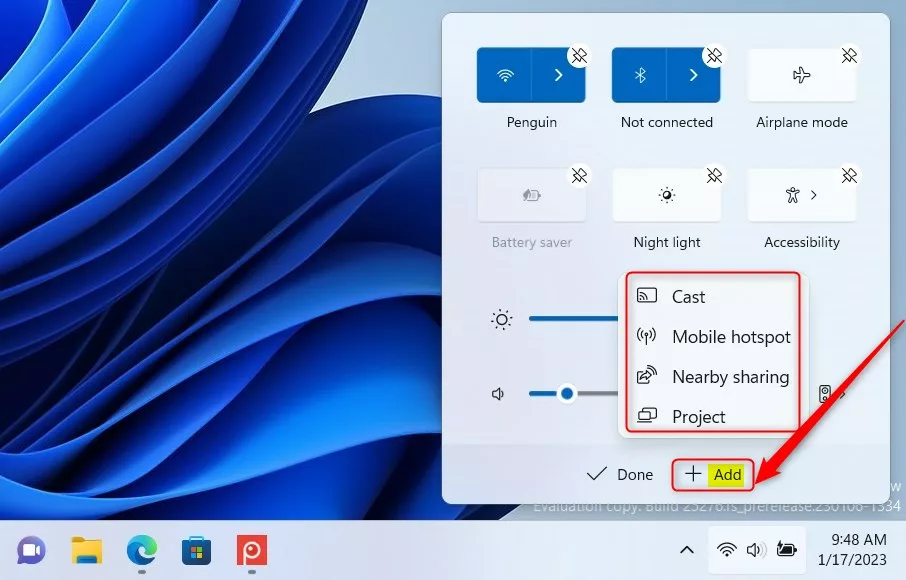
windows add quick settings button on window updated - Pick the buttons you want to add by clicking on them.
- To remove a button, click the Unpin button below the button you want to remove.
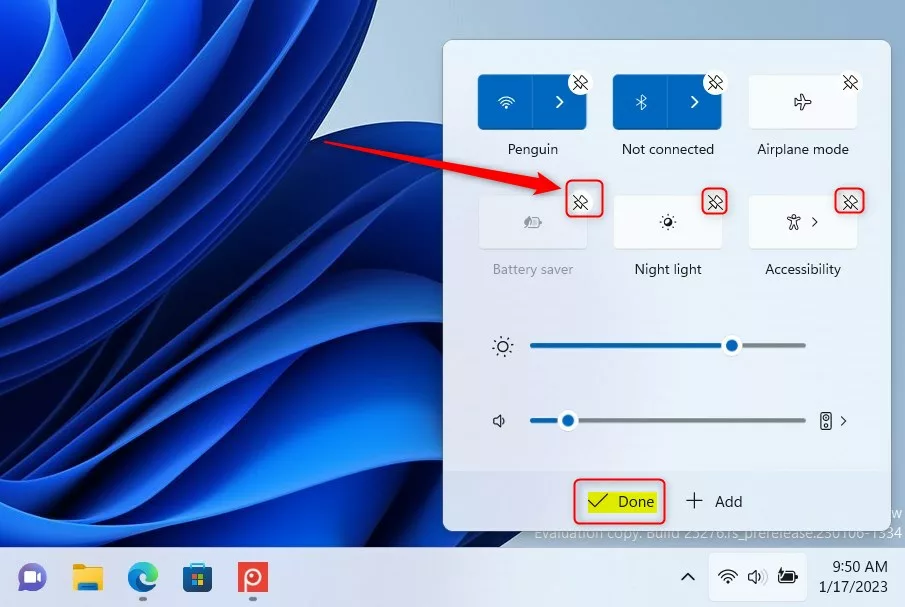
windows remove quick settings buttons - You can also rearrange buttons by clicking and holding a button and dragging it to where you want it.
- When you’re done, click the Done button to save your changes.
That’s it! Your Quick Settings panel will now have only the buttons you want, in the order you like.
Extra Tip
If you want to stop other people from changing your Quick Settings buttons, you can disable editing of Quick Settings.
Summary
- The Quick Settings panel is a quick way to change common settings on Windows 11.
- You can add, remove, or rearrange buttons to fit what you use most.
- Just open Quick Settings with
Windows + A, click the pencil icon, and customize away! - Feel free to try it out and make your Windows 11 experience faster and easier!
How do I simplify quick Settings layout in 🪟 Windows 11?
Right-click the Explorer key, hover over New, select DWORD (32-bit) Value, and name it “SimplifyQuickSettings.” In the pop-up dialog box, change the Value data to: 0 = Show the full Quick Settings panel (default) 1 = Show the simplified Quick Settings with fewer toggles.
Was this guide helpful?

About the Author
Richard
Tech Writer, IT Professional
Richard, a writer for Geek Rewind, is a tech enthusiast who loves breaking down complex IT topics into simple, easy-to-understand ideas. With years of hands-on experience in system administration and enterprise IT operations, he’s developed a knack for offering practical tips and solutions. Richard aims to make technology more accessible and actionable. He's deeply committed to the Geek Rewind community, always ready to answer questions and engage in discussions.

No comments yet — be the first to share your thoughts!