How to Show or Hide Administrator Accounts in Windows 11 UAC Prompt

Do you use a standard account on your Windows 11 PC? Sometimes Windows asks for an administrator’s password before making important changes. This happens through a security feature called uac-prompt-behavior-in-windows-11/" class="sal-link" rel="noopener" target="_blank" data-sal-id="2041">User Account Control (UAC).
By default, Windows shows a list of administrator accounts when it asks for a password. This lets you pick the right admin account and enter its password. But you can also hide this list. When you hide it, you have to type the admin account name and password yourself.
This guide shows you how to control whether Windows shows or hides administrator accounts when UAC asks for permission.
What is UAC?
User Account Control (UAC) is a Windows security feature. It helps stop unwanted changes to your PC. When you try to do something that needs admin permission, Windows shows a pop-up asking for the admin password.
Why Use This Feature?
Hiding administrator accounts adds an extra layer of security. Someone would need to know the admin username AND password. Showing accounts makes it faster to enter the password if you already know which admin account to use.
Method 1Using Local Group Policy Editor (🪟 Windows 11 Pro, Enterprise, or Education)
This method works only on Windows 11 Pro, Enterprise, or Education editions. If you have Windows 11 Home, skip to the Registry Editor method below.
- Open the Local Group Policy Editor %📂%ADMIN%%
Press Windows key + R to open the Run box. Typegpedit.mscand press Enter. - Navigate to the correct folder
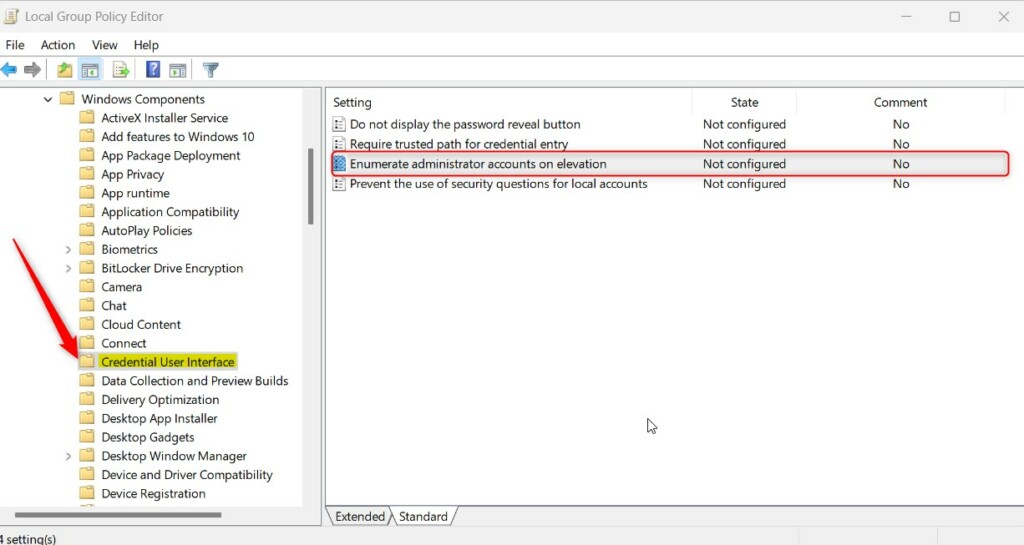
In the window that opens, go to:Computer Configuration > Administrative Templates > Windows Components > Credential User Interface - Click on the Credential User Interface folder
You’ll see it listed on the left side. - Find and open the setting
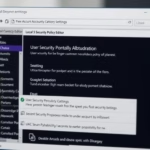
On the right, find and double-clickEnumerate administrator accounts on elevation. - Choose your option
You’ll see three choices:- Enabled: Shows all administrator accounts in the UAC prompt.
- Disabled: Hides the admin accounts. You must type the admin username and password.
- Not Configured: Same as Disabled. Admin accounts are hidden.
- Save your changes
Click OK to save. - Restart your computer
Your PC needs to restart for the changes to work.
Method 2Using Registry Editor (All 🪟 Windows 11 Editions)
If you don’t have the Local Group Policy Editor (like on Windows 11 Home), you can change this setting using the Registry Editor.
Warning: Editing the registry can cause problems if done incorrectly. Please follow each step carefully. Consider backing up your registry first if you’re not comfortable with this.
- Open the Registry Editor %📂%ADMIN%%
Press Windows key + R. Typeregeditand press Enter. - Navigate to the correct location
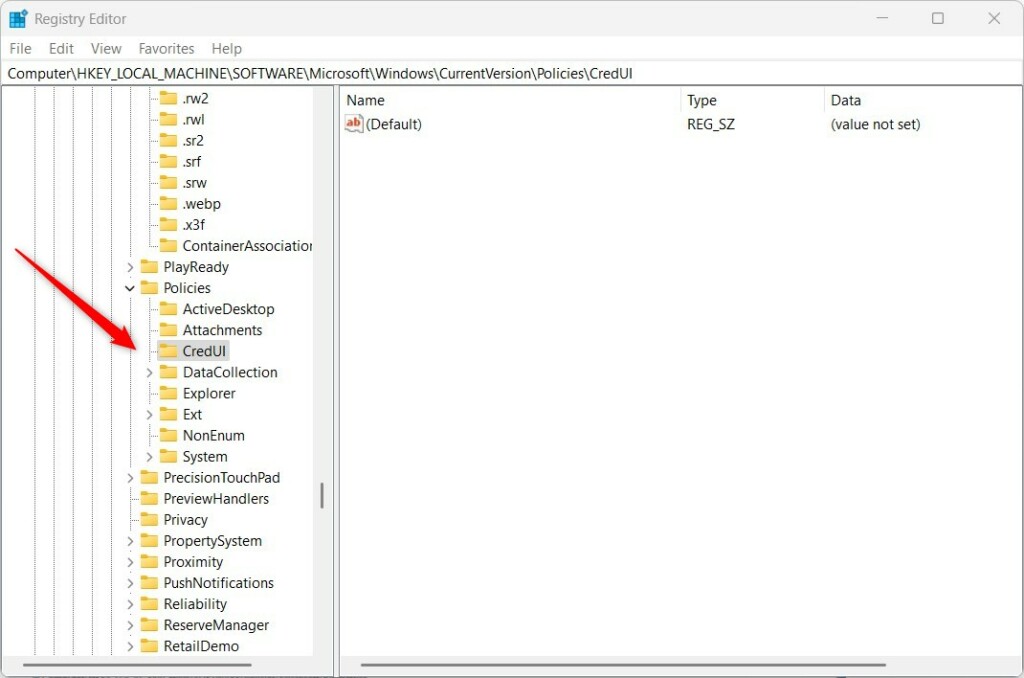
Go to this path:HKEY_LOCAL_MACHINE\SOFTWARE\Microsoft\Windows\CurrentVersion\Policies\CredUI - Create the folder if needed
If the CredUI folder doesn’t exist, you need to create it. Right-click onPolicies. ChooseNew > Key. Name itCredUI. - Create a new value
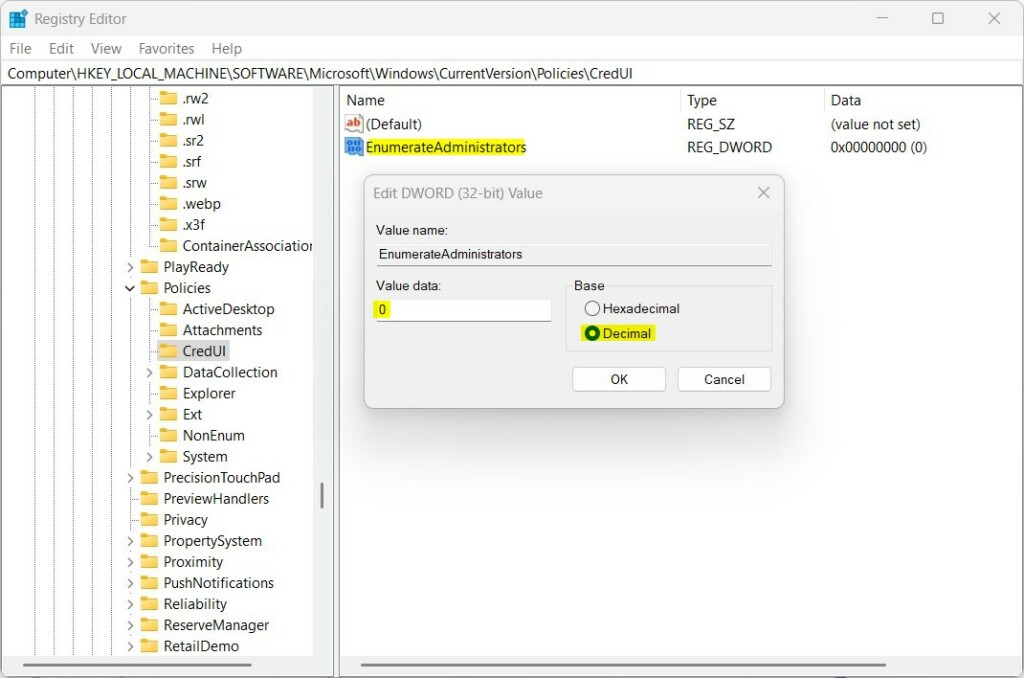
Right-click on the right side of the CredUI folder. ChooseNew > DWORD (32-bit) Value. - Name the new value
Name itEnumerateAdministrators. - Set the value
Double-click the newEnumerateAdministratorsvalue. Set Base to Decimal. Then enter one of these numbers:0to hide administrator accounts in the UAC prompt.
1to show administrator accounts in the UAC prompt.- Save and close
Click OK and close the Registry Editor. - Restart your computer
Your PC needs to restart to see the changes.
What Happens When You Change This Setting?
If you set the value to 1 (show accounts), the next time UAC asks for permission, you’ll see a list of administrator accounts. You can click the account you want and enter its password.
If you set the value to 0 (hide accounts), the next time UAC asks for permission, you’ll see a blank field. You need to type the full admin account name and password yourself.
Summary
You can control whether Windows shows administrator accounts or asks you to type the username when UAC asks for permission.
- Use the Local Group Policy Editor for Windows 11 Pro and above.
- Use the Registry Editor for all Windows 11 editions, including Home.
- Always restart your PC after making these changes for them to work.
If you want to learn more about UAC or running apps as an administrator, check out these helpful guides:
Change UAC Behavior for Standard Users in Windows 11
How to Run an App as Administrator in Windows 11
How to Open the Registry Editor in Windows 11
If you have questions or want to share tips, feel free to leave a comment below!
Was this guide helpful?

About the Author
Richard
Tech Writer, IT Professional
Richard, a writer for Geek Rewind, is a tech enthusiast who loves breaking down complex IT topics into simple, easy-to-understand ideas. With years of hands-on experience in system administration and enterprise IT operations, he’s developed a knack for offering practical tips and solutions. Richard aims to make technology more accessible and actionable. He's deeply committed to the Geek Rewind community, always ready to answer questions and engage in discussions.



No comments yet — be the first to share your thoughts!