How to Change Windows Terminal Themes

This easy guide will show you how to change how the settings-of-windows-terminal-in-windows-11/" class="sal-link" rel="noopener" target="_blank" data-sal-id="10073">Windows Terminal app looks. You can switch between dark mode, light mode, or match the Terminal’s look to your Windows 11 theme.
What is Windows Terminal?
Windows Terminal is a modern app where you can use tools like the Command Prompt, PowerShell, and Linux commands (if you have the Windows Subsystem for Linux installed). It’s a place where you type commands to control your computer.
You can customize many things in Windows Terminal, such as the language, the size when it opens, and how it behaves. One of the easiest changes is to switch its colors or theme to make it easier on your eyes or just look nicer.
Why Change the Theme?
- Dark Mode: Great if you work at night or in a dark room because it reduces eye strain.
- Light Mode: Better for bright rooms or if you prefer a lighter screen.
- Use Windows Theme: Matches the Terminal colors to whatever theme you use in Windows 11, so everything looks consistent.
Changing the theme can also help you tell the difference between multiple Terminal windows if you have many open at once.
How to Change the Terminal Theme
- Open Windows Terminal: Click the Start button (the Windows icon on the bottom left), type
Terminalin the search box, then click on Windows Terminal from the results.
- Open Settings: Inside the Terminal app, look at the top bar and click the small down arrow next to the tabs. In the menu that appears, click Settings. You can also press
Ctrl + ,(Control and comma keys) to open Settings quickly.
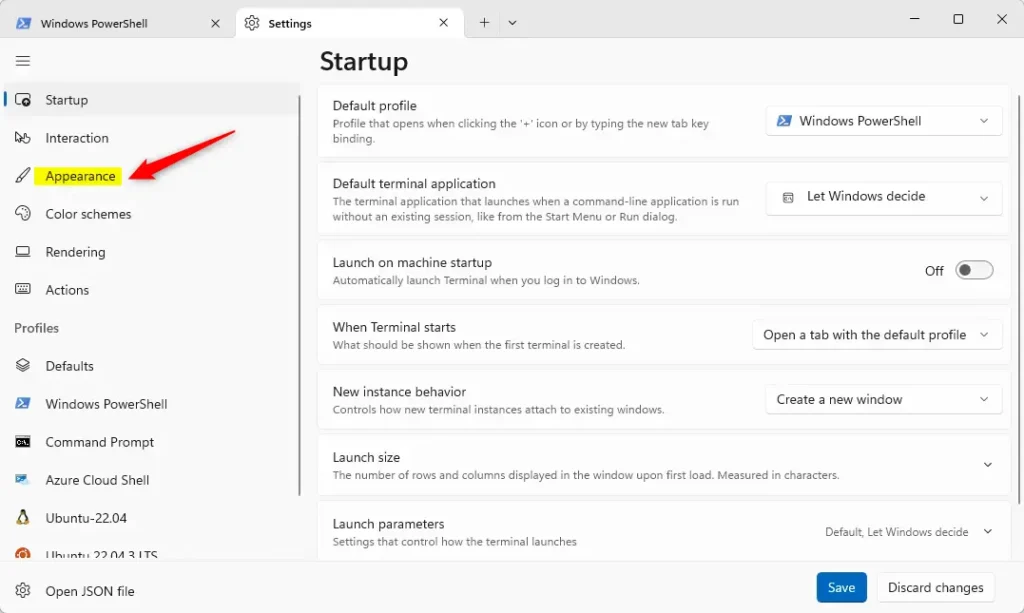
- Choose Appearance: On the left side of the Settings window, click on Appearance.
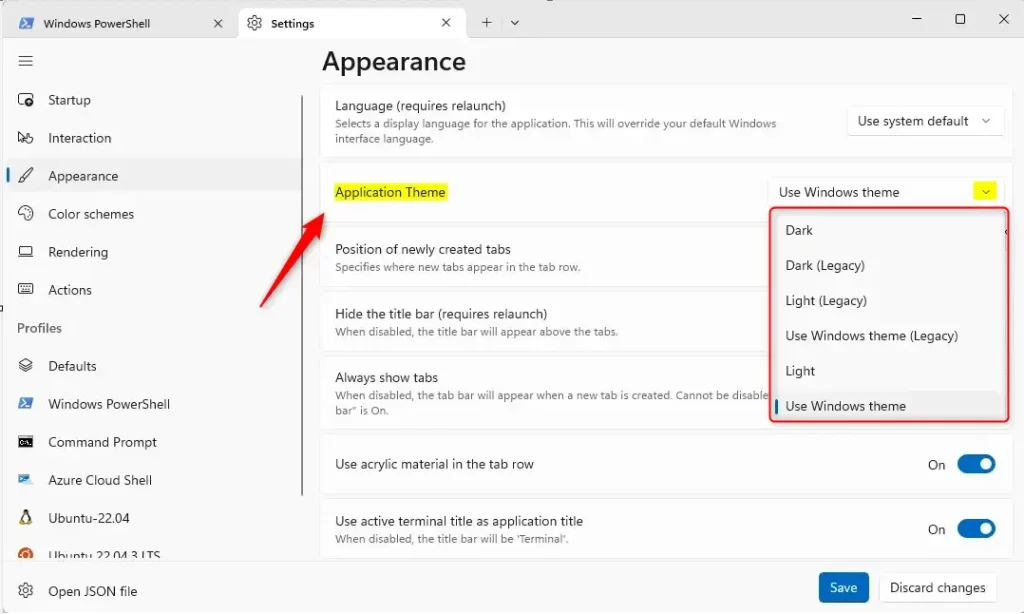
- Select Your Theme: On the right side, look for the “Application Theme” option. Click the dropdown menu and select one of these:
- Dark (this is the default)
- Light
- Use Windows theme (matches your Windows 11 colors)
- Save Your Changes: Scroll down and click the Save button to apply your new theme.
That’s it! Your Windows Terminal will now have the colors you picked.
Summary
- Changing the theme can help protect your eyes, especially in dark or bright places.
- It makes using multiple Terminal windows easier by helping you tell them apart.
- Matching the Windows theme keeps your computer looking consistent and neat.
If you want to learn more about Windows Terminal or other Windows 11 tips, check out these helpful guides:
How to Open Command Prompt in Windows 11
How to Open PowerShell in Windows 11
How to Change Windows 11 Themes
Feel free to try this out and enjoy a Terminal app that looks just how you like it!
Was this guide helpful?

About the Author
Richard
Tech Writer, IT Professional
Richard, a writer for Geek Rewind, is a tech enthusiast who loves breaking down complex IT topics into simple, easy-to-understand ideas. With years of hands-on experience in system administration and enterprise IT operations, he’s developed a knack for offering practical tips and solutions. Richard aims to make technology more accessible and actionable. He's deeply committed to the Geek Rewind community, always ready to answer questions and engage in discussions.



No comments yet — be the first to share your thoughts!