How to Turn On Unicode UTF-8 Support in Windows 11

This guide will help you turn on or off Unicode UTF-8 support in Windows 11. This feature helps your computer show languages from around the world correctly.
What is Display Language?
The display language is the language used in Windows menus, buttons, and messages. You can change it to a language you prefer.
Sometimes, when you change the display language, some programs might not show text properly because they don’t support Unicode. Turning on Unicode UTF-8 can fix this issue.
Why Turn On Unicode UTF-8?
Unicode UTF-8 helps your computer understand and display text from many different languages correctly. When you enable it, programs work better with international characters and symbols.
How to Turn On Unicode UTF-8 Using Windows Settings
Here’s a simple way to enable Unicode UTF-8 support using the Settings app in Windows 11:
- Open Settings: Click on the Start menu and select Settings, or press Windows key + I on your keyboard.
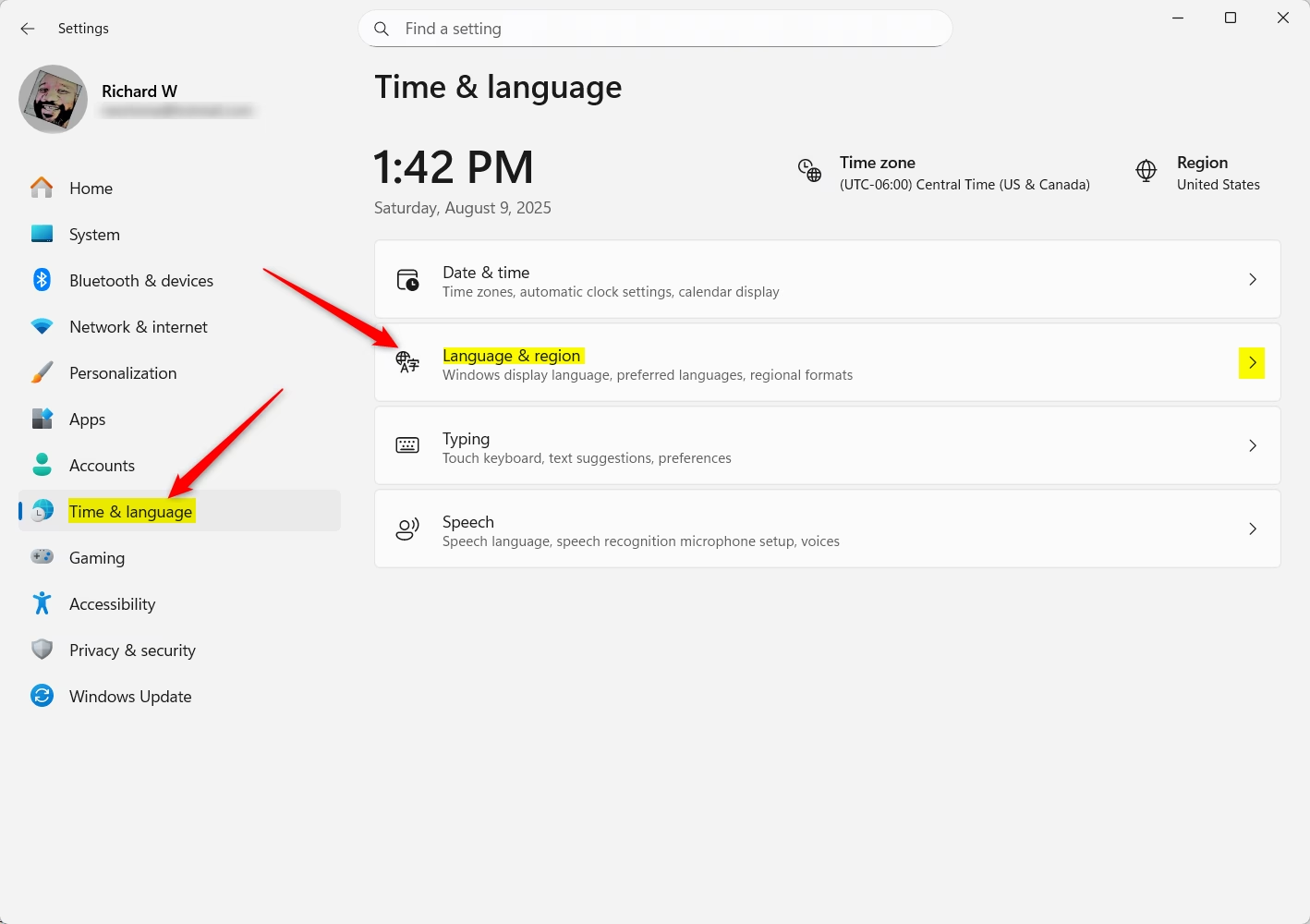
- In the Settings window, click on Time & language on the left side.
- Click on Language & region on the right side.
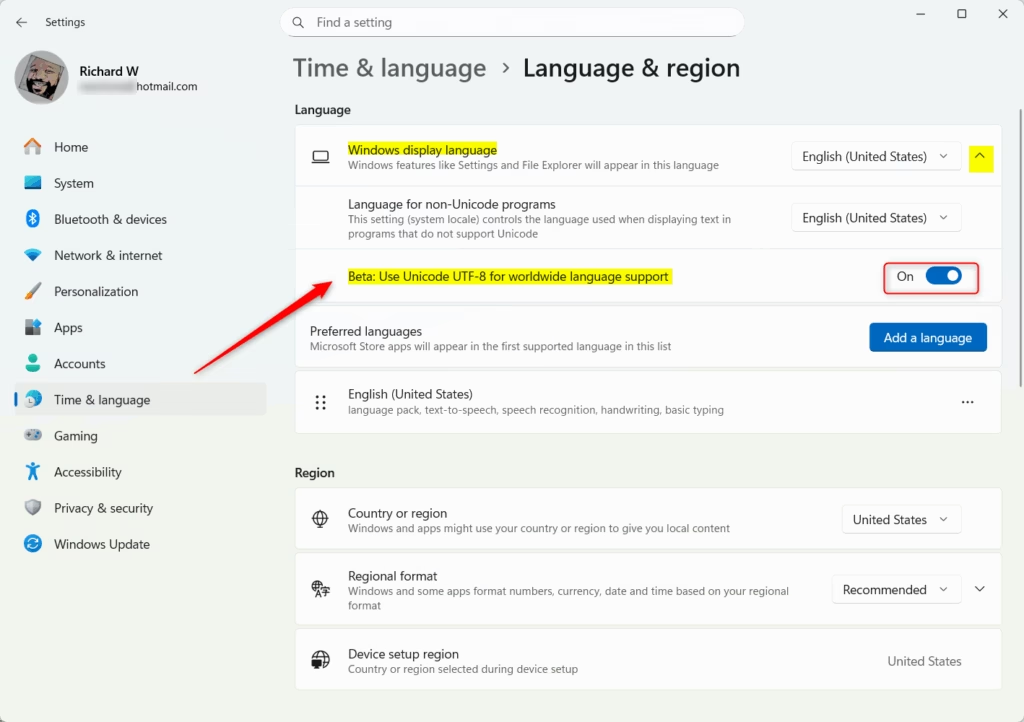
- Under Windows display language, look for the option Use Unicode UTF-8 for worldwide language support.
- Turn the switch On to enable it or Off to disable it.
How to Enable Unicode UTF-8 Using the Registry Editor (Advanced)
If you like, you can also turn on Unicode UTF-8 support by editing the Windows Registry. But be careful — making mistakes here can cause problems on your computer. It’s best to back up your registry or create a restore point before you start.
⚠️ Admin privileges required for the following steps:
- Open the Registry Editor. You can find how to do this here: Open Registry Editor.
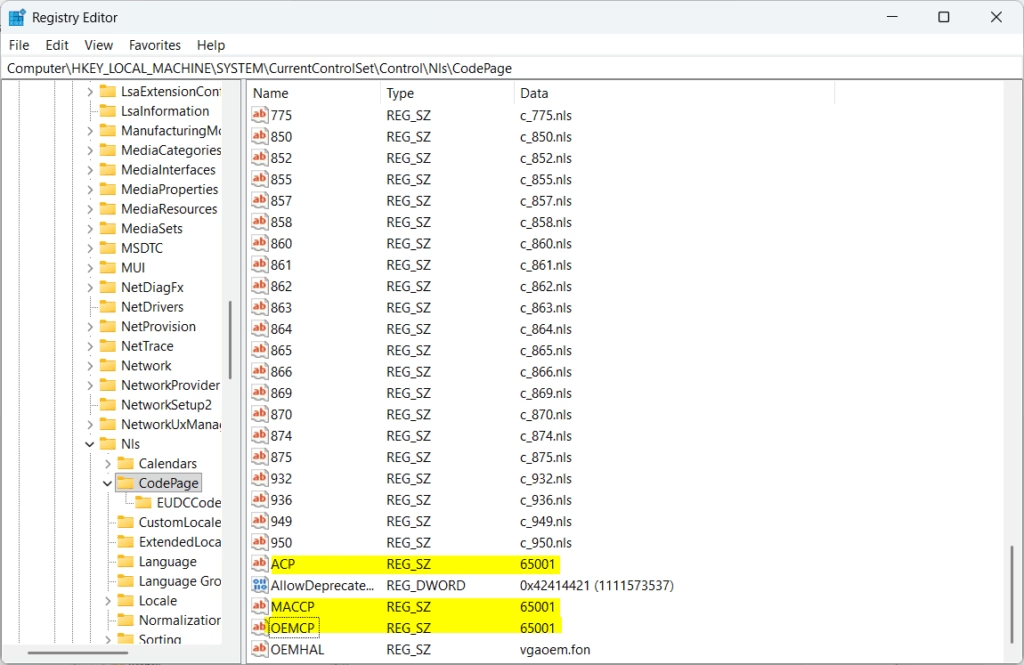
- Go to this folder path:
Computer\HKEY_LOCAL_MACHINE\SYSTEM\CurrentControlSet\Control\Nls\CodePage - Find the entries named ACP, MACCP, and OEMCP.
- Double-click each one and change their values to
65001to turn Unicode UTF-8 support on.
To disable Unicode UTF-8 support, change the values back to:
- ACP = 1252
- MACCP = 10000
- OEMCP = 437
After making these changes, restart your computer to apply them.
Summary
- Unicode UTF-8 support helps Windows display different languages correctly on your computer.
- You can use the easy Settings app method or the advanced Registry Editor method.
- Always back up your system before editing the registry to stay safe.
- Restart your PC after changes to make sure they take effect.
- Turning on UTF-8 can fix problems where some programs don’t show your language properly.
That’s all! Now you know how to enable Unicode UTF-8 support in Windows 11 to enjoy better language support.
Was this guide helpful?

About the Author
Richard
Tech Writer, IT Professional
Richard, a writer for Geek Rewind, is a tech enthusiast who loves breaking down complex IT topics into simple, easy-to-understand ideas. With years of hands-on experience in system administration and enterprise IT operations, he’s developed a knack for offering practical tips and solutions. Richard aims to make technology more accessible and actionable. He's deeply committed to the Geek Rewind community, always ready to answer questions and engage in discussions.



No comments yet — be the first to share your thoughts!