What to Do When Windows 11 Ethernet Keeps Disconnecting

A Windows 11 Ethernet connection that keeps dropping can cut off your internet during video calls, online games, or large downloads. Ethernet is the wired link between your computer and a router or modem. It is normally faster and steadier than Wi-Fi , so a wired connection that keeps cutting out is worth tracking down.
In most cases the cause is one of three things: a loose or damaged cable, outdated network driver software, or a power-saving setting that switches off your network card to save energy. The fixes below cover all three, starting with the easiest.
When Windows 11 Ethernet keeps disconnecting, first check that the cable is firmly plugged in at both ends and inspect it for damage or a broken clip. Restart your modem and router by unplugging them for 30 seconds, then plug them back in. If drops continue, open Settings System Troubleshoot and run the Network and Internet troubleshooter, then update your network driver through Device Manager.
Understanding Why Your Ethernet Keeps Disconnecting
Knowing the likely cause helps you pick the right fix instead of trying everything at random. Common causes include worn-out cables, an overloaded or glitchy router, outdated network drivers, and Windows 11 power-saving settings that shut down your network card. Less often, the cause is a problem with the motherboard’s firmware.
A useful early test is to plug another device, such as a laptop, into the same cable and port. If that device also drops, the problem is probably the cable, the router, or your internet service. If only your Windows 11 PC drops, focus on the driver and power settings.
We will work through the steps in order. They start with simple physical checks and move on to Windows settings and more advanced fixes. Test your connection after each one so you know which fix worked.
Step 1Check Your Physical Hardware and Cables
Check your cables and ports first. A loose plug, a worn cord, or a broken plastic clip can make your PC lose its link to the router, and this takes only a couple of minutes. If your PC has link lights next to the Ethernet port, watch them while you wiggle the cable. If the lights flicker or go out, the connection is physically unreliable.
- Reseat the cable. Unplug the Ethernet cable from both your computer and your router or wall jack. Plug each end back in firmly until you hear or feel a click. A cable with a broken clip slips out easily and drops your connection, so replace it if the clip is damaged.
- Inspect the cable. Look along the whole length for fraying, sharp kinks, crushed sections, or pet chew marks. If you see damage, replace the cable with a new Cat6 or Cat5e Ethernet cable. Either type handles gigabit speeds.
- Try a different router port. If your router has more than one open LAN port, move the cable to another one. Individual ports on a router can fail while the rest keep working.
- Test with a different cable. If you have a spare cable, swap it in. If the drops stop, the old cable was the problem.
Step 2Restart Your Modem and Router
Restarting your modem and router clears temporary glitches that can make your connection drop. Routers run for weeks or months at a time, and their memory can fill up or their software can hang. A full power cycle lets them start fresh and set up a clean link with your computer.
- Unplug the power cord from the back of your modem and your wireless router.
- Wait at least 30 seconds to let all the internal power drain completely.
- Plug the power cord back into your modem first. Wait a minute or two until the indicator lights stay solid.
- Plug the power cord back into your router and wait another minute for it to turn on fully.
- Check your Windows 11 computer to see if your connection stays stable. Give it a few minutes, or try the activity that was causing the drops.
If your modem and router are one combined device, unplug just that one unit and follow the same waiting times.
Step 3Run the Built-In Network Troubleshooter
The built-in Network and Internet troubleshooter lets Windows 11 scan for common connection problems and apply quick fixes on its own. It will not solve every case, but it is fast and can catch simple faults such as a disabled adapter or a bad IP configuration.
- Click the Windows Start button and select Settings (the gear icon).
- In the Settings window, click on System on the left menu.
- On the right side, click on Troubleshoot.
- Click on Other troubleshooters. You should see a list of troubleshooters.
- Find Network and Internet in the list and click the Run button next to it.
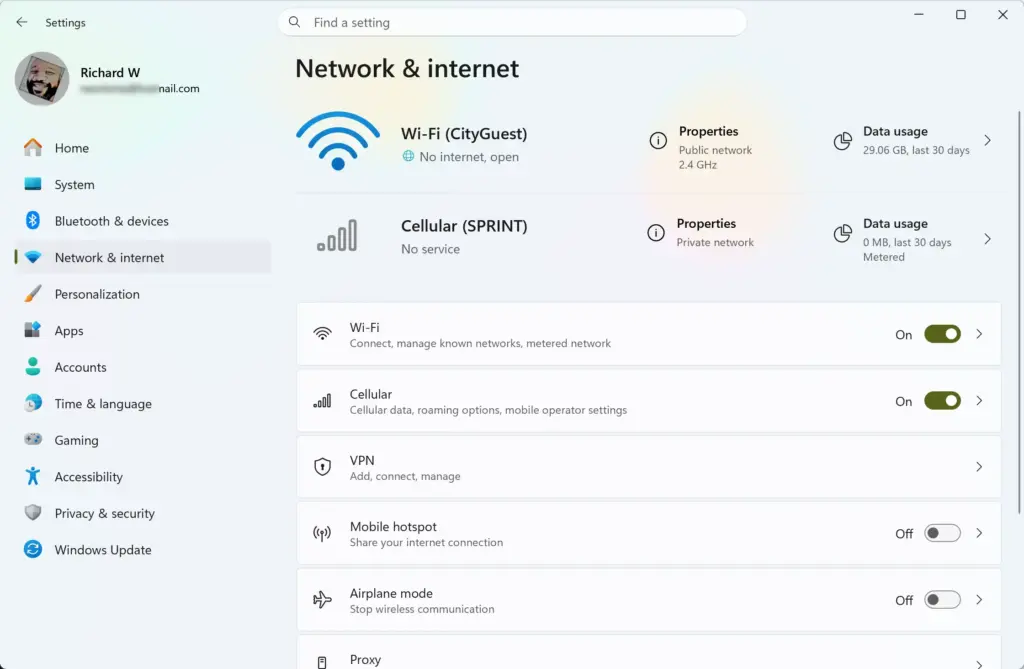
Settings › Network & internet - Follow any instructions that appear on your screen and let Windows try to repair the issue. If it reports a fix, test your connection. If it finds nothing, move on to the next step.
Step 4Prevent Windows from Turning Off Your Adapter to Save Power
Windows 11 sometimes tries to save electricity by switching off your network card during quiet periods. On some adapters this causes random Ethernet drops, or a connection that does not come back properly. Turning this setting off in Device Manager tells Windows to keep the card powered at all times.
- Right-click the Windows Start button and choose Device Manager from the menu.
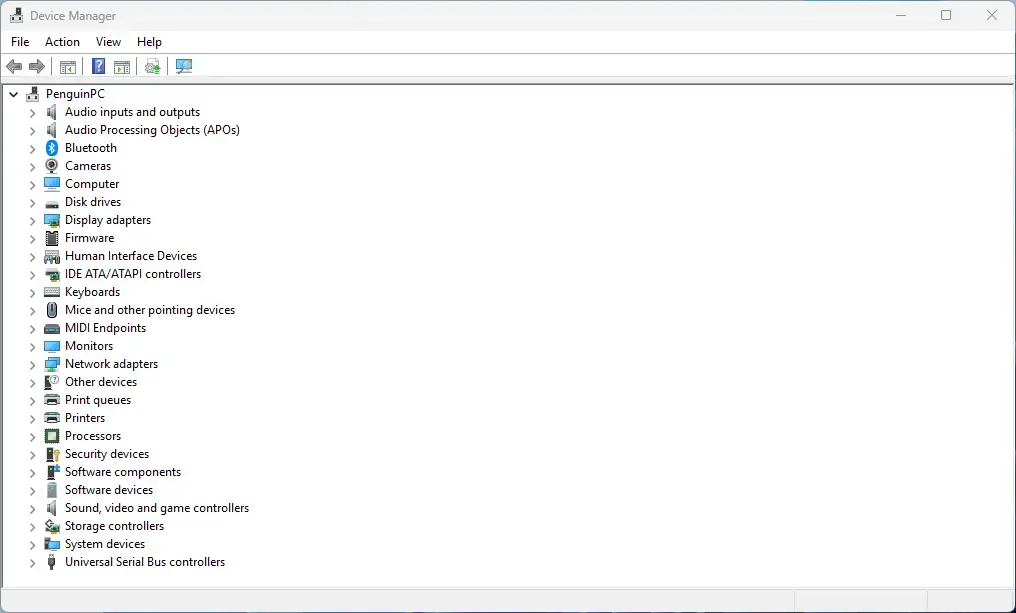
Device Manager - Scroll down the list and click the arrow next to Network adapters to open the list of adapters.
- Look for your Ethernet adapter. It usually has a name like Realtek PCIe GBE Family Controller or Intel Ethernet Connection. Ignore entries for Wi-Fi, Bluetooth, or virtual adapters.
- Right-click your Ethernet adapter and choose Properties.
- In the Properties window, click on the Power Management tab at the top. If you do not see this tab, you are probably looking at the wrong adapter, or your driver does not offer power options.
- Uncheck the box that says Allow the computer to turn off this device to save power.
- Click the OK button to save your changes. The connection may drop for a moment while the adapter updates.
To undo this, go back to the same tab and tick the box again.
Step 5Reset Your Network Settings
A network reset puts your computer's network configuration back to its defaults. It clears out broken settings left behind by system updates, VPN software, or other apps. Windows removes and reinstalls your network adapters, then sets networking components back to how they were originally.
Before you start, write down any custom settings you rely on, such as a static IP address or custom DNS servers. A reset removes them. You may also need to reinstall or set up VPN software again afterward.
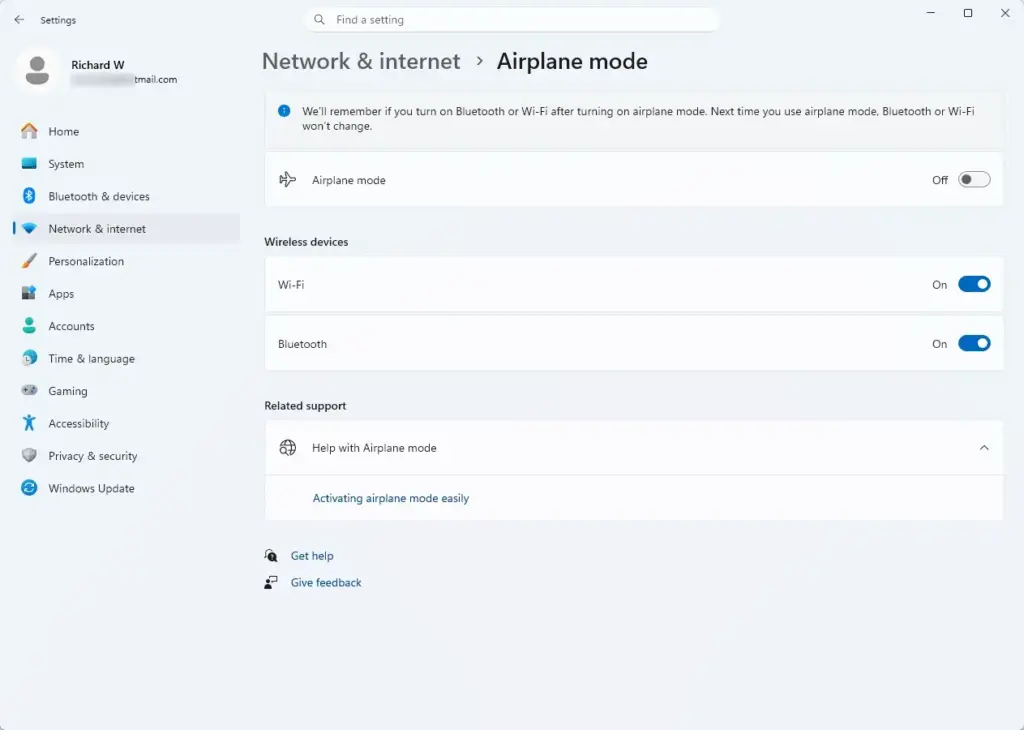
- Click the Windows Start button and open Settings.
- Click on Network & internet on the left menu.
- Click on Advanced network settings on the right side.
- Scroll down and click on Network reset.
- Read the warning message and click the Reset now button.
- Confirm your choice by clicking Yes. Your computer will restart automatically. Save your work first, because the restart happens without further prompts.
Once your computer starts back up, you will need to reconnect to any Wi-Fi networks you use and enter their passwords again. Your wired Ethernet connection will use fresh, clean settings. Test it for a while to see whether the drops are gone.
Step 6Update or Reinstall Your Network Adapter Driver
Your network card relies on driver software to talk to Windows 11. If that driver is outdated or corrupted, the Ethernet connection can drop. Updating it through Device Manager replaces old files with newer ones. If that does not help, a full reinstall gives you a clean copy.
Note: This step requires administrator privileges.
First, try updating the driver:
- Right-click the Windows Start button and select Device Manager.
- Click the arrow next to Network adapters to expand the list.
- Right-click your Ethernet adapter and choose Update driver.
- Select Search automatically for drivers and let Windows find and install any updates.
If Windows says the best drivers are already installed, that only means it found nothing newer through Windows Update. The manufacturer's website may still have a newer version. You can download it on another device and copy it over on a USB drive.
If updating does not work, try reinstalling the driver completely:
- Right-click your Ethernet adapter in Device Manager and choose Uninstall device.
- Check the box that says Attempt to remove the driver for this device if you see it.
- Click Uninstall. Your Ethernet connection will go offline at this point, which is expected.
- Restart your computer. When Windows boots back up, it will automatically reinstall a fresh copy of the driver.
If the adapter does not come back after the restart, install the driver you downloaded from your PC or motherboard maker's website.
Step 7Disable Energy Efficient Ethernet and Green Ethernet
Energy Efficient Ethernet and Green Ethernet are power-saving features built into the network hardware. They lower power to the port when traffic is light. If the adapter and the router or switch do not handle this well, the link can drop. Turning these features off keeps your Ethernet port fully active. The exact names depend on your adapter's manufacturer, and some adapters do not offer them.
Note: This step requires administrator privileges.
- Right-click the Windows Start button and open Device Manager.
- Expand Network adapters and right-click your Ethernet adapter.
- Select Properties.
- Click on the Advanced tab at the top. You should see a list of properties on the left and a value box on the right.
- Look through the list of properties for items named Energy Efficient Ethernet, Green Ethernet, or Power Saving Mode.
- Click on each one and change its value on the right side to Disabled.
- Click OK to save your settings. The connection may drop briefly while the adapter applies the change.
If none of those items are in the list, your adapter does not expose them and you can skip this step. To undo the change, set the values back to Enabled.
Step 8Use Command Prompt to Clear Network Cache
Resetting the network stack and clearing the DNS cache removes old connection data and stored addresses that can cause conflicts. You run a few commands in an administrator Command Prompt. This lets your system start fresh with a clean connection to your router.
Note: This step requires administrator privileges.
- Click the Windows Start button and type cmd in the search bar.
- Right-click on Command Prompt in the search results and choose Run as administrator. If a User Account Control prompt appears, click Yes. A black command window opens.
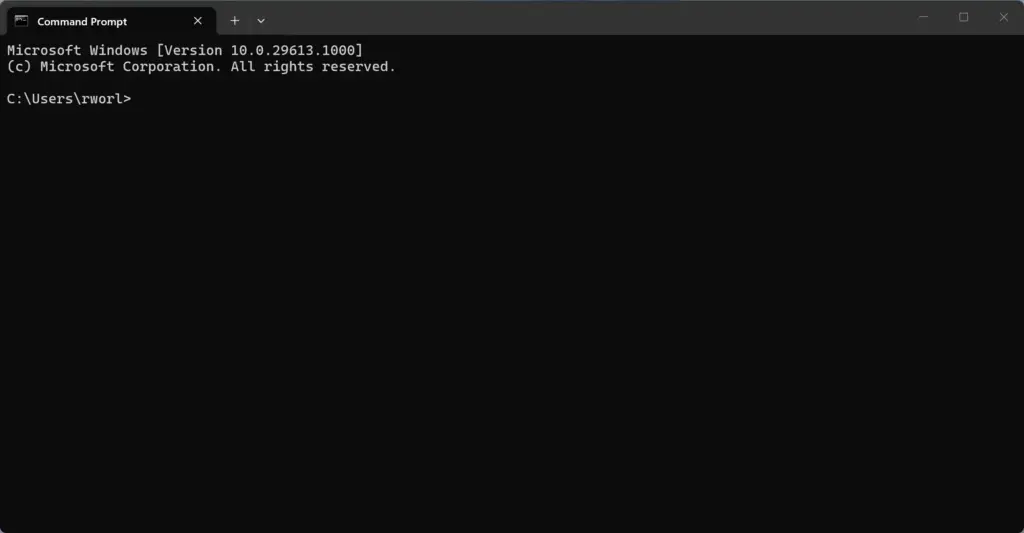
Command Prompt - Type the following command and press Enter on your keyboard:
ipconfig /release - Next, type this command and press Enter:
ipconfig /renew - Finally, type this command to clear your DNS cache and press Enter:
ipconfig /flushdns - Close the Command Prompt window and restart your computer. The reset commands do not fully take effect until you restart.
If a command reports "Access is denied," the window was not opened as administrator. Close it and repeat from the first step.
Unique Angle: Checking Motherboard BIOS and Chipset Drivers
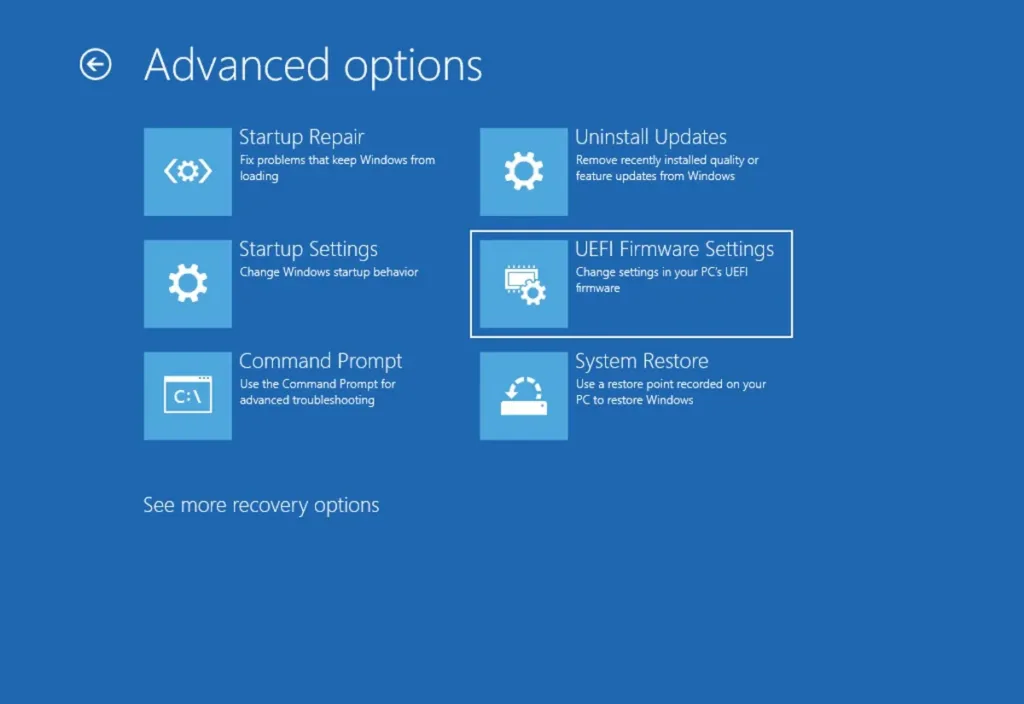
Your built-in Ethernet port depends on the computer's main system board, so outdated motherboard software can cause the port to misbehave. Updating your chipset drivers and BIOS makes sure the motherboard works properly with your network port. This is the last resort, because a BIOS update carries more risk than the earlier fixes.
If your Ethernet keeps dropping even after you try all the standard software fixes, visit your computer manufacturer's website or your motherboard maker's support page. Look up your exact computer model, download the latest chipset drivers, and check whether a BIOS update is available. An outdated BIOS (basic input/output system firmware that controls core hardware) can sometimes mismanage power delivery to PCIe slots and built-in network chips, leading to random connection drops during heavy use.
Read the manufacturer's update instructions before you flash a BIOS. Keep the computer plugged into power for the whole update, and do not turn it off partway through. On a laptop, connect the charger first. If you would rather not do a BIOS update yourself, an external USB Ethernet adapter is a low-risk way to test whether the built-in port is the problem.
Summary
Fixing an Ethernet connection that keeps dropping in Windows 11 usually takes a mix of physical checks and software changes. You can solve most cases by checking your cables, restarting your router, turning off power-saving settings, updating your network drivers, and resetting your network settings. Work through the steps in order and test after each one, so you know which change fixed it.
Have a question about this guide?
Answered by AI from this guide. Good questions may be added to this page — please don't include personal details.
Did this guide fix your problem?

About the Author
Richard
Tech Writer, IT Professional
Richard is a writer at Geek Rewind who turns complex IT tasks into clear, step-by-step guides. He draws on years of hands-on experience in system administration and enterprise IT operations, focusing on Windows, Linux and WordPress: the problems people actually run into, and the fixes that work. His server and WordPress guides come from systems he runs himself. Richard builds and maintains the platform behind Geek Rewind, from its Ubuntu servers and Nginx configuration to its custom WordPress plugins. Many new tutorials start with readers' questions, and he's always glad to answer them in the comments.
No comments yet — be the first to share your thoughts!