How to Manage Copilot Plugins in Windows 11


Copilot plugins in Windows 11 are small add-ons that let the built-in AI assistant talk to programs like Spotify and OpenTable to fetch information and run tasks for you. Turning on a plugin gives the AI permission to read your data, while turning it off cuts off that access right away.
You can manage these extra tools in the Windows 11 settings menu at any time to control your privacy or speed up your daily workflow.
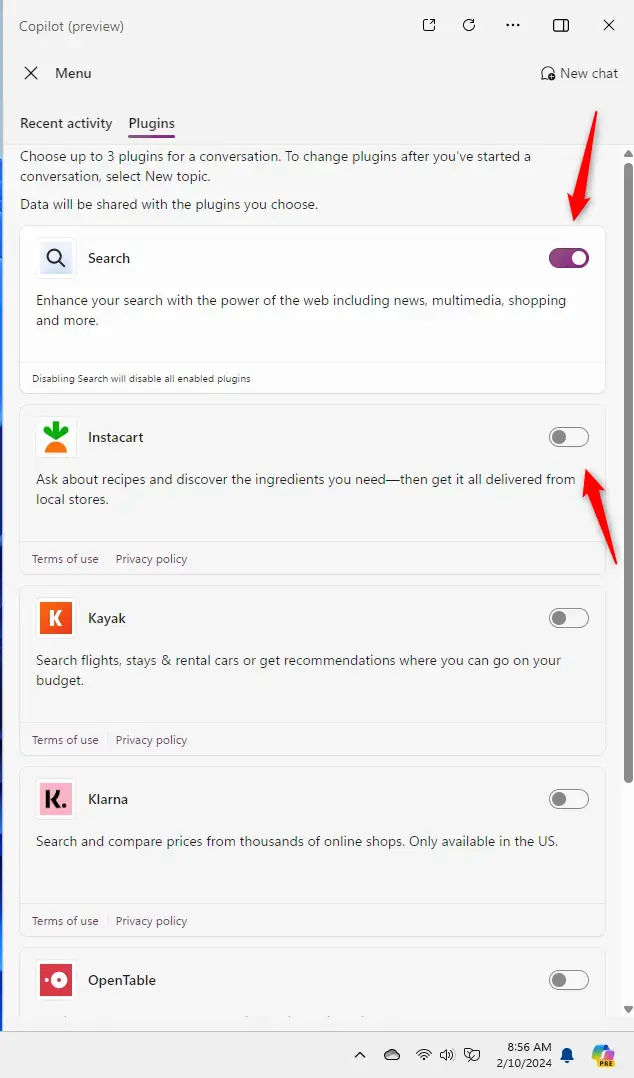
Enable or disable Copilot plugins in Windows 11 via the Copilot settings. Open Copilot, click the Plugins icon, and use the switches to turn plugins on or off. Disabling the Search plugin deactivates all other plugins.
Enterprise Administrative Controls
Enterprise administrative controls let IT administrators manage Copilot plugins across an entire organization using the Microsoft 365 admin center. Tenant-level permissions override individual user settings, so you must test any plugin deployment in a sandbox environment (a secure, isolated testing area) first to prevent unexpected issues before rolling out changes to your whole company.
Administrators manage Copilot plugins for the entire company through the Microsoft 365 admin center. Tenant-level permissions override individual user settings, impacting the entire organization. Test plugin deployment in a sandbox environment (a secure, isolated testing area) to prevent unexpected issues before a broader rollout.
Preinstalled vs. Custom Plugins
Preinstalled plugins come standard with Microsoft 365 Copilot to provide core functionality. Internal developers build custom plugins to connect internal systems with specific business applications. Varying contributor permissions within the organization dictate who can manage these add-ons.
How to Manage Copilot Plugins in 🪟 Windows 11
You can manage Copilot plugins in Windows 11 directly inside the AI sidebar to turn extra tools on and off. Open Copilot with the Win+C shortcut, click the plugins icon in the top right corner, and toggle your preferred add-ons to change how the assistant helps you with daily tasks.
- Open the Windows Copilot by clicking its icon or pressing Windows key + C.
- Look for the Plugins (blocks) icon in the top right corner of the pane.
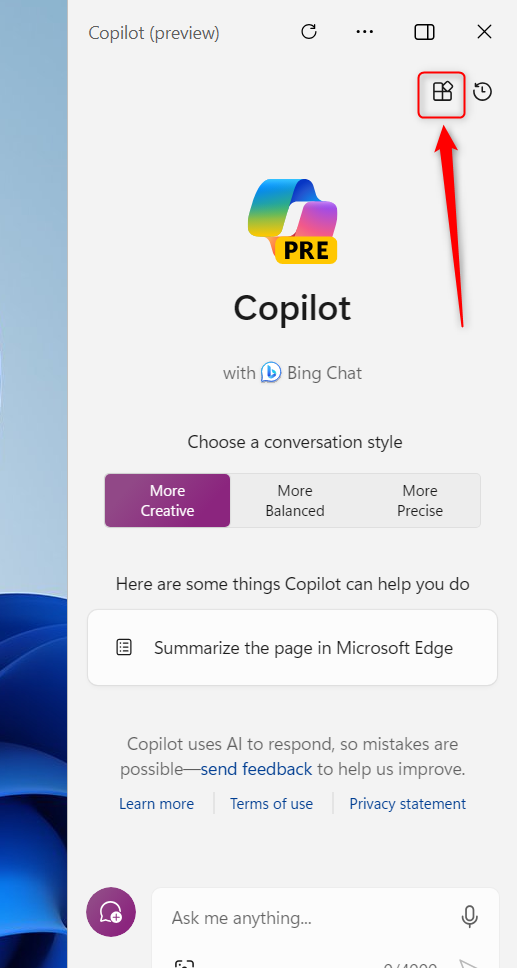
- To enable a feature, find it in the list and click the switch to the On position.
- To disable a feature, click the switch to the Off position.
Summary
Proper plugin management preserves daily productivity while keeping company data secure.
Related Articles
Was this guide helpful?

About the Author
Richard
Tech Writer, IT Professional
Richard is a writer at Geek Rewind who turns complex IT tasks into clear, step-by-step guides. He draws on years of hands-on experience in system administration and enterprise IT operations, focusing on Windows, Linux and WordPress: the problems people actually run into, and the fixes that work. His server and WordPress guides come from systems he runs himself. Richard builds and maintains the platform behind Geek Rewind, from its Ubuntu servers and Nginx configuration to its custom WordPress plugins. Many new tutorials start with readers' questions, and he's always glad to answer them in the comments.



[…] from Edge, refresh Copilot prompts, resize the Copilot side pane, delete recent activity, enable or disable Copilot plugins, and […]