How to Turn On Taskbar List View in Windows 11

- 25 steps
- Needs administrator rights
- Includes a restart or sign-out
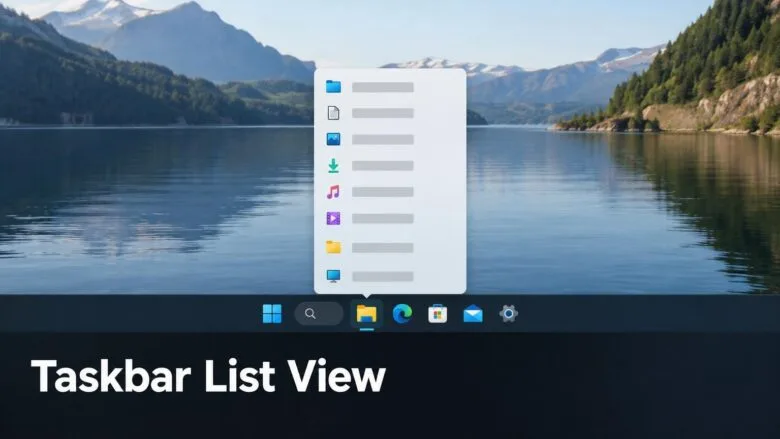
Taskbar list view in Windows 11 changes what appears when you hover over an app on the taskbar. Instead of thumbnail previews, you see a list of that app’s open windows by title. Microsoft introduced the option in Experimental Build 26340.10013, released on November 16, 2026.
The feature is only in Windows Insider preview builds so far, not in the standard release of Windows 11. Microsoft may change how it works, or what it is called, before it reaches everyone. This guide covers how to check your build, where to find the setting, and what to do if it is missing.
To show open windows as a list, turn on taskbar list view in Settings Personalization Taskbar. The option is only in Windows Insider preview builds, starting with Experimental Build 26340.10013, so check your build with winver first. On a standard Windows 11 release, the setting will not appear until you install that preview build.
What Taskbar List View Does
By default, hovering over a taskbar icon in Windows 11 shows a small thumbnail of each open window for that app. Thumbnails work well when your windows look different from each other. They are harder to use when you have several windows from the same app. Examples are a dozen File Explorer windows or a row of browser windows that all look alike.
List view replaces those thumbnails with window titles. Each open window appears as a line of text in a list, so you can read which document, folder or page you are about to switch to. Microsoft’s release notes describe it as an option you turn on, so thumbnails stay the default until you choose otherwise.
The release notes give one location for the setting: Settings Personalization Taskbar. They do not name the exact label of the option or say which section of that page it sits in. This guide describes the option by what it does. It does not make up a label, because Microsoft has not published one.
Before You Start
Taskbar list view is not available on a normal Windows 11 installation yet. Check these points first:
- Insider build required. The feature appears in Windows Insider preview builds only. The Windows Insider Program is Microsoft’s early-access program that delivers unfinished features for testing.
- Experimental build. Microsoft’s notes name Experimental Build 26340.10013. Experimental is one of the Insider release tracks, which are groups of preview builds. Microsoft uses this one for features that are still early in testing.
- Gradual rollout. Microsoft often turns on new features for some Insiders before others. Having the build does not mean you will see the option right away. The release notes do not say whether list view rolls out gradually, so this is unconfirmed.
- Stability. Preview builds can contain bugs. Install one on a test PC, or on a virtual machine (a simulated computer that runs inside your own PC), rather than on the computer you depend on for work.
If you only want a cleaner way to tell windows apart on a standard Windows 11 PC, see the related taskbar settings near the end of this guide.
Check Which 🪟 Windows 11 Build You Have
- Press Win+R. The Run dialog box opens in the bottom-left corner of the screen.
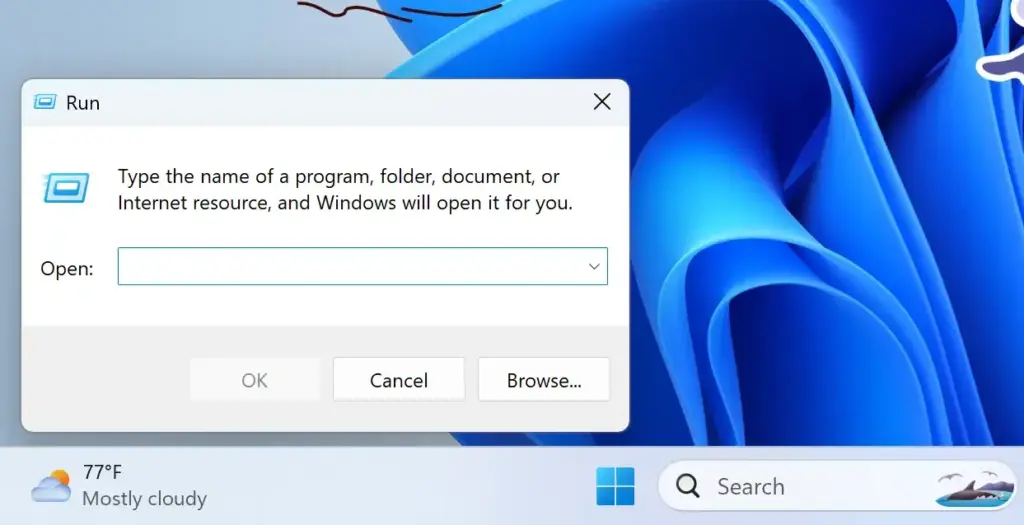
Run dialog - Type
winverand press Enter. The About Windows box opens and shows your Windows version and OS build.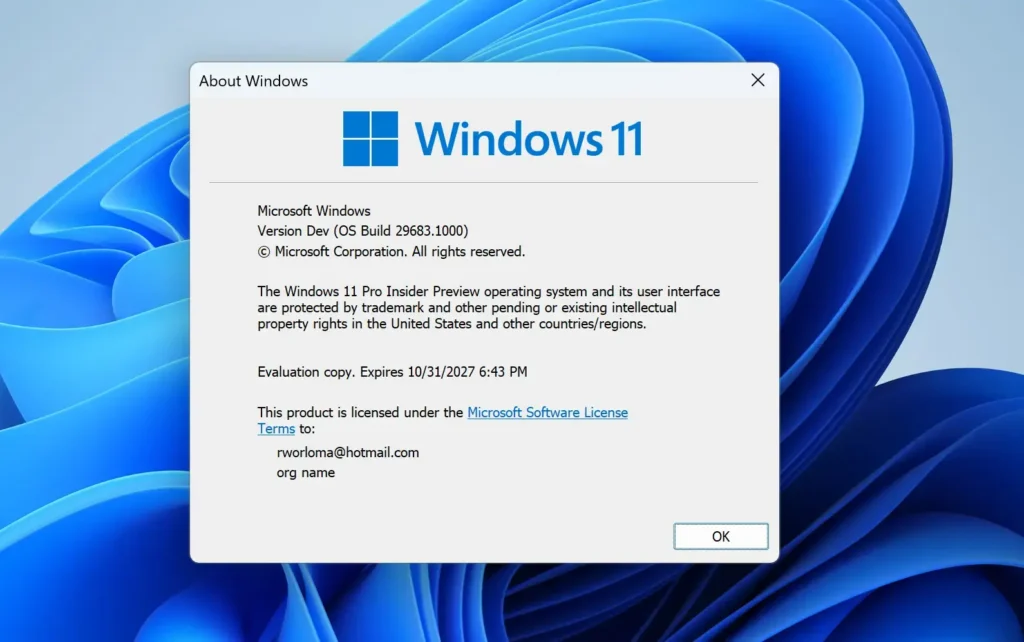
- Read the build number. Microsoft’s notes name 26340.10013 as the Experimental build that adds taskbar list view. Later Insider builds may also include it, but the notes do not confirm that.
- Select OK to close the box.
If your build number is far lower than 26340, your PC is on a standard release or an older Insider build. In that case, the setting will not appear until you install a newer preview build.
How to Turn On Taskbar List View
The steps below show open windows in list view on the Windows 11 taskbar, from checking your build through to testing the result. Steps 5 to 8 only apply if your PC is not on a build that includes the feature. Follow them in order, and skip to step 9 if you already have the feature. The Windows Insider Program page needs an administrator account, because it changes how Windows receives updates, but changing the taskbar setting itself does not.
- Press Win+R. The Run dialog box opens.
- Type
winverand press Enter. The About Windows box shows your build number. - Compare the build number with 26340.10013. If your build is the same or newer, continue to step 9. If it is older, continue to step 4.
- Select OK to close the box.
- Open Settings Windows Update Windows Insider Program. This step requires administrator privileges. This page controls whether your PC receives Insider preview builds.
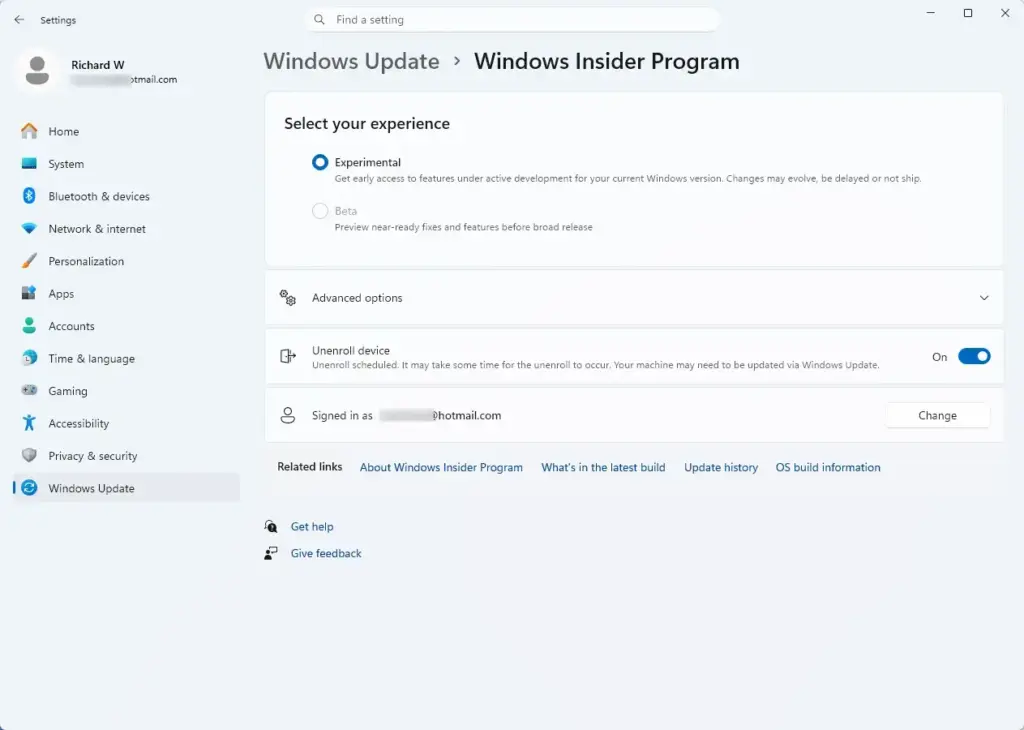
Settings › Windows Update › Windows Insider Program - Join the program and choose the Experimental channel. Follow the on-screen prompts. If Windows asks you to sign in or turn on diagnostic data, do so to continue.
- Go to Settings Windows Update and select Check for updates. Windows downloads the preview build. Wait for the download and install to finish.
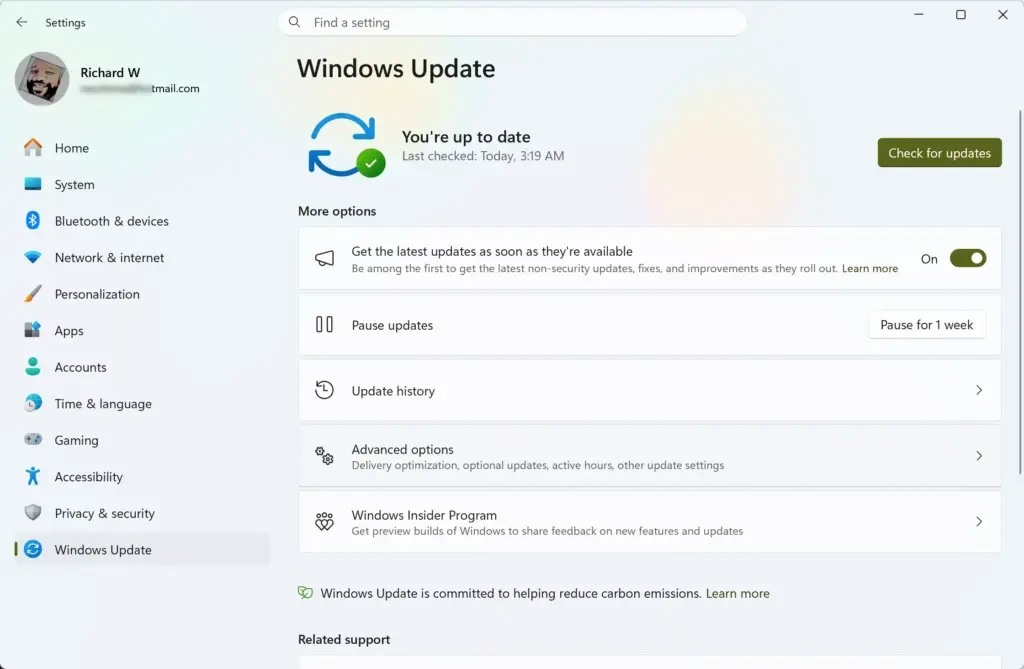
Settings › Windows Update - Restart the PC when Windows asks. After the restart, run
winveragain and confirm the build number changed. - Press Win+I. The Settings app opens.
- Select Personalization in the left pane. The personalization options appear on the right.
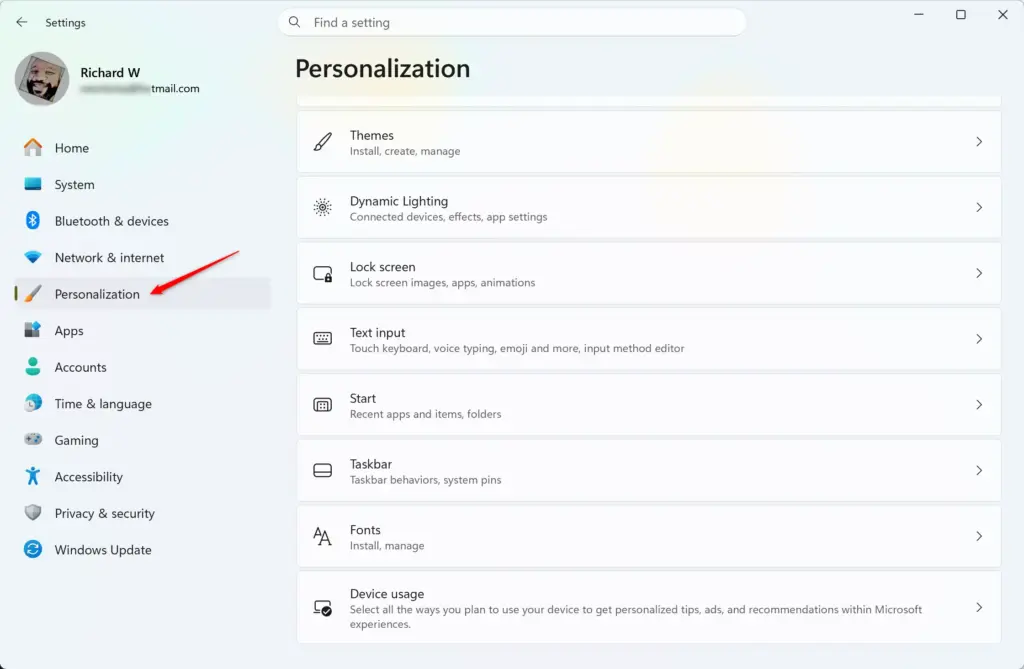
Settings › Personalization - Select Taskbar. The taskbar settings page opens.
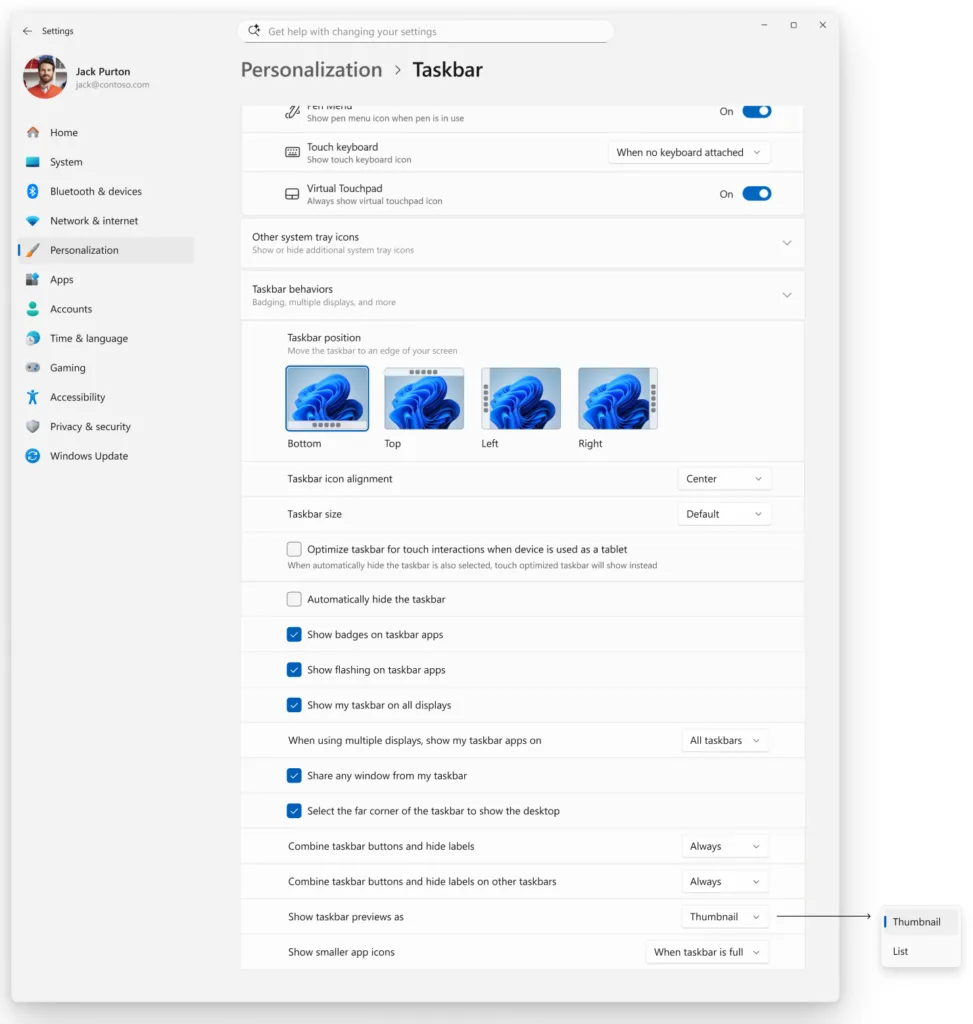
Taskbar - Find the option for taskbar list view and turn it on. Microsoft’s notes do not give its exact label, so look for wording about open windows, list, or hover on this page.
- Open two or more windows of the same app, such as two File Explorer windows. Hover over that app’s icon on the taskbar.
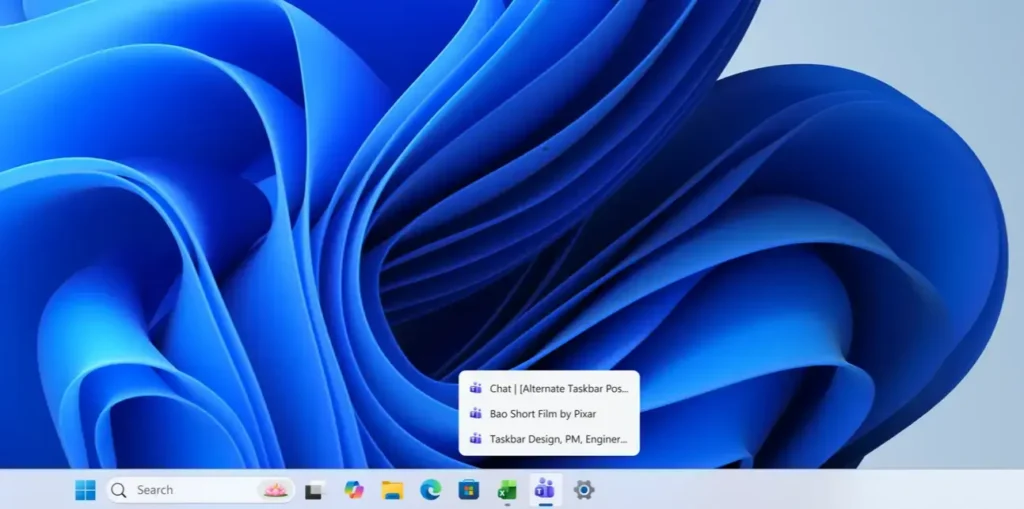
Taskbar - Check the hover panel. With list view on, you see the open windows listed by title instead of as thumbnail previews.
If the panel still shows thumbnails, close Settings, reopen it, and confirm the option is on. If the option is still missing, read If the Option Is Missing below.
If the Option Is Missing
The most common reason is that your PC is not on a build that includes the feature. Run winver (a built-in tool that shows your Windows version) and compare your build number with 26340.10013. A standard Windows 11 release, including 25H2 as it rolls out to everyone, does not list this option based on what Microsoft has published so far.
Work through these checks in order:
- Confirm you are on an Insider preview build. Open Settings Windows Update Windows Insider Program and check that your PC is enrolled.
- Check for newer builds. Go to Settings Windows Update and select Check for updates. Install anything offered and restart.
- Look at the whole taskbar page. Open Settings Personalization Taskbar and scroll to the bottom. The release notes give only the page, not the section, so the option may sit outside the first screen.
- Wait for the rollout. If you have the right build and still see nothing, Microsoft may not have switched the feature on for your PC yet. The release notes do not describe a way to force it, so this guide cannot confirm one.
Microsoft’s October 2026 notes describe a separate list of switches, called feature flags, that turn new features on or off. It sits under Settings Windows Update Windows Insider Program Feature flags and is used for the new Windows Search experience. The release notes for taskbar list view do not say it needs a flag, so this guide does not tell you to turn one on.
What You See When List View Is On
Hover over an app with several windows open and a list appears with one line per window, showing its title. Windows titles come from the apps themselves. A browser window shows its page title, a document shows its file name, and a File Explorer window shows its folder name.
Microsoft’s release notes do not say what happens when an app has only one window open. This guide does not state a behavior it cannot confirm. Test it with one window and then with several, and compare.
List view does not change which windows exist or how you close them. It changes only how the hover panel presents them. If you use the setting that shows all open windows on the taskbar across every desktop, check whether the list also includes windows from other desktops, since the release notes do not say how the two settings interact.
How to Turn Taskbar List View Off
You can switch back to thumbnail previews at any time. This change is not risky and does not need a restart or administrator privileges.
- Press Win+I. The Settings app opens.
- Select Personalization, then select Taskbar.
- Find the taskbar list view option and turn it off. Because Microsoft describes list view as something you turn on, the hover panel should return to previews. Hover over an app with several windows open to confirm.
Other Taskbar Settings That Help You Find Windows
List view is one of several settings that change how the taskbar shows your open windows. If you cannot use it yet, these related guides cover options available on current Windows 11 releases:
- Show labels on taskbar pins adds text next to taskbar icons, which also helps you tell items apart.
- Show all open windows on the taskbar on all desktops controls which virtual desktops (separate sets of open windows that you switch between) add their windows to the taskbar.
- Show the Windows 11 taskbar on all monitors helps if you spread windows across more than one screen.
- Auto-hide for the taskbar matters because list view appears only when you hover, and a hidden taskbar changes how you reach it.
Microsoft has also announced more taskbar placement options. Its notes describe putting the taskbar at the bottom, top, left or right under Settings Personalization Taskbar Taskbar behaviors Taskbar position, rolling out gradually on Windows 11 25H2. That is a separate setting from list view, and the notes do not say how the two look together on a side-mounted taskbar.
What to Do Next
If the option is not on your Settings Personalization Taskbar page yet, the feature may arrive in a later build. Check Settings Windows Update again after Microsoft publishes new Insider builds. If you want a clearer taskbar on a standard Windows 11 PC today, try showing labels on taskbar pins next. Preview features can change or disappear before release, so recheck the setting after major Insider updates.
Have a question about this guide?
Answered by AI from this guide. Good questions may be added to this page — please don't include personal details.
Did this guide fix your problem?

About the Author
Richard
Tech Writer, IT Professional
Richard is a writer at Geek Rewind who turns complex IT tasks into clear, step-by-step guides. He draws on years of hands-on experience in system administration and enterprise IT operations, focusing on Windows, Linux and WordPress: the problems people actually run into, and the fixes that work. His server and WordPress guides come from systems he runs himself. Richard builds and maintains the platform behind Geek Rewind, from its Ubuntu servers and Nginx configuration to its custom WordPress plugins. Many new tutorials start with readers' questions, and he's always glad to answer them in the comments.
No comments yet — be the first to share your thoughts!