How to Use WiFi AutoSwitch in Windows 11

Wi-Fi AutoSwitch in Windows 11 lets your PC change wireless networks on its own when a stronger signal appears nearby. Windows drops a weak connection and joins a better one, so you don’t have to click anything or restart your web browser.
Turning AutoSwitch on helps keep your internet fast when you walk closer to a different router in your home or office. Turning it off stops Windows from jumping to another network when you want to stay on your current one.
Windows has no single switch for this. The setting is stored per network, so you change it for each saved Wi-Fi network. The sections below cover three ways to do it: the Settings app, the classic Control Panel , and Windows Terminal. All three change the same setting, so use whichever you prefer. None of them needs a restart, and you can undo any change by reversing the same setting.
Enable or disable WiFi autoSwitch in Windows 11 by checking or unchecking “Look for other wireless networks while connected to this network” in your WiFi’s Wireless Properties. You can also manage this via Command Prompt by setting the autoswitch parameter to Yes or No.
Method 1Change Wi-Fi AutoSwitch Using Settings
The Settings app is the quickest route. It works on Windows 11 Home and Pro alike, and you can reach it with one keyboard shortcut. You do this once for each saved network you want to change.
- Press Win+I on your keyboard to open Settings.
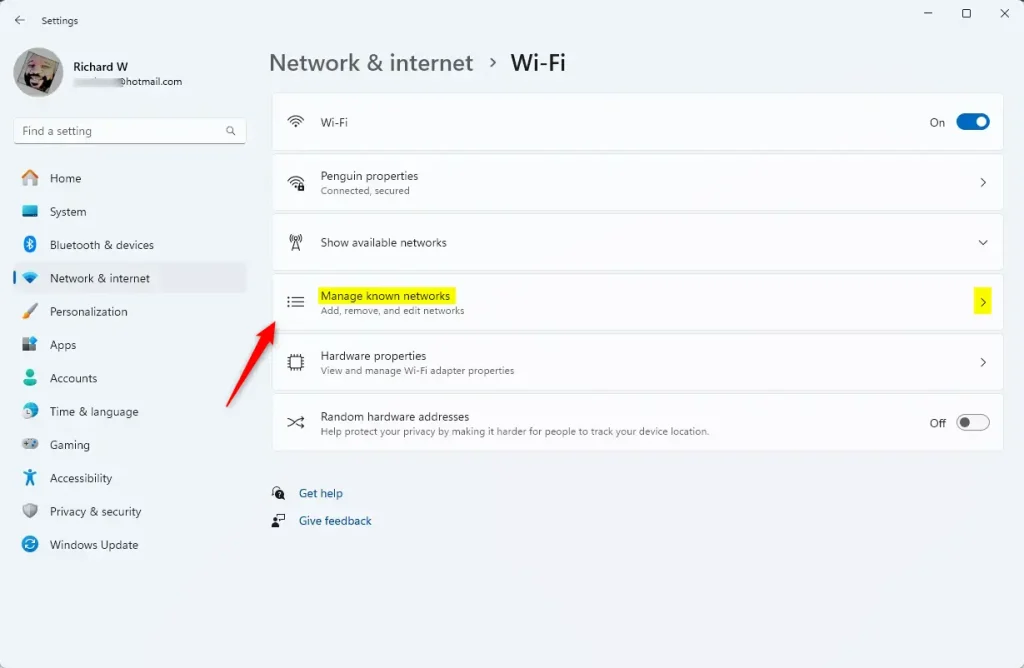
- Click Network & internet on the left side, then click Wi-Fi on the right side. You should now see your Wi-Fi options, including a list of nearby networks.
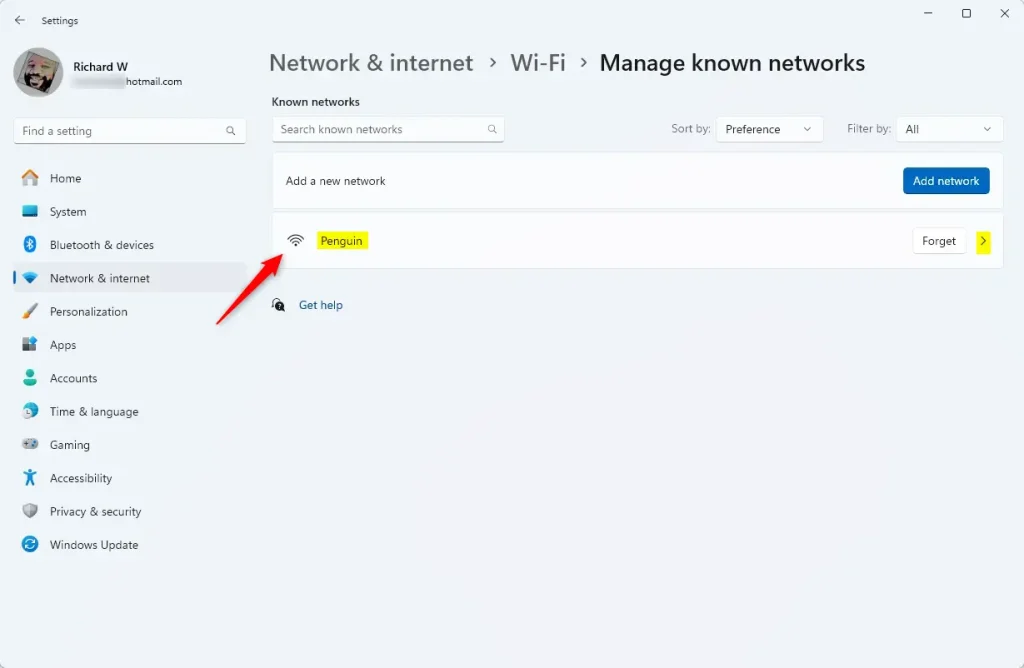
- Scroll down and click Manage known networks. This shows every Wi-Fi network your PC remembers.
- Click the name of the Wi-Fi network you want to adjust.
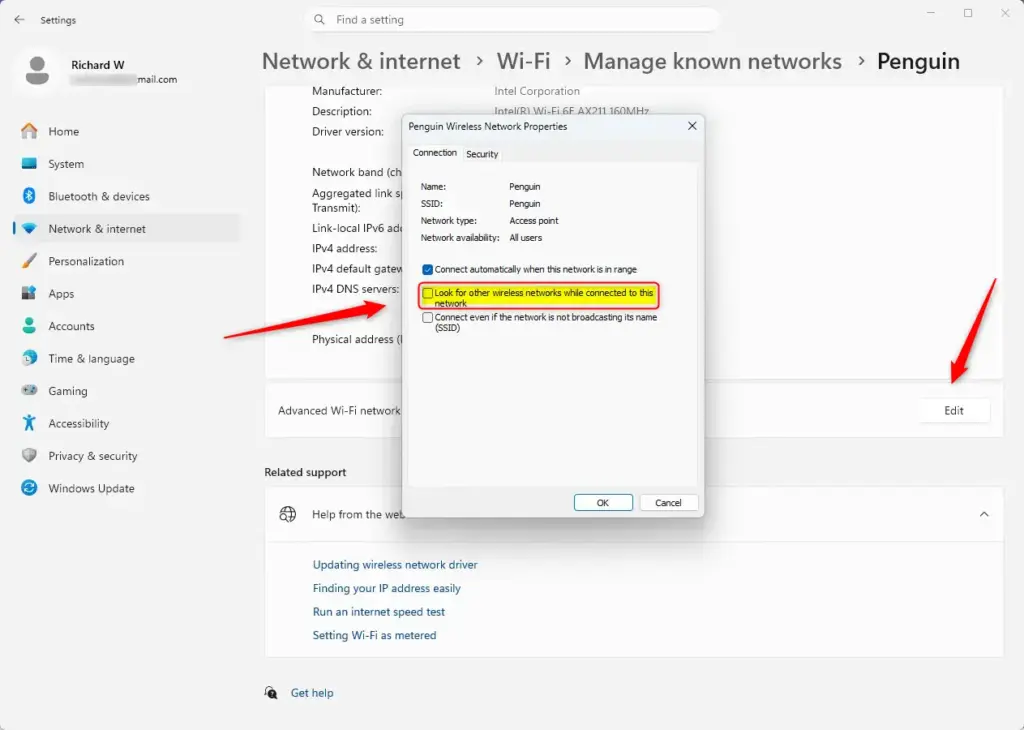
- Click the Edit button. This opens the advanced settings for that Wi-Fi connection.
- Find the box labeled Look for other wireless networks while connected to this network and set it the way you want:
- To turn on AutoSwitch: check the box. Your PC will look for, and may switch to, other preferred Wi-Fi networks.
- To turn off AutoSwitch: uncheck the box. Your PC will try to stay connected to the current network.
- Click OK to save your changes.
- Close the Settings app.
The Connect automatically when this network is in range option must be on for a network before you can change its AutoSwitch setting. If the AutoSwitch box is greyed out, that option is currently off for that network. Turn it on, then come back to the AutoSwitch box.
Some Windows 11 builds don’t show the AutoSwitch box in Settings. If you don’t see it, use the Control Panel method below, which shows the same setting in the Wireless Network Properties window.
Method 2Adjust AutoSwitch Using Network and Sharing Center
The classic Network and Sharing Center gives you the same setting through the older Control Panel . This method works on Home and Pro. It changes the network you are connected to right now, so connect to the network you want to change first.
- Click the Start button, type Control Panel and open it.
- Check the View by setting in the top-right corner. If it says Category, change it to Large icons or Small icons.
- Click Network and Sharing Center.
- Under Connections:, click the name of the Wi-Fi network you are connected to. It appears as a link, and a Wi-Fi Status window opens.
- Click Wireless Properties. The Wireless Network Properties window opens. If it doesn’t open on the right page, click the Connection tab.
- Find the box labeled Look for other wireless networks while connected to this network and set it the way you want:
- To turn on AutoSwitch: check the box. Your PC will look for other available Wi-Fi networks.
- To turn off AutoSwitch: uncheck the box. Your PC will be less likely to switch away from your current connection.
- Click OK to apply your choice.
- Click Close in the Wi-Fi Status window, then close the Network and Sharing Center.
The AutoSwitch box is greyed out when Connect automatically when this network is in range is not turned on for that network. Turn that setting on first, then change AutoSwitch.
Method 3Fine-Tune AutoSwitch Using Command Prompt (Windows Terminal)
Use Windows Terminal when the graphical menus don’t give you enough control, or when you want to check or change several networks quickly. Commands work with the network’s saved profile, so you don’t need to be connected to it.
- Click the Start button, type Windows Terminal and open it. It opens with Windows PowerShell by default. You can also pick Command Prompt from the tab menu. Either one works.
- Type the following command and press Enter:You should now see a list of all the Wi-Fi networks your PC has saved.Code
netsh wlan show profiles - Find the exact name (SSID) of the Wi-Fi network you want to change. Type it exactly as shown, because the name is case-sensitive.
- Choose one of the commands below. Replace
[Network Name]with the actual name of your Wi-Fi network.- To turn on AutoSwitch: use this command:
This tells Windows to connect automatically and look for other preferred networks.Code
netsh wlan set profileparameter name="YourNetworkName" connectionmode=auto autoswitch=Yes - To turn off AutoSwitch: use this command:
This turns off AutoSwitch, so your PC is more likely to stay on the current network.Code
netsh wlan set profileparameter name="YourNetworkName" autoswitch=No
- To turn on AutoSwitch: use this command:
- Press Enter to run the command you typed. Windows should report that the profile was updated.
- Close Windows Terminal.
/allowIntegratedHotspot = true to the command.For example, to turn off AutoSwitch but keep auto-connect on:
netsh wlan set profileparameter name="YourNetworkName" connectionmode=auto autoswitch=No
If the command returns an access or permission error, close the window and reopen Windows Terminal as an administrator. Right-click it in the Start menu and choose Run as administrator, then run the command again.
Summary
You can manage Wi-Fi AutoSwitch in Windows 11 with the Settings app, the Control Panel or Windows Terminal. Turning it on lets your PC move to stronger signals by itself. Turning it off keeps you on your current router.
The setting belongs to each saved network, so repeat the steps for every network you want to change. If an option is greyed out, check that Connect automatically when this network is in range is on for that network. To undo any change, open the same screen or run the same command again and set the option back.
Have a question about this guide?
Answered by AI from this guide. Good questions may be added to this page — please don't include personal details.
Did this guide fix your problem?

About the Author
Richard
Tech Writer, IT Professional
Richard is a writer at Geek Rewind who turns complex IT tasks into clear, step-by-step guides. He draws on years of hands-on experience in system administration and enterprise IT operations, focusing on Windows, Linux and WordPress: the problems people actually run into, and the fixes that work. His server and WordPress guides come from systems he runs himself. Richard builds and maintains the platform behind Geek Rewind, from its Ubuntu servers and Nginx configuration to its custom WordPress plugins. Many new tutorials start with readers' questions, and he's always glad to answer them in the comments.
No comments yet — be the first to share your thoughts!