How to Turn Smart App Control On/Off in Windows 11


Smart App Control in Windows 11 blocks untrusted programs from opening on your PC by checking every app before it runs. This security feature stops risky software that can damage your files, slow down your computer, or install unwanted extras.
You can turn this feature on or off in your Windows Security settings, but remember that Windows 11 only lets you switch it back on by reinstalling Windows if you have a clean install.
Open Windows Security, navigate to App & browser control, then Smart App Control settings, and toggle the switch to ‘On’. If it’s in Evaluation mode, it’s already active and learning.
Smart App Control Modes
Windows 11 Smart App Control runs in different modes, including evaluation mode. In evaluation mode, Windows tests if Smart App Control suits your PC and does not block apps. Windows turns the feature on automatically if it decides the system is a good fit. Otherwise, it turns Smart App Control off.
If Smart App Control blocks an app you need, you can’t tell it to allow that one app. Your choices are to turn off Smart App Control completely or ask the app’s creator to digitally sign their software. A digital signature is essentially a digital seal of approval that helps Windows confirm the app’s legitimacy and safety.
Smart App Control can be off if you turned Smart App Control off, if your device uses Windows in "S mode" (which requires switching out of S mode and resetting your PC), or if optional diagnostic data is turned off in Windows. To turn Smart App Control back on after it's off, and you do not have a clean install, you will likely need to reset or reinstall Windows and select "Send optional diagnostic data" during setup.
How to Turn Smart App Control On or Off Using Windows Security
The main way to turn Windows 11 Smart App Control on or off is by using the built-in Windows Security app. You can open Windows Security by searching for it in the Start menu or by clicking the shield icon next to your clock. This tool lets you control the security features on your computer.
- Open Windows Security. You can search for "Windows Security" in the Start menu or click the shield icon near your clock.
Tip: Press Windows key + I to open Settings, then go to Privacy & security > Windows Security. - Go to App & browser control. In Windows Security, click "App & browser control" on the left side.
- Find Smart App Control settings. On the right side, click the "Smart App Control settings" link.
- Choose your setting. You'll see these options:
- On: Blocks untrusted or harmful apps.
- Off: Turns off Smart App Control.
- Evaluation mode: (May not always be visible.) Windows tests if Smart App Control is right for your system without blocking anything.
- Approve the change. If a box asks for permission (User Account Control), click "Yes."
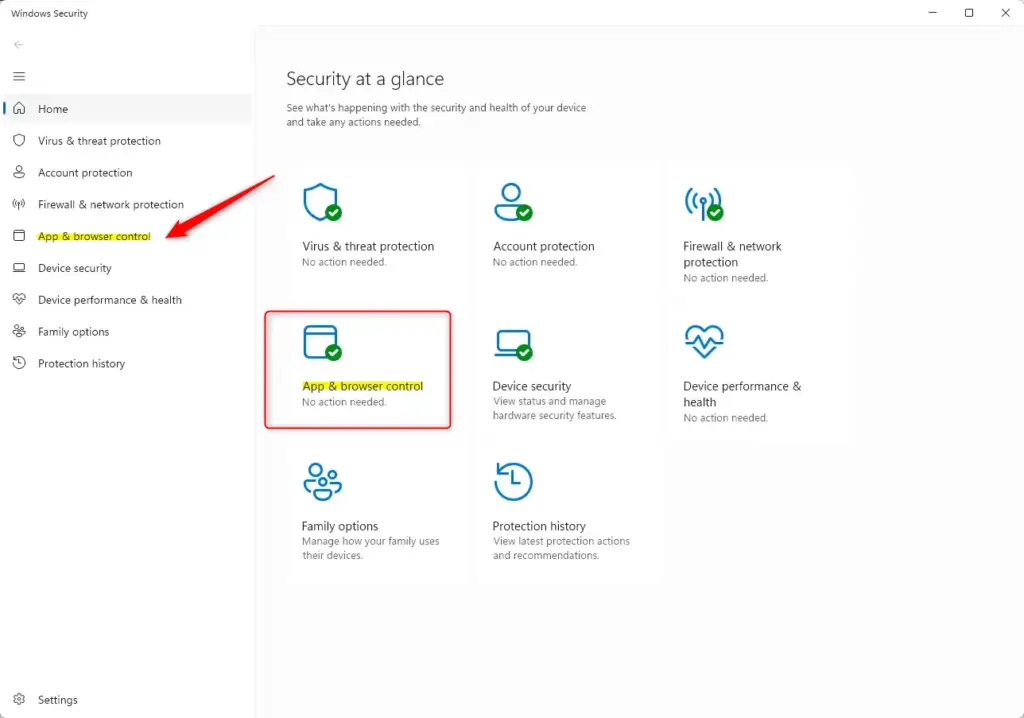
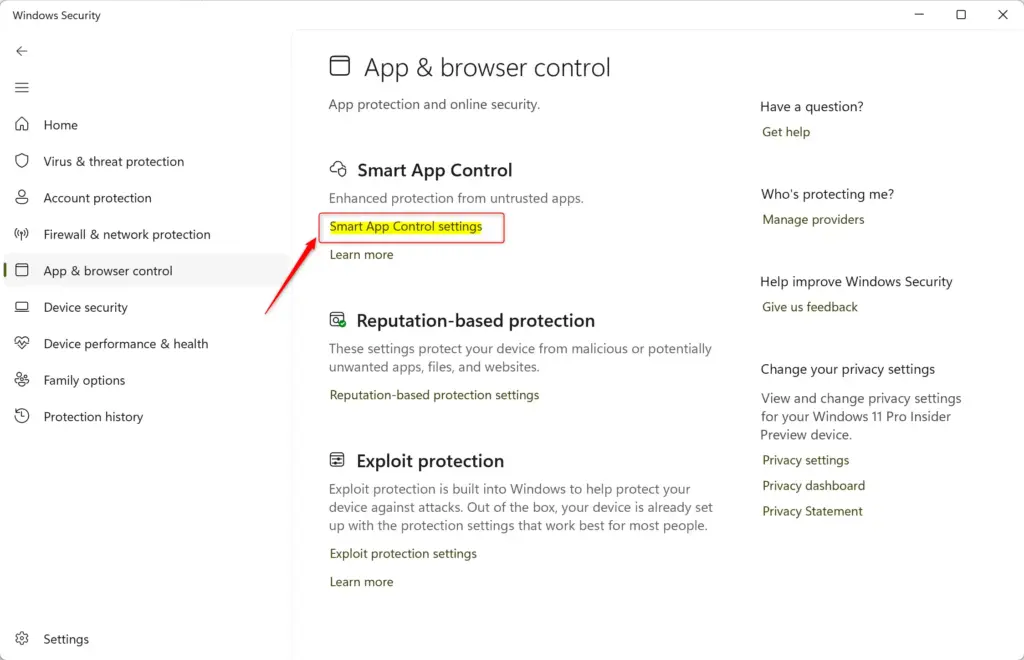
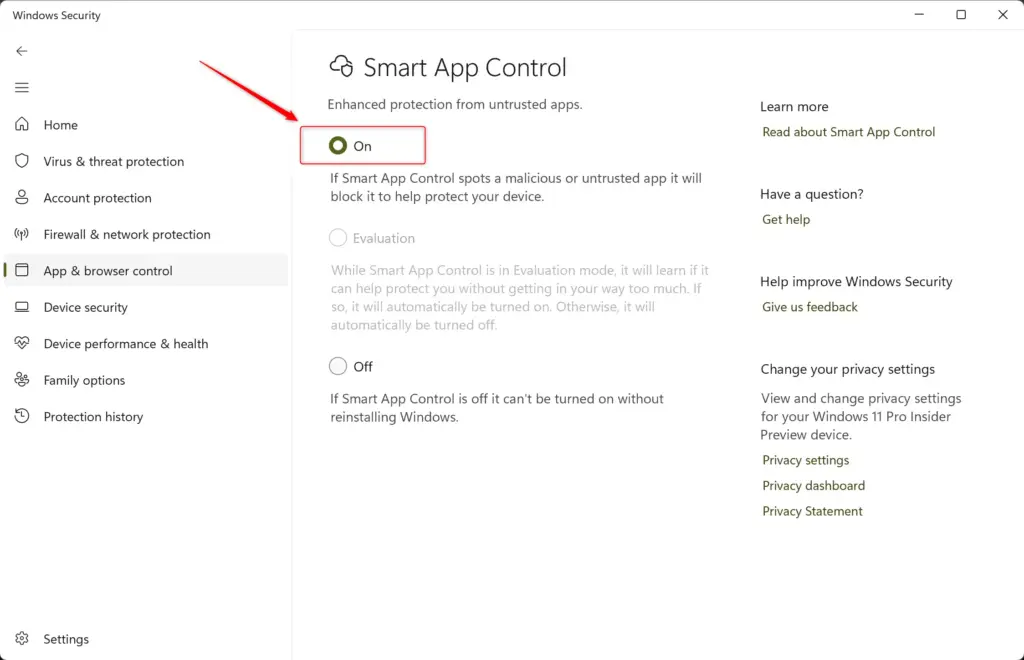
That's it! You've changed your Smart App Control settings using Windows Security.
Manually Adjusting Smart App Control Using Registry Editor
Editing the Windows Registry is another way to adjust Smart App Control. Be careful; errors in the Registry Editor can sometimes cause system instability. If you're not comfortable with this, use the Windows Security method instead.
Administrator rights are required for these steps.
Turning Smart App Control ON
- Open Registry Editor. Press Windows key + R, type
regedit, and press Enter. Click "Yes" if asked by User Account Control. - Go to the right location. In the Registry Editor's address bar, type or paste this path and press Enter:
To turn ON Windows 11 Smart App Control using the Registry Editor, first open the tool by pressing Windows key + R, typing regedit, and pressing Enter. You'll then need to navigate to a specific location within the registry: HKEY_LOCAL_MACHINE\SYSTEM\CurrentControlSet\Control\CI\Policy. This advanced method requires careful steps.
- Close and restart. Close Registry Editor and restart your computer.
Setting Smart App Control to Evaluation Mode
- Open Registry Editor. Press Windows key + R, type
regedit, and press Enter. Click "Yes" on the User Account Control prompt. - Go to the right location. Navigate to this path in Registry Editor:
You can set Windows 11 Smart App Control to evaluation mode using the Registry Editor. Open Registry Editor by pressing Windows key + R, typing regedit, and pressing Enter. Then, go to the path HKEY_LOCAL_MACHINE\SYSTEM\CurrentControlSet\Control\CI\Policy and look for the VAppEnforcementState DWORD value to make your changes.
- Close and restart. Close Registry Editor and restart your PC.
Turning Smart App Control OFF
- Open Registry Editor. Press Windows key + R, type
regedit, and press Enter. Click "Yes" to approve the User Account Control prompt. - Go to the right location. Go to this registry path:
To turn OFF Windows 11 Smart App Control, you can use the Registry Editor. Start by opening it with Windows key + R, typing regedit, and pressing Enter. Navigate to the registry path HKEY_LOCAL_MACHINE\SYSTEM\CurrentControlSet\Control\CI\Policy and find the VAppEnforcementState DWORD (32-bit) Value to change its setting.
- Close and restart. Close Registry Editor and restart your computer.
Remember, the Windows Security app is the safer choice if you're unsure about using the Registry Editor.
Summary
Windows 11 Smart App Control is a security feature that blocks untrusted or potentially harmful applications from running on your PC. You can manage Windows 11 Smart App Control through the Windows Security app, choosing to turn the feature On, Off, or leave it in Evaluation mode for testing. Advanced users can also adjust settings via the Registry Editor with caution.





No comments yet — be the first to share your thoughts!