How to Turn Smart App Control On/Off in Windows 11


Smart App Control blocks untrusted programs from running on your Windows 11 PC by checking every application before it opens. This security feature stops risky software that can damage your files or slow down your computer.
You can turn this setting off in your Windows Security app, but Windows 11 requires you to reinstall the operating system if you want to turn it back on after a clean install.
Open Windows Security, navigate to App & browser control, then Smart App Control settings, and toggle the switch to ‘On’. If it’s in Evaluation mode, it’s already active and learning.
Smart App Control Modes
Smart App Control operates in three states: On, Off, and evaluation mode. During evaluation mode, the operating system quietly tests your device apps to see if the security feature fits your workflow without blocking your daily software. Windows automatically enables the feature permanently if your system passes the test, or switches it off if it causes too many interruptions.
Microsoft recommends enabling Smart App Control on a new installation.
If Smart App Control blocks an app you need, you can’t tell it to allow that one app. Your choices are to turn off Smart App Control completely or ask the app’s creator to digitally sign their software. A digital signature (a cryptographic stamp confirming who created software and that it hasn’t changed) helps Windows verify safety.
Smart App Control can be off if you turned Smart App Control off, if your device uses Windows in "S mode" (which requires switching out of S mode and resetting your PC), or if optional diagnostic data is turned off in Windows. To turn Smart App Control back on after it's off, and you do not have a clean install, you will likely need to reset or reinstall Windows and select "Send optional diagnostic data" during setup.
However, recent updates allow you to turn it on or off without needing a clean install.
How to Turn Smart App Control On or Off Using Windows Security
Windows security is the primary app you use to manage windows 11 smart app control on your computer. You can access this built-in menu by searching for the security app in your start menu or clicking the shield icon in your taskbar tray. This interface lets you check your protection status and change your app blocking preferences.
- Open Windows Security. You can search for "Windows Security" in the Start menu or click the shield icon near your clock.
Tip: Press Windows key + I to open Settings, then go to Privacy & security Windows Security - Go to App & browser control. In Windows Security, click "App & browser control" on the left side.
- Find Smart App Control settings. On the right side, click the "Smart App Control settings" link.
- Choose your setting. You'll see these options:
- On: Blocks untrusted or harmful apps.
- Off: Turns off Smart App Control.
- Evaluation mode: (May not always be visible.) Windows tests if Smart App Control is right for your system without blocking anything.
- Approve the change. If a box asks for permission (User Account Control), click "Yes."
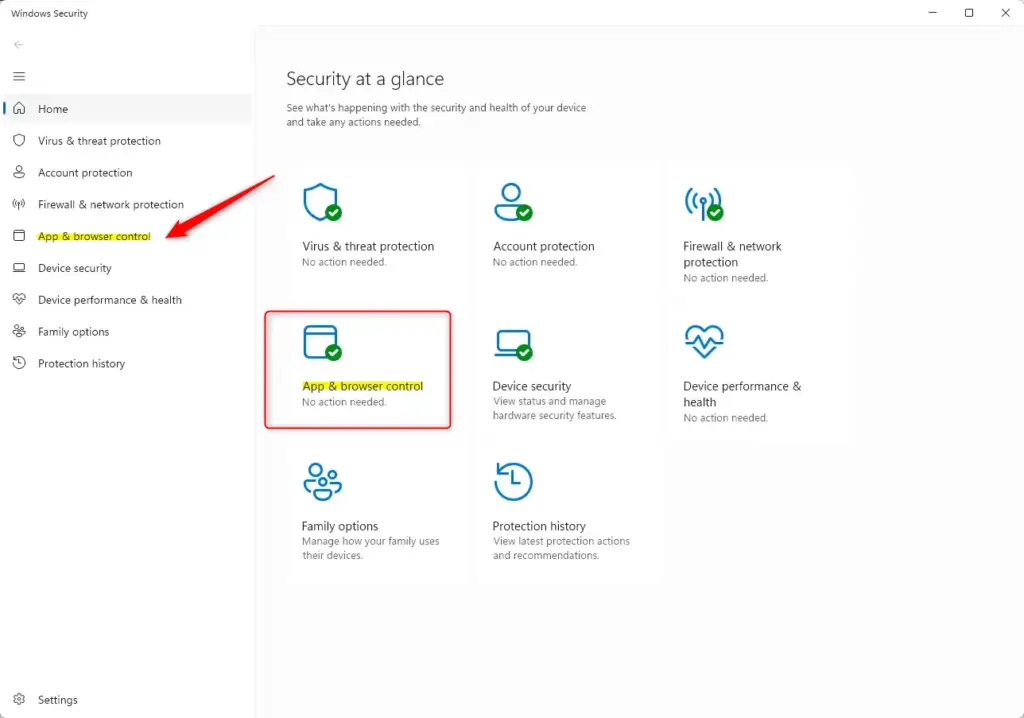
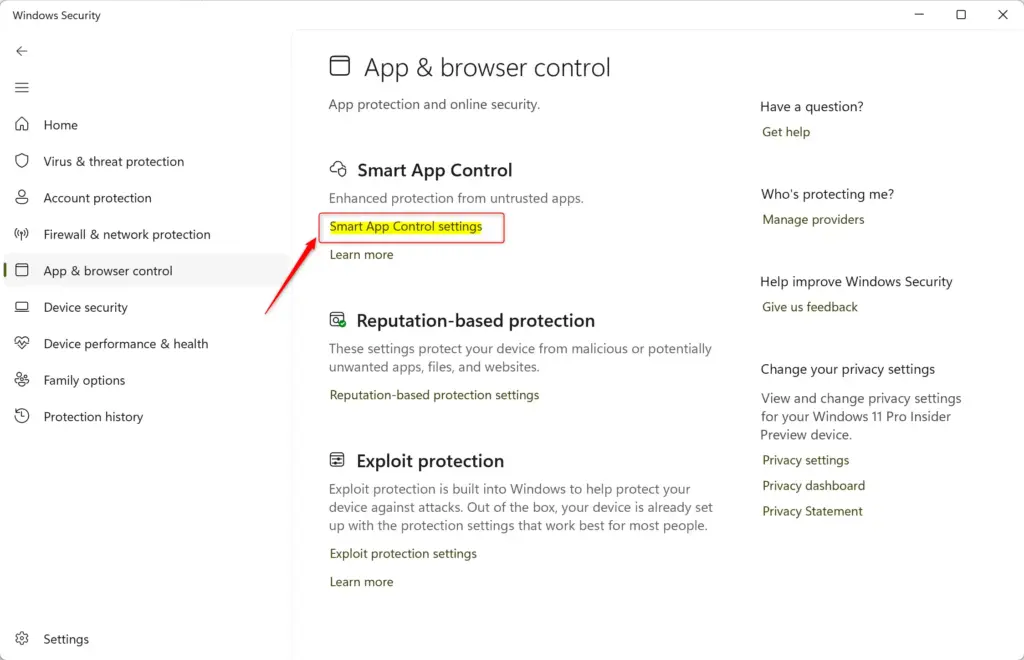
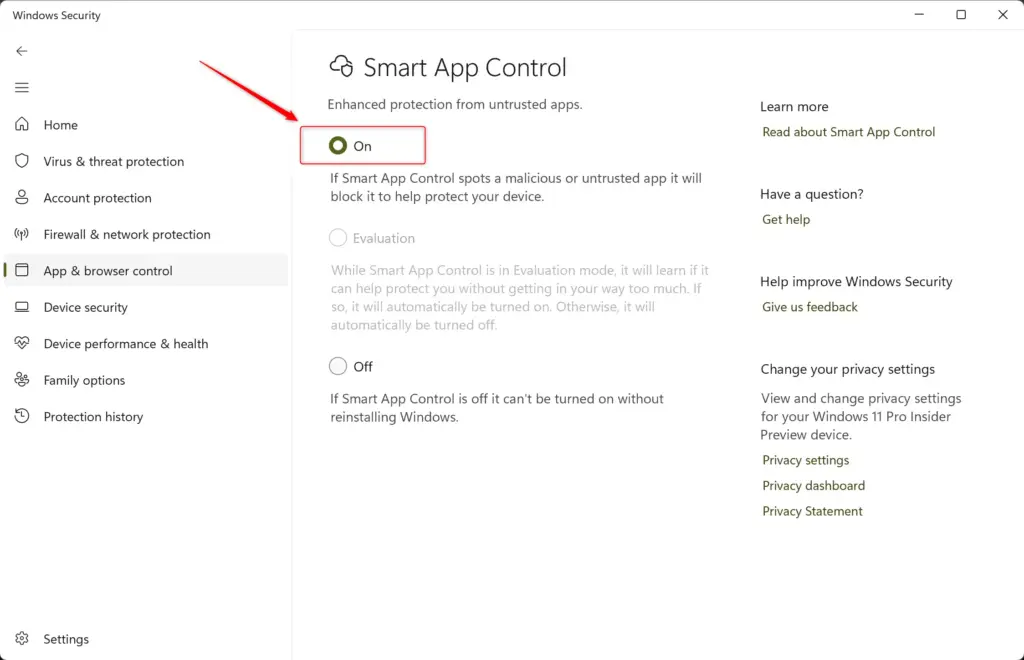
That's it! You've changed your Smart App Control settings using Windows Security.
Manually Adjusting Smart App Control Using Registry Editor
Editing the Windows Registry is another way to adjust Smart App Control. Be careful; errors in the Registry Editor can sometimes cause system instability. If you're not comfortable with this, use the Windows Security method instead.
Administrator rights are required for these steps.
Turning Smart App Control ON
- Open Registry Editor. Press Windows key + R, type
regedit, and press Enter. Click "Yes" if asked by User Account Control. - Go to the right location. In the Registry Editor's address bar, type or paste this path and press Enter:
Enabling windows 11 smart app control manually requires changing a specific registry key when the standard menu options are greyed out. You must open the advanced registry tool using the run dialog box, navigate to the correct system folder, and modify the security value to force the feature active on your machine.
- Close and restart. Close Registry Editor and restart your computer.
Setting Smart App Control to Evaluation Mode
- Open Registry Editor. Press Windows key + R, type
regedit, and press Enter. Click "Yes" on the User Account Control prompt. - Go to the right location. Navigate to this path in Registry Editor:
Resetting windows 11 smart app control back to evaluation mode lets the operating system test your software environment again without fully blocking unverified apps. You can restore this testing state by adjusting the appropriate registry value on your computer, which forces Windows to re-evaluate whether your app usage is safe.
- Close and restart. Close Registry Editor and restart your PC.
Turning Smart App Control OFF
- Open Registry Editor. Press Windows key + R, type
regedit, and press Enter. Click "Yes" to approve the User Account Control prompt. - Go to the right location. Go to this registry path:
Disabling windows 11 smart app control completely stops the operating system from blocking untrusted applications and unverified software files. You can turn the feature off by editing the system registry directly, which is necessary if the toggle switch is greyed out after your evaluation period ends.
- Close and restart. Close Registry Editor and restart your computer.
Remember, the Windows Security app is the safer choice if you're unsure about using the Registry Editor.
Summary
Windows 11 smart app control is a built-in security shield that stops unverified and potentially dangerous applications from running on your PC. You can manage this protection using the main security settings app or adjust the underlying system keys through the registry editor depending on your device setup and evaluation status.





No comments yet — be the first to share your thoughts!