How to Mute Windows 11 On-Screen Keyboard Sounds

On-screen keyboard sounds in Windows 11 are the audio clicks you hear every time you tap a virtual key on your screen. This built-in feature creates a clicking noise for feedback, but it turns on automatically and drives many people crazy in quiet rooms.
You can turn off these typing sounds in less than 30 seconds by opening the Settings app and changing one single toggle in the Touch keyboard menu.
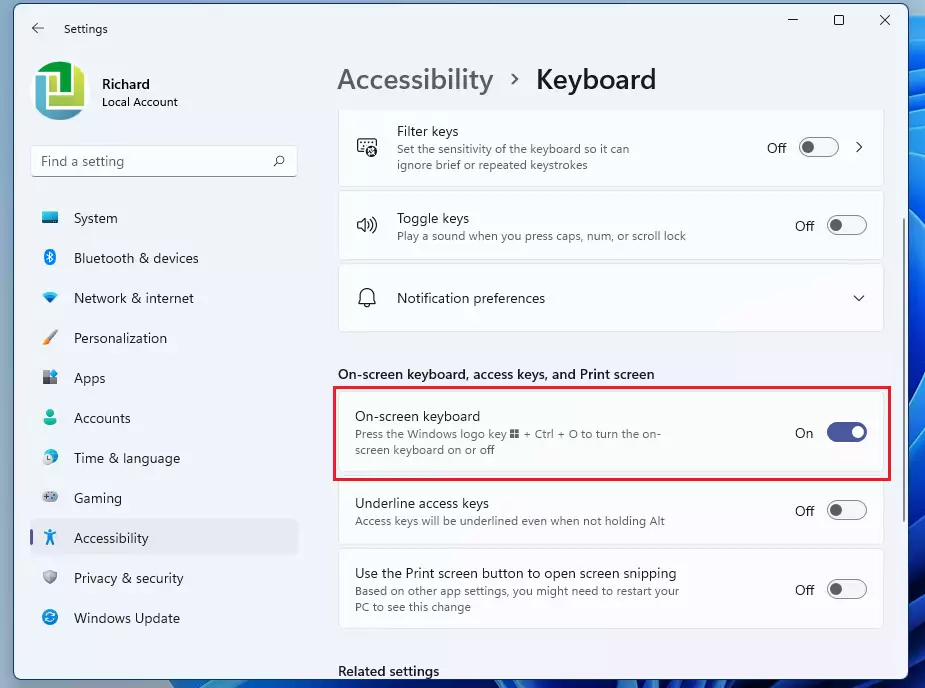
To mute Windows 11 on-screen keyboard sounds, open Settings , navigate to Accessibility Keyboard, and uncheck “Play a sound when I turn Sticky, Filter, or Toggle keys on or off.” For the classic On-Screen Keyboard, click Options on the keyboard interface and uncheck “Use click sound.
How to turn off Touch Keyboard sound
To mute Windows 11 keyboard sounds for the modern touch keyboard, open the Settings app and go to the Accessibility page. From there, select Touch keyboard and turn off the switch for Play keyboard sound. This immediately stops the clicking noises every time you tap a key on your screen.
- Open Settings by pressing Win+I on your keyboard, or click Start and select the Settings icon.
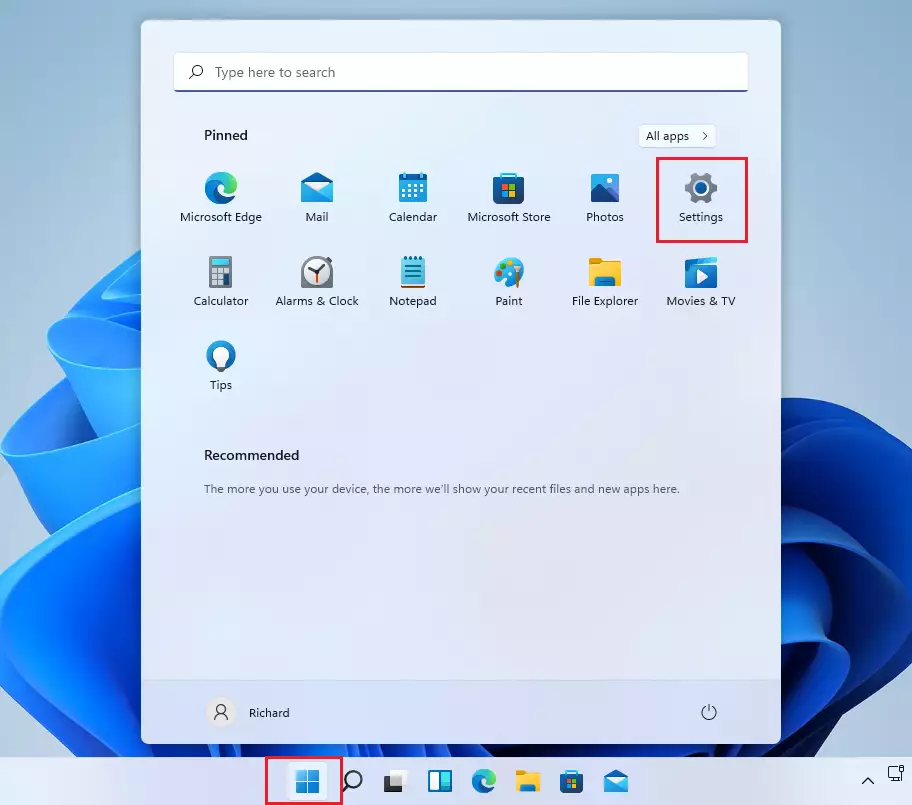
windows 11 start settings - In the menu on the left, click Accessibility.
- Select Keyboard from the list on the right.
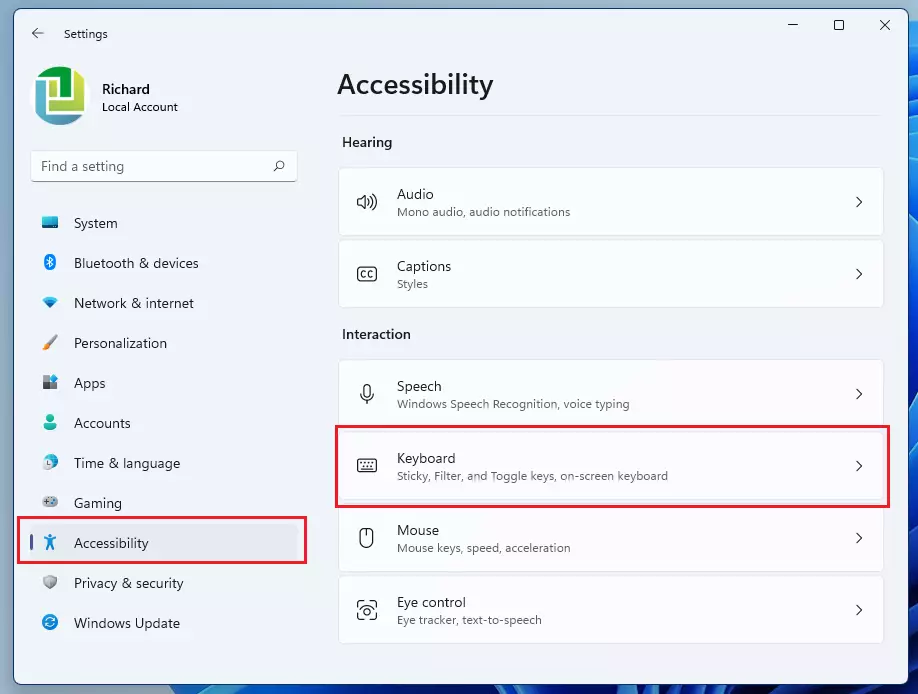
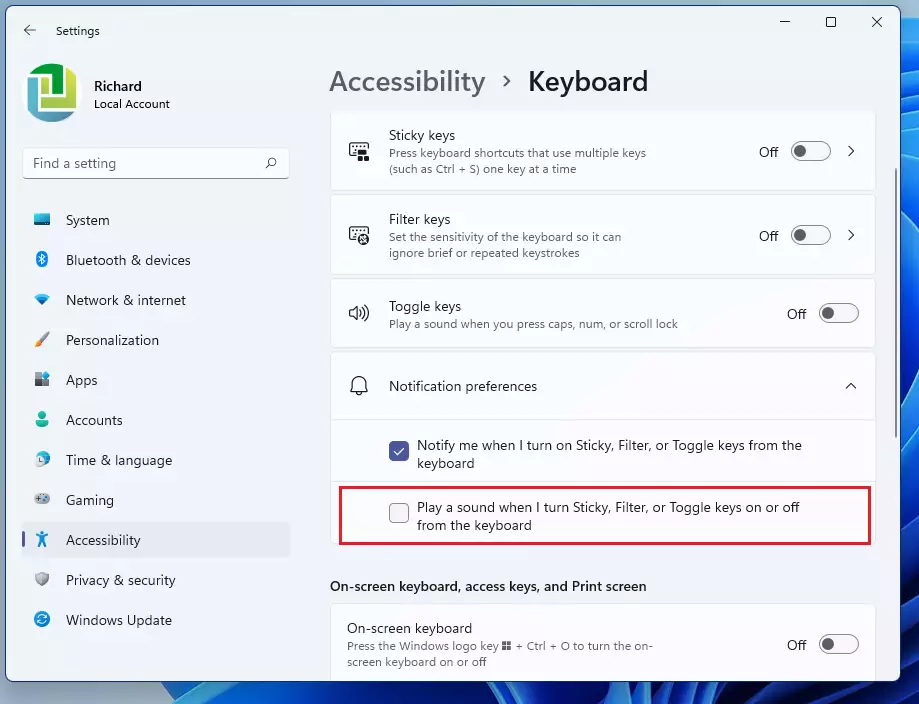
windows 11 accessibility keyboard - Look for the section labeled Notification preferences.
- Uncheck the box that says: “Play a sound when I turn Sticky, Filter, or Toggle keys on or off from the keyboard.”
windows 11 onscreen keyboard disable sound 1
How to turn off On-Screen Keyboard sound
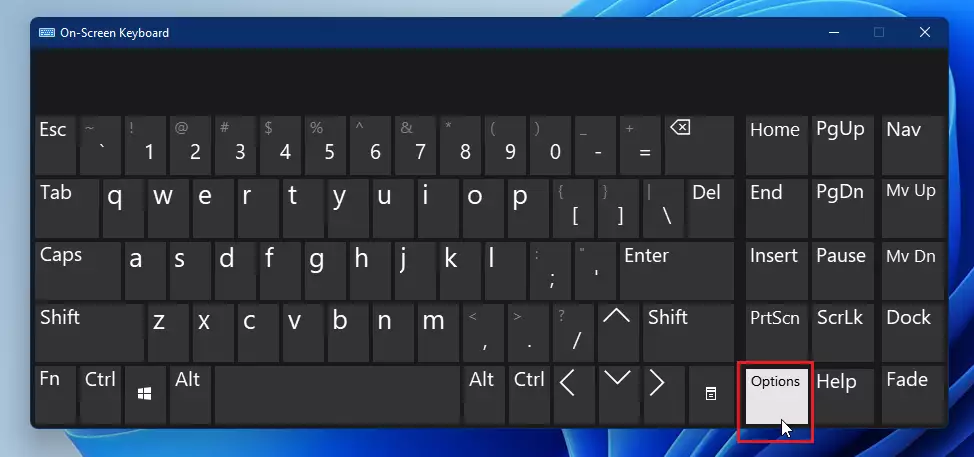
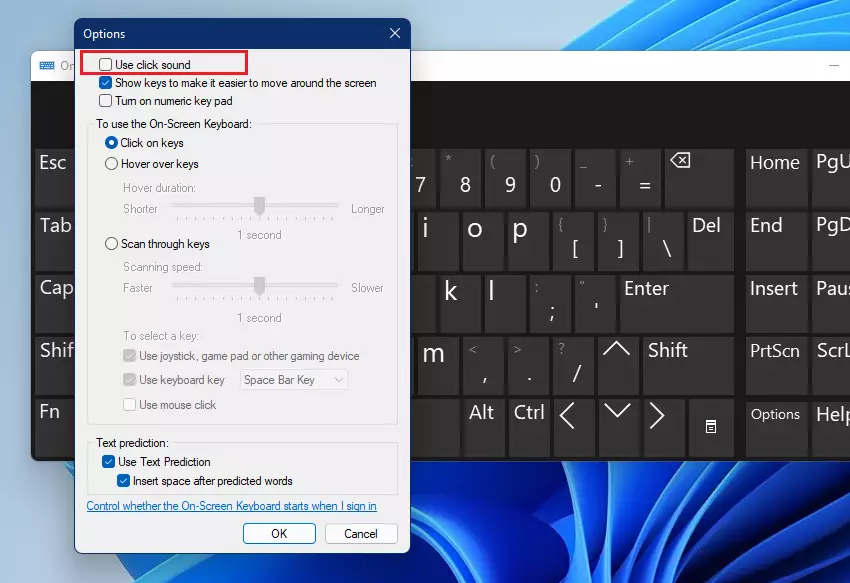
To mute Windows 11 keyboard sounds for the classic On-Screen Keyboard, click the Options button on the lower right corner of the keyboard window. Uncheck the box next to Use click sound and click OK. This turns off the audio feedback for every key press without changing your main system settings.
- Ensure your On-Screen Keyboard is open. If it is not, go to Start > Settings > Accessibility and turn on the On-Screen Keyboard switch.
windows 11 onscreen keyboard turn off sound - On the actual keyboard interface, click the Options key.
windows 11 onscreen keyboard options - A small window will appear. Simply uncheck the box labeled “Use click sound.”
- Click OK to save your changes.
windows 11 disable use click sound
Advanced Configuration Methods
To mute Windows 11 keyboard sounds using the system registry when standard menus fail, open the Registry Editor and navigate to 🗝️HKEY_CURRENT_USER\
HKEY_CURRENT_USER\Software\Microsoft\TabletTip\1.0
You can also use PowerShell to manage accessibility settings, though this is primarily for system administrators.
Summary
You can easily mute Windows 11 keyboard sounds by adjusting the Accessibility settings or the Options menu on the keyboard itself. For advanced users, the Registry Editor offers a deeper way to disable feedback. These changes help you create a quieter, distraction-free environment while you work.
Was this guide helpful?

About the Author
Richard
Tech Writer, IT Professional
Richard is a writer at Geek Rewind who turns complex IT tasks into clear, step-by-step guides. He draws on years of hands-on experience in system administration and enterprise IT operations, focusing on Windows, Linux and WordPress: the problems people actually run into, and the fixes that work. His server and WordPress guides come from systems he runs himself. Richard builds and maintains the platform behind Geek Rewind, from its Ubuntu servers and Nginx configuration to its custom WordPress plugins. Many new tutorials start with readers' questions, and he's always glad to answer them in the comments.



Your method for touch screen keyboard doesn’t work.
This doesn’t work. Keyboard clicks continue. Aargh! Extremely frustrating.