How to Enable or Disable Let Apps Access Camera in Windows 11

The “Let apps access camera” setting in Windows 11 controls whether desktop programs and Microsoft Store apps can use your webcam. Turning this master switch off blocks all 32-bit and UWP apps from viewing your video feed until you turn permission back on.
You can manage this privacy control inside the Privacy & security menu in the main Settings app. Blocking individual programs stops specific apps like Zoom or Skype from recording video without your knowledge.
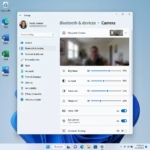
Go to Settings , then Privacy & security, and select Camera. Use the Camera access switch to enable or disable it for all apps. You can also scroll down to “Let apps access your camera” and toggle switches for individual applications.
What is Camera Access?
Camera access in Windows 11 lets programs use your webcam for video calls, snapshots, and recordings. Managing these permissions stops background apps from turning on the lens without your knowledge.
Privacy controls let owners choose exactly which software utilizes recording hardware. Restricting unneeded utilities safeguards sensitive personal information from exposure.
How to Turn Off the Webcam on 🪟 Windows 11
Follow these steps to change your camera permissions:
Open Settings
Press the Windows key + I shortcut to launch Windows Settings . Alternatively, click the Start button and select Settings from the menu.
Go to Privacy & Security
Click Privacy & Security located on the left-hand navigation pane.
Select Camera
Select Camera on the right side of the window to open relevant configuration options.
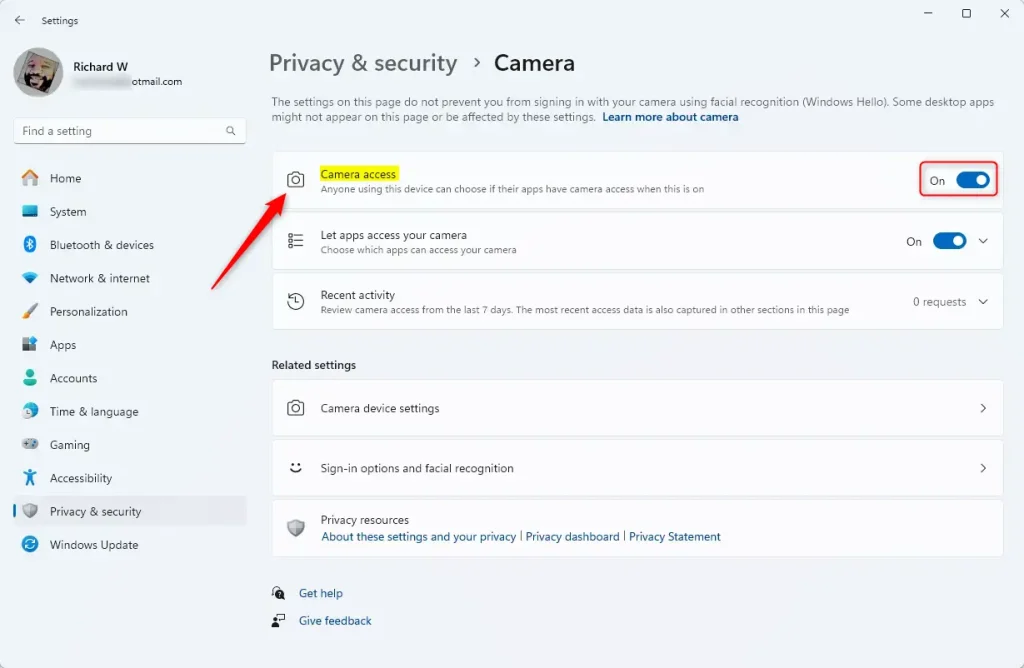
Turn Camera Access On or Off
Locate the master switch at the top of the screen. Toggle this switch to turn camera access completely on or off for all installed software.
Allow or Block Camera Access for Individual Apps
You can manage Windows 11 camera access for specific programs by scrolling down to the app list in your privacy settings. This lets you turn the webcam on for video call apps like Zoom while blocking it for games or web browsers that do not need it, giving you exact control over your webcam privacy without turning it off system-wide.
- On the same Camera settings page, scroll down to Let apps access your camera.
- Click the arrow or tile to expand the list of apps.
- Use the switches next to each app to allow or block camera access for that specific app.
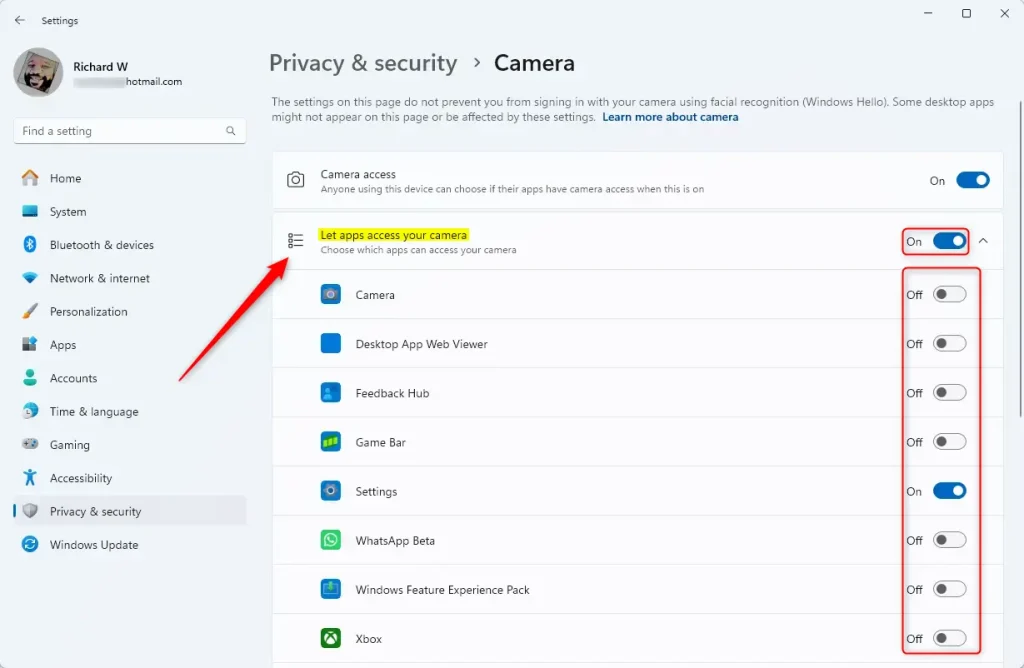
Revoking permissions completely blocks that specific program from utilizing hardware sensors.
Summary
- Turning camera access on or off helps keep your privacy safe.
- You can easily control which apps can use your camera in Windows 11.
- Changing these settings is simple using the Settings app.
- You can choose to allow or block camera access for all apps or just some apps.
- It's a good idea to check these settings regularly for better security.
Controlling Windows 11 camera access takes just a few clicks in the Settings app, helping you keep your private life private. Reviewing these webcam permissions regularly ensures that only trusted apps can use your camera, stopping unwanted programs from recording you without your permission.
Was this guide helpful?
50% of readers found this helpful (2 votes)

About the Author
Richard
Tech Writer, IT Professional
Richard is a writer at Geek Rewind who turns complex IT tasks into clear, step-by-step guides. He draws on years of hands-on experience in system administration and enterprise IT operations, focusing on Windows, Linux and WordPress: the problems people actually run into, and the fixes that work. His server and WordPress guides come from systems he runs himself. Richard builds and maintains the platform behind Geek Rewind, from its Ubuntu servers and Nginx configuration to its custom WordPress plugins. Many new tutorials start with readers' questions, and he's always glad to answer them in the comments.


No comments yet — be the first to share your thoughts!