How to Test Internet Speed In Windows 11

- 19 steps
- Needs administrator rights
To test internet speed in Windows 11, use the Speed test Quick Setting if your build has it. If it does not, use a browser test. Each test reports download speed, upload speed, and ping. The quickest way is the new Speed test Quick Setting, which runs the test and shows results without opening a browser.
That built-in test is currently available only in Windows Insider preview builds (early versions of Windows that Microsoft tests before public release). It may change before it reaches the stable release. If your PC runs a standard Windows 11 build, use the browser method further down.
Open Quick Settings with Win+A and select the Speed test tile to measure download speed, upload speed, and ping. The tile appears only on Windows Insider preview builds that include the feature. On a standard Windows 11 PC, go to speedtest.net or fast.com in your browser and select Go.
Check whether your PC has the built-in speed test
Microsoft announced the Speed test Quick Setting in a Windows Insider build. Read the Windows Insider build announcement dated 23 October 2026 for the date and build details. Only PCs on a preview build that includes it will show the feature. A fully updated stable Windows 11 PC will not.
Check your build before you look for the option. The test needs no administrator rights, so a standard account works.
- Open Settings . Press Win+I.
- Select System, then select About. Settings System About shows your Windows version and OS build under Windows specifications.
- Compare the OS build with the one named in the Windows Insider announcement. If your build is older, or is not a preview build, the Speed test option will not appear yet.
Only do this on a spare PC. Joining the Windows Insider Program (Settings Windows Update Windows Insider Program) is the route to preview builds. For a single speed test, the browser method below is safer.
How to test internet speed in 🪟 Windows 11 from Quick Settings
These steps run the built-in speed test from the Speed test Quick Setting. They work only on a preview build that includes the feature.
- Open Quick Settings. Press Win+A.
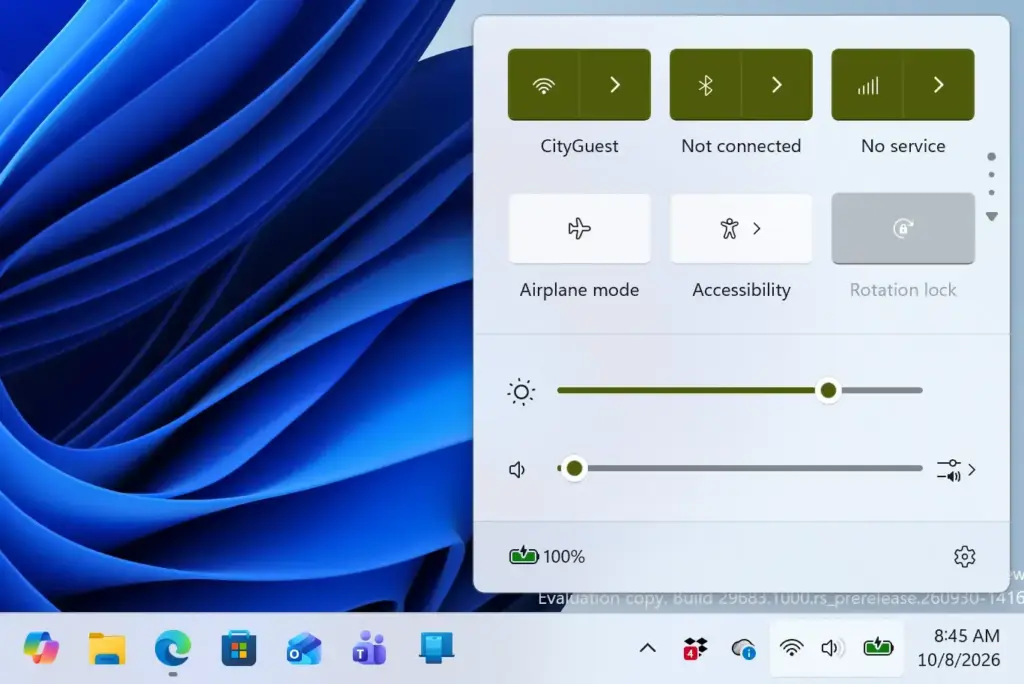
- Find the Speed test tile. It sits among the other Quick Settings tiles.
- Select Speed test. The test starts inside the Quick Settings panel.
- Wait for the test to finish. Keep the panel open and leave other network activity alone.
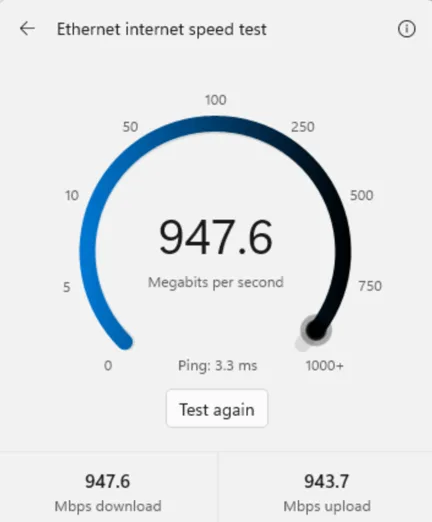
- Read the results. Windows shows download speed, upload speed, and ping for your active internet connection.
- Close Quick Settings. Press Win+A again, or click an empty area of the desktop.
To run a second test, open Quick Settings again with Win+A, find the Speed test tile, and select it. A single result can swing because of other traffic on your network, so two or three runs give a better picture.
Other ways to start the test
Microsoft built in two more entry points. Both run the same test and show the same results. Use whichever is closer to hand.
From the network icon in the system tray (the group of icons at the right end of the taskbar):
- Right-click the network icon. It looks like a Wi-Fi signal or a small monitor, depending on your connection.
- Select Test internet speed from the menu that appears.
From the Wi-Fi or Cellular flyout (the sub-panel that lists available networks):
- Press Win+A to open Quick Settings.
- Select the arrow (>) beside the Wi-Fi tile, or beside the Cellular tile if your PC has a mobile data connection.
- Start the speed test from the flyout. Its exact position may shift between preview builds, so look for the speed test entry in the flyout itself.
If you right-click the icon and the menu has no Test internet speed entry, your build does not have the feature. This is the most common reason for a missing option.
Test internet speed in a browser on a standard 🪟 Windows 11 PC
A browser-based speed test works on every version of Windows 11, including builds that lack the built-in tool. Two services are widely used: Speedtest by Ookla (speedtest.net) and Fast.com, which Netflix runs. Neither needs an account.
- Open Microsoft Edge or another browser. Select its icon on the taskbar or in the Start menu .
- Go to speedtest.net or fast.com. Type the address in the address bar and press Enter.
- Start the test. On Speedtest, select Go. Fast.com starts on its own when the page loads.
- Wait for the result. Speedtest reports download speed, upload speed, and ping. Fast.com shows download speed first and lets you expand the details for upload speed and latency.
- Close the tab when you finish. No settings change on your PC.
Browser tests have a side effect: browser extensions, open tabs, and a VPN (a service that routes your traffic through another server) can affect the number. A private window with extensions off gives a cleaner reading. The built-in Quick Settings test runs without a browser, so browser activity does not affect the result. The two tools may still report different numbers because they use different test servers.
Read your results
Every test reports the same three numbers. Each one affects a different part of your day.
Download speed
Download speed is how fast data reaches your PC. It matters for streaming, web pages, game downloads, and Windows updates. It is shown in megabits per second (Mbps).
A megabit is one-eighth of a megabyte, so a 100 Mbps connection moves about 12.5 megabytes per second in a file download. That is why a download window shows a lower number than your plan’s advertised speed.
Upload speed
Upload speed is how fast data leaves your PC. It matters for video calls, cloud backups, and sending large files. Many home connections have much lower upload speed than download speed, so a low upload number is not always a fault.
Ping
Ping, also called latency, is the round-trip delay in milliseconds (ms). That is the time a signal takes to reach the server and come back. Lower is better. High ping causes lag in online games and delays in video calls, even when download speed looks strong.
Get an accurate result
A speed test measures everything using your connection at that moment, not only your PC. Remove sources of interference before you test.
- Pause downloads and streams. Cloud sync, game launchers, and video streaming all use part of your connection’s capacity (its bandwidth) during the test.
- Check Windows Update. Windows can download updates in the background and even share them with other PCs. The article on what Windows 11 Delivery Optimization does to your internet bandwidth explains how that uses your connection.
- Use Ethernet if you can. A cable removes Wi-Fi signal strength from the equation. Test over Wi-Fi as well if Wi-Fi is the problem you are chasing.
- Disconnect the VPN. A VPN adds a detour, which lowers speed and raises ping.
- Test close to the router. Walls and distance weaken Wi-Fi signal.
- Test more than once. Run it two or three times and compare. Large gaps suggest your network is busy or your Wi-Fi signal is unstable.
If you set up a mobile hotspot connection in Windows 11, run the test while connected to it to see what that link delivers. Speed tests download and upload real data, so on a cellular or capped connection a test uses part of your allowance.
If the Speed test option is missing or the test fails
Work through these causes in order.
The Speed test tile is not in Quick Settings. The most likely reason is that your PC is not on a preview build with the feature. Check the build as described at the start of this article.
If the build is right, open Quick Settings and select the pencil icon (Edit quick settings). Select Add and look for Speed test in the list. If it is not offered, your build does not include it yet.
The right-click menu has no Test internet speed entry. The menu only shows that item on builds that include the feature. Use the browser method instead.
The test does not finish or shows no result. Check that the PC is online. Open any web page in a browser. If Windows shows a globe icon or a "No internet" message in the system tray, the problem is the connection, not the test.
Restart your router, reconnect to the network, and try again. If you are setting up a PC on a very slow or unavailable connection, you can set up Windows 11 without an internet connection and finish updates later.
The numbers differ between tools. This is normal. The built-in test and each browser service use different test servers and methods. Compare results from the same tool over time instead of comparing one tool to another.
The feature may change. Because it is in preview, Microsoft can change where the Speed test option sits, how it is named, or whether it ships. The menu names here match Microsoft's 23 October 2026 announcement.
What to do next
If your results are far below the speed your provider advertises, repeat the test over Ethernet and then contact your provider with the numbers. If the built-in test is not on your PC yet, check Settings Windows Update after each feature release, and keep using the browser method in the meantime. For related connection settings, read the guide on changing the internet time server in Windows 11 if your clock drifts out of sync.
Have a question about this guide?
Answered by AI from this guide. Good questions may be added to this page — please don't include personal details.
Did this guide fix your problem?

About the Author
Richard
Tech Writer, IT Professional
Richard is a writer at Geek Rewind who turns complex IT tasks into clear, step-by-step guides. He draws on years of hands-on experience in system administration and enterprise IT operations, focusing on Windows, Linux and WordPress: the problems people actually run into, and the fixes that work. His server and WordPress guides come from systems he runs himself. Richard builds and maintains the platform behind Geek Rewind, from its Ubuntu servers and Nginx configuration to its custom WordPress plugins. Many new tutorials start with readers' questions, and he's always glad to answer them in the comments.
No comments yet — be the first to share your thoughts!