How to Switch Out of S Mode in Windows 11

- 10 steps
- Includes a restart or sign-out
Switching out of S mode in Windows 11 removes the restriction that limits your PC to apps from the Microsoft Store. The quickest route is Settings System Activation, where you open the Store and select Get on the Switch out of S mode page. The change is free and usually finishes in a few seconds. Windows does not let you undo it.
S mode is a locked-down way of running Windows 11 Home or Pro. It blocks any app that does not come from the Microsoft Store, which is why installers for games, browsers and work tools fail to run. Leaving S mode keeps the same edition: Windows 11 Home in S mode becomes Windows 11 Home, and Pro in S mode becomes Pro.
To switch out of S mode in Windows 11, open Settings System Activation, select Open Store under the Switch to Windows 11 Home (or Pro) section, then select Get on the Switch out of S mode page. The change is free and usually takes a few seconds. It is permanent: Windows does not let you return to S mode.
Before you switch out of S mode
- The switch costs nothing, and the Store page will not charge you. Any page that asks you to pay to leave S mode is not the official Microsoft Store page.
- Your files and apps stay. The switch changes what Windows allows you to install. It does not reinstall Windows or remove your documents.
- You need an internet connection and a working Microsoft Store. The switch runs through a Store page.
- Work and school PCs may block it. If your organisation manages the device, its administrators may hide or block the option. Ask whoever manages the PC before you try again.
Check whether your PC is in S mode
Open Settings System About and look under Windows specifications. The Edition line reads “Windows 11 Home in S mode” or “Windows 11 Pro in S mode” if the restriction is on. If it reads only “Windows 11 Home” or “Windows 11 Pro”, you are already out of S mode and the steps below do not apply.
Another sign is the error you get when you run a downloaded installer. In S mode, Windows blocks it and points you to the Microsoft Store instead.
How to switch out of S mode in Windows 11
These steps switch out of S mode in Windows 11 by using the Activation page in Settings and the Microsoft Store. The whole process, from opening Settings to confirming the change, is in one list.
- Open Settings. Press the Win+I, or right-click the Start button and select Settings.
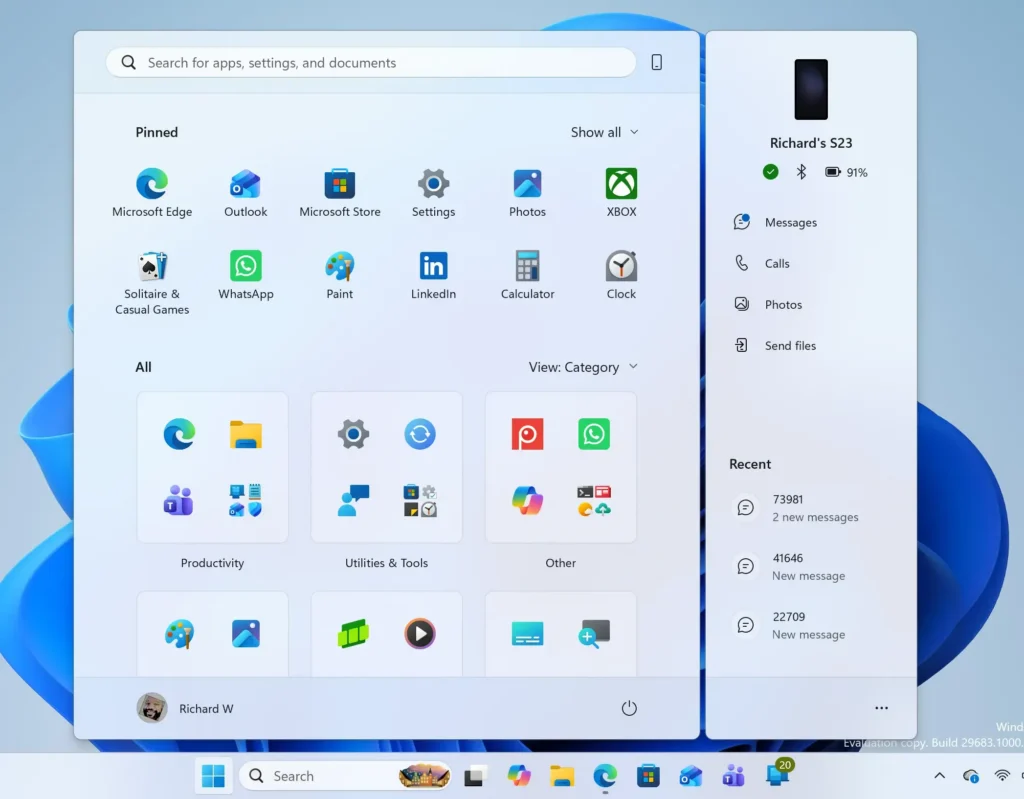
Windows 11 Start menu search panel for opening OpenSSH Client settings - Select System. It is the first item in the left-hand list. The System page opens on the right.
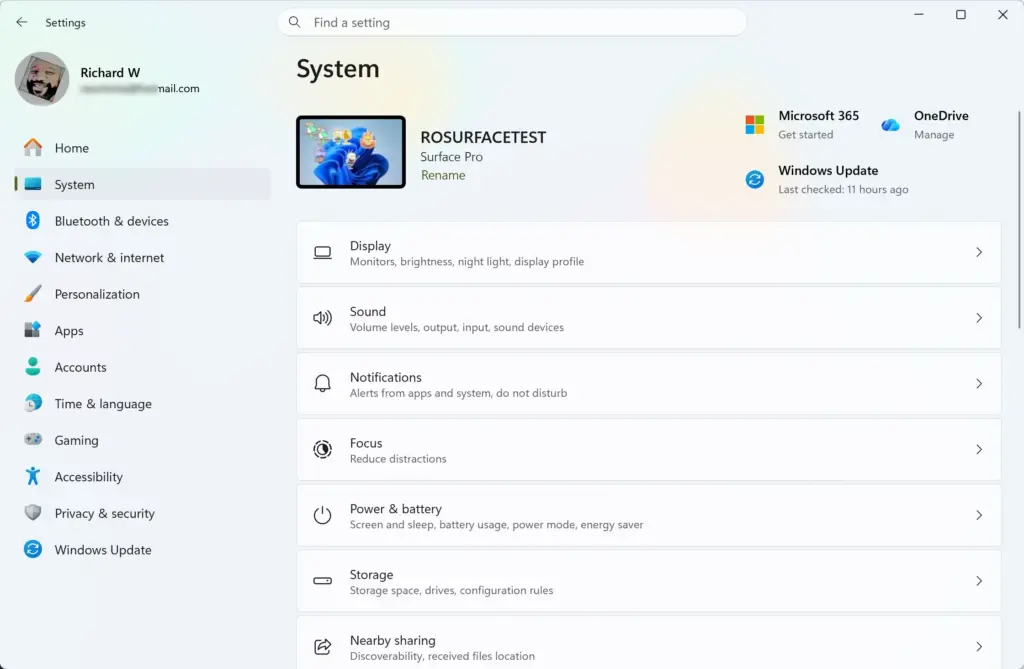
Settings › System - Select Activation. Scroll down the System page until you see Activation, then select it. This page shows your activation state and edition.
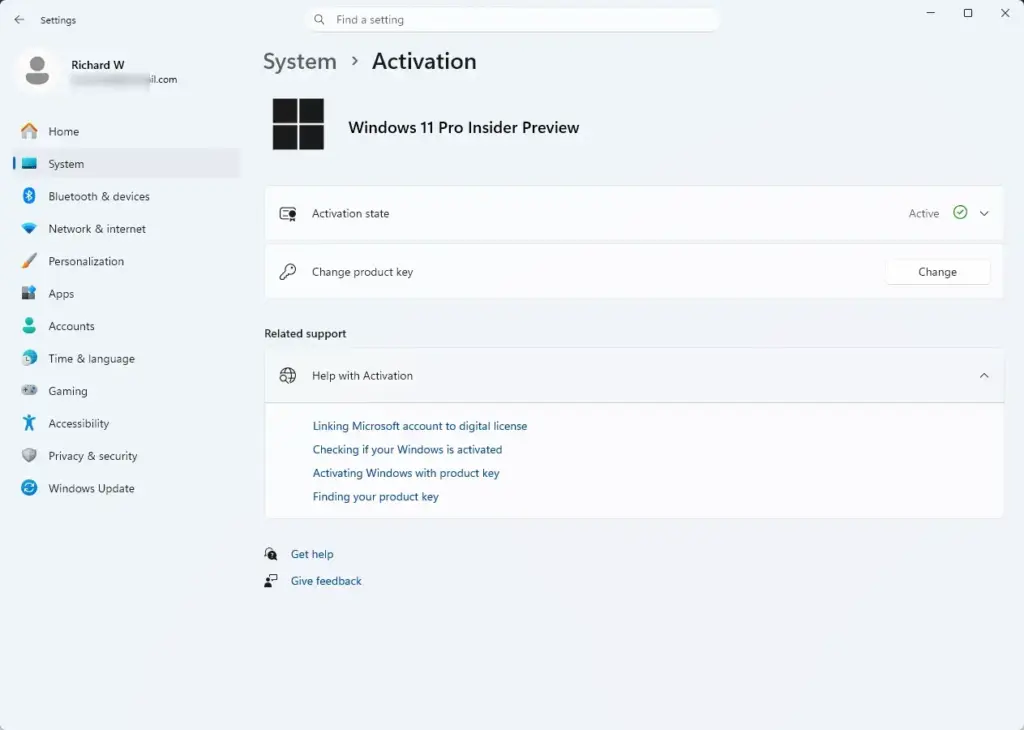
Settings › System › Activation - Find the Switch to Windows 11 Home section. On a Pro device, it reads Switch to Windows 11 Pro. This section appears only while the PC is in S mode. Select the arrow to expand it if it is collapsed.
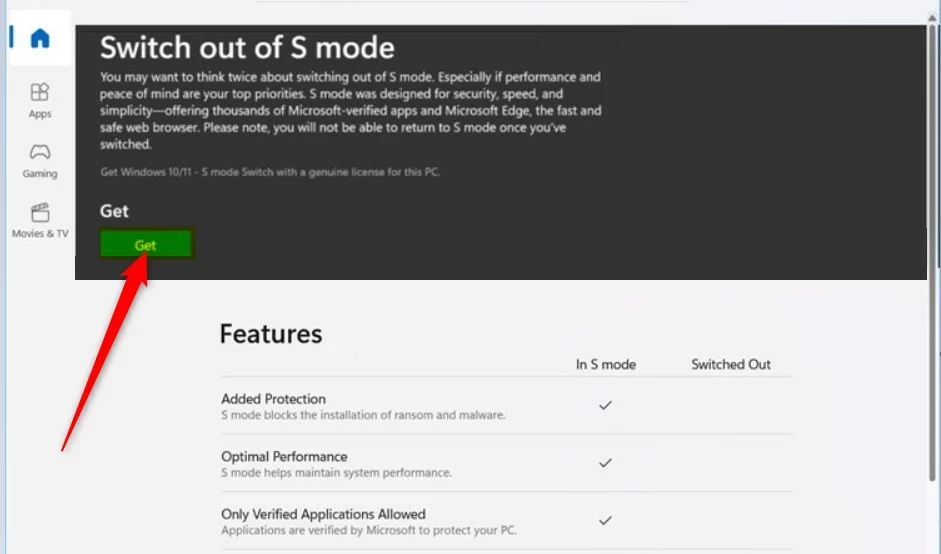
windows 11 switch out of s mode get button - Select Open Store. The button label can differ slightly between Windows 11 builds. The Microsoft Store opens on a page titled Switch out of S mode.
- Read the notice on the Store page. Microsoft explains that you can install apps from outside the Store after the switch. It also warns that the change is permanent. If you do not want that, close the Store here.
- Select Get. Windows starts the switch. Stay on the page while it runs. You may see a short progress indicator.
- Wait for the confirmation message. The Store tells you that you have switched out of S mode. This usually takes a few seconds, and a restart is not normally required.
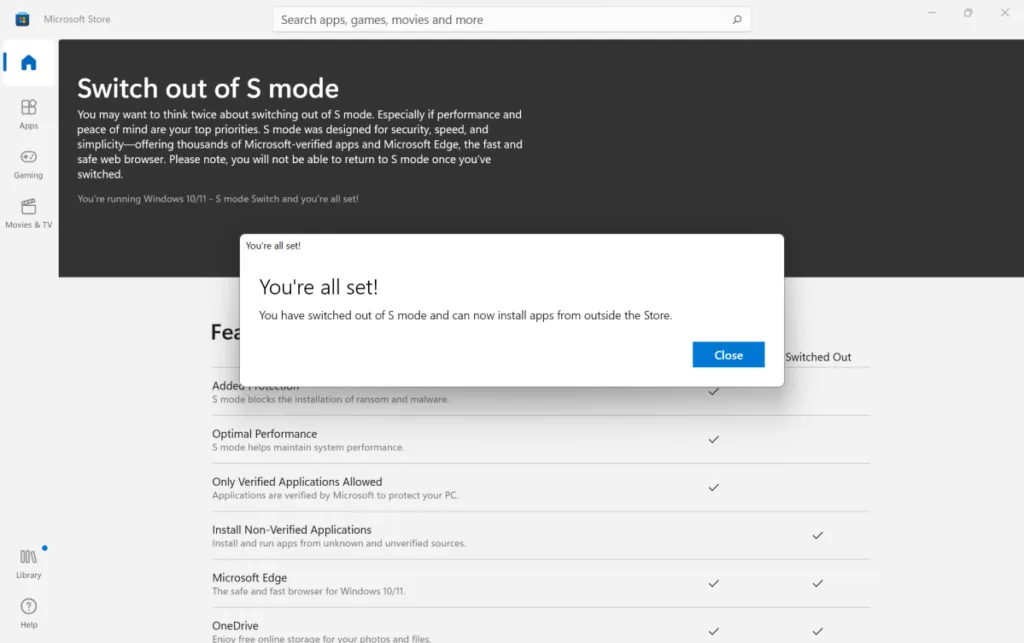
- Close the Microsoft Store. If Windows asks you to restart, restart before you install anything.
- Confirm the change. Open Settings System About. The Edition line now reads Windows 11 Home or Windows 11 Pro, without “in S mode”.
If Windows asks for administrator approval at any point, approve it. On a PC you do not manage, ask the person who does.
If the option is missing or the switch fails
Most failures come from one of three causes: the PC is already out of S mode, the Store is not working, or something is blocking the change. Find the symptom below that matches yours.
The Activation page has no Switch to Windows 11 Home section
This section appears only on a PC that is in S mode. If you do not see it, check Settings System About first. When the Edition line has no “in S mode” text, you have already left S mode, possibly months ago, and you can install apps from any source.
If the Edition line does say “in S mode” but the section is still missing, the device is probably managed by a work or school account. Switching is controlled by the organisation in that case, and you need an administrator to change it.
The Store opens but the Get button does nothing
Check that you are online, then close and reopen the Microsoft Store. An old version of the Store app often causes pages to freeze. Open the Store, select Library, then select Get updates, and try the switch again.
If the page is blank or shows an error, restart the PC and start again from Settings System Activation. Opening the Store from the Start menu instead of from Settings can load a different page and miss the switch option. Always start from the Activation page.
Windows says the switch could not be completed
Run Windows Update to install any pending updates, restart, and try again. I can’t confirm a specific error code or a guaranteed fix for this case, so the steps below may not solve it. If it keeps failing on a PC you manage, contact Microsoft Support or the manufacturer.
Other methods you may see online
Some guides describe changing Secure Boot settings (a startup security feature in the PC’s firmware) or editing the registry (Windows’ settings database) to force a PC out of S mode. This guide does not cover them, because I cannot verify them as supported methods for Windows 11. A wrong registry or firmware change can stop a PC from starting. The Microsoft Store method above is the supported one, and you do not need anything else to use it.
What changes after you leave S mode
Once the switch is done, Windows treats your PC like a standard Windows 11 Home or Pro installation. The Microsoft Store stays available. It stops being the only source of apps.
- You can install apps from any source. Downloaded .exe and .msi installers now run. Use trusted sources only, because Windows no longer limits you to Microsoft-checked software.
- You can choose another default browser. S mode requires Microsoft Edge for browsing. After the switch, you can set Chrome, Firefox or another browser in Settings Apps Default apps.
- Existing Store apps keep working. You do not need to reinstall them.
- Don’t expect the switch to make your PC faster or extend battery life. It removes a restriction and adds no features.
Downloading software from the web carries more risk than using the Store, so the next steps focus on safer browsing. The HTTPS-First Mode in Microsoft Edge guide shows how to make Edge warn you before it loads a page over an unencrypted connection. That covers one of the common risks of downloading installers from the web.
If you plan to install games from outside the Store, the Efficiency Mode in Microsoft Edge post explains a setting that affects how Edge behaves while a game runs. If your workplace uses older internal websites, see Internet Explorer mode in Microsoft Edge.
Can you go back to S mode?
Not from Windows itself. Microsoft says the switch is permanent, and no setting in Windows 11 turns S mode back on. The Activation page no longer shows the Switch to Windows 11 Home section after you leave.
The only possible route back is a reset or reinstall to the original factory state, but treat it as unproven. Some manufacturers publish recovery images for their own devices. Microsoft has offered Surface recovery images, which work only with the matching Surface model and ask for the device serial number. I have not tested that route on Windows 11, so I cannot confirm that it restores S mode.
What to do next
Install the app you wanted from the publisher’s own website, and check that its installer now runs without the Store warning. If you want a safer way to download it, turn on HTTPS-First Mode in Edge (the setting that warns you before a page loads without an encrypted connection) before you visit the site. If a download link was blocked on an earlier visit, open the page in an InPrivate window in Microsoft Edge (a private window that does not use saved cookies or history) to rule out saved browser data as the cause.
Frequently asked questions
What is s mode?
S mode is a locked-down setting for Windows 11 Home and Pro. It allows only apps from the Microsoft Store, so installers for games, browsers and work tools from other sources won't run. Your edition stays the same when you leave it.
How to get out of s mode?
Open Settings, then go to System Activation. Select Open Store, and on the Switch out of S mode page, select Get. The switch is free and usually takes a few seconds, but Windows cannot undo it, so you cannot return to S mode.
Still have a question?
Answered by AI from this guide. Good questions may be added to this page — please don't include personal details.
Did this guide fix your problem?

About the Author
Richard
Tech Writer, IT Professional
Richard is a writer at Geek Rewind who turns complex IT tasks into clear, step-by-step guides. He draws on years of hands-on experience in system administration and enterprise IT operations, focusing on Windows, Linux and WordPress: the problems people actually run into, and the fixes that work. His server and WordPress guides come from systems he runs himself. Richard builds and maintains the platform behind Geek Rewind, from its Ubuntu servers and Nginx configuration to its custom WordPress plugins. Many new tutorials start with readers' questions, and he's always glad to answer them in the comments.
No comments yet — be the first to share your thoughts!