How to Stop Bing Videos from Playing Automatically


Bing video autoplay starts the homepage background video by itself as soon as you open the site. Turning it off stops sudden motion on the page, takes some load off your browser, and saves a little internet data, which matters on a metered connection or an older PC.
You can turn off autoplay on the Bing website, using the menu in the top right corner of the page. Bing remembers your choice, so videos stay quiet until you click play. The setting is stored for the browser you are using. If you use more than one browser or device, repeat the steps on each one. Signing in with a Microsoft account can carry preferences across devices, but don’t count on it.
Open bing.com, click Settings and quick links in the top right corner, then select Settings. Navigate to Homepage Videos and panoramas and choose Don’t play automatically. Click Save if prompted. The homepage video will no longer autoplay.
How to Stop Bing Videos from Playing Automatically
Step 1Go to Bing’s Settings
Everything starts on the main Bing page. These settings are not available from the search results page.
- Open your web browser (Edge, Chrome, Firefox or any other).
- Click the address bar, type bing.com, and press Enter.
- Wait for the page to load. You should see the Bing search box and the homepage background, which may start playing video.
You need to be on the Bing homepage because the homepage options only appear from there.
Step 2Find the Settings Menu
The menu that holds the settings sits in the top right corner of the page.
- Look at the top right corner of the Bing page.
- Click Settings and quick links. It usually appears as a small menu icon.
If you don’t see the icon, make the browser window wider. On a narrow window, the page layout can change and move or hide items.
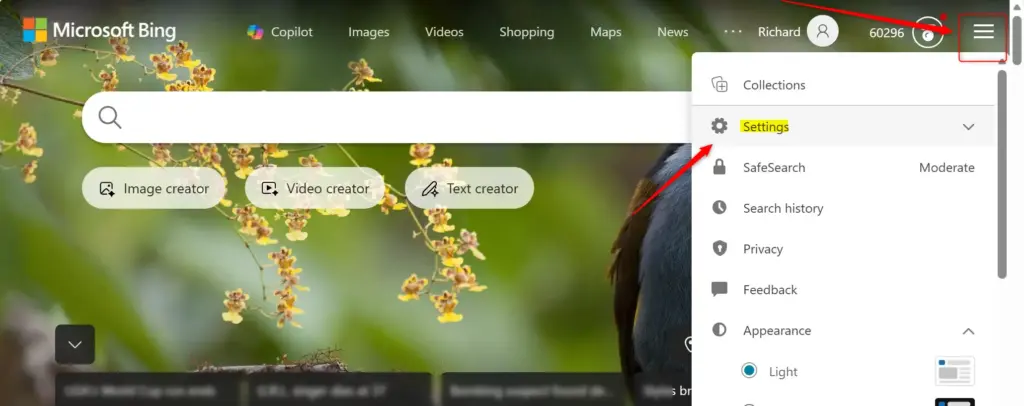
Step 3Open All Settings
The flyout is a short list. The full control panel is one more click away.
- In the flyout menu, find the entry labeled Settings.
- Click Settings.
A more extensive settings page opens, with several categories of options.
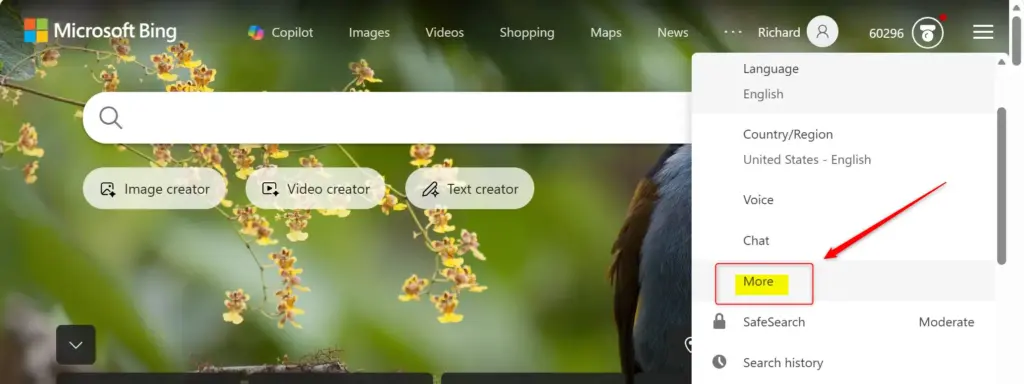
Step 4Find the Homepage Video Options
The video option sits in the section that controls how the homepage looks and behaves.
- Scroll through the settings categories until you find Homepage.
- Open the Homepage section if it isn't already expanded.
- Within it, find the subsection titled Videos and panoramas.
If you can't find these names, Microsoft may have moved or renamed things, since Bing changes its layout from time to time. Look for any option that mentions homepage video or background playback. The steps below still apply.
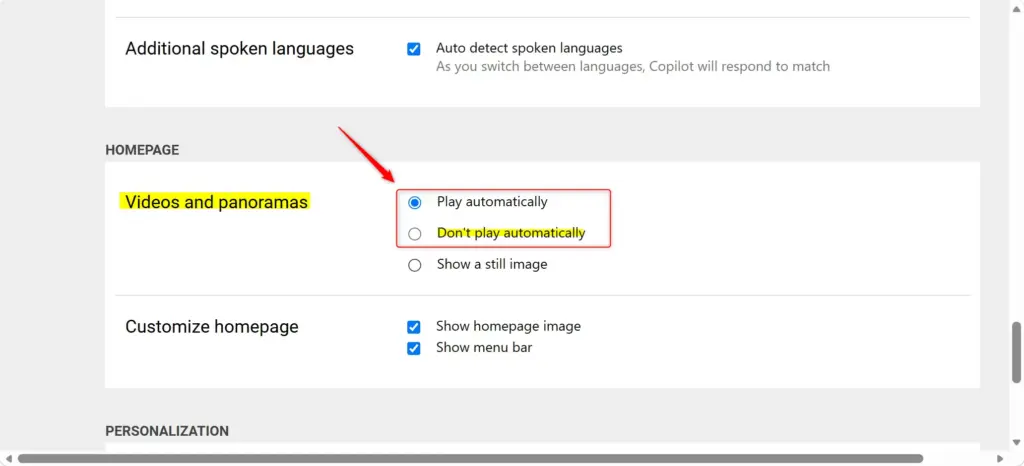
Step 5Choose How Videos Play
This is the setting that decides whether the background clip plays when you load the page.
- In the Videos and panoramas section, find the option for video playback.
- Select Don't play automatically.
From here on, the homepage video waits until you start it yourself. To undo the change, come back to this same screen and pick a different playback option.
Step 6Save Your Choices
The last step is to make sure the choice is saved. Some versions of the page save changes the moment you select an option. Others show a button at the bottom of the settings screen.
- Scroll to the bottom of the settings screen.
- Look for a button labeled Save or Apply.
- If you see one, click it to finalize your selection.
- If there is no such button, your choice was registered immediately and you don't need to do anything else.
To check that it worked, reload bing.com. The homepage video should no longer start on its own. If it still plays, make sure your browser allows cookies for Bing, because the setting depends on them. Also check that you changed the setting in the same browser you are testing in.
References:
https://support.microsoft.com/en-us/bing/turn-off-bing-homepage-image-or-video
Summary
To stop Bing videos from playing automatically, visit Bing's homepage, click Settings and quick links, then select Settings. Go to the Homepage section, then Videos and panoramas, and choose Don't play automatically. Save your changes if a save button is shown.
Have a question about this guide?
Answered by AI from this guide. Good questions may be added to this page — please don't include personal details.
Did this guide fix your problem?

About the Author
Richard
Tech Writer, IT Professional
Richard is a writer at Geek Rewind who turns complex IT tasks into clear, step-by-step guides. He draws on years of hands-on experience in system administration and enterprise IT operations, focusing on Windows, Linux and WordPress: the problems people actually run into, and the fixes that work. His server and WordPress guides come from systems he runs himself. Richard builds and maintains the platform behind Geek Rewind, from its Ubuntu servers and Nginx configuration to its custom WordPress plugins. Many new tutorials start with readers' questions, and he's always glad to answer them in the comments.
No comments yet — be the first to share your thoughts!