How to Use Voice Recorder on Windows 11

Windows 11 includes a built-in utility called Sound Recorder (formerly Voice Recorder) for capturing quick notes, lectures, or interviews without extra software.
Open the Start menu , type “Sound Recorder,” and click the app to launch it. Click the large blue microphone icon to begin recording and click the stop button to finish. Recordings are saved by default in 📁C:\
Why use Sound Recorder?
Microsoft includes this free utility right out of the box, meaning zero extra downloads or complicated setup steps are required. Sound Recorder is lightweight and fits right into your system.
What happens when done?
Hitting stop tells the app to automatically wrap up the session and export the audio as an .m4a file. Users can then rename, trim, or share these files directly from the app interface.
Setting Up Your Microphone
To start recording with Voice Recorder on Windows 11, first check that your microphone has permission to record. Go to Settings Privacy & security Microphone and turn on ‘Microphone access’.
How to Record Audio
- Open the Start menu.
- Type Sound Recorder into the search bar.
- Click the app to launch it.
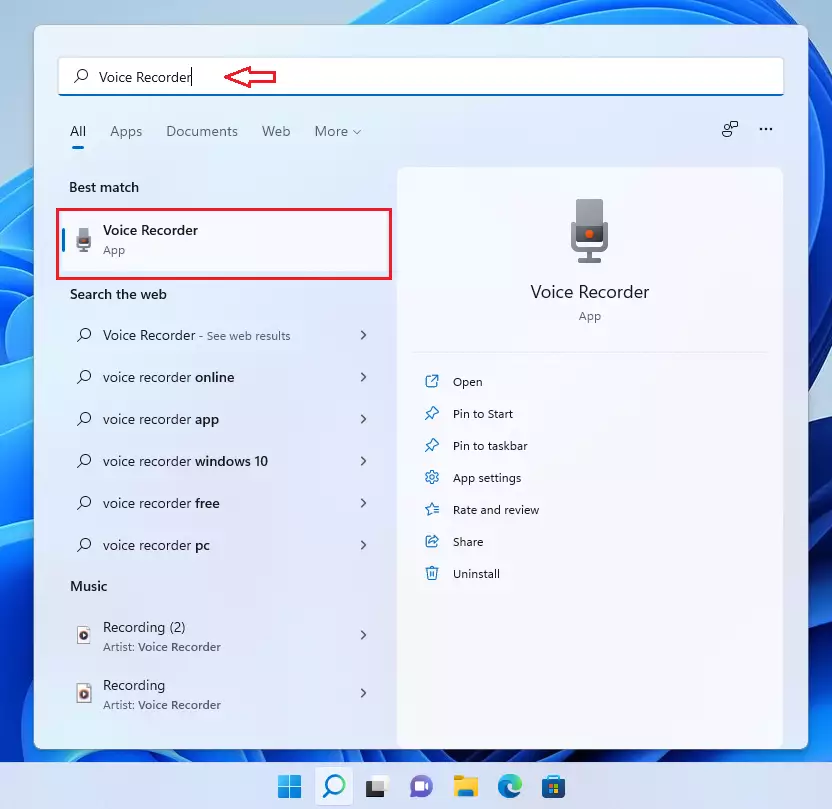
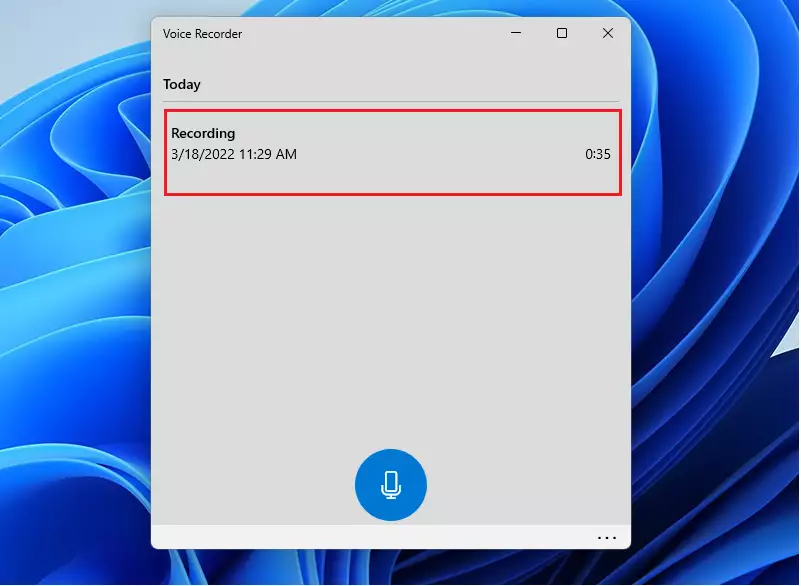
Press the Win, type Sound Recorder, and press Enter to open the app. With the Voice Recorder app open, click the large blue microphone icon to begin recording.
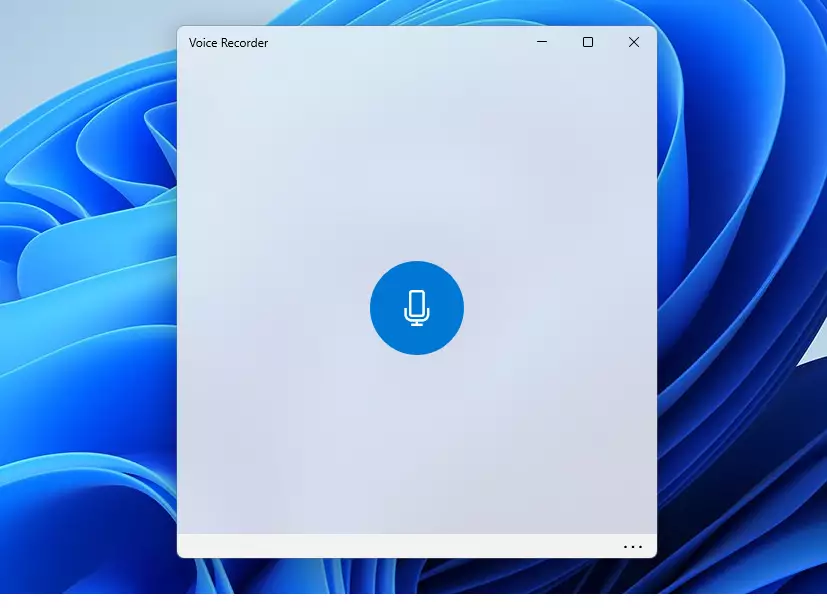
- Click the blue microphone icon to start.
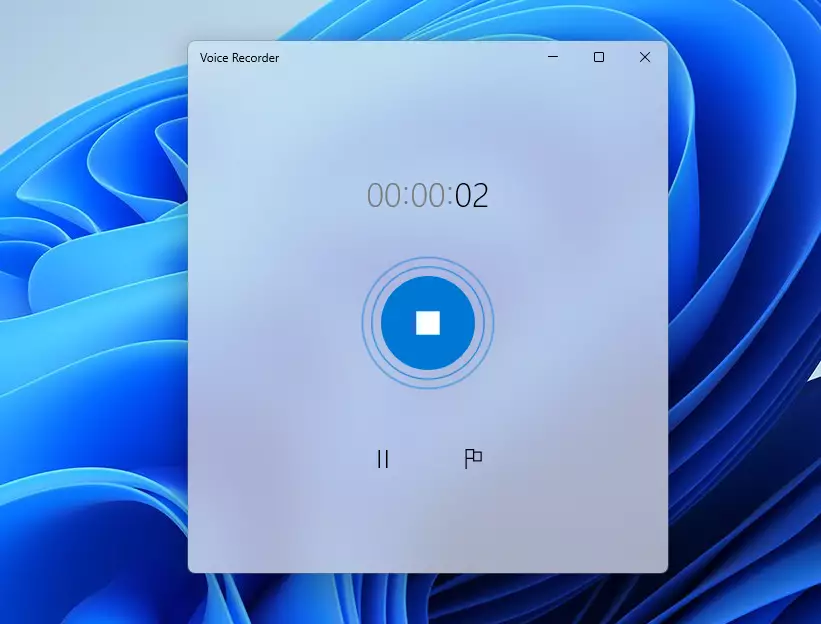
- Click the stop button to finish.
Recordings appear in the left sidebar, organized by date.
File Management and Storage
Recordings save automatically to your Documents folder under C:\Users\username\Documents\Sound Recordings.
Pro Tips for Multitasking
Recording audio works even when using other applications, like Word or a web browser. Sound Recorder stays active in the background. Transcribing audio is possible by using the built-in Windows voice-to-text features via Win + H while inside a text field.
Summary
Windows 11's Sound Recorder app serves as a handy built-in utility for capturing audio. The software allows users to manage microphone settings and locate saved .m4a recordings.
Was this guide helpful?

About the Author
Richard
Tech Writer, IT Professional
Richard is a writer at Geek Rewind who turns complex IT tasks into clear, step-by-step guides. He draws on years of hands-on experience in system administration and enterprise IT operations, focusing on Windows, Linux and WordPress: the problems people actually run into, and the fixes that work. His server and WordPress guides come from systems he runs himself. Richard builds and maintains the platform behind Geek Rewind, from its Ubuntu servers and Nginx configuration to its custom WordPress plugins. Many new tutorials start with readers' questions, and he's always glad to answer them in the comments.


No comments yet — be the first to share your thoughts!