How to Pair and Unpair Bluetooth on Windows 11

Bluetooth is a wireless technology that lets your computer connect to nearby devices like speakers, headphones, keyboards, and mice. It removes the need for messy cables and allows you to move freely while using your peripherals. It is perfect for creating a clean, organized workspace.
What Happens When You Pair a Device?
When you pair a Bluetooth device, your computer and the device perform a digital handshake. They exchange security keys to ensure they are talking only to each other. Once paired, your computer remembers the device. It will automatically connect whenever the device is turned on and nearby.
Before You Start: Checklist
Before you try to pair Bluetooth Windows 11 devices, check these items:
- Ensure your device has fresh batteries or is charged.
- Put your device into pairing mode. This usually involves holding down a specific button until a light flashes.
- Check if your PC supports Bluetooth. Go to Device Manager and look for a Bluetooth adapter under the list of hardware.
- Make sure your device is close to your computer.
How to Connect a Bluetooth Device to Windows 11
Step 1: Open Windows Settings
Press Windows key + I on your keyboard to open Settings. You can also click Start and select the gear icon.
Step 2: Go to Bluetooth Settings
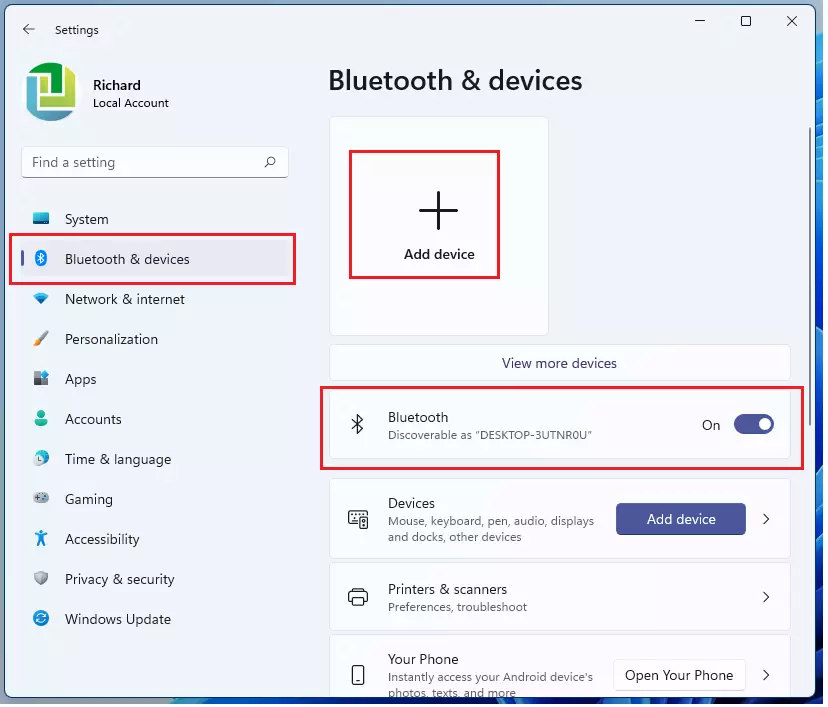
Click Bluetooth & devices on the left menu. Ensure the Bluetooth toggle is set to On. Click the Add device button.
Step 3: Choose Device Type
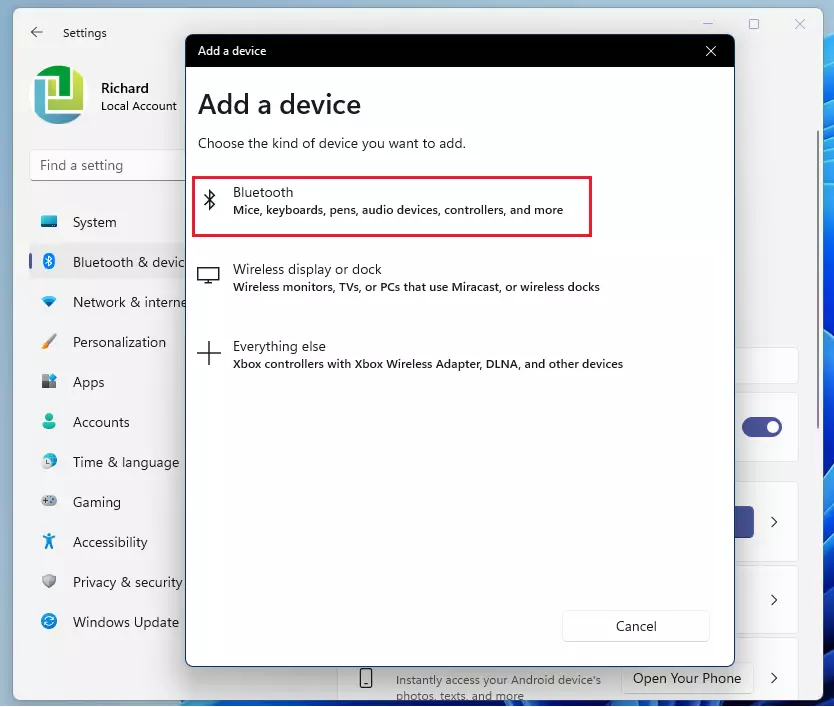
A window will pop up. Select Bluetooth to search for mice, keyboards, audio devices, or pens.
Step 4: Make Your Device Ready
Ensure your device is in discovery mode. If it is not, Windows will not see it.
Step 5: Select Your Device
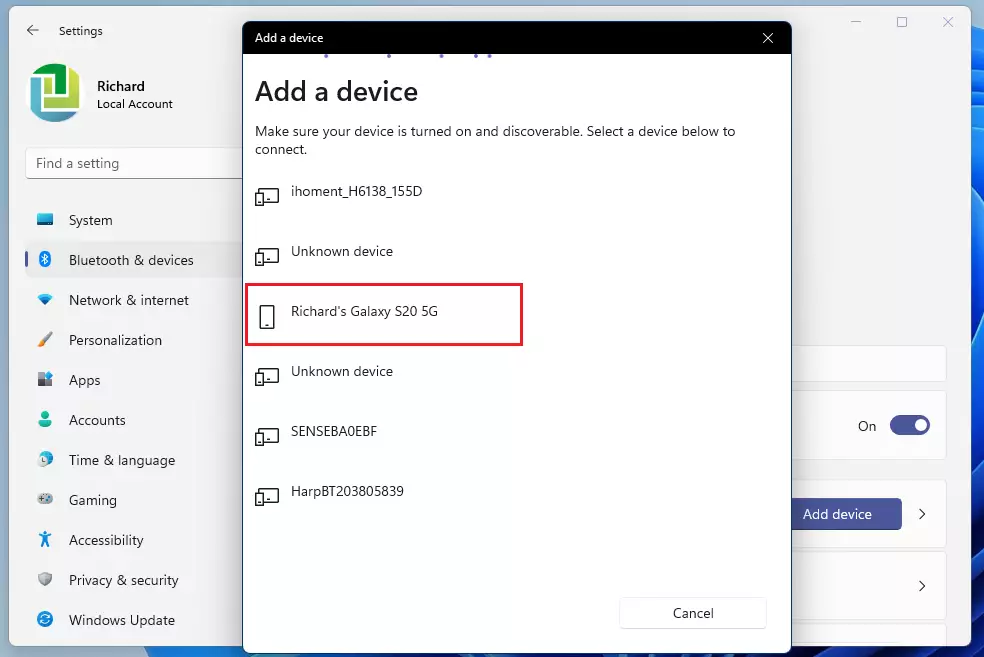
Windows will scan for nearby signals. Click your device name when it appears in the list.
Step 6: Confirm the Connection
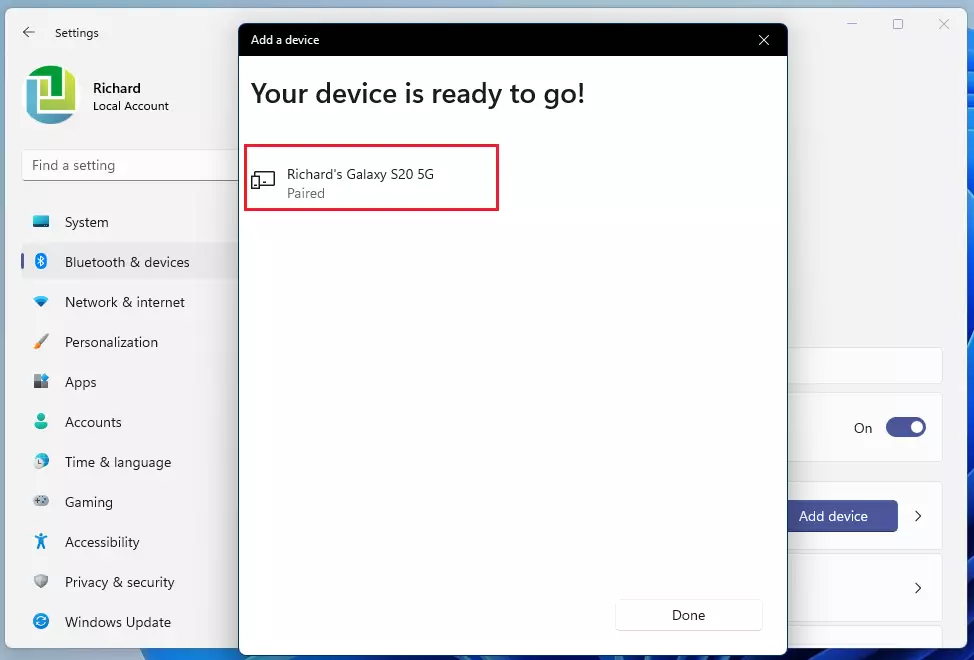
Follow any prompts to finish the setup. Your device is now ready to use.
What is Swift Pair?
Swift Pair is a feature that makes connecting easier. When you turn on a supported device, Windows will show a notification. You simply click Connect in that notification to pair instantly without digging through menus.
How to Update Bluetooth Drivers (Admin Required)
If your Bluetooth is not working, you may need a driver update. Note: This requires administrator privileges.
- Right-click the Start button and select Device Manager.
- Expand the Bluetooth section.
- Right-click your Bluetooth adapter and select Update driver.
- Choose Search automatically for drivers.
Troubleshooting: Bluetooth Not Working
If you cannot pair a device, try the official Windows Bluetooth Troubleshooter. You can also restart the Bluetooth Support Service by pressing Windows key + R, typing services.msc, and restarting the service.
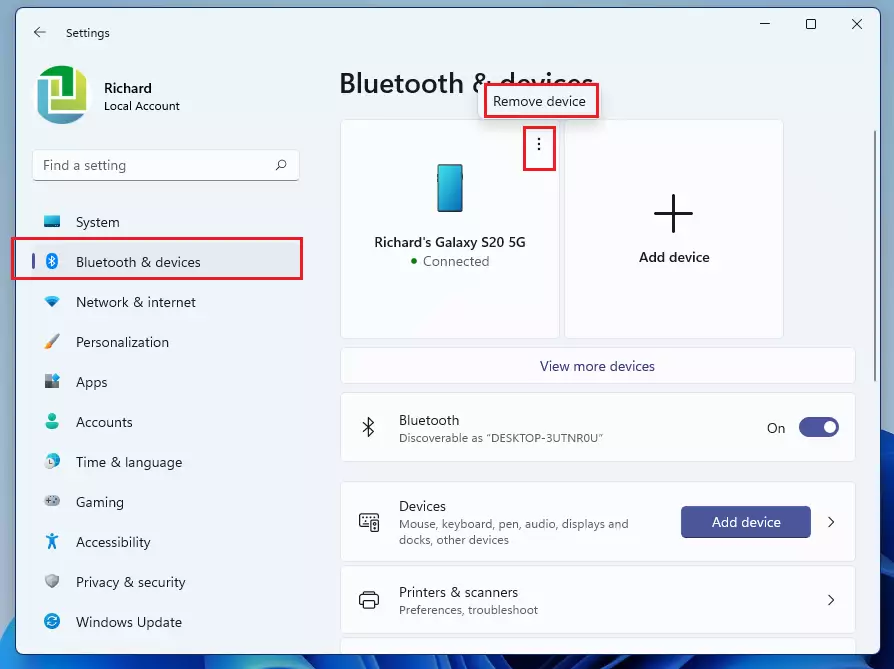
How to Remove or Unpair a Bluetooth Device
- Open Settings and go to Bluetooth & devices.
- Find your device in the list.
- Click the three dots and select Remove device.
Summary
- Pairing creates a secure link between your PC and wireless gadgets.
- Swift Pair offers a faster way to connect compatible devices.
- Troubleshooting often involves updating drivers in Device Manager or running the Windows Troubleshooter.
- Unpairing is simple: just remove the device from your Bluetooth settings menu.
- Always ensure your device is in discovery mode before attempting to pair.
Why is my Bluetooth device not showing up in Windows 11?
Your device might not be in pairing mode, or your computer’s Bluetooth might be turned off. Ensure the device is discoverable and within range. If it still fails, check Device Manager to see if your Bluetooth driver is outdated or disabled, and run the Windows Bluetooth Troubleshooter to fix common software conflicts.
Was this guide helpful?

About the Author
Richard
Tech Writer, IT Professional
Richard, a writer for Geek Rewind, is a tech enthusiast who loves breaking down complex IT topics into simple, easy-to-understand ideas. With years of hands-on experience in system administration and enterprise IT operations, he’s developed a knack for offering practical tips and solutions. Richard aims to make technology more accessible and actionable. He's deeply committed to the Geek Rewind community, always ready to answer questions and engage in discussions.

[…] First, turn on Bluetooth on both devices and ensure the devices are paired to each other. For more, see Pair a Bluetooth device in Windows. […]
[…] way users can connect their Xbox Wireless Controller to Windows is via a Bluetooth […]
[…] Android or iPhone apps from your PC. Then, using a Wi-Fi connection or Bluetooth connection, browse, play, order, chat, and more — all while using your PC’s larger […]
[…] access your Android or iPhone apps from your PC. Then, using a Wi-Fi connection or Bluetooth, browse, play, order, chat, and more — all while using your PC’s larger screen and […]
[…] access your Android or iPhone apps from your PC. Then, using a Wi-Fi connection or Bluetooth connection, browse, play, order, chat, and more — all while using your PC’s larger screen and […]
[…] instantly access your Android or iPhone apps from your PC. Then, using a Wi-Fi connection or Bluetooth connection, browse, play, order, chat, and more — all while using your PC’s larger screen […]
[…] How to Pair a Bluetooth device in Windows 11 […]
[…] Bluetooth is a wireless technology that allows devices to communicate with each other over short distances. In Windows, you can use Bluetooth to connect various devices, such as speakers, headphones, smartphones, and other computers, to your PC without cables. […]
[…] Windows, one can turn On or Off Bluetooth, pair a Bluetooth device to Windows, fix common Bluetooth errors, and enable Bluetooth Swift […]
[…] installed in Windows 11. In our previous post, we showed you how to turn on or off Bluetooth, pair Bluetooth devices with Windows 11, fix common Bluetooth issues, and […]
[…] 11 has a Settings app that allows users to configure many settings. From connecting a Bluetooth device to renaming a computer to creating user accounts, the Windows Settings app lets you do them […]
[…] Turn on Bluetooth on both your computer and the other device. How to pair Bluetooth devices on Windows 11 […]
[…] you want to learn more about pairing Bluetooth devices in Windows 11 or opening the Registry Editor, check out these easy […]
[…] Advanced Bluetooth discovery lets your Windows 11 PC find and connect to more Bluetooth devices than usual. You can turn it on or off easily using the Settings app, which is quick and safe. For users who know their way around Windows, the Registry Editor method also works, but be careful! After enabling advanced discovery, you’ll have a better chance of connecting to all kinds of Bluetooth accessories. If you want to learn more about pairing Bluetooth devices in Windows 11, check out this helpful guide: How to Pair a Bluetooth Device to Windows 11. […]
[…] default, Windows Bluetooth adapter allows anyone to connect to Bluetooth devices. Administrators can change this using the Windows […]
[…] Phone Link app lets you use your phone apps on your PC. You can use a Wi-Fi connection or Bluetooth connection to browse, chat, and move files. You can move up to 100 files at once, as long as they […]
[…] you instantly access your Android or iPhone apps from your PC. Then, using a Wi-Fi connection or Bluetooth connection, browse, play, order, chat, and more — all while using your PC’s larger screen […]
[…] your mobile apps, texts, and photos directly on your computer. You can use a Wi-Fi connection or Bluetooth connection to control your phone using your PC keyboard and […]
[…] lets you use your Android or iPhone apps right on your computer. You can use a Wi-Fi connection or Bluetooth connection to chat, shop, or browse using your keyboard and big […]
[…] start, make sure you have Bluetooth turned on. Your devices must be paired for both your PC and linked phone. Your PC also needs a […]
[…] Phone Link app lets you use your phone apps right on your computer. By using a Wi-Fi connection or Bluetooth connection, you can chat, browse, and play using your computer’s big screen and […]
[…] You can open your Android or iPhone apps right on your desktop. By using a Wi-Fi connection or Bluetooth connection, you can chat, browse, and play games using your computer screen and […]