
Do you want to change how your Windows 11 computer works? You need to open the Settings app. This app lets you adjust things like your screen, sound, internet, privacy, and updates. Everything you need is in one place.
Why Use the Settings App?
The Settings app is the easiest way to make your computer work the way you want. Here’s what you can do:
- Change the brightness and colors of your screen
- Adjust the volume or sound settings
- Connect to Wi-Fi or manage your network
- Keep your computer safe and private
- Update Windows to get new features and fixes
4 Easy Ways to Open the Settings App
1. Use the Start Menu
Click the Start button (the Windows logo) at the bottom left of your screen. Then click the gear-shaped Settings icon.

Or just press Windows key + I on your keyboard. The Settings app opens right away.
2. Use the Power User Menu
Right-click the Start button. Or press Windows key + X. Then click Settings from the list.
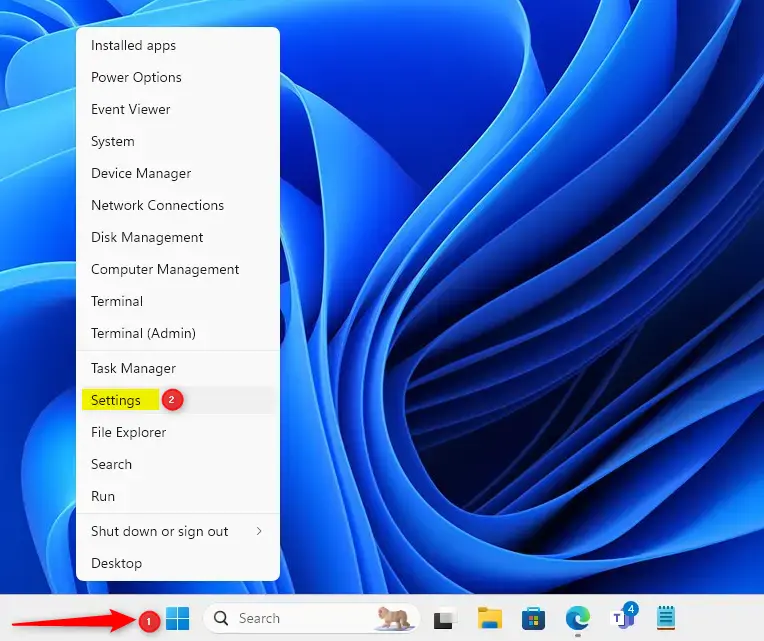
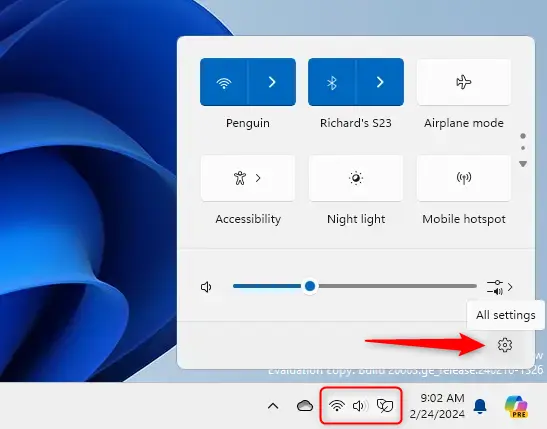
3. Use Quick Settings
Press Windows key + A to open Quick Settings. Then click the All settings button to open the Settings app.
4. Use the Run Box
Press Windows key + R to open the Run box. Type ms-settings: and press Enter.
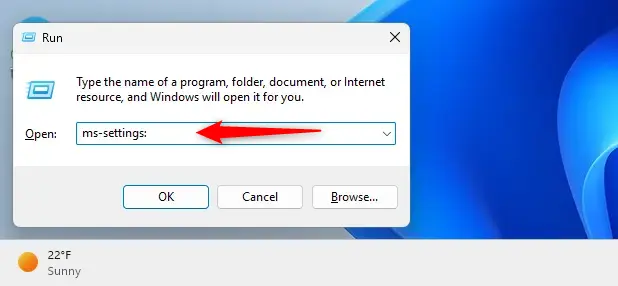
The Settings app opens.
You can also open Settings from the PowerShell or Command Prompt by typing:
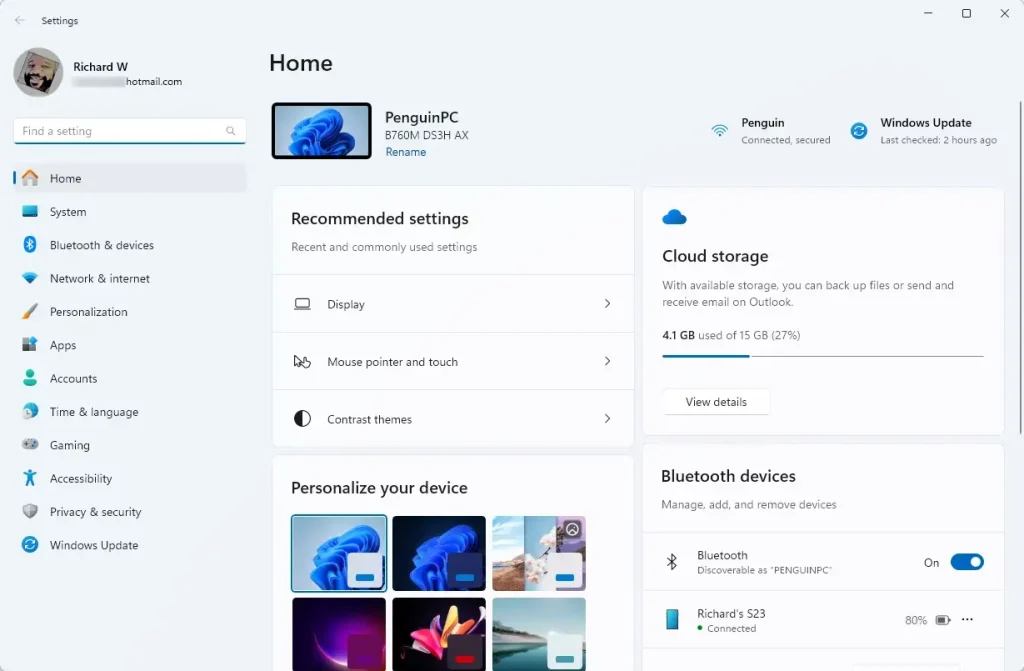
start ms-settings:What the Settings App Looks Like
Summary
- The Settings app lets you manage your computer’s screen, sound, network, privacy, and updates easily.
- Press
Windows key + Ior click the Start button and the gear icon to open it quickly. - You can also right-click the Start button and select Settings from the menu.
- Quick Settings (
Windows key + A) gives you quick access to the Settings app. - Use the Run box (
Windows key + R) and typems-settings:to open Settings if you like typing commands.
Try these easy ways to open Settings and customize your Windows 11 computer the way you want!



Leave a Reply