How to Mute Microsoft Teams Notifications for Calls and Meetings


Microsoft Teams can mute everything except calls and meetings. Chat and channel pings go quiet, but a live call or meeting invite still rings through. It is a good setting for focused work, and it takes under a minute to change in Windows 10 or Windows 11.
The setting lives inside the Teams app, so you do not need admin rights or any Windows changes. It works the same on Home and Pro editions.
Mute Microsoft Teams notifications by going to Settings, then Notifications and activity, and toggling on “Mute all notifications (except for calls and meetings)”. This silences non-urgent alerts while still notifying you of calls and meetings.
Mute all notifications in Teams except for calls or meetings
You can mute chat and channel notifications while still letting calls and meetings ring through. The setting is in the Teams activity settings. It stops message pop-ups from breaking your concentration, and you will not miss a live meeting invite or an urgent voice call from your boss.
Here’s how to do it.
- Open Microsoft Teams from your Start menu , Taskbar, or Taskbar overflow. The Teams window should open. If Teams is already running in the background, it will come to the front.
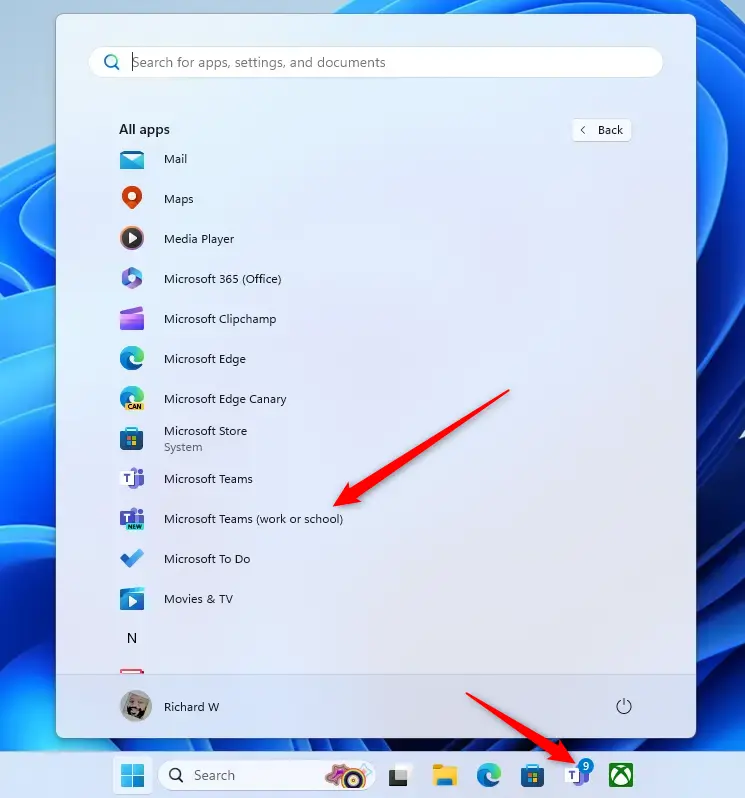
You can also launch the app from the Taskbar or Taskbar overflow. Use whichever is quicker for you. The steps below are the same either way.

When you launch the Teams app for the first time, it opens a mini window. Sign in if asked, and wait for the main Teams window to load before you continue.
- Click the Settings and more ( …) button next to your profile picture, then select Settings. The Settings page should open.
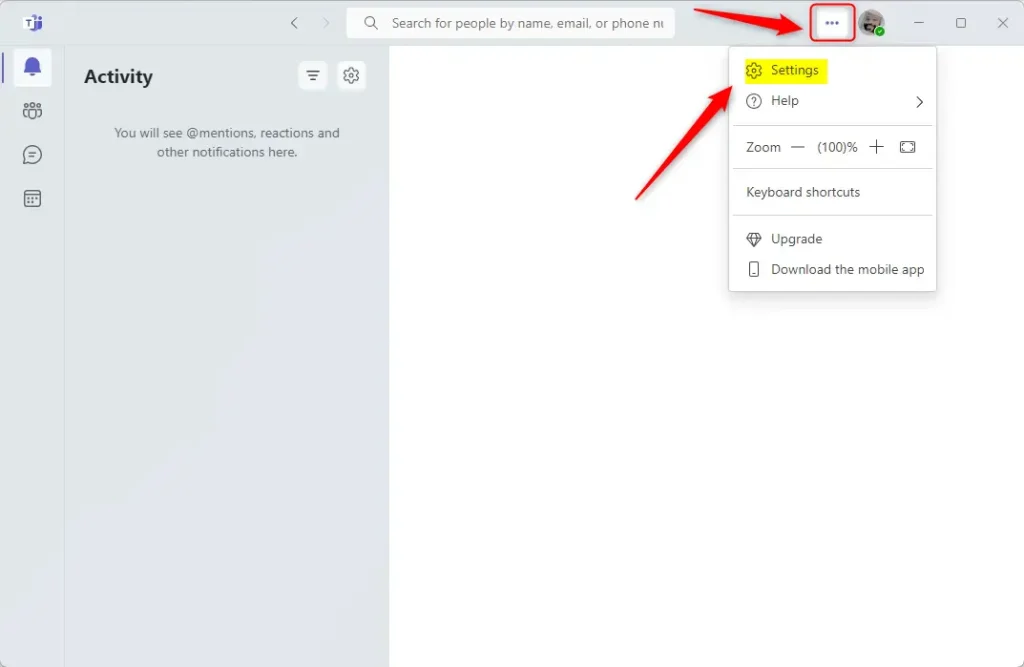
- On the left side of the Settings page, select the Notifications and activity tab. The notification options should appear on the right.
- Under “General“, find “Mute all notifications (except for calls and meetings)“.
- Toggle the switch next to it to On to mute notifications, or to Off to get them back.
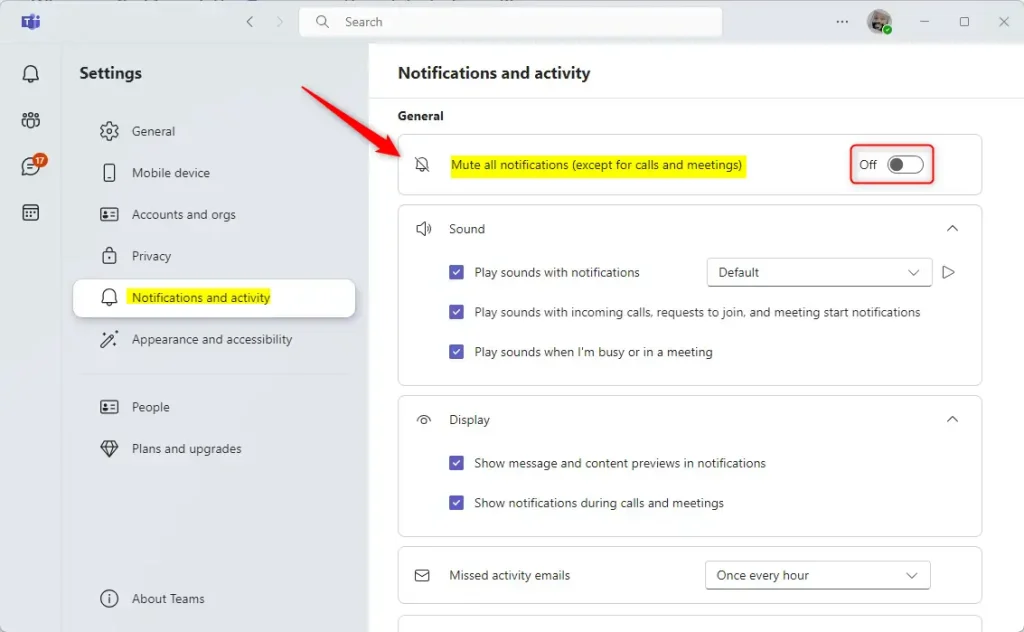
The change takes effect right away. You do not need to restart Teams or Windows. With the toggle on, your workday stays quiet until an actual call or meeting comes in. To undo it, return to the same page and switch the toggle Off.
If you cannot find the option, check that you are on the Notifications and activity tab and not another tab in Settings. Menu labels can differ slightly between versions of Teams, so update the app if your layout looks different from the one described here.
- Muting everything except calls and meetings is an easy way to cut distractions during work.
- You can switch the option on or off at any time from the Notifications and activity tab in Settings.
- The toggle lets you quickly adjust your notification preferences without digging through individual alert options.
Frequently Asked Questions
To adjust your notification preferences later, click the three dots next to your profile picture, select Settings, and open Notifications and activity.
Have a question about this guide?
Answered by AI from this guide. Good questions may be added to this page — please don't include personal details.
Did this guide fix your problem?

About the Author
Richard
Tech Writer, IT Professional
Richard is a writer at Geek Rewind who turns complex IT tasks into clear, step-by-step guides. He draws on years of hands-on experience in system administration and enterprise IT operations, focusing on Windows, Linux and WordPress: the problems people actually run into, and the fixes that work. His server and WordPress guides come from systems he runs himself. Richard builds and maintains the platform behind Geek Rewind, from its Ubuntu servers and Nginx configuration to its custom WordPress plugins. Many new tutorials start with readers' questions, and he's always glad to answer them in the comments.
No comments yet — be the first to share your thoughts!