Install Microsoft Teams on Ubuntu 24.04 with Snap


Installing Microsoft Teams on Ubuntu 24.04 takes one command through Snap. Snap is a package manager that bundles an app with the files it needs, so you don’t chase down dependencies by hand. Snap packages also update themselves in the background, so you don’t need a manual update routine.
Ubuntu 24.04 ships with Snap (the snapd service) and the Snap Store already installed. You can have chat and video calls running on your desktop in a few minutes. You need a user account with sudo rights and a working internet connection.
Install Microsoft Teams on Ubuntu 24.04 by running sudo snap install teams-for-linux in a terminal (Ctrl+Alt+T). Snap is already included on the standard desktop, so you only need to run sudo apt update && sudo apt upgrade first.
Install Teams from Snap
The whole install happens in the terminal. You refresh the system’s package lists, make sure Snap is present, and then run one Snap command that downloads and sets up Teams.
The Teams packages you find in the Snap Store are usually wrappers around the Teams web app. They look and behave like a desktop app. Before you install, check the publisher name in the Snap Store listing so you know who maintains the package.
Start by updating and upgrading Ubuntu so the package lists and installed software are current.
- Press Ctrl+Alt+T to open a terminal. You should see a window with a command prompt.
- Run the update and upgrade commands shown below. Enter your password when prompted. Nothing appears on screen while you type it, which is normal.
- Wait for the prompt to return. If a lot of packages were upgraded, a restart may be suggested, but you don’t need one to install Teams.
On a standard Ubuntu 24.04 desktop, Snap is already installed. If it is missing, for example on a minimal install, install Snap first and then continue.
sudo apt update && sudo apt upgrade
sudo apt install snapd
Next, run the command below to install Teams from Snap. Snap downloads the package, mounts it and sets it up. It prints progress as it goes. When the install finishes, you get a line saying the app was installed and the prompt returns.
If the command fails with a network or store error, check your connection and run it again. It is safe to repeat.
sudo snap install teams-for-linux
Once the install finishes, you can open Teams in either of these ways:
- Click the Teams icon in the Dock on the left side of the screen, if it was added there.
- Click Show Apps at the bottom of the Dock, then find Teams in the grid or type its name in the search box.
- Launch it from the terminal with the command below.
The first start can take a few seconds longer than later ones, because Snap sets up the app’s data folder.
snap run teams-for-linux
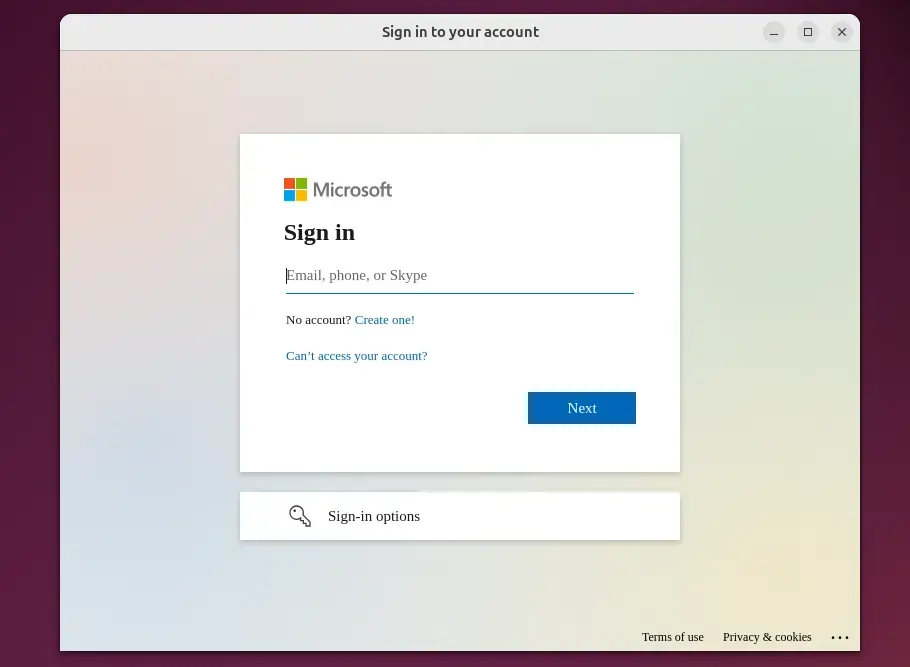
When the Teams window opens, you should see a sign-in screen. Sign in with your Microsoft work, school or personal account and follow the prompts. Your chats, meetings and files then load as they do on other platforms.
The first time you join a call, Ubuntu or the app may ask for permission to use your microphone and camera. Allow both if you want audio and video in meetings.
If you no longer need Teams, you can remove it with the command below. Run it in a terminal and enter your password if asked. When it finishes, the app disappears from the Dock and the app grid. Snap usually saves a snapshot of the app's data when it removes a package, so a later reinstall may be able to pick up where you left off.
sudo snap remove teams-for-linux
The setup is complete. Teams is installed, and Snap keeps it updated in the background.
Conclusion:
Snap is a simple way to run Microsoft Teams on Ubuntu 24.04. Keep these key points in mind:
- Easy Installation: Snap is already present on Ubuntu 24.04, so you can install Teams with a single command after updating the system.
- Updated Features: You get a platform for chat, video conferencing and file sharing, and Snap keeps the package current automatically.
- User-Friendly Interface: Teams appears in the Dock and app grid like any other Ubuntu app, so you can start it with a click.
- Simple Removal: Uninstalling Teams takes one command, just like installing it.
- Ideal for Collaboration: Teams keeps chat, meetings and shared files in one place, which helps with team projects.
With these steps done, your Ubuntu workstation is ready for calls, chat and file sharing with colleagues.
Have a question about this guide?
Answered by AI from this guide. Good questions may be added to this page — please don't include personal details.
Did this guide fix your problem?

About the Author
Richard
Tech Writer, IT Professional
Richard is a writer at Geek Rewind who turns complex IT tasks into clear, step-by-step guides. He draws on years of hands-on experience in system administration and enterprise IT operations, focusing on Windows, Linux and WordPress: the problems people actually run into, and the fixes that work. His server and WordPress guides come from systems he runs himself. Richard builds and maintains the platform behind Geek Rewind, from its Ubuntu servers and Nginx configuration to its custom WordPress plugins. Many new tutorials start with readers' questions, and he's always glad to answer them in the comments.
No comments yet — be the first to share your thoughts!