How to Install Discord on Ubuntu 24.04: Step-by-Step Guide

Discord on Ubuntu 24.04 gives you free voice, video, and text chat on your Linux desktop. You can install it in four ways: a standard .deb installer package, Snap, Flatpak (a containerized app system), or the graphical software store. All four give you the same Discord client, so pick the one that fits how you manage software.
The .deb route uses a downloaded file and two terminal commands. Flatpak runs Discord in a sandbox, which keeps it separate from the rest of your system. Snap comes ready to use on Ubuntu, and the software store needs no terminal at all.
Install Discord on Ubuntu 24.04 by downloading the DEB package and installing it with `sudo apt install ./discord.deb` in the terminal, or use `sudo snap install discord` for a Snap package. You can also use the Software Center for a graphical installation.
Install Discord using the DEB package
This method downloads the official Discord installer file with a single wget command, then installs it with a dpkg command. It needs no extra software store and works on a clean Ubuntu 24.04 install, Desktop edition.
One thing to know first: a .deb you install by hand is not tied to a package repository. Discord will usually show an in-app update prompt when a new version comes out. If it asks you to update, repeat this download and install process to get the latest file.
- Open a terminal. Press Ctrl+Alt+T, or search for Terminal in the app launcher.
- Run the command in the block below to download the Discord DEB package.
The file is saved in the folder your terminal is currently in, which is normally your home folder. You should see a download progress bar that ends with the file saved.
wget -O discord.deb "https://discord.com/api/download?platform=linux&format=deb"
- Run the command in the block below to install the downloaded package.
- Enter your password if prompted. Nothing appears on screen as you type it, which is normal. Press Enter when you are done.
- Wait for the command to finish. When the prompt returns without an error, the install is complete.
The command needs administrator rights, so your account must be allowed to use sudo. If it reports an error about the file not being found, you are in a different folder than the one you downloaded to.
To start Discord, use either of these:
- Type `discord` in your terminal and press Enter.
- Open the app launcher, search for Discord, and click its icon.
The Discord window should open and show the login screen. The first launch may check for updates before it loads.
Snap is an alternative if you prefer it to the DEB package. Snap packages bundle their dependencies (the files the app needs to run), so one terminal command is all it takes. Snap support is built into Ubuntu 24.04, so you do not need to set anything up first.
Snap apps update themselves in the background, so you do not have to download new versions by hand.
- Open a terminal.
- Run the command in the block below.
- Wait for the download and install to finish. Snap prints progress as it goes and returns to the prompt when Discord is installed.
sudo snap install discord
Once installed, start Discord in either of these ways:
- Run the command in the block below.
- Search for Discord in the app launcher and click its icon.
The first start of a Snap app can take a few seconds longer than later launches.
Flatpak is another way to install Discord. It runs applications in a sandbox (an isolated environment), so they stay separate from the rest of your operating system. Flatpak does not ship with Ubuntu by default, so you have to set it up before you can install Discord.
Flatpak is a third-party system for distributing applications. You install the Flatpak manager first, then use it to install Discord.
The order matters: set up the Flatpak manager first, add its repository, then install Discord. Do the three steps below in sequence.
- Open a terminal.
- Update your package list and install Flatpak with the command in the block below.
- Enter your password if asked, and confirm if the installer prompts you.
Wait until the prompt returns. If you installed Flatpak for the first time, log out and back in (or restart) before launching Flatpak apps. That is when Ubuntu adds them to your app launcher.
sudo apt update && sudo apt upgrade
sudo apt install flatpak
- In the same terminal, add the Flatpak repository to Ubuntu with the command in the block below.
The repository is where Flatpak looks for apps such as Discord. Without it, the install step fails because Flatpak cannot find the package.
flatpak remote-add --if-not-exists flathub https://flathub.org/repo/flathub.flatpakrepo
- Install Discord with the command in the block below.
- Answer the confirmation prompts, then wait for the download to finish.
Flatpak downloads Discord along with any runtime files it needs, so this step can be larger and slower than the others. That is normal on a first Flatpak install.
flatpak install flathub com.discordapp.Discord
Once installed, start Discord in either of these ways:
- Run the command in the block below.
- Search for Discord in the app launcher and click its icon.
If Discord is missing from the launcher, log out and back in, then search again.
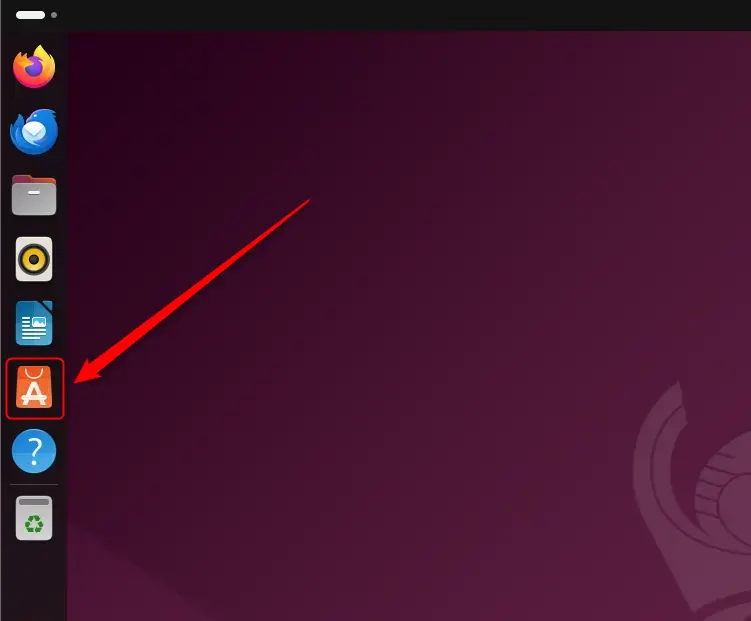
The Software Center is Ubuntu's graphical app store, and it is the easiest option if you would rather not use the terminal. On Ubuntu 24.04 the store appears as App Center in the dock. The steps below use the name Software Center. The version you get from it is usually the Snap package, and you can remove it later from the same window.
The process has four steps: open the store, search for Discord, click install, and launch the app.
- Click the Software Center icon in the sidebar (the dock on the left) to open it.
The store window should open on its home page, showing featured and popular apps.
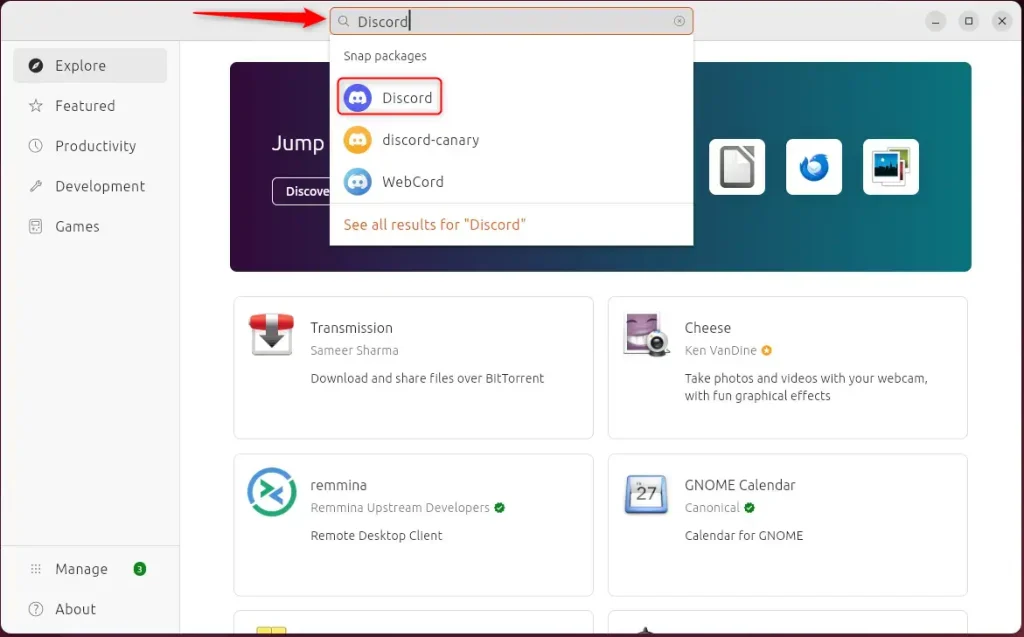
- Click the search box at the top of the window.
- Type Discord and press Enter.
- Click the Discord entry in the results.
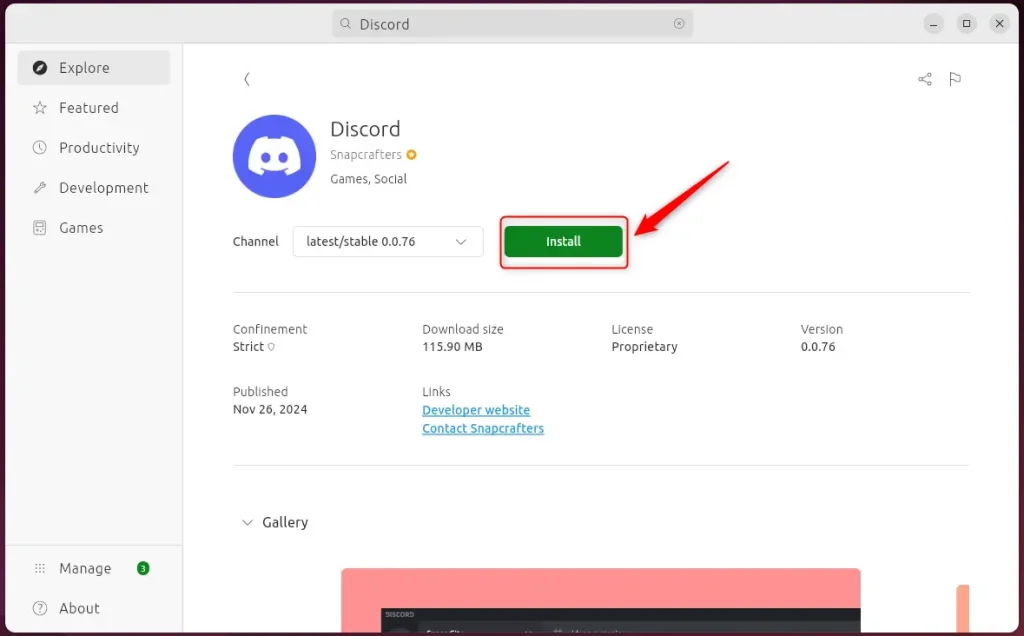
The Discord page should open, with a description and an install button. If the search returns nothing, check your internet connection and try again.
- Click Install.
- Enter your password if Ubuntu asks for it.
A progress indicator should appear. When it finishes, the button changes to an open or launch option, which means Discord is installed.
- Open the app launcher.
- Search for Discord and click its icon.
Discord should open and show its login screen.
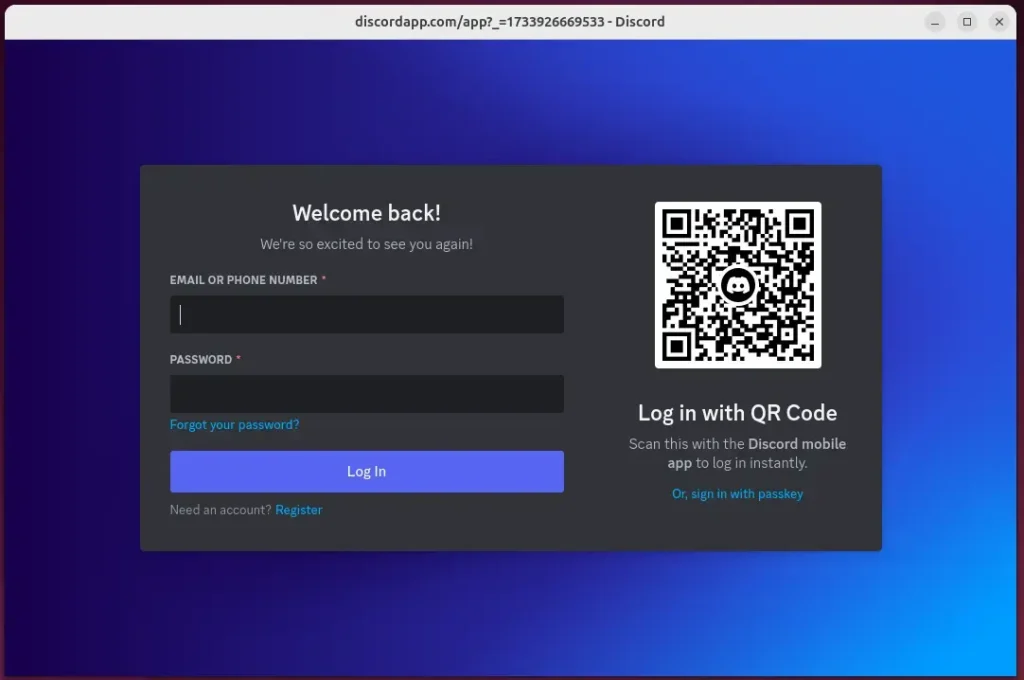
That completes the setup. Discord is installed and ready for you to log in or create an account.
Ubuntu 24.04 gives you several ways to install Discord, so you can choose the one that suits you. Keep these key points in mind:
- Multiple Installation Methods: You can choose between the DEB package, Snap, Flatpak, or the Software Center.
- User-Friendly: Most methods can be executed through the terminal, but the Software Center offers a graphical interface for ease of use.
- Secure and Updated: Flatpak enhances security with its sandboxing approach and allows easy updates.
- Accessibility: Once installed, launching Discord is straightforward, whether from the terminal or the desktop apps center.
- Community and Collaboration: Discord provides a robust platform for gamers, communities, and teams to communicate effectively.
Select the installation method that matches your workflow and start connecting with others on Discord. If you are unsure, the Software Center is the quickest to try, and Flatpak is the better choice if you want the sandbox.
Have a question about this guide?
Answered by AI from this guide. Good questions may be added to this page — please don't include personal details.
Did this guide fix your problem?

About the Author
Richard
Tech Writer, IT Professional
Richard is a writer at Geek Rewind who turns complex IT tasks into clear, step-by-step guides. He draws on years of hands-on experience in system administration and enterprise IT operations, focusing on Windows, Linux and WordPress: the problems people actually run into, and the fixes that work. His server and WordPress guides come from systems he runs himself. Richard builds and maintains the platform behind Geek Rewind, from its Ubuntu servers and Nginx configuration to its custom WordPress plugins. Many new tutorials start with readers' questions, and he's always glad to answer them in the comments.
No comments yet — be the first to share your thoughts!