

This guide shows you how to make DuckDuckGo your main search engine in Windows 11. You can do this in Microsoft Edge, Google Chrome, Firefox, and other web browsers.
Change your default search engine in your browser’s settings menu. In Edge, go to Settings Privacy, search, and services > Address bar and search. In Chrome, go to Settings Search engine. Select DuckDuckGo from the dropdown or list.
Why Use DuckDuckGo?
DuckDuckGo, a privacy-focused search engine, does not track your personal data or search history. DuckDuckGo also avoids the 'filter bubble' effect, where search engines show biased results based on past activity. Using DuckDuckGo helps keep your online life private by preventing data collection.
What Happens When You Change This?
Changing your default search engine to DuckDuckGo means your browser will use it for all address bar searches, helping protect your privacy.
How to Set DuckDuckGo as Default on Desktop
Most browsers allow you to change your search engine preferences in the settings menu. None of these steps require administrative privileges.
For Chrome and Chromium Browsers
- Open your browser and click the three dots in the top right corner.

change search engine to duckduckgo windows 11 - Select Settings.
- Click Search engine in the left sidebar.
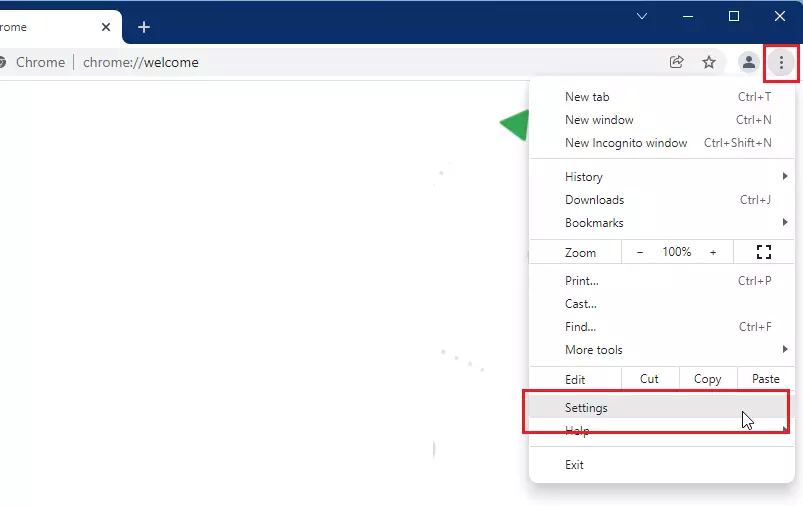
browser settings button - Choose DuckDuckGo from the dropdown menu.
For Microsoft Edge
- Click the three dots in the top right corner.
- Select Settings.
- Click Privacy, search, and services.
- Scroll down and click Address bar and search.
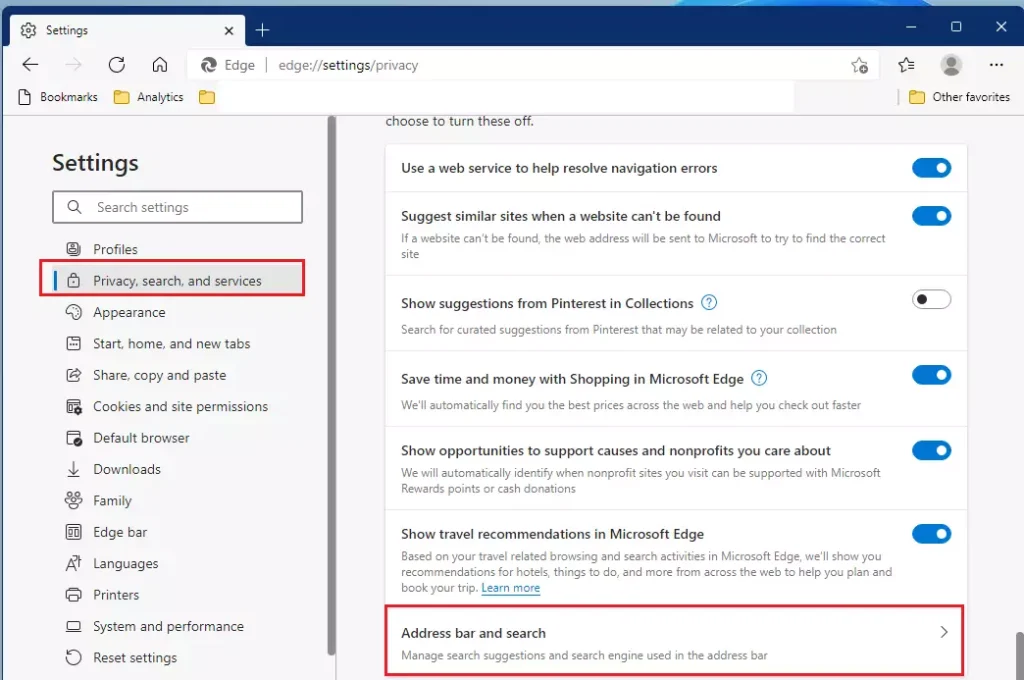
edge search bar and search windows 11 - Select DuckDuckGo from the list.
How to Set DuckDuckGo on Mobile Devices
You can use DuckDuckGo on your phone to keep your mobile search configuration private.
For iOS Safari
- Open Settings on your iPhone.
- Scroll down and tap Safari.
- Tap Search Engine.
- Select DuckDuckGo.
For Android Chrome
- Open the Chrome app.
- Tap the three dots and select Settings.
- Tap Search engine.
- Select DuckDuckGo.
Troubleshooting: DuckDuckGo Not Appearing
If DuckDuckGo isn’t listed as a search option in Windows 11, you might need to add it manually or get the official extension.
Summary
Setting DuckDuckGo as your default search engine on Windows 11 is an easy step to boost your online privacy and avoid tracking.
Was this guide helpful?
50% of readers found this helpful (2 votes)

About the Author
Richard
Tech Writer, IT Professional
Richard is a writer at Geek Rewind who turns complex IT tasks into clear, step-by-step guides. He draws on years of hands-on experience in system administration and enterprise IT operations, focusing on Windows, Linux and WordPress: the problems people actually run into, and the fixes that work. His server and WordPress guides come from systems he runs himself. Richard builds and maintains the platform behind Geek Rewind, from its Ubuntu servers and Nginx configuration to its custom WordPress plugins. Many new tutorials start with readers' questions, and he's always glad to answer them in the comments.



How do I change edge icon in task bar to duckduckgo in windows 11?
I am using Windows 11 on a laptop PC. I followed the instructions to make DuckDuckGo the default search engine. When I open Edge There is no DuckDuckGo. I am at this time using DuckDuckGo from a link saved to my favorites. Is there a step that is needed to do so that DuckDuckGo is the default search engine?
Like Pedro Espinal, I have the same problem. I have set my default browser as Duckduckgo, but Bing is what comes up when I first open my web browser. I want Duckduckgo to open as soon as I get on my computer. Is there a way to fix this?
I have same problem on my new Lenovo laptop. I followed your instructions, shows Duck Duck Go as my default search engine. I open edge and it is still using that horrible Bing as my search engine. What are the three of us missing here?