Set Up Picture Password in Windows 11


A picture password in Windows 11 lets you unlock your PC by drawing three gestures on a photo instead of typing a long text password. This sign-in option works on Windows 11 version 22H2 and newer using taps, circles, and straight lines on any picture you pick.
You need a mouse, touchpad, or touchscreen to draw your secret shape. The feature works with both local accounts and Microsoft accounts.
To set up a picture password in Windows 11, go to Settings Accounts Sign-in options Picture password Add. Choose your picture, then draw three specific gestures on it. Confirm your gestures to complete the setup and use them to sign in.
How to setup picture password in 🪟 Windows 11
To set up a Windows 11 picture password, open Settings and go to Accounts, then Sign-in options. From there, choose Picture password and pick any photo you like. You will then draw three gestures like circles, lines, or taps on the image to create your new unlock code.
Open Settings by pressing the Win+I or by clicking Start and then Settings. You can access this screen to manage your Windows 11 setup.
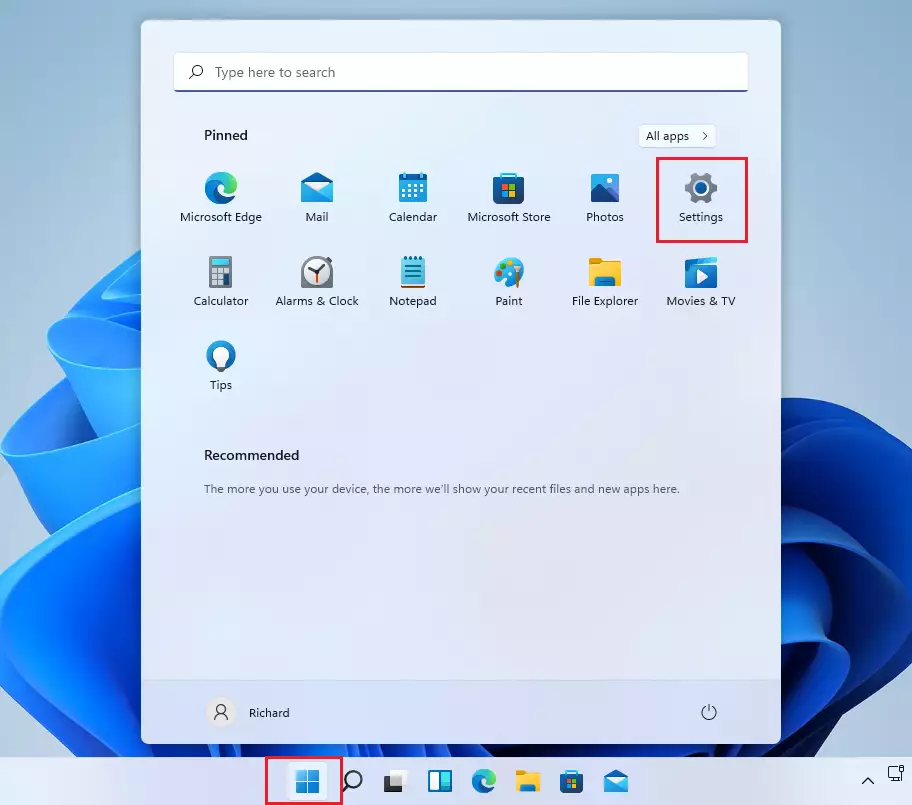
Alternatively, you can use the search box on the taskbar and search for Settings. Then select it to open.
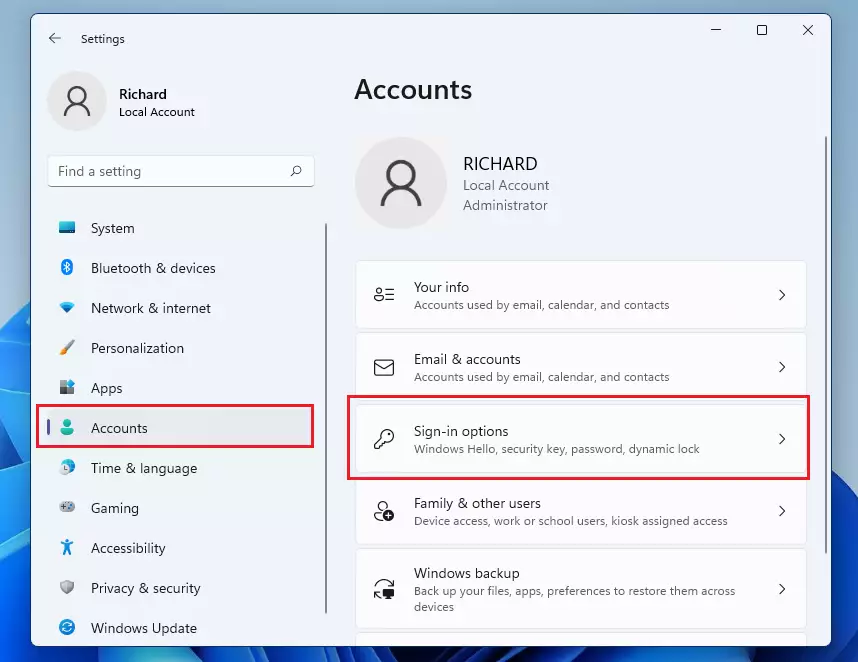
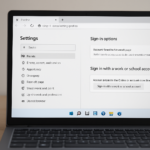
Your Windows Settings should look similar to the image below. In Windows Settings, click Accounts, and select Sign-in options on the right side of your screen, shown in the image below.
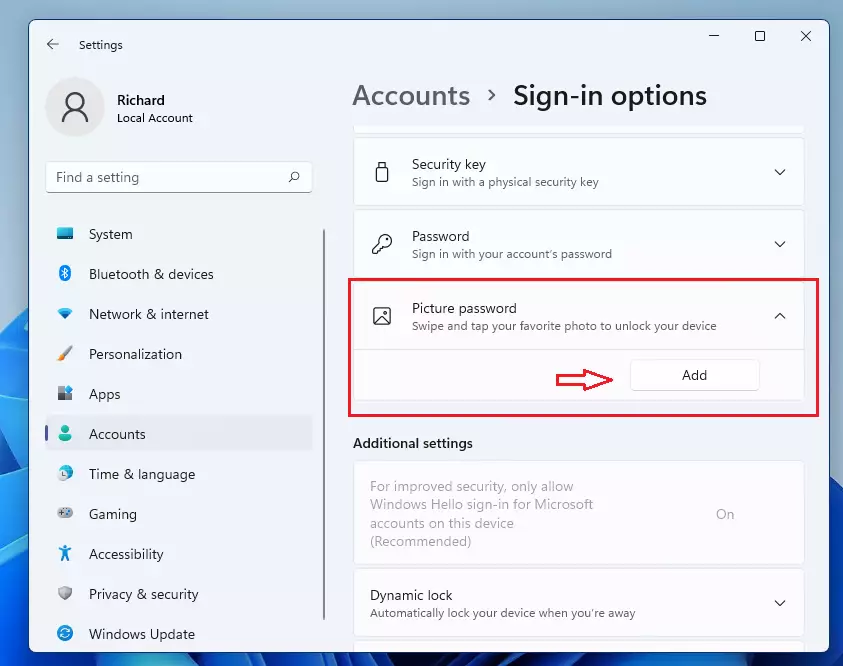
Select Picture password to expand on the Sign-in options settings, and then click Add as highlighted below.
When you click Add above, it will prompt you to confirm your password.
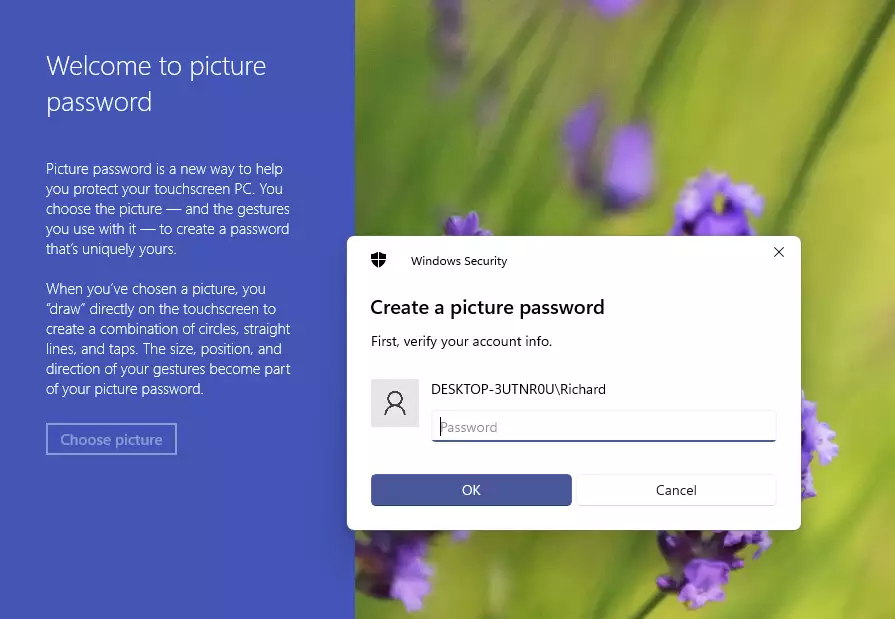
After confirming your password, click the left link to Choose a picture to use.
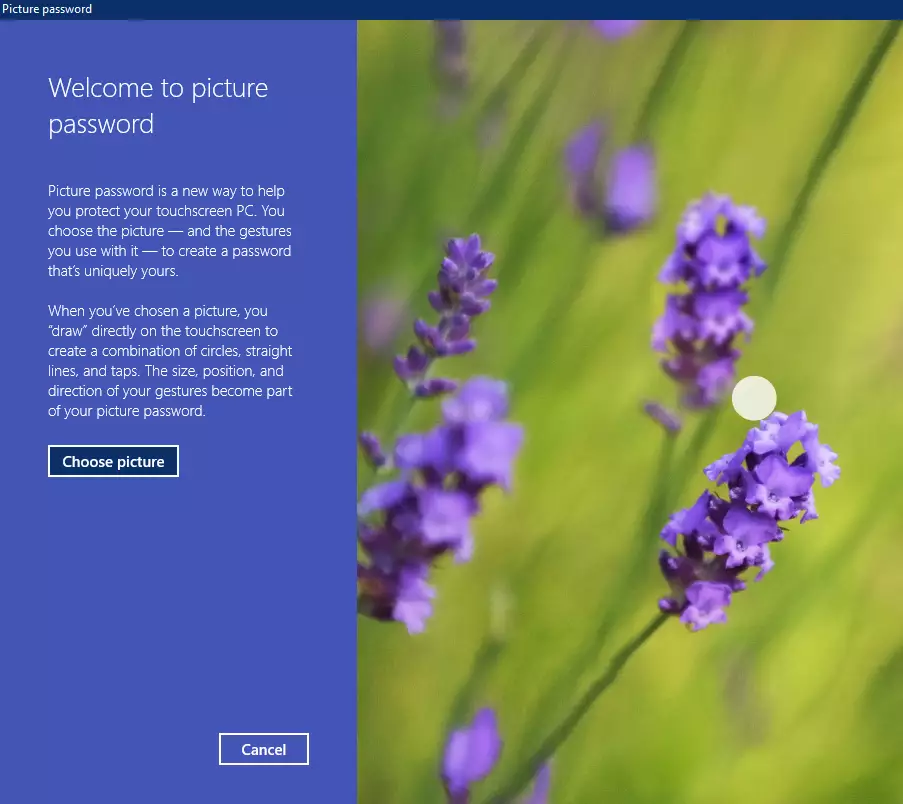
Browse and select the picture you want to use. Then on the top right, click the link that reads "Use this picture," as highlighted below.

You can now draw three gestures on the picture to set up your Windows picture password. You can use a combination of circles, straight lines, and taps for your gestures. You will need to remember the size, position, and direction of your chosen gestures.
When you successfully draw and confirm your patterns, Windows should accept them as your password. For this post, I drew three circles over both eyes and the nose.
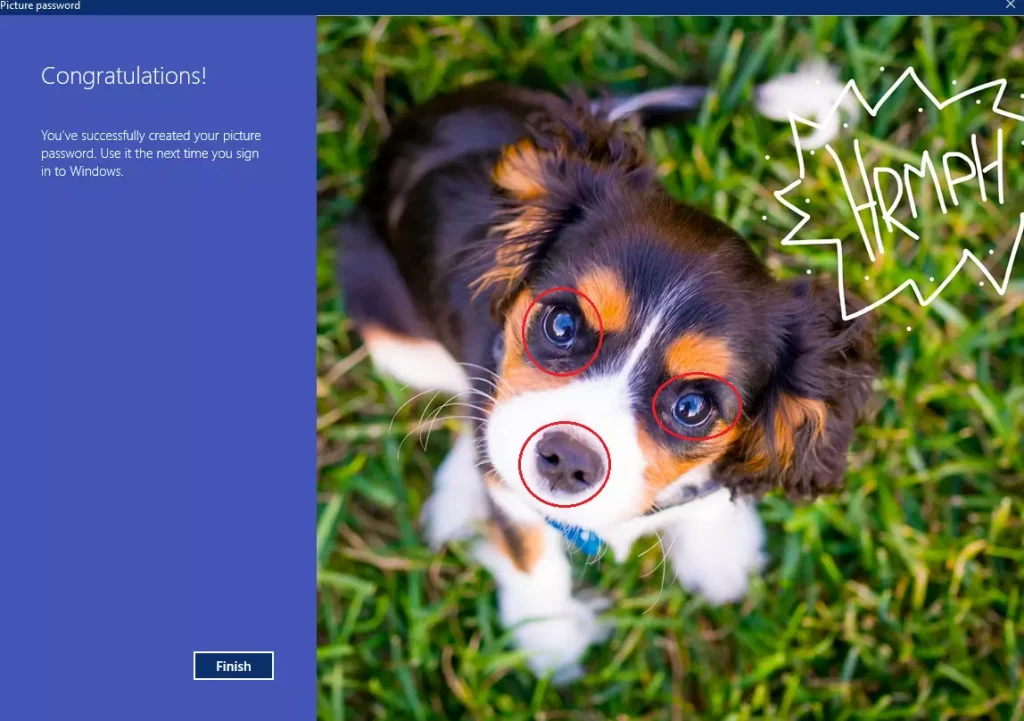
Click Finish to complete the setup.
The next time you want to sign in to Windows, you'll need to confirm the correct patterns.

That should do it!
Picture passwords offer a quick alternative to standard typing, especially on touchscreen devices.
- Using a picture password in Windows 11 provides a convenient and secure way to sign in to your device.
- The process involves selecting a personal image and creating three unique gestures that are easy for you to remember.
- Once set up, picture passwords eliminate the need for complex alphanumeric passwords.
- This feature is available for both local and Microsoft accounts, enhancing user accessibility and personalization.
- Remember to choose an image and gestures that are meaningful to you for easier recall during login.
Was this guide helpful?
0% of readers found this helpful (1 votes)

About the Author
Richard
Tech Writer, IT Professional
Richard is a writer at Geek Rewind who turns complex IT tasks into clear, step-by-step guides. He draws on years of hands-on experience in system administration and enterprise IT operations, focusing on Windows, Linux and WordPress: the problems people actually run into, and the fixes that work. His server and WordPress guides come from systems he runs himself. Richard builds and maintains the platform behind Geek Rewind, from its Ubuntu servers and Nginx configuration to its custom WordPress plugins. Many new tutorials start with readers' questions, and he's always glad to answer them in the comments.

My Laptop doesn’t have this picture password option although it’s Windows 11. What should I do to activate and have it?
me too
[…] Windows Hello, one can use a PIN, facial recognition, picture, or fingerprint to sign into their Windows devices. In addition, the Windows Hello […]
[…] PIN is part of the Windows Hello security feature that enables other sign-in options. One can use a picture password, PIN, fingerprint, and face to sign into Windows. Hello, the PIN is secure because it is tied to […]
[…] it only works on your device, making it more secure. Windows 11 also lets you sign in using a picture password, fingerprint, or face […]
[…] 11 also lets you sign in using other methods like a picture password, fingerprint, or face […]