How to Install WordPress on Google Cloud Server


Installing WordPress on a Google Cloud server sets up your own fast, secure website for around $5 to $10 a month. WordPress is free website-building software that powers over 40 percent of all websites on the internet.
You need a Google Cloud server running Ubuntu Linux and a domain name to get started. The setup takes about 30 minutes, and you do not need to be a programmer to follow these steps.
Connect to your Google Cloud server via SSH. Then, access the WordPress installation guide for Ubuntu Linux with Apache or Nginx and follow the browser-based setup steps using your server’s IP address or hostname.
How to connect to Google Cloud servers
Connecting to Google Cloud servers happens directly inside your web browser through the Google Cloud Console using an SSH connection. You do not need to install extra software like PuTTY to reach your server command line. Open the Compute Engine page in your Google Cloud account, find your virtual machine instance in the list, and click the SSH button next to it to open a terminal window.
Supported browsers include Google Chrome, Firefox, Microsoft Edge, Microsoft Internet Explorer 11 and later, and Safari 8 and later. Note that Safari lacks support in private browsing mode.
- Web browsers
- The latest version of Google Chrome
- Firefox
- Microsoft Edge
- Microsoft Internet Explorer 11 and later
- Safari 8 and later. Note that Safari is not supported in private browser mode.
- Virtual machine configurations
- All Linux VM images are natively available in Google Cloud.
Google Cloud provides Linux VM images natively, eliminating the need for extra software or browser extensions. Log in to the Google Cloud Console and navigate to Menu Compute Engine VM instances.
In the list of virtual machine instances, click SSH in the row of your desired instance.

Alternatively, opening an SSH connection to an instance works by clicking its name and then SSH from the instance details page.
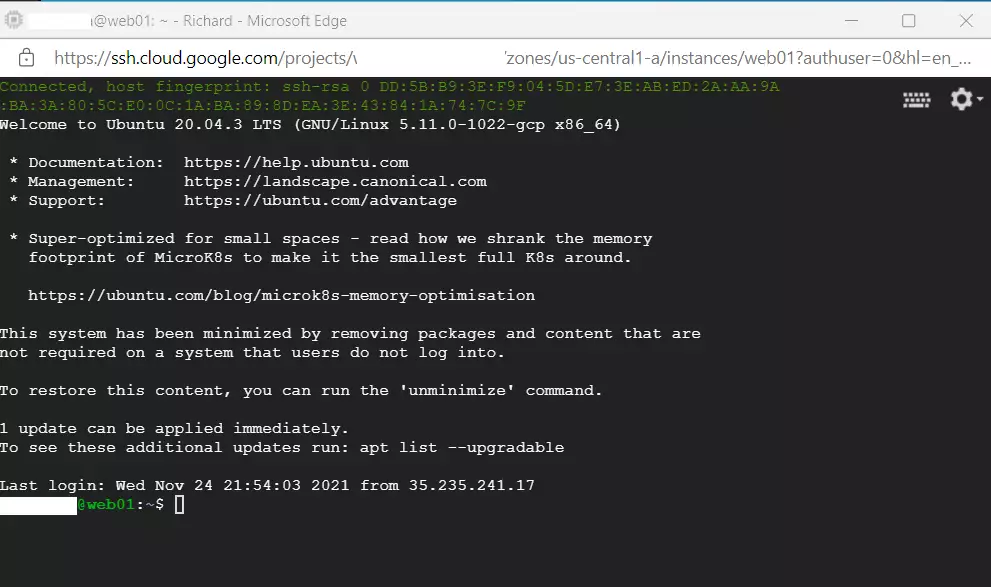
An SSH terminal window with the Ubuntu Linux instance created in the series's second post will open.
Executing commands in the Ubuntu Linux environment created on your Google Cloud server is now possible.
Install WordPress on Google Cloud Servers
To install WordPress Google Cloud instances, you need to set up a LAMP stack (Linux, Apache, MySQL, and PHP) on your virtual machine before downloading the WordPress software. Connect to your server terminal, install the required web server and database packages, and then finish the setup by visiting your server IP address in a web browser to run the standard WordPress installation wizard.
Once all required packages finish installing, setting up WordPress directly from the browser happens by visiting the server hostname or IP address.
WordPress installation on Ubuntu Linux uses either the Apache or Nginx web server. This guide explains how to install and manage WordPress on Ubuntu Linux systems.
How to install WordPress on Ubuntu Linux with Apache
How to install WordPress on Ubuntu Linux with Nginx
Each link above demonstrates the steps performed in previous posts to reach this point. Securing the WordPress website with free Let's Encrypt SSL certificates is also covered.
That completes the setup process.
Setting up a WordPress website on a Google Cloud server running Ubuntu Linux involves configuring your cloud infrastructure and installing the application files.
- You learned how to create a domain name and point it to your Google Cloud server.
- You set up a virtual machine using Google Cloud's Compute Engine.
- You installed essential software packages, including Apache or Nginx, PHP, MySQL, or MariaDB.
- You connected to your Google Cloud server using SSH through the browser.
- You discovered how to install and manage WordPress, enhancing your website's capabilities.
A configured Google Cloud Server and a fresh WordPress installation (version 6.0 or later) prepare users to build a dynamic online presence. This setup supports efficient content creation and site management.
How much does Google Cloud WordPress cost?
Google Cloud's hosting services give your WordPress site improved performance, virtually limitless scalability, stronger security, greater control, and more flexibility. Once your free trial ends, you can continue to host your website starting at USD 13.17/month with WordPress on Google Cloud.
Can I host my website on Google Cloud for free?
Use our free trial to start hosting your website or web app with any Google Cloud product. Watch an overview on how to build and host a website on Google Cloud. Learn how to serve or migrate a website or choose an option in our technical article.
How to host a WordPress website on Google Drive?
Choose the Right Plugin for Integrating with Google Drive This is an extension of the Next3 Offload plugin, designed specifically for seamless integration with Google Drive. It allows you to automatically offload media files to Google Drive and manage them directly from your WordPress dashboard.
Was this guide helpful?

About the Author
Richard
Tech Writer, IT Professional
Richard, a writer for Geek Rewind, is a tech enthusiast who loves breaking down complex IT topics into simple, easy-to-understand ideas. With years of hands-on experience in system administration and enterprise IT operations, he’s developed a knack for offering practical tips and solutions. Richard aims to make technology more accessible and actionable. He's deeply committed to the Geek Rewind community, always ready to answer questions and engage in discussions.



No comments yet — be the first to share your thoughts!