How to Install WordPress with Apache on Ubuntu 24.04


- 16 steps
- Needs administrator rights
Installing WordPress with Apache on Ubuntu 24.04 gives you a self-hosted website built on a Linux server, the Apache web server, a MariaDB (MySQL-compatible) database, and PHP. Together these free tools form a LAMP stack. Apache serves your web pages, PHP runs the WordPress code, and the database stores your site data.
This guide covers installing Apache, MariaDB, and PHP, creating the WordPress database, downloading WordPress, setting up an Apache virtual host, adding a free Let’s Encrypt certificate, and finishing the setup in your browser.
You need an Ubuntu 24.04 server, an account with administrator (sudo) rights, and a terminal window. If you want HTTPS, you also need a domain name that points to the server’s public IP address.
Install Apache, MariaDB, and PHP using `apt install`. Create a WordPress database and user in MariaDB. Download WordPress and configure Apache’s virtual host to point to its directory.
Install Apache HTTP server on Ubuntu Linux
WordPress needs a web server to deliver its pages. To install the Apache HTTP server on Ubuntu 24.04, open the terminal and run the commands sudo apt update and sudo apt install apache2. The first command refreshes the package list. The second installs Apache, which hosts your WordPress site files and makes the server reachable over the internet.
Follow these steps to install Apache:
- Open the Ubuntu terminal.
- Run the commands in the code block below, one after the other.
- If the terminal asks for your password, type it and press Enter. Nothing appears on screen while you type, which is normal.
- If apt asks you to confirm, press Y, then Enter. When the prompt returns, Apache is installed.
sudo apt update
sudo apt install apache2
On Ubuntu, Apache normally starts by itself right after installation. The commands below let you start and stop the web server, and enable it so it starts automatically every time the server boots. Enabling it matters: without it, your site goes offline after each reboot until you start Apache by hand.
sudo systemctl stop apache2
sudo systemctl start apache2
sudo systemctl enable apache2
Next, check that Apache is running. Open a web browser and go to the server’s localhost or IP address. If you are working on the server itself, use localhost. If you are connecting from another computer, use the server’s IP address.
http://localhost
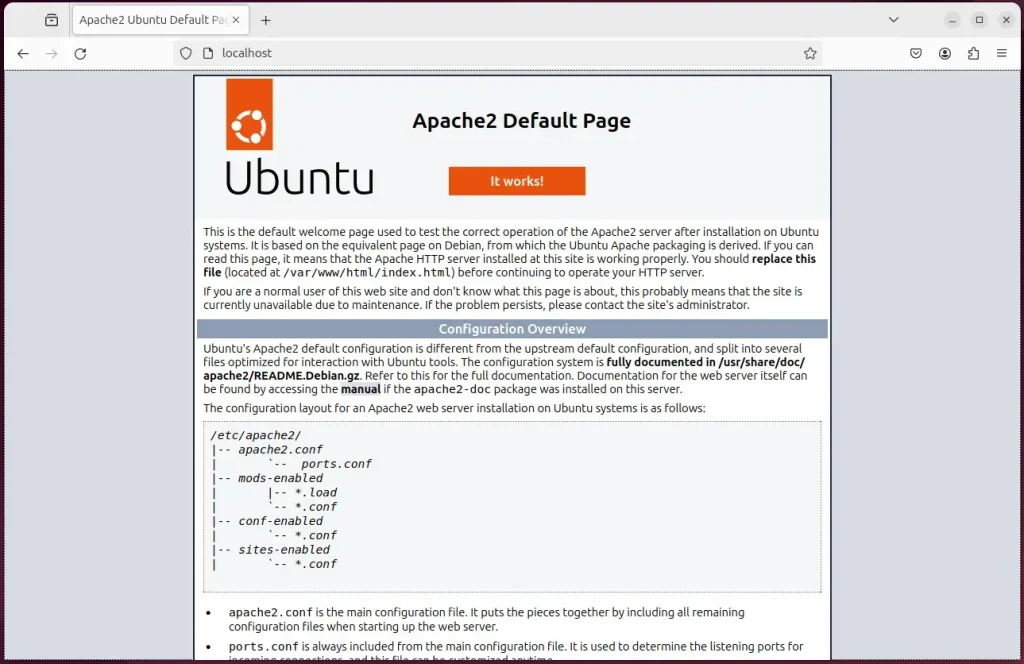
When you see the Apache2 Default Page, the Apache HTTP server is installed and working.
If the page does not load from another computer, the server may be blocking web traffic with a firewall, or your cloud provider may need to allow ports 80 and 443. Fix that before you go any further.
Additional help on installing Apache on Ubuntu is in the link below.
Install MariaDB database server on Ubuntu Linux
WordPress stores its posts, pages, user accounts, and settings in a database. To install the MariaDB database server on Ubuntu 24.04, open the terminal and run the commands sudo apt update and sudo apt install mariadb-server. MariaDB is a drop-in replacement for MySQL, and WordPress works with it without any changes.
To install and use the MariaDB database server, use the instructions below.
- Open the Ubuntu terminal.
- Run the commands in the code block below to install the MariaDB database server.
- Wait for the install to finish and the prompt to return.
sudo apt update
sudo apt install mariadb-server
Once MariaDB is installed, use the commands below to stop, start, and enable the server so it starts automatically when the machine boots. As with Apache, enabling it keeps your site from failing after a reboot because the database is not running.
sudo systemctl stop mariadb
sudo systemctl start mariadb
sudo systemctl enable mariadb
Run the following commands to check that the MariaDB database server is installed and responding.
sudo mariadb
After you run these commands, you are logged on to the MariaDB console and see a message similar to the one below.
Welcome to the MariaDB monitor.  Commands end with ; or g.
Your MariaDB connection id is 32
Server version: 10.11.2-MariaDB-1 Ubuntu 23.04

Copyright (c) 2000, 2018, Oracle, MariaDB Corporation Ab and others.

Type 'help;' or 'h' for help. Type 'c' to clear the current input statement.

MariaDB [(none)]>
The message confirms the server is installed and running. If you see an error instead, check that the MariaDB service is started, using the commands above.
Additional help on installing MariaDB:
- How to install MariaDB on Ubuntu Linux
- MariaDB without password prompt
Create a WordPress database
To create a WordPress database on Ubuntu 24.04, log into the MariaDB shell and run SQL commands that create a dedicated database and a dedicated user with full privileges on that database only. This gives WordPress its own container for content and settings. It also means WordPress never needs the database administrator account.
As part of the setup, we will create a database named wordpressdb. We will also create a matching user account called wordpressdbuser.
Finally, we will grant wordpressdbuser full access to the wordpressdb database.
All of the database steps above can be done with the commands below.
First, log on to the MariaDB database server:
sudo mariadb
Then run the commands below at the MariaDB prompt to create the database and user:
CREATE DATABASE wordpressdb CHARACTER SET utf8mb4 COLLATE utf8mb4_general_ci;
CREATE USER wordpressdbuser@localhost IDENTIFIED BY 'type_your_password_here';
GRANT ALL ON wordpressdb.* TO wordpressdbuser@localhost WITH GRANT OPTION;
FLUSH PRIVILEGES;
exit
Replace type_your_password_here with your own strong password before you run the commands. Write down the database name, user name, and password. You will enter all three in the WordPress setup wizard later.
Install PHP on Ubuntu Linux
WordPress is written in PHP, so the server needs PHP and a few extensions. To install PHP on Ubuntu 24.04 for your WordPress site, open the terminal and run the command sudo apt install php libapache2-mod-php php-mysql php-curl php-gd php-mbstring. This installs the language itself, the Apache module that runs PHP, and the extensions WordPress uses to talk to the database, fetch remote data, handle images, and process text.
- In the terminal, run the commands in the code block below.
- Confirm the install if apt asks, and wait for the prompt to return.
Ubuntu 24.04 installs PHP 8.3 by default, which WordPress supports. If Apache was already running when you installed PHP, restart it so it loads the new module.
sudo apt install php libapache2-mod-php php-intl php-mysql php-curl php-cli php-zip php-xml php-gd php-common php-mbstring php-json php-sqlite3 php-soap php-zip
Additional help on installing PHP:
Download WordPress files
To download the WordPress files on Ubuntu 24.04, fetch the latest archive from the official WordPress site with wget, extract it, and move the contents into your Apache web root directory. This puts the core website files where Apache can read them and serve them to visitors.
First, go to the /tmp directory and download the WordPress files. After you extract the archive, move the contents into a WordPress folder in the Apache root directory. The commands for all of this are in the code block below.
The last step is to set ownership and permissions. This lets the Apache web server read the files and write to the folders WordPress needs, such as uploads, while keeping the rest of the installation locked down. On Ubuntu, Apache runs as the www-data user, so that account needs to own the WordPress files.
cd /tmp/
wget https://wordpress.org/latest.tar.gz
tar -xvzf latest.tar.gz
sudo mv wordpress /var/www/wordpress
sudo chown -R www-data:www-data /var/www/wordpress/
With the files in place, configure Apache to serve the WordPress content.
Run the commands below to create an Apache virtual host file for WordPress. This opens a new, empty file in a text editor.
sudo nano /etc/apache2/sites-available/wordpress.conf
Copy the content block below and paste it into the new Apache virtual host file. Change the domain name and any paths in it to match your own server, so they agree with the name you will use to reach the site.
<VirtualHost *:80>
  ServerName wordpress.example.com
  ServerAlias www.wordpress.example.com
  ServerAdmin admin@example.com
  DocumentRoot /var/www/wordpress

  <Directory /var/www/wordpress/>
       Options FollowSymlinks
       AllowOverride All
       Require all granted
  </Directory>

       ErrorLog ${APACHE_LOG_DIR}/error.log
       CustomLog ${APACHE_LOG_DIR}/access.log combined
</VirtualHost>
Save the file and close the editor.
Enable the Apache virtual host for WordPress by running the command `sudo a2ensite your_domain.conf`, where your_domain.conf is the name of the file you just created. Then restart the Apache server with `sudo systemctl restart apache2.service` to apply the changes. Apache must be restarted for the new site to take effect.
sudo a2ensite wordpress.conf
sudo systemctl restart apache2
Setup Let’s Encrypt SSL/TLS for WordPress
To set up Let's Encrypt SSL/TLS for WordPress on Ubuntu 24.04, install Certbot and run its Apache plugin to request and configure a free certificate. This encrypts traffic between your visitors and the server, so the site loads over HTTPS.
Before you start, make sure your domain name points to the server's public IP address and that ports 80 and 443 are reachable from the internet. Let's Encrypt cannot issue a certificate for a name it cannot reach. The certificates last 90 days, and Certbot normally sets up automatic renewal for you.
Read the post below for more on installing and creating Let's Encrypt SSL certificates for Apache.
How to set up Let’s Encrypt SSL certificate for Apache on Ubuntu Linux
Once you have restarted the Apache web server, open your browser and go to the server hostname or IP address defined in the Apache virtual host. If you set up Let's Encrypt, use the https:// address.
http://wordpress.example.com
The WordPress installation wizard should appear. Select your installation language and continue to the next page.
If you see the Apache default page, a "Not Found" error, or a download prompt instead, check that the virtual host is enabled and that Apache was restarted. If the browser offers to download a file or shows raw PHP code, the PHP module is not loaded yet.
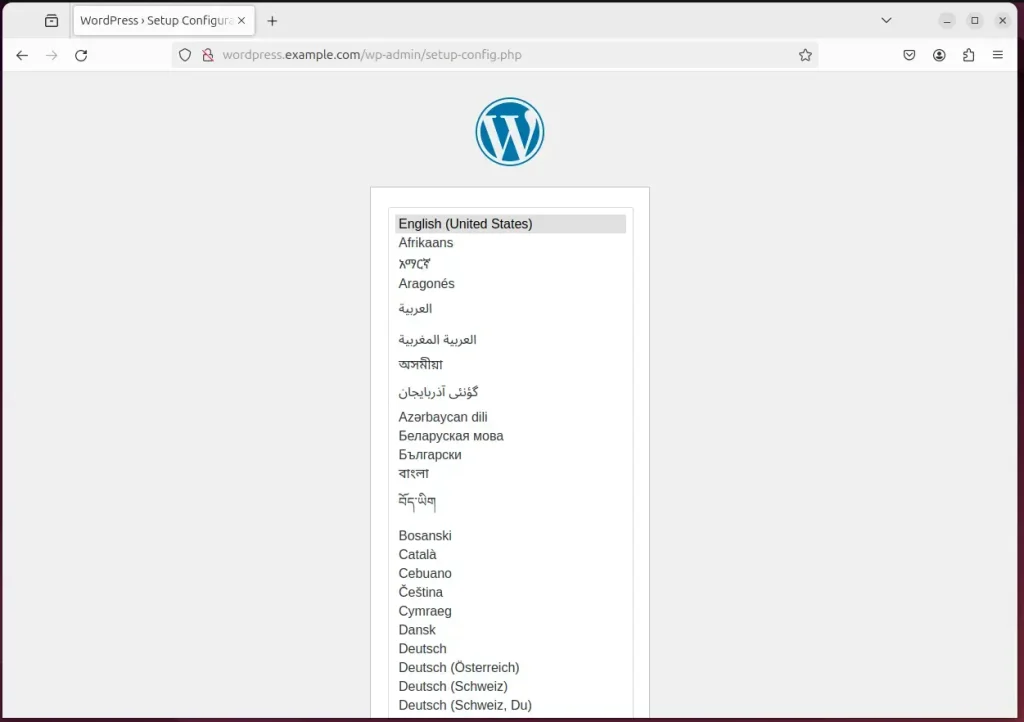
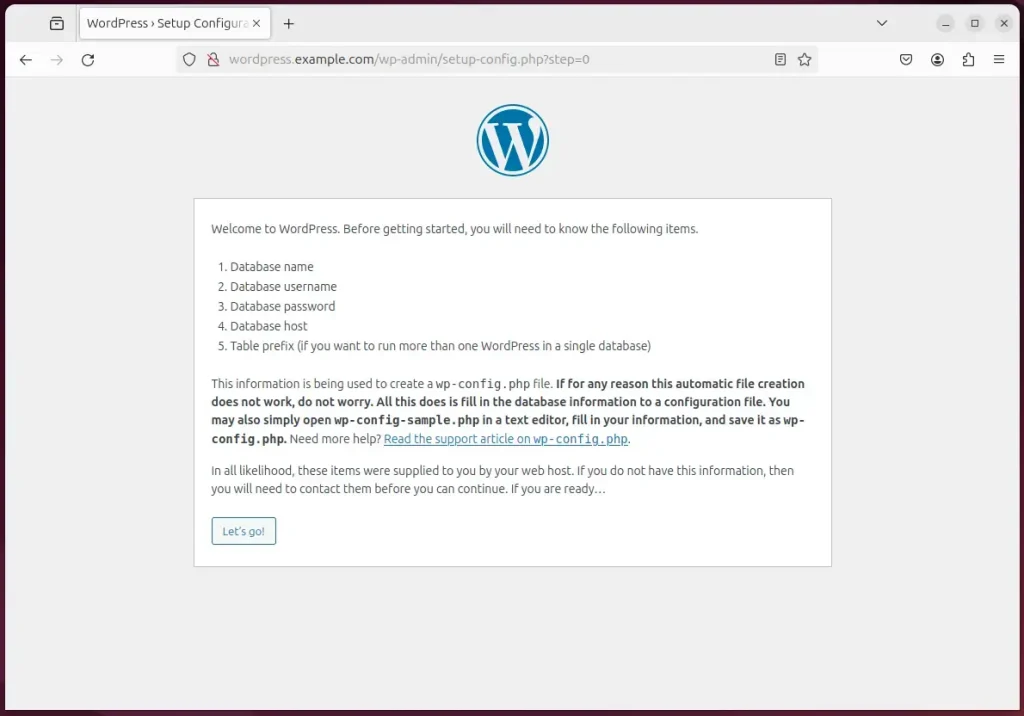
Next, click the Let's go button to begin the installation process.
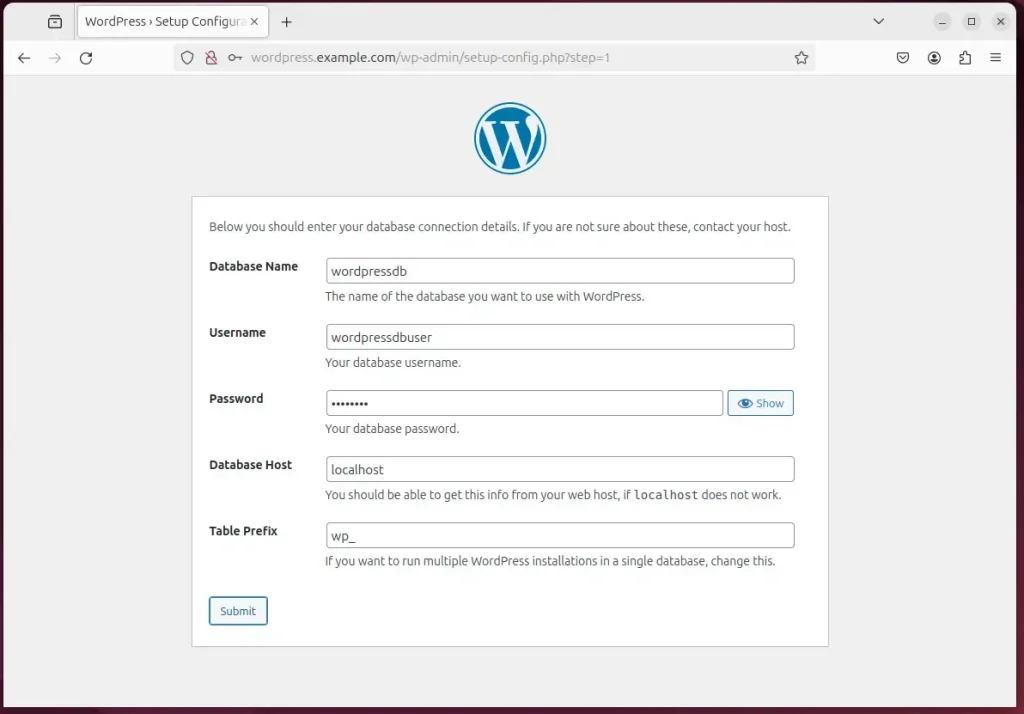
- Type the database name, user name, and password you created earlier.
- Leave the database host at its default value unless your database runs on another server.
- Click Submit.
If WordPress reports that it cannot connect to the database, recheck the name, user, and password. A typo in any one of them causes this error.
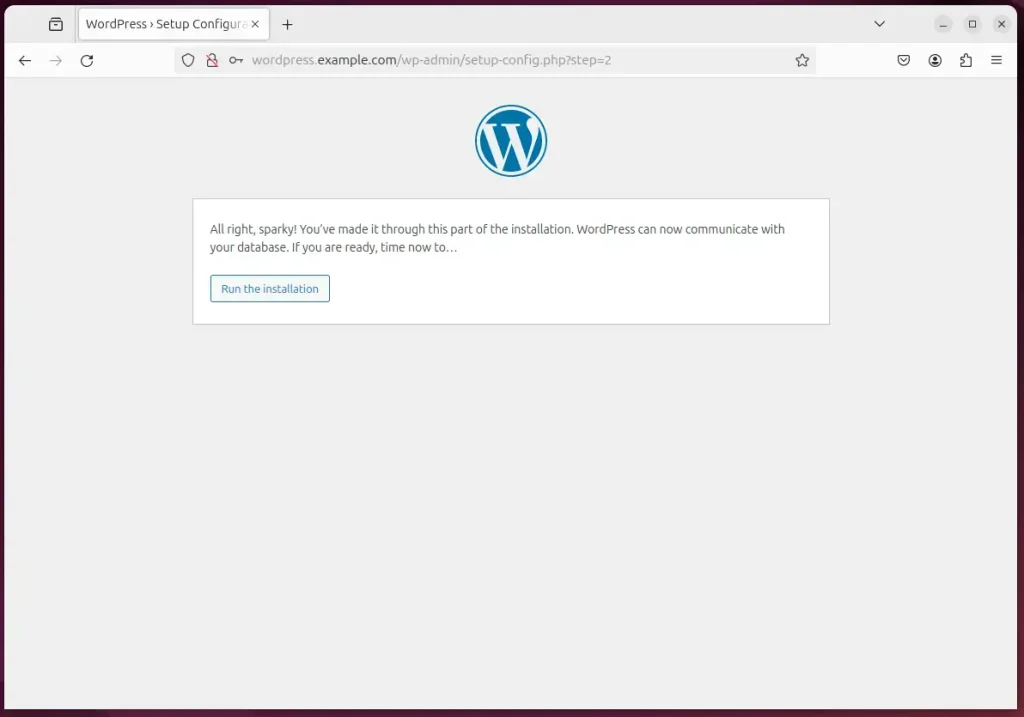
Next, click the Run the installation button. WordPress uses your database details to create its tables and install its files.
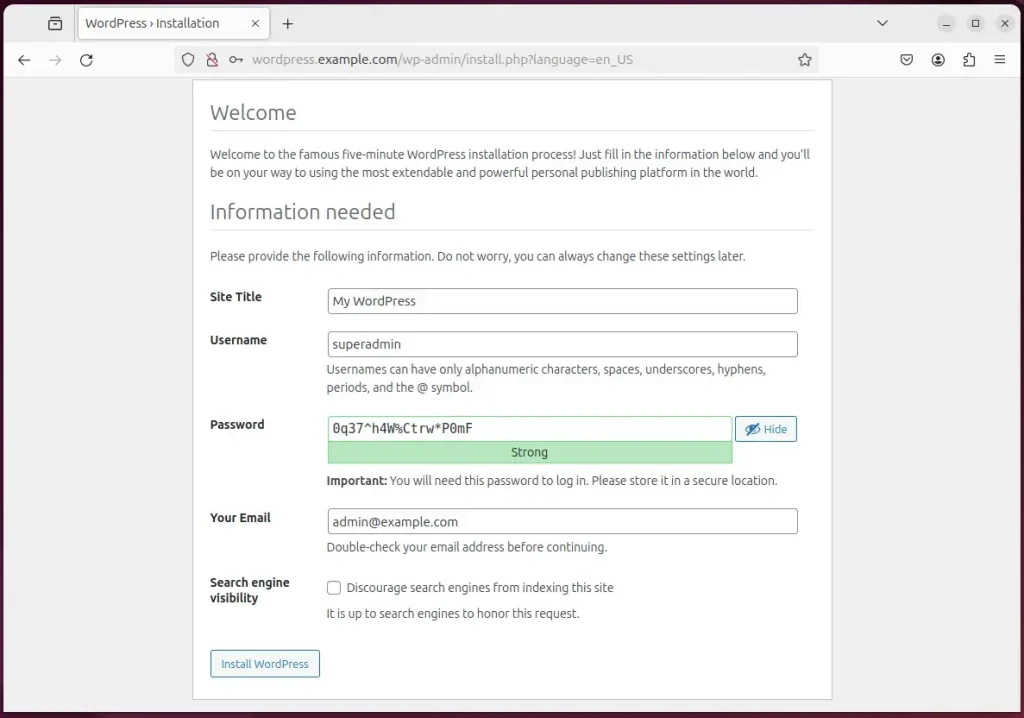
- Type the site title.
- Type an admin user name and a strong password. This is the account you will use to sign in to WordPress, so avoid obvious names such as "admin".
- Type your email address, which WordPress uses for admin notices and password resets.
- Click Install WordPress.
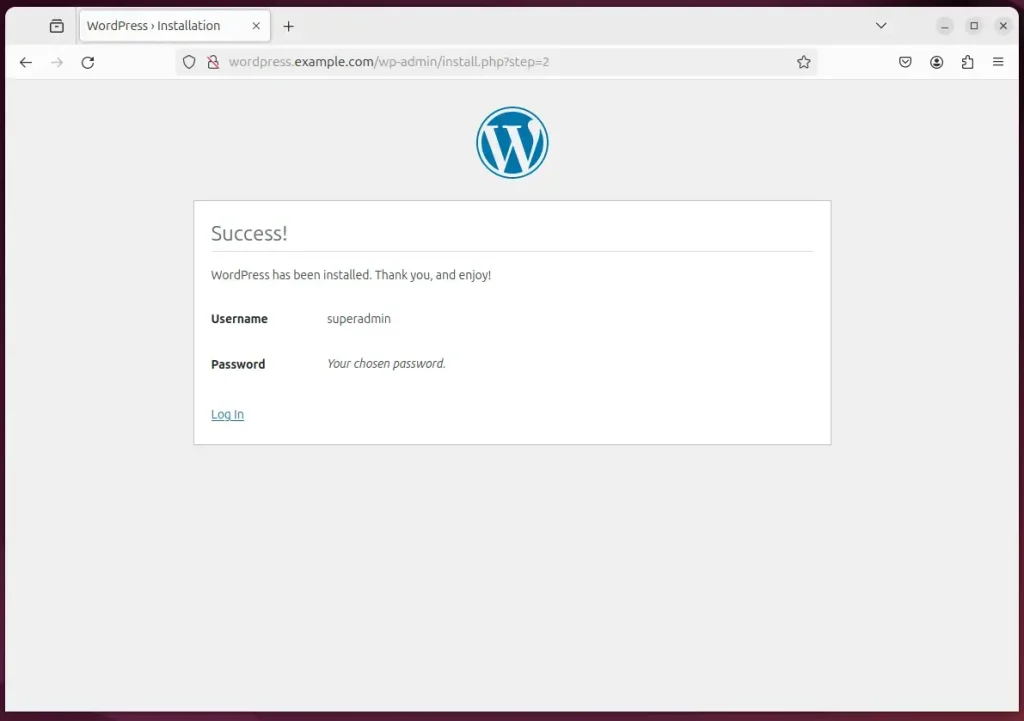
Your WordPress site is now set up and ready to use. You can sign in with the admin account you just created and start working on your site.
That should do it!
Conclusion:
- In this article, you learned how to install WordPress with Apache on Ubuntu 24.04, using the stable and robust Apache web server.
- The guide covered installing Apache, MariaDB, and PHP, creating a WordPress database, and setting up Let's Encrypt SSL/TLS for HTTPS.
- You configured the Apache server to serve the WordPress content and completed the installation, which leaves you with a working WordPress site.
- Refer to the links provided for additional resources and support, and share your feedback or questions in the comments section.
Have a question about this guide?
Answered by AI from this guide. Good questions may be added to this page — please don't include personal details.
Did this guide fix your problem?

About the Author
Richard
Tech Writer, IT Professional
Richard is a writer at Geek Rewind who turns complex IT tasks into clear, step-by-step guides. He draws on years of hands-on experience in system administration and enterprise IT operations, focusing on Windows, Linux and WordPress: the problems people actually run into, and the fixes that work. His server and WordPress guides come from systems he runs himself. Richard builds and maintains the platform behind Geek Rewind, from its Ubuntu servers and Nginx configuration to its custom WordPress plugins. Many new tutorials start with readers' questions, and he's always glad to answer them in the comments.
No comments yet — be the first to share your thoughts!