How to Install the LEMP Stack on Windows WSL


The LEMP stack (a bundle of Linux, Nginx, MySQL, and PHP) lets you host and test dynamic websites right on your Windows 10 or 11 PC using the Windows Subsystem for Linux (WSL).
Running this web server setup inside Ubuntu 22.04 LTS gives you a real Linux environment without needing a separate computer or dual-boot setup. You get all the speed and power of professional web tools while staying inside your familiar Windows desktop.
Install Ubuntu from the Microsoft Store, enable WSL and Virtual Machine Platform features in PowerShell, and set WSL 2 as the default. Run the command dism.exe /online /enable-feature /featurename:Microsoft-Windows-Subsystem-Linux /all /norestart in an administrator PowerShell.
What is LEMP?
LEMP stands for Linux (Ubuntu), Nginx HTTP Server, MariaDB or MySQL Database Server, and PHP Scripting Language. These free, open-source programs function together to power websites and content management systems like WordPress.
Why Install LEMP on Windows?
Installing the LEMP stack Windows WSL setup lets you run Linux web development tools right on your Windows computer without dual-booting. This approach combines the performance of Linux web servers with your everyday Windows environment, giving you a reliable local setup to build and test websites before putting them live on a real server.
WSL 2 runs significantly faster than the original architecture. It lets you run a complete Linux operating system right inside Windows.
What You Need
You’ll need Windows 10 version 2004 or newer. If you have that, you’re ready to start.
Step 1Enable WSL in Windows
Enabling the Windows Subsystem for Linux (WSL) lets your Windows computer run a full Linux environment alongside your regular apps. You must turn on this built-in feature before you can install any Linux distributions or set up your web development tools.
First, open PowerShell with administrator privileges. Click on Start and type "PowerShell."
Right-click Windows PowerShell and choose "Run as administrator."
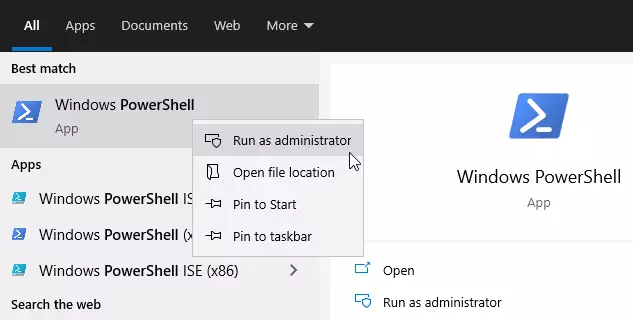
Copy and paste this command into PowerShell:
dism.exe /online /enable-feature /featurename:Microsoft-Windows-Subsystem-Linux /all /norestartYou should see a success message like this:
Deployment Image Servicing and Management tool
Version: 10.0.19041.844

Image Version: 10.0.19042.844

Enabling feature(s)
[==========================100.0%==========================]
The operation completed successfully.
Step 2Enable Virtual Machine Platform
Enabling the Virtual Machine Platform feature gives WSL 2 the core components it needs to run Linux distributions correctly on your computer. You need to run a quick command in PowerShell to turn on this system requirement before you can install Ubuntu.
WSL 2 needs the Virtual Machine Platform feature enabled. This feature is distinct from Hyper-V. Run this command in the same PowerShell window:
dism.exe /online /enable-feature /featurename:VirtualMachinePlatform /all /norestartIf you're on a Windows 10 version older than 2004, use this command instead:
Enable-WindowsOptionalFeature -Online -FeatureName VirtualMachinePlatform -NoRestartThis lets all the changes take effect.
After restarting your computer, open PowerShell as administrator again. Run the command `wsl --set-default-version 2` to set WSL 2 as your default version. This ensures that all future WSL distributions use the more advanced WSL 2 architecture for improved performance.
wsl --set-default-version 2Step 3Install Ubuntu on 🪟 Windows 10
Installing Ubuntu from the Microsoft Store creates the core Linux environment you need to run your web server. Ubuntu gives you access to essential terminal tools like Bash and Apt, which make downloading and managing your server software straightforward.
Get Ubuntu 20.04 LTS - Microsoft Store
Ubuntu gives you access to essential terminal tools like Bash, SSH, and Apt.
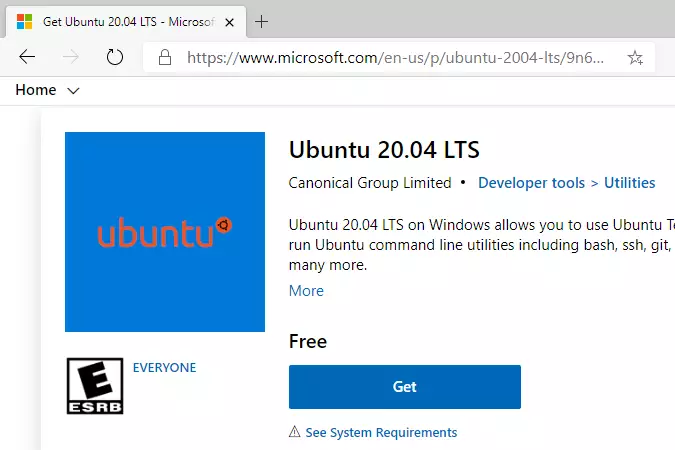
Click the "Get" button in the Microsoft Store to install Ubuntu on your Windows Subsystem for Linux (WSL). This download typically takes 5 minutes and allows you to run Linux applications directly on Windows. After the installation completes, you can launch Ubuntu from WSL.
Ubuntu asks you to create a username and password when you first launch Ubuntu. This username and password are required to log in and perform administrative tasks on your Ubuntu system within WSL.
Installing, this may take a few minutes.
Please create a default UNIX user account. The username does not need to match your Windows username.
For more information visit: https://aka.ms/wslusers
Enter new UNIX username: user1
New password:
Retype new password:
passwd: password updated successfully
Installation successful!
To run a command as administrator (user "root"), use "sudo <command>".
See "man sudo_root" for details.

Welcome to Ubuntu 20.04.2 LTS (GNU/Linux 4.4.0-19041-Microsoft x86_64)

 * Documentation:  https://help.ubuntu.com
 * Management:     https://landscape.canonical.com
 * Support:        https://ubuntu.com/advantage

  System information as of Mon Apr 12 17:57:37 CDT 2021

  System load:    0.52      Processes:             7
  Usage of /home: unknown   Users logged in:       0
  Memory usage:   26%       IPv4 address for eth0: 192.168.1.100
  Swap usage:     0%

1 update can be installed immediately.
0 of these updates are security updates.
To see these additional updates run: apt list --upgradable
Great! Ubuntu is now installed. If you have trouble, try these commands:
wsl --set-default-version 1
bcdedit /set hypervisorlaunchtype auto start
Now you're ready to install the rest of LEMP.
Step 4Update Ubuntu Linux
Updating your Linux packages makes sure your Ubuntu environment has the latest security patches and bug fixes before you install server software. Running a few simple update commands in your terminal gets your system ready for Nginx, MariaDB, and PHP.
The "L" in LEMP stands for Linux. You have installed Ubuntu, a popular Linux distribution, and now it is time to update Ubuntu to the latest version.
Run these commands:
sudo apt update
sudo apt upgrade
sudo apt autoremove
The sudo command runs things with administrator access. Ubuntu will ask for your password.
Step 5Install Nginx Web Server
Installing the Nginx web server gives you the high-performance tool that powers the 'E' in your LEMP stack. Nginx handles incoming web traffic and serves your website files to visitors efficiently right from your local Windows computer.
The 'E' in LEMP stands for Nginx, a high-performance web server that powers millions of websites. [engine x]
Run these commands to install Nginx:
When you install Nginx, it becomes a web server that can display web pages on your computer. For example, Nginx can serve a basic HTML file located at `/var/www/html/index.html` to anyone who visits your IP address.
Use these commands to control Nginx:
sudo service nginx stop
sudo service nginx start
sudo service nginx restart
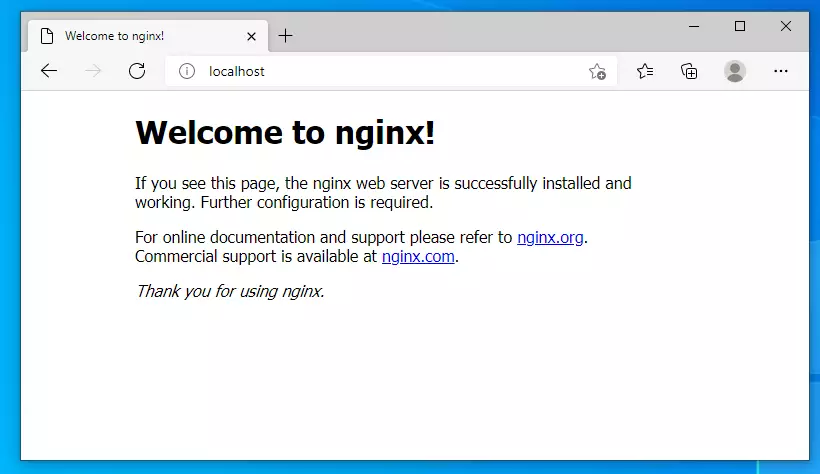
To check if Nginx is working, open your web browser and go to:
http://localhostYou should see a test page that says "Welcome to nginx!"
Step 6Install MariaDB Database Server
Installing the MariaDB database server provides the dependable system that stores all your website data, acting as the 'M' in your LEMP stack. MariaDB manages everything from user accounts to site content so your dynamic web applications can save and retrieve information.
The 'M' in LEMP stands for MariaDB or MySQL. These database servers store all your website data, from user accounts to site content. Most Linux setups rely on MariaDB for its speed and reliability.
MariaDB is a free, open-source database known for its speed and security. Most Linux systems use MariaDB because it efficiently manages data for applications.
Run these commands to install MariaDB:
sudo apt-get install mariadb-server mariadb-clientWhat happens when you install MariaDB? Your computer now has a database system that can store information for websites.
Use these commands to control MariaDB:
sudo service mysql stop
sudo service mysql start
sudo service mysql restartRun this command:
sudo mysql_secure_installationAnswer the questions like this:
Enter current password for root (enter for none): Press Enter
Set root password? [Y/n]: Y
New password: Type a strong password
Re-enter new password: Type it again
Remove anonymous users? [Y/n]: Y
Disallow root login remotely? [Y/n]: Y
Remove test database and access to it? [Y/n]: Y
Reload privilege tables now? [Y/n]: Y
To check if MariaDB is working, log into the database. Run this command:
sudo mysql -u root -pType your root password when asked. If you see this, MariaDB is installed correctly:
Welcome to the MariaDB monitor.  Commands end with ; or g.
Your MariaDB connection id is 46
Server version: 10.3.29-MariaDB-0ubuntu0.20.04.1 Ubuntu 20.04
Copyright (c) 2000, 2018, Oracle, MariaDB Corporation Ab and others.
Type 'help;' or 'h' for help. Type 'c' to clear the current input statement.

MariaDB [(none)]>
Type exit to leave the database.
Step 7Install PHP-FPM and Modules
Installing PHP-FPM and its necessary modules gives your web server the scripting language needed to run dynamic websites. This component processes your website's code and connects Nginx with MariaDB, making it the essential 'P' in your LEMP setup.
The "P" in LEMP stands for PHP. PHP is a programming language that makes websites work. It connects all the parts of LEMP together.
Run this command to install PHP and helpful add-ons:
sudo apt install php-fpm php-common php-mysql php-gmp php-curl php-intl php7.4-mbstring php-xmlrpc php-gd php-xml php-cli php-zipWhat happens when you install PHP? Your web server can now run websites that use PHP code.
Use these commands to control PHP:
sudo service php7.4-fpm stop
sudo service php7.4-fpm start
sudo service php7.4-fpm restart
To check if PHP is installed, run:
php -vYou should see something like this:
PHP 7.4.3 (cli) (built: Oct  6 2020 15:47:56) ( NTS )
Copyright (c) The PHP Group
Zend Engine v3.4.0, Copyright (c) Zend Technologies
with Zend OPcache v7.4.3, Copyright (c), by Zend Technologies
Step 8Test PHP with Nginx
Testing PHP with Nginx confirms that your web server and scripting language are communicating properly together. Creating a simple test file lets you verify that your new local web environment is fully functional before you start building your site.
Now let's create a test file to make sure PHP and Nginx work together.
Run this command to create a PHP test file:
sudo nano /var/www/html/phpinfo.phpType this content:
<?php phpinfo( ); ?>Save the file by pressing Ctrl+X, then Y, then Enter.
Next, edit the Nginx settings. Run this command:
sudo nano /etc/nginx/sites-available/defaultFind and uncomment these lines (remove the # symbols):
# Default server configuration
#
server {
        listen 80 default_server;
        listen [::]:80 default_server;
        #
        # include snippets/snakeoil.conf;

        root /var/www/html;

        # Add index.php to the list if you are using PHP
        index index.php index.html index.htm index.nginx-debian.html;

        server_name _;

        location / {
                # First attempt to serve request as file, then
                # as directory, then fall back to displaying a 404.
                try_files $uri $uri/ =404;
        }

        # pass PHP scripts to FastCGI server
        #
        location ~ .php$ {
               include snippets/fastcgi-php.conf;
        #
        #       # With php-fpm (or other unix sockets):
                fastcgi_pass unix:/var/run/php/php7.4-fpm.sock;
        #       # With php-cgi (or other tcp sockets):
        #       fastcgi_pass 127.0.0.1:9000;
        }

        # deny access to .htaccess files, if Apache's document root
        # concurs with nginx's one
        #
        #location ~ /.ht {
}
Save the file. Then restart Nginx:
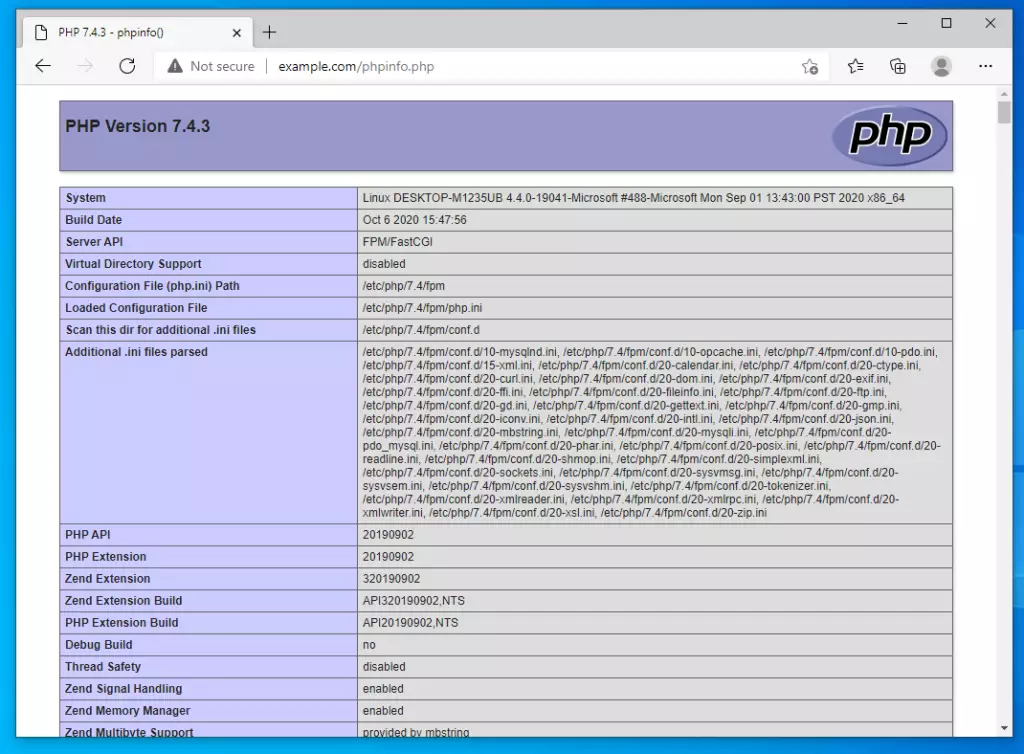
sudo service nginx restartOpen your web browser and go to:
The PHP information page confirms that PHP and Nginx are now working together correctly. You can verify this by opening the page in your web browser, which displays details about your PHP installation.
Summary
Setting up the full LEMP stack on Windows using WSL 2 and Ubuntu gives you a powerful, local Linux environment for web development. You now have a working setup that includes Nginx for serving web pages, MariaDB for managing databases, and PHP for running dynamic site code.
- Enabled WSL 2 on Windows
- Installed Ubuntu 20.04 inside WSL
- Installed Nginx web server
- Installed MariaDB database
- Installed PHP scripting language
- Tested that everything works together
Your Windows computer now has a complete Linux environment with all the tools needed to build and test websites. You can use this setup to develop websites locally before putting them on the internet.
If you run into any problems, check the troubleshooting commands earlier in this guide. Good luck with your web development!
How to install WSL file in Windows?
And run the command wsl-to. This lists all the Windows subsystem for Linux distros. I can in install directly from the command.
Was this guide helpful?

About the Author
Richard
Tech Writer, IT Professional
Richard, a writer for Geek Rewind, is a tech enthusiast who loves breaking down complex IT topics into simple, easy-to-understand ideas. With years of hands-on experience in system administration and enterprise IT operations, he’s developed a knack for offering practical tips and solutions. Richard aims to make technology more accessible and actionable. He's deeply committed to the Geek Rewind community, always ready to answer questions and engage in discussions.


No comments yet — be the first to share your thoughts!