

Running PrestaShop on Windows WSL lets you set up and test an online store on your PC using a dedicated Linux environment. WSL, or Windows Subsystem for Linux, runs Linux directly inside Windows 10 and 11 so you can build your shop without messing up your main system.
Install PrestaShop on Windows WSL by enabling the Windows Subsystem for Linux and Virtual Machine Platform features via PowerShell. Then, install Ubuntu from the Microsoft Store and create a user account. Finally, install PrestaShop within your Ubuntu environment.
This setup uses WSL 2, the newer version that includes a real Linux kernel for faster speeds and better compatibility. Setting it up gives you a safe sandbox on your computer to build, test, and run your PrestaShop store before putting it on a live web server.
- First, turn on WSL and Virtual Machine Platform in Windows using PowerShell commands, then restart your computer and set WSL 2 as default.
- Install Ubuntu from the Microsoft Store and create a user account when you first launch it.
- In the Ubuntu terminal, install the Apache web server using
sudo apt updateandsudo apt install apache2. - Install MariaDB, the database server, by running
sudo apt-get install mariadb-server mariadb-clientand then secure it withsudo mysql_secure_installation. - Install PHP and necessary modules with
sudo apt install php libapache2-mod-php php-imagick php-imap php-json php-ldap php-common php-pgsql php-ssh2 php-sqlite3 php-xml php-mysql php-gmp php-curl php-intl php7.4-mbstring php-xmlrpc php-gd php-xml php-cli php-zip. - Create a database and user for PrestaShop within MariaDB by logging in and running specific SQL commands.
- Download the latest PrestaShop ZIP file, unzip it into your web server’s directory (like
/var/www/prestashop), and set the correct file permissions. - Configure Apache to host your PrestaShop site by creating a virtual host file and enabling it, then restart Apache.
- Open your web browser and go to
http://localhostto run the PrestaShop installation wizard and finish setting up your store.
Why Install PrestaShop on Windows WSL?
Installing PrestaShop on Windows using WSL lets you run a full Linux system on your PC to build your online store. This setup gives you access to powerful Linux tools for development and greater control over how your online store is configured and performs.
WSL lets you run a full Linux operating system right on your Windows PC. This opens up powerful Linux tools for developing and running your online store. WSL 2 also boosts performance and integrates better with Linux system calls, making it an excellent choice for running Linux on Windows.
What You Need
Step 1Turn On WSL in Windows
First, enable the Windows Subsystem for Linux (WSL) feature. Open PowerShell as an administrator to prepare your system for the Linux kernel.
Open the PowerShell terminal as an administrator. Click the Start button and type PowerShell.
Right-click on Windows PowerShell and select "Run as administrator."
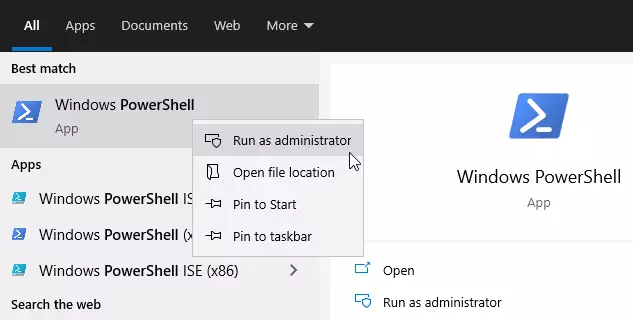
When the window opens, run this command:
dism.exe /online /enable-feature /featurename:Microsoft-Windows-Subsystem-Linux /all /norestart
You should see a success message like this:
Deployment Image Servicing and Management tool

Version: 10.0.19041.844
Image Version: 10.0.19042.844
Enabling feature(s)

[==========================100.0%==========================]

The operation completed successfully.
Step 2Turn On Virtual Machine Platform
To use WSL 2 for PrestaShop on Windows, you must turn on the Virtual Machine Platform feature. Run a specific command in PowerShell to activate the system needed for WSL 2 to work correctly and efficiently.
WSL 2 requires the Virtual Machine Platform feature. This is separate from Hyper-V. Run this command in the same PowerShell window:
dism.exe /online /enable-feature /featurename:VirtualMachinePlatform /all /norestart
For Windows 10 versions older than 2004, you must use the command `wsl --set-default-version 2` to install PrestaShop on WSL. This command ensures compatibility for older operating systems.
Enable-WindowsOptionalFeature -Online -FeatureName VirtualMachinePlatform -NoRestart
After restarting your computer, open PowerShell as administrator again. Then run the command `wsl --set-default-version 2` to set Windows Subsystem for Linux version 2 as the default, which improves performance for Linux applications.
wsl --set-default-version 2
Step 3Install Ubuntu on Windows
With WSL 2 set up, the next step is to install Ubuntu from the Windows Store to get the Linux environment needed for PrestaShop. Ubuntu provides essential command-line tools like bash and apt, which are vital for your store's development.
Get Ubuntu 20.04 LTS - Microsoft Store
Ubuntu 20.04 LTS gives you access to Ubuntu Terminal and command line tools like bash, ssh, git, and apt.
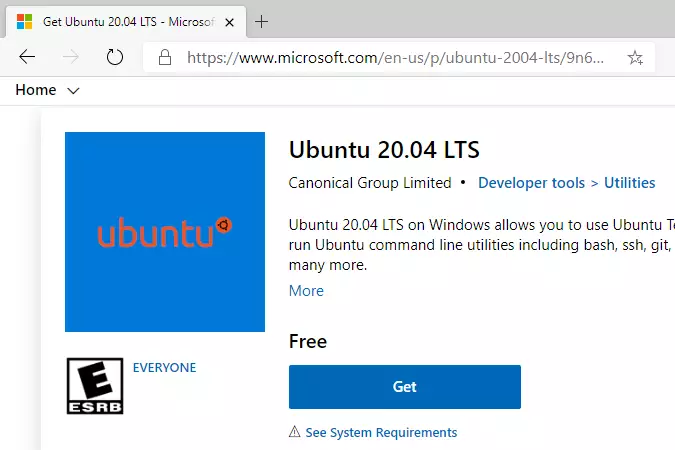
Click the "Get" button to install Ubuntu. After installing, you can launch Ubuntu from WSL.
When you first launch Ubuntu, it will ask you to create a user account. This username doesn't need to match your Windows username.
You'll see a prompt like this:
Installing, this may take a few minutes.

Please create a default UNIX user account. The username does not need to match your Windows username.

For more information visit: https://aka.ms/wslusers

Enter new UNIX username: systemuser

New password:

Retype new password:

passwd: password updated successfully

Installation successful!

To run a command as administrator (user "root"), use "sudo <command>".

See "man sudo_root" for details.
Welcome to Ubuntu 20.04.2 LTS (GNU/Linux 4.4.0-19041-Microsoft x86_64)
* Documentation: https://help.ubuntu.com
* Management: https://landscape.canonical.com
* Support: https://ubuntu.com/advantage
System information as of Mon Apr 12 17:57:37 CDT 2021
System load: 0.52 Processes: 7
Usage of /home: unknown Users logged in: 0
Memory usage: 26% IPv4 address for eth0: 192.168.1.100
Swap usage: 0%
1 update can be installed immediately.

0 of these updates are security updates.

To see these additional updates run: apt list --upgradable
If you run into problems, try these troubleshooting commands:
wsl --set-default-version 1

bcdedit /set hypervisorlaunchtype auto start
Step 4Install Apache Web Server
PrestaShop requires a web server to work, so you need to install Apache on your Ubuntu system using a specific command. Apache acts as the web server, delivering website files directly to browsers so visitors can access your storefront.
Apache is a popular web server software that delivers websites to browsers. PrestaShop needs Apache to work. Run the following commands to install Apache on Ubuntu:
sudo apt update

sudo apt install apache2
After installing, you can use these commands to control Apache:
sudo service apache2 stop

sudo service apache2 start

sudo service apache2 restart
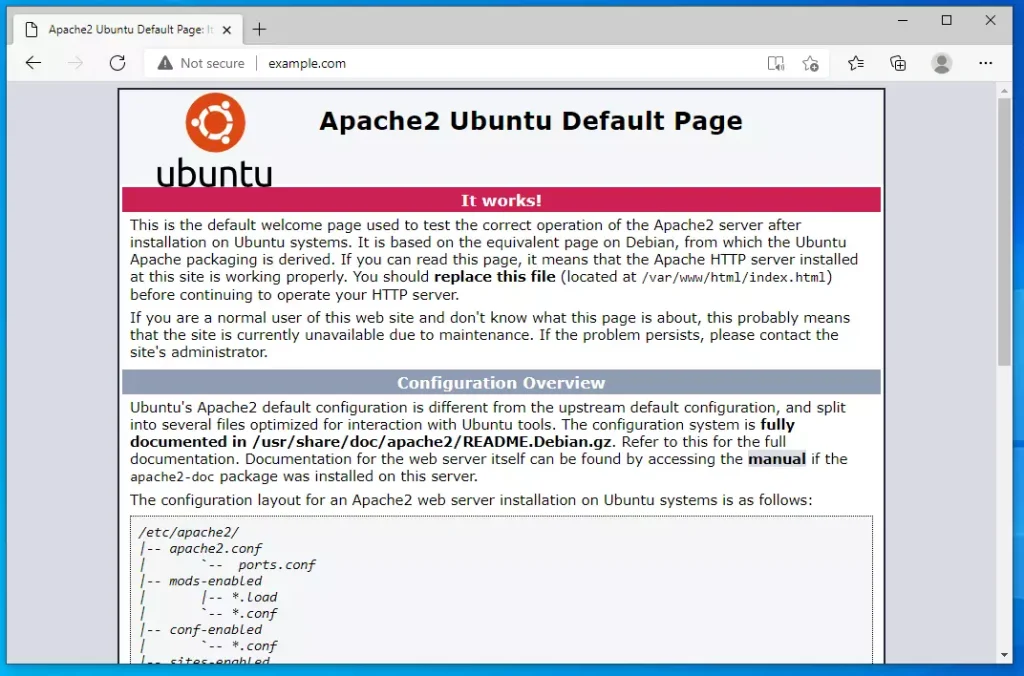
To check that Apache is working, open your web browser and go to:
http://localhost
You should see an Apache test page.
Step 5Install MariaDB Database Server
Your PrestaShop store needs a database to safely store all its information, so installing MariaDB on Ubuntu is the next step. MariaDB is a free database server that manages and stores your store's data effectively, ensuring everything is kept secure.
PrestaShop needs a specific database within MariaDB and a user account to access it. MariaDB, a free, open-source database server that stores and manages data, works well for PrestaShop. Install MariaDB with the `sudo apt install mariadb-server` command.
sudo apt-get install mariadb-server mariadb-client
After installing, you can control MariaDB with these commands:
sudo service mysql stop

sudo service mysql start

sudo service mysql restart
Next, secure your database with a root password by running this command:
sudo mysql_secure_installation
Answer the questions as shown below:
Enter current password for root (enter for none): Press EnterSet root password? [Y/n]: Type YNew password: Enter a passwordRe-enter new password: Repeat the passwordRemove anonymous users? [Y/n]: Type YDisallow root login remotely? [Y/n]: Type YRemove test database and access to it? [Y/n]: Type YReload privilege tables now? [Y/n]: Type Y
To verify MariaDB is working, log in to the database with this command:
sudo mysql -u root -p
Enter your root password when asked. You should see a screen like this:
Welcome to the MariaDB monitor.  Commands end with ; or g.

Your MariaDB connection id is 46

Server version: 10.3.29-MariaDB-0ubuntu0.20.04.1 Ubuntu 20.04

Copyright (c) 2000, 2018, Oracle, MariaDB Corporation Ab and others.

Type 'help;' or 'h' for help. Type 'c' to clear the current input statement.
MariaDB [(none)]>
Step 6Install PHP and Modules
PHP is the programming language that makes PrestaShop function, so you must install PHP on your Ubuntu system along with the specific modules PHP requires. These modules are essential for PrestaShop to run correctly and perform all its tasks.
PHP is the programming language that makes PrestaShop work on your computer. You must install PHP version 7.2.5 or later, along with the `php-curl`, `php-gd`, `php-mbstring`, and `php-xml` modules, to ensure PrestaShop functions correctly.
sudo apt install php libapache2-mod-php php-imagick php-imap php-json php-ldap php-common php-pgsql php-ssh2 php-sqlite3 php-xml php-mysql php-gmp php-curl php-intl php7.4-mbstring php-xmlrpc php-gd php-xml php-cli php-zip
To check that PHP is installed, run this command:
php -v
You should see something like this:
PHP 7.4.3 (cli) (built: Oct  6 2020 15:47:56) ( NTS )

Copyright (c) The PHP Group

Zend Engine v3.4.0, Copyright (c) Zend Technologies

with Zend OPcache v7.4.3, Copyright (c), by Zend Technologies
To test PHP more thoroughly, create a test file. Run this command:
sudo nano /var/www/html/phpinfo.php
Type this content into the file:
<?php phpinfo( ); ?>
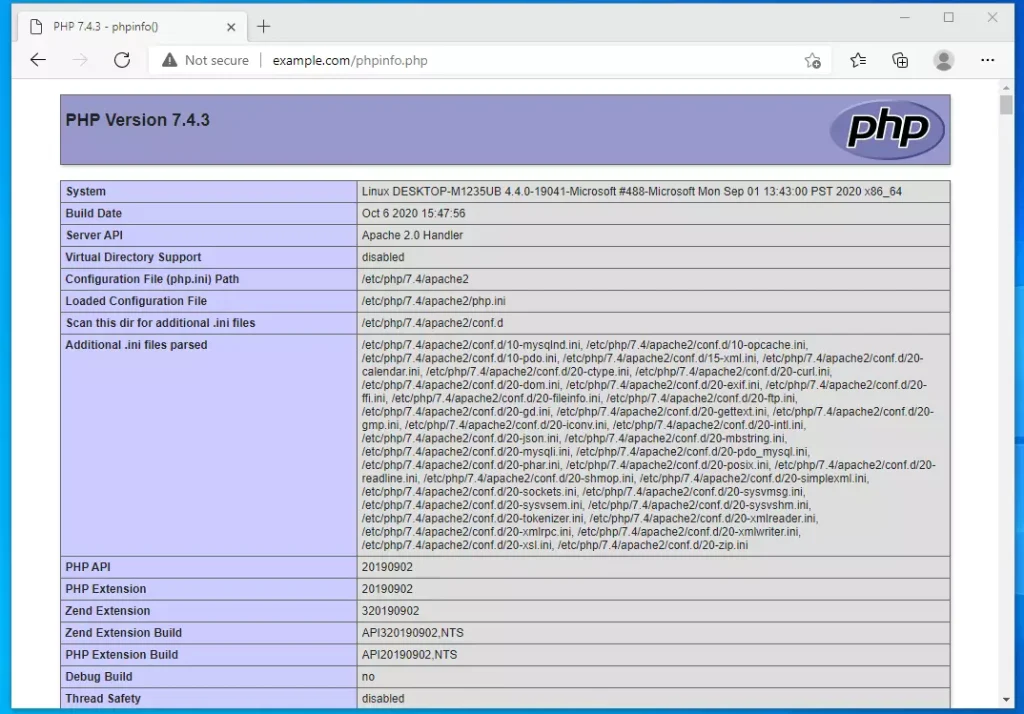
Save the file. Restart Apache and then open your browser to:
http://example.com/phpinfo.php
You'll see the PHP information page.
Step 7Create a PrestaShop Database
PrestaShop requires a specific database within MariaDB and a user account for access. This database stores your store's product and customer information securely.
Now you need to create a database for PrestaShop to use. Log into MariaDB:
sudo mysql -u root -p
Create a database called prestashop:
CREATE DATABASE prestashop;
Create a database user:
CREATE USER 'prestashopuser'@'localhost' IDENTIFIED BY 'new_password_here';
Give that user full access to the PrestaShop database:
GRANT ALL ON prestashop.* TO 'prestashopuser'@'localhost' WITH GRANT OPTION;
Save your changes and exit:
FLUSH PRIVILEGES;

EXIT;
Step 8Download PrestaShop
It's time to download the latest version of PrestaShop, which contains the core files for your online store. You can find the official files on the PrestaShop website to ensure you're using the most current software.
Download the latest version. Check the PrestaShop download page for the newest release.
wget https://assets.prestashop2.com/en/system/files/ps_releases/prestashop_1.7.7.4.zip -P /tmp

unzip prestashop_1.7.7.4.zip

sudo unzip /tmp/prestashop.zip  -d /var/www/prestashop
Set the correct permissions for PrestaShop to function properly:
sudo chown -R www-data:www-data /var/www/prestashop/

sudo chmod -R 755 /var/www/prestashop/
Step 9Set Up the PrestaShop Site Configuration
You must tell Apache how to display your PrestaShop website by creating a specific configuration file within Apache's settings. This file tells the web server how to handle requests for your PrestaShop store, ensuring it loads correctly.
Create a configuration file for Apache so it knows how to display PrestaShop:
sudo nano /etc/apache2/sites-available/prestashop.conf
To install PrestaShop on Windows WSL, copy the provided content into your configuration file. Replace the placeholder "example.com" with your actual domain name, for example, "yourstore.com," to ensure the installation correctly points to your website.
<VirtualHost *:80>

     ServerAdmin admin@example.com

     DocumentRoot /var/www/prestashop

     ServerName example.com

     ServerAlias www.example.com
     <Directory /var/www/prestashop/>

          Options FollowSymlinks

          AllowOverride All

          Require all granted

     </Directory>
     ErrorLog ${APACHE_LOG_DIR}/error.log

     CustomLog ${APACHE_LOG_DIR}/access.log combined

</VirtualHost>
Save the file. Now enable the site by running these commands:
sudo a2ensite prestashop.conf

sudo a2enmod rewrite
Restart Apache to apply the changes:
sudo service apache2 restart
Step 10Complete the PrestaShop Setup
To finish setting up your online store, open your web browser and go to your site's address to run the PrestaShop installation wizard. Follow the on-screen steps to enter your store's information and database details to finalize the installation.
http://example.com
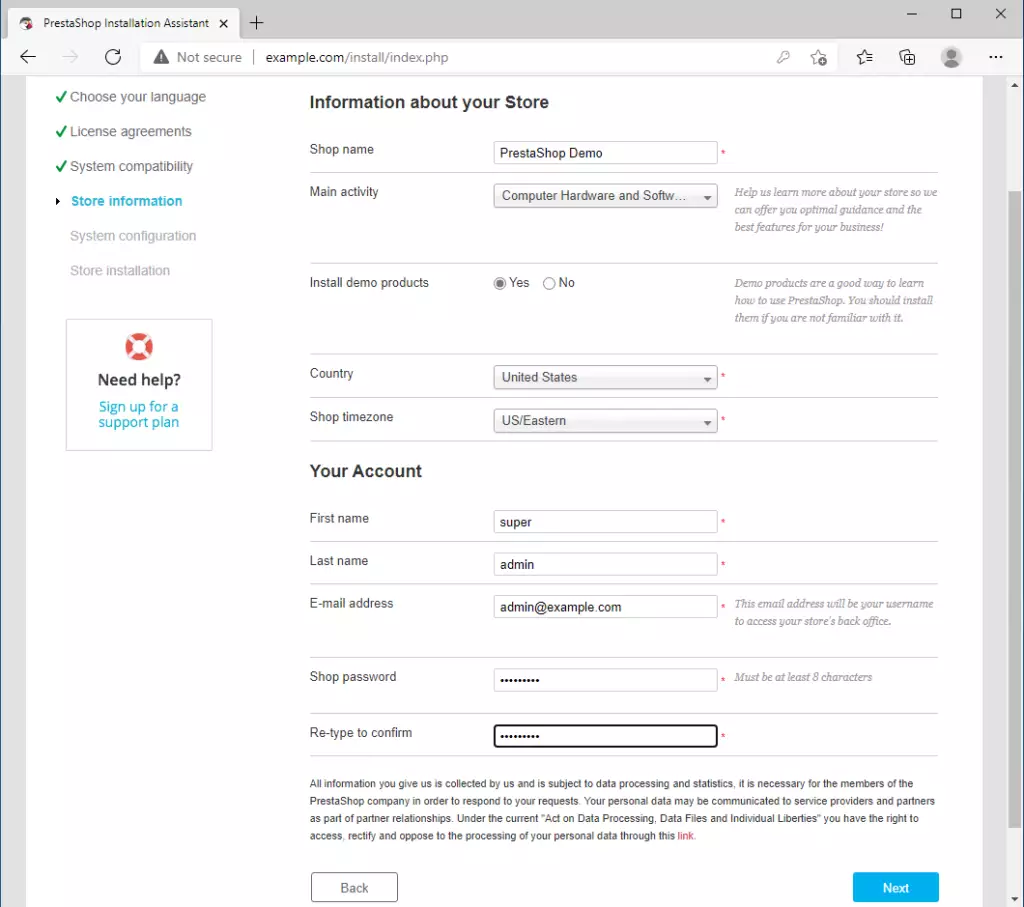
The PrestaShop installation wizard will appear. Follow the steps to set up your store.

Enter your store information and create an admin account:
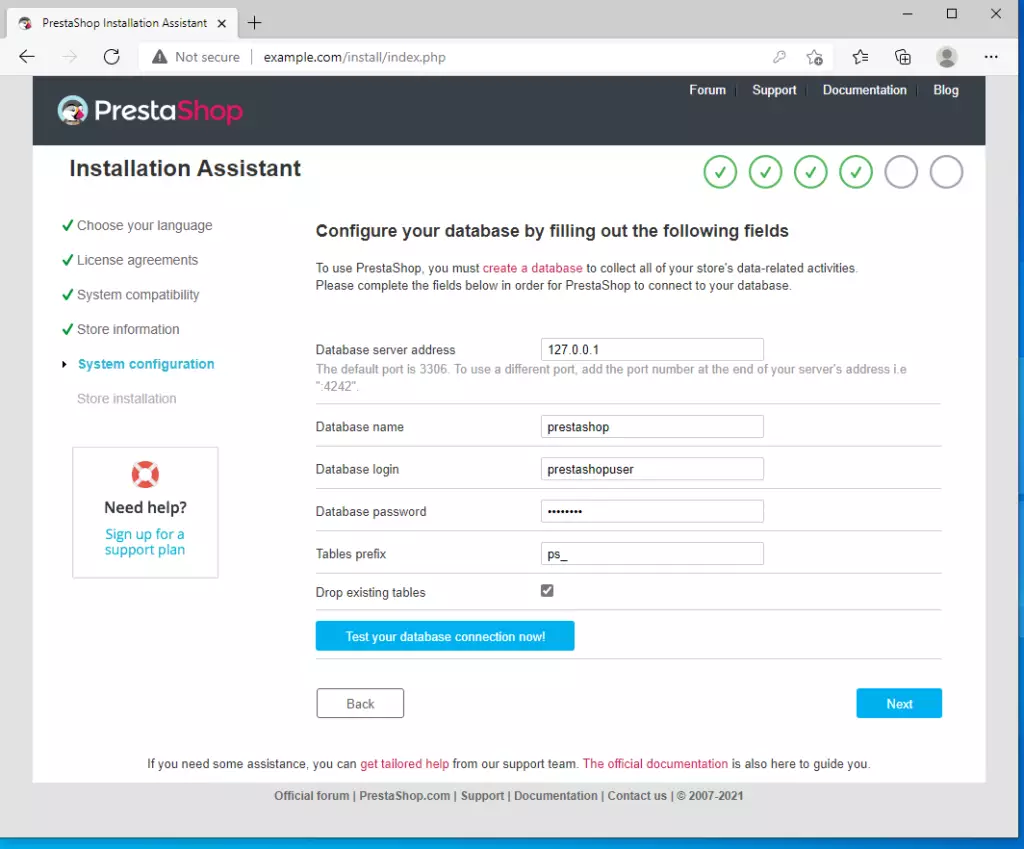
Enter your database information:
After completing the setup, your store will be ready to use. Log in with the admin account you created and start building your online store!

Summary
This guide showed you how to install PrestaShop on Windows using WSL, covering all the essential steps to get your online store running. You learned to set up Ubuntu, install Apache and MariaDB, configure PHP, and complete the PrestaShop setup.
-
- Enabled WSL and Virtual Machine Platform in Windows
-
- Installed Ubuntu 20.04 on your Windows computer
-
- Installed Apache web server to serve your store
-
- Installed MariaDB database to store your store data
-
- Installed PHP and required modules to run PrestaShop
-
- Created a database and user for PrestaShop
-
- Downloaded and installed PrestaShop
-
- Configured Apache to display your PrestaShop store
-
- Completed the PrestaShop installation wizard
Your PrestaShop online store is now ready to use on your Windows computer!
How to install WSL on WSL?
So all we're going to do is click on the Windows start menu. And type in WSL. And as you can see here we can see this WSL run command. So I'm going to click on it.
Is PrestaShop completely free?
PrestaShop is an open-source solution available under the Open Software License (OSL). This means you can download the platform for free, install it on your own hosting, and freely modify the code. The platform offers several product versions: PrestaShop Classic - free version for self-installation, giving full control.
Was this guide helpful?



No comments yet — be the first to share your thoughts!