How to Install ownCloud on Google Cloud Server

Hosting ownCloud on a Google Cloud server gives you a private file storage and sharing system similar to Dropbox or Google Drive, but running on hardware you control. ownCloud is free software that keeps your files safe on a remote computer running Ubuntu 22.04 LTS.
You need an active Google Cloud account and a basic setup on the server to get started. This project gives you total privacy and all the storage space you want without paying monthly fees to big tech companies.
Install ownCloud by connecting to your Ubuntu Google Cloud server via SSH. Then, access the ownCloud installation guide for Apache or Nginx and follow the browser-based setup steps.
How to connect to Google Cloud servers
Connecting to your Google Cloud server for an ownCloud installation Google Cloud setup happens through SSH directly from your web browser. Open the Google Cloud Console, click Menu, select Compute Engine, and open VM instances to find your virtual machine. Click the SSH button next to your instance to launch a command-line window in your browser without needing extra software.
Open the Google Cloud Console and navigate to Menu Compute Engine VM instances to view available virtual machines.
- Web browsers
- The latest version of Google Chrome
- Firefox
- Microsoft Edge
- Microsoft Internet Explorer 11 and later
- Safari 8 and later. Note that Safari is not supported in private browser mode.
- Virtual machine configurations
- All Linux VM images are natively available in Google Cloud.
Then, click the ‘SSH’ button next to the VM you want to connect to. You can also connect by clicking the VM’s name and then selecting SSH from the instance details page.

An SSH terminal window opens, allowing you to run commands on an Ubuntu Linux server. Secure Shell (SSH, a protocol for managing remote systems) gives you direct command-line control over the server. This direct server control is a vital step for installing software.
You should now be able to run commands in Ubuntu Linux created on the Google Cloud server.
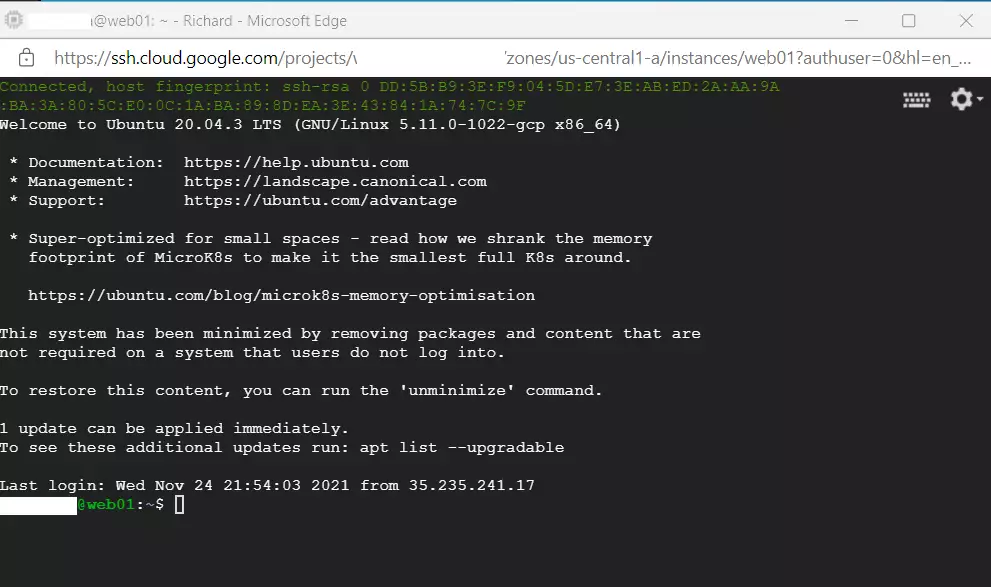
Install ownCloud on Google Cloud Servers
To complete your ownCloud installation Google Cloud project, you need to set up a standard Ubuntu server environment with a web server and database. Install all the required software packages using the command line on your virtual machine. Once those packages are ready, open your web browser, type your server's IP address, and finish the final setup steps on the ownCloud welcome screen.
Once you have installed all required packages, ownCloud can be set up directly from your browser by browsing the server hostname or IP address.
You can find detailed instructions for installing ownCloud on Ubuntu Linux with Apache or Nginx in the posts linked below. Click through to learn more about managing your ownCloud installation.
How to install ownCloud on Ubuntu Linux with Apache
How to install ownCloud on Ubuntu Linux with Nginx
Each link above will show you all the steps we performed in our previous posts to get here. You also will learn how to secure your ownCloud website with free Let's Encrypt SSL certificates.
Following the links above and performing all the steps, you can create a store online using your ownCloud.
Conclusion:
Running ownCloud on Google Cloud servers gives you a private and efficient storage solution. Review these core takeaways before moving forward:
- OwnCloud as a Solution: Provides an open-source file syncing and sharing platform similar to proprietary services.
- Flexibility: Depending on their preferences or requirements, users can choose between Apache or Nginx web servers for their installation.
- Comprehensive Integration: This series has equipped you with the necessary tools and knowledge to establish a fully functional cloud storage service.
- Enhanced Security: Learn to secure your ownCloud setup with free Let's Encrypt SSL certificates.
- Support Resources: Access additional resources and guides to enhance your cloud services and skills.
By following this series, you'll have the tools and knowledge to set up your own fully functional cloud storage service.
Is ownCloud self-hosted?
Self-hosted ownCloud Server 8 Offers Faster, Easier File Sync and Share with Federated Cloud Sharing. ownCloud Server 8 is available. This new release brings improved sharing and collaboration between clouds and introduces faster ways of getting at your files with favorites and improved search.
How do I install apps on ownCloud?
Install apps on ownCloud using the Market app, found in the top-level navigation bar on the left side of the page. Once you open the Market app, click on any app's name to see more details. From there, you can install the app by clicking the Install button.
Was this guide helpful?

About the Author
Richard
Tech Writer, IT Professional
Richard, a writer for Geek Rewind, is a tech enthusiast who loves breaking down complex IT topics into simple, easy-to-understand ideas. With years of hands-on experience in system administration and enterprise IT operations, he’s developed a knack for offering practical tips and solutions. Richard aims to make technology more accessible and actionable. He's deeply committed to the Geek Rewind community, always ready to answer questions and engage in discussions.


No comments yet — be the first to share your thoughts!