How to Install Odoo 17 on Ubuntu 24.04


Installing Odoo 17 on Ubuntu 24.04 sets up a complete open-source enterprise resource planning (ERP) platform—a system that brings sales, accounting, inventory, and project management tools together in one dashboard—on your server or PC.
This installation takes roughly 20 minutes to finish using the command line. You need to update your system packages, set up a PostgreSQL database (the software Odoo uses to store data), and run the Odoo 17 installer to get everything working.
Install Odoo 17 on Ubuntu 24.04 by installing prerequisites, creating an Odoo system user, installing PostgreSQL, and then downloading , configuring, and installing Odoo itself via command line. Update your system with `sudo apt update` and install dependencies, then create the user with `sudo /usr/sbin/adduser –system –shell /bin/bash –gecos ‘Odoo user’ –group –home /opt/odoo17 odoo17`.
Install Odoo prerequisites
You need to install Odoo prerequisites on Ubuntu 24.04 before setting up the main software. This step adds essential packages like Git, Node.js, and Python build tools that your server requires to run Odoo 17 properly. Run the package manager update command followed by the installation command to get these necessary tools on your system.
Run the commands below to install supporting dependencies for Odoo.
sudo apt update
sudo apt install build-essential wget git python3.11-dev python3.11-venv libfreetype-dev libxml2-dev libzip-dev libsasl2-dev node-less libjpeg-dev zlib1g-dev libpq-dev libxslt1-dev libldap2-dev libtiff5-dev libopenjp2-7-dev libcap-dev
If you run into problems and can’t install python3.11, run the command below and try again.
sudo apt-get install software-properties-common
sudo add-apt-repository ppa:deadsnakes/ppa
Create an Odoo system user on Ubuntu
You should create an Odoo system user on Ubuntu to run the application securely and prevent it from using your main administrator rights. Setting up a dedicated user account isolates the service and assigns the correct home directory at /opt/odoo17 where the application files will live. Run the user creation command to set up this restricted account before moving on.
To create a system account for Odoo, run the command below to create a system account called odoo.
The account home directory will be /opt/odoo17
sudo /usr/sbin/adduser --system --shell /bin/bash --gecos 'Odoo user' --group --home /opt/odoo17 odoo17
Install PostgreSQL on Ubuntu
You must install PostgreSQL on Ubuntu because Odoo 17 relies on this database server to store all company data, user accounts, and app configurations. After installing the database package, you need to enable and start the service so Odoo can connect to it. Run the apt install command and then start the service to complete the database setup.
sudo apt install postgresql
After installing the database server, enable and start it by running the commands below.
sudo systemctl enable --now postgresql.service
Next, create a PostgreSQL database account for Odoo. Run the commands below to create a new database account called odoo17.
sudo su - postgres -c "createuser -s odoo17"
Additional PostgreSQL help at the link below.
Install Wkhtmltopdf on Ubuntu
To ensure Odoo 17 can generate PDF reports correctly on Ubuntu 24.04, you need to install the Wkhtmltopdf package, which helps render HTML into PDFs.
Check this link to ensure you always get the latest version.
To install the package, run the commands below.
sudo apt install wkhtmltopdf
Install and configure Odoo17 on Ubuntu
You can now install and configure Odoo 17 on Ubuntu 24.04 by downloading the official source files and setting up the configuration file. Before downloading anything, you need to switch to the dedicated system account you created earlier so the file permissions are correct. Run the user switch command and clone the Odoo repository to get the application files in place.
The first thing you'll want to do is switch to the Odoo system account we created above by running the commands below:
sudo su - odoo17
Odoo's latest version is 17 at the time of this post. If a newer version is available, you should clone that instead. To clone Odoo version 17, run the commands below.
Check this link to ensure you always get the latest version.
git clone https://www.github.com/odoo/odoo --depth 1 --branch 17.0 odoo17
When the download is complete, change it into Odoo's directory and run the commands below to configure and install all Odoo17 requirements.
cd /opt/odoo17
python3.11 -m venv odoo17-venv
source odoo17-venv/bin/activate
pip3 install wheel setuptools pip --upgrade
pip3 install -r odoo17/requirements.txt
deactivate
After that, create a new directory for Odoo custom addons.
mkdir /opt/odoo17/odoo17/custom-addons
Exit:
exit
When done, add the Odoo admin password, database name, and database account name to its configuration file.
Run the commands below to open Odoo's configuration file.
sudo nano /etc/odoo17.conf
Then copy and paste the lines below into the file, save, and exit.
[options]
admin_passwd = Type_strong_password_here
db_host = False
db_port = False
db_user = odoo17
db_password = False
addons_path = /opt/odoo17/odoo17/addons,/opt/odoo17/odoo17/custom-addons
This password is the master password you'll need when setting up Odoo.
Save your changes and exit.
Create a Systemd unit file on Ubuntu
You need to create a systemd unit file named odoo17.service on Ubuntu to manage Odoo 17 as a background service. This configuration file lets you easily start, stop, and restart the application using standard system commands. Open the systemd directory with the text editor command and paste the service configuration to finish this step.
sudo nano /etc/systemd/system/odoo17.service
Then copy and paste the lines below into the file, save, and exit
[Unit]
Description=Odoo17
Requires=postgresql.service
After=network.target postgresql.service

[Service]
Type=simple
SyslogIdentifier=odoo17
PermissionsStartOnly=true
User=odoo17
Group=odoo17
ExecStart=/opt/odoo17/odoo17-venv/bin/python3 /opt/odoo17/odoo17/odoo-bin -c /etc/odoo17.conf
StandardOutput=journal+console

[Install]
WantedBy=multi-user.target
When you're done, reload the systemd daemon and start the Odoo service.
sudo systemctl daemon-reload
sudo systemctl enable --now odoo17
To check Odoo status and verify it's installed and running, run the commands below:
sudo systemctl status odoo17
You should see similar messages below:
odoo17.service - odoo17
     Loaded: loaded (/etc/systemd/system/odoo17.service; enabled; preset: enabl>
     Active: active (running) since Wed 2024-06-05 07:07:56 CDT; 7s ago
   Main PID: 10898 (python3)
      Tasks: 2 (limit: 4561)
     Memory: 92.8M (peak: 93.2M)
        CPU: 1.436s
     CGroup: /system.slice/odoo17.service
             └─10898 /opt/odoo17/odoo17-venv/bin/python3 /opt/odoo17/odoo17/odo>

Jun 05 07:07:58 Ubuntu2404 odoo17[10898]:   File "/opt/odoo17/odoo17/odoo/tools>
Jun 05 07:07:58 Ubuntu2404 odoo17[10898]:     return func(inst, *args, **kwargs)
That should be done if you follow and complete all the steps above.
Access Odoo web UI
You can access the Odoo web UI by opening your web browser and going to your server address with port 8069. This brings up the main setup page where you can create your first database using the master password from your configuration file. Type your server IP followed by the port number into the address bar to load the installation screen.
http://localhost:8069
You should then see the Odoo setup page. Use the master password you created in the/etc/odoo.conf file. Then, type a new database name, admin email address, and password.
Then, click Create Database.
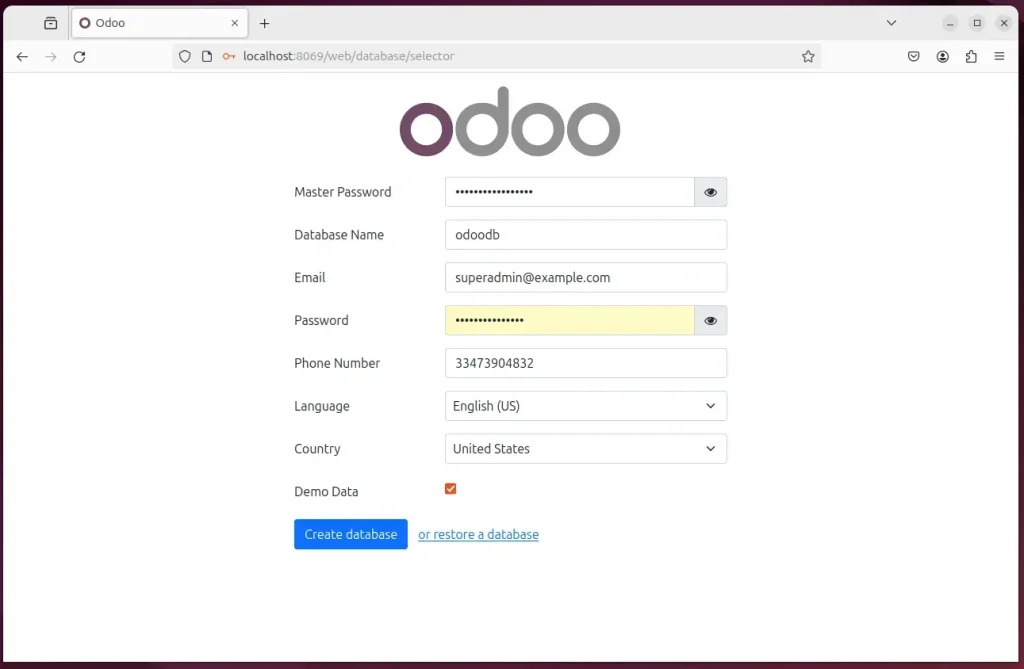
Once everything is entered correctly, you can complete the setup and start using Odoo.
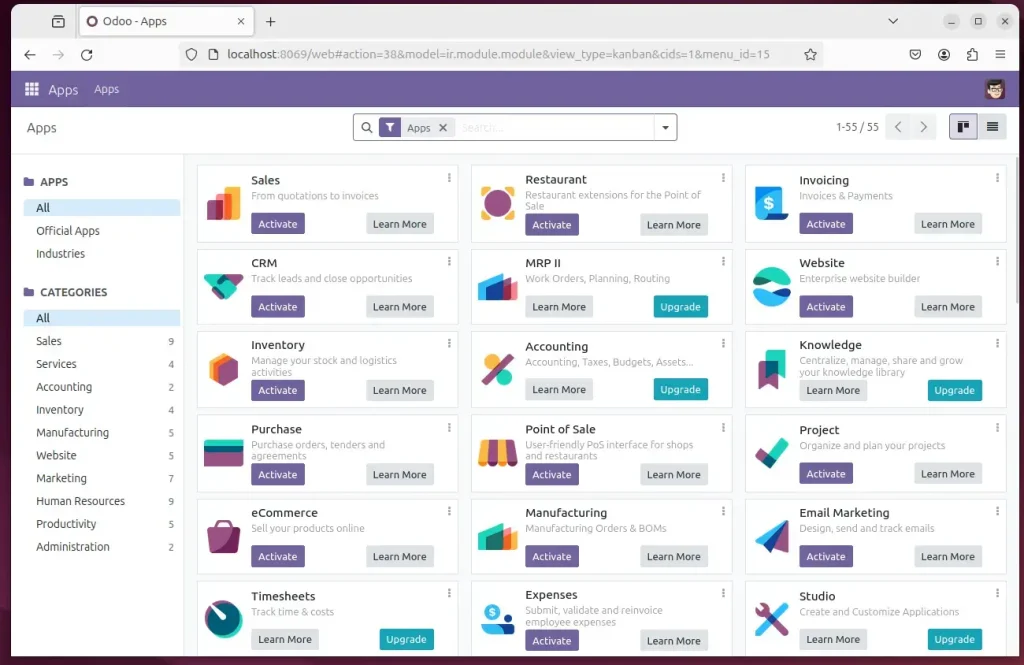
For those who run into issues such as Internal server errors or errors when opening the Odoo setup wizard, they should configure PostgreSQL to trust all local connections.
Run the commands below to open the PostgreSQL configuration file.
sudo nano /etc/postgresql/12/main/pg_hba.conf
Replace the version number with the version installed on your system.
Then, change the highlighted line in the file and save it.
# "local" is for Unix domain socket connections only
local   all             all                    trust
Save and exit, then restart PostgreSQL.
sudo service postgresql restart
If you want to use a reverse proxy with Odoo, click either link below to set up a reverse proxy with Nginx or Apache.
How to setup reverse proxy with Nginx
How to setup reverse proxy with Apache
That should do it!
Conclusion:
- Ease of Installation: Setting up Odoo 17 on Ubuntu 24.04 is straightforward, thanks to the comprehensive step-by-step guide provided.
- Robust Platform: Ubuntu's reliability, support, and security features make it an ideal environment for deploying and running Odoo.
- Community Support: The well-supported Ubuntu platform, combined with the extensive support from the Odoo community, ensures a smooth installation and ongoing usage.
- Further Assistance: If any errors or additional details need to be included, please utilize the comments section below the post for support and further clarification.
Was this guide helpful?

About the Author
Richard
Tech Writer, IT Professional
Richard is a writer at Geek Rewind who turns complex IT tasks into clear, step-by-step guides. He draws on years of hands-on experience in system administration and enterprise IT operations, focusing on Windows, Linux and WordPress: the problems people actually run into, and the fixes that work. His server and WordPress guides come from systems he runs himself. Richard builds and maintains the platform behind Geek Rewind, from its Ubuntu servers and Nginx configuration to its custom WordPress plugins. Many new tutorials start with readers' questions, and he's always glad to answer them in the comments.



No comments yet — be the first to share your thoughts!