How to Install Display Languages in Ubuntu Linux


Display languages in Ubuntu Linux change the text on menus, buttons, and apps into over 100 different languages. Language packs download automatically from the internet once you pick your preferred choice in the settings menu.
You can add missing regional packs at any time if your desktop needs a different language.
Open Settings , navigate to Region & Language, and click Manage Installed Languages. Select Install/Remove Languages, check the desired languages, and click Apply. Log out and back in for the changes to take effect.
How to add display language in Ubuntu Linux
You can install display language Ubuntu options by opening the Settings app, going to the Region and Language tab, and downloading your chosen language pack. This process updates the language for your desktop menus, system messages, and built-in apps. Ubuntu downloads any missing translation files automatically once you confirm the change and restart your user session.
Here’s how to add more display languages in Ubuntu Linux:
Open the Activities overview and type Settings into the search bar.

Alternatively, click the System menu in the top-right corner of the desktop’s top bar.
Select Settings from the menu, as highlighted below.

Click the Region & Language tile inside the Settings app.
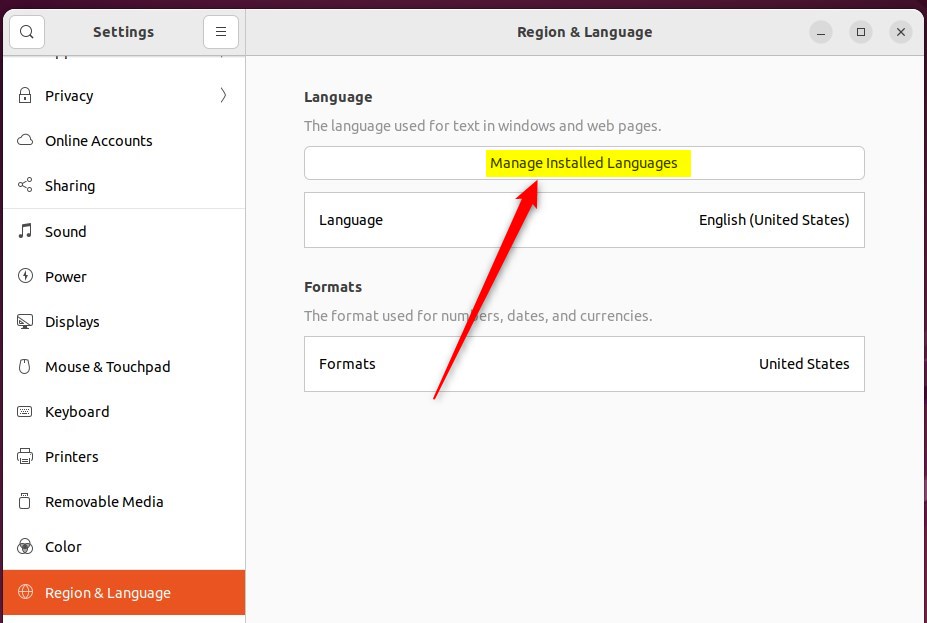
Select the Manage Installed Languages button to launch Language Support within the System Settings - Region & Language settings pane.
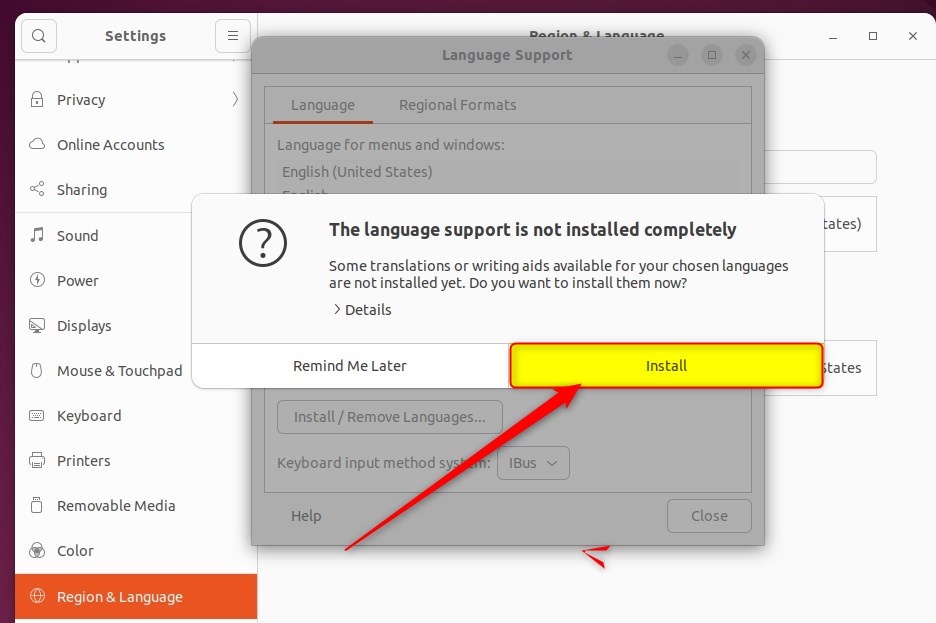
Click Install when a prompt appears for missing language support components.
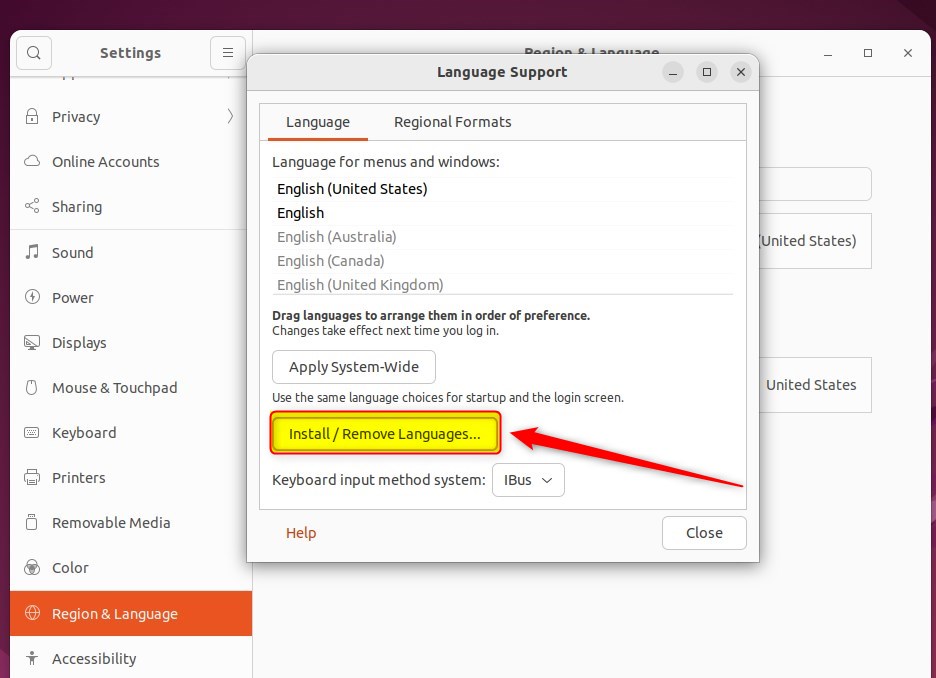
Click Install / Remove Languages... after the base support finishes downloading.
The Installed Languages window displays all available options alongside checkmarks for currently active packs.
Check the boxes next to the desired languages, and uncheck any unwanted items.
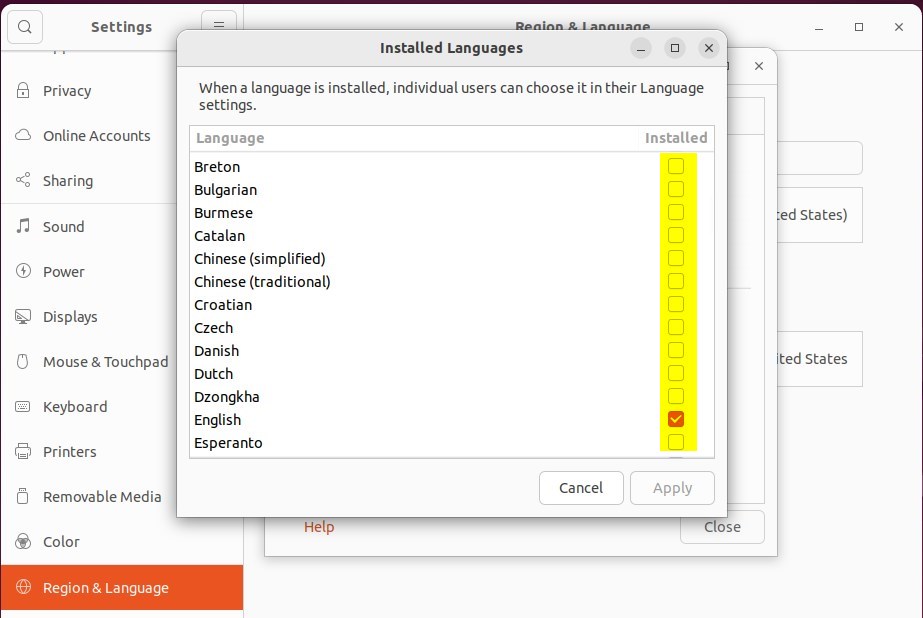
Click Apply to Changes to confirm the selections.
Log out or restart the computer for the system to process the new language files.
Active display options update immediately upon logging back into the desktop.
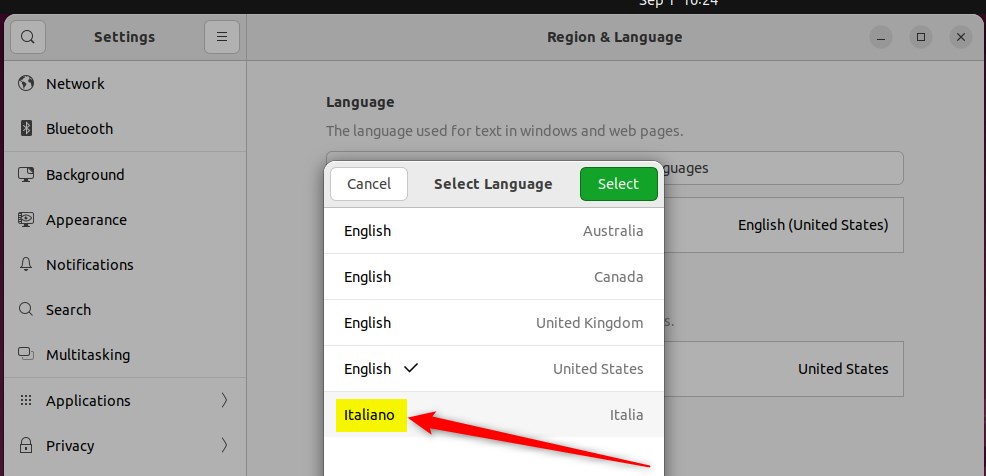
Switching display languages requires pre-installed language packs. The system settings panel handles both the installation and activation steps.
How to change display language in Ubuntu Linux
Close the settings app to finish the configuration.
Conclusion:
- Adding a display language in Ubuntu Linux is a straightforward process, allowing you to easily switch between multiple languages.
- The System Settings panel provides a centralized location for managing installed languages, making it convenient for users to customize their language preferences.
- It's important to note that although Ubuntu Linux supports various display languages, some translations may be incomplete and certain applications may not fully support non-English languages.
- Following the outlined steps, users can seamlessly install additional display languages, providing a more tailored and user-friendly experience within Ubuntu Linux.
Was this guide helpful?

About the Author
Richard
Tech Writer, IT Professional
Richard is a writer at Geek Rewind who turns complex IT tasks into clear, step-by-step guides. He draws on years of hands-on experience in system administration and enterprise IT operations, focusing on Windows, Linux and WordPress: the problems people actually run into, and the fixes that work. His server and WordPress guides come from systems he runs himself. Richard builds and maintains the platform behind Geek Rewind, from its Ubuntu servers and Nginx configuration to its custom WordPress plugins. Many new tutorials start with readers' questions, and he's always glad to answer them in the comments.



[…] How to change display language in Ubuntu Linux […]
[…] Linux also allows users to install additional languages and keyboards to support these languages for language-specific key layouts and input options. For […]