Change Display Language in Ubuntu: A Step-by-Step Guide


- 21 steps
- Needs administrator rights
- Includes a restart or sign-out
Changing the display language in Ubuntu updates the system menus, windows, and most apps to the language you choose. Ubuntu supports over 50 languages out of the box. If yours isn’t installed yet, you can download extra language packs from the same settings screen.
To change the display language in Ubuntu, open Settings, go to Region & Language, click the Language tile, select your language, and click Select. Ubuntu applies the change at your next login, so sign out and sign back in. If your language is not in the list, click Manage Installed Languages first to install it.
How to change your display language in Ubuntu Linux
Then sign out and back in. Ubuntu only applies the new language at your next login, because the desktop has to reload every menu and button.
The change applies to your user account only. Other users on the same computer keep their own language. The steps below follow the Ubuntu desktop with GNOME. Menu layouts shift a little between releases, and I point out where they do.
Most Ubuntu settings live in one place: the Settings app. From there you manage system configuration, user accounts, updates, and more. There are two ways to open it.
Option 1: Search from Activities
- Click Activities in the top-left corner of the screen, or press the Super (Windows) key.
- Type Settings. The Settings app appears in the results.
- Click the Settings icon to open it.

Option 2: Use the System menu
- Click the System menu in the top-right corner of the top bar. It holds the network, volume, and power icons.
- Select Settings from the menu that opens, as highlighted below.

Now find the language options inside the Settings window.
- In the sidebar, click Region & Language. On newer releases such as Ubuntu 24.04, it sits under System. On older releases it is a top-level entry or a tile.
- In the Region & Language pane, click the Language tile. In the System Settings Region & Language pane, this tile shows your current language.
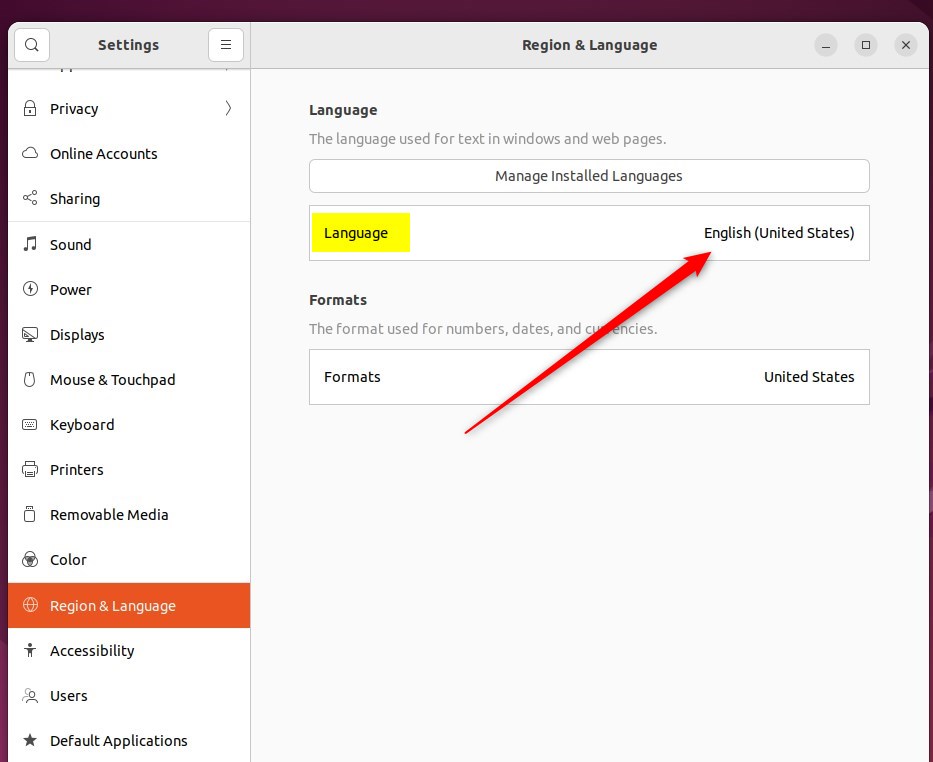
After you click the tile, a pop-up window opens with a list of available languages.
- Scroll the list, or type in the search box if there is one, and select your language and region.
- Click Select to confirm. If Ubuntu asks you to restart or log out, you can do that now or after the other steps.
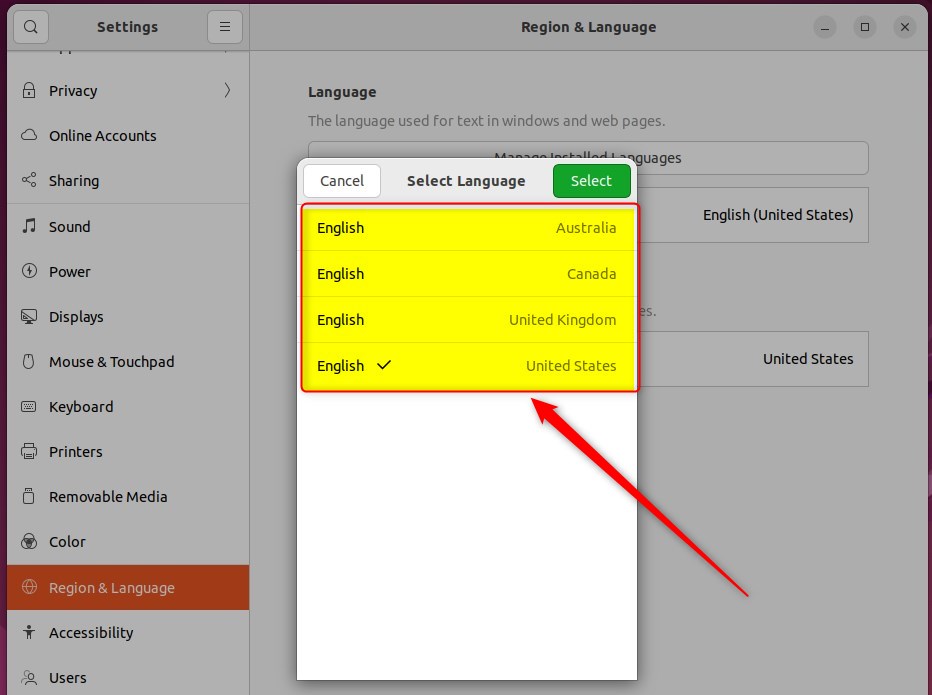
If your language or region isn’t in the list, the language pack isn’t installed yet.
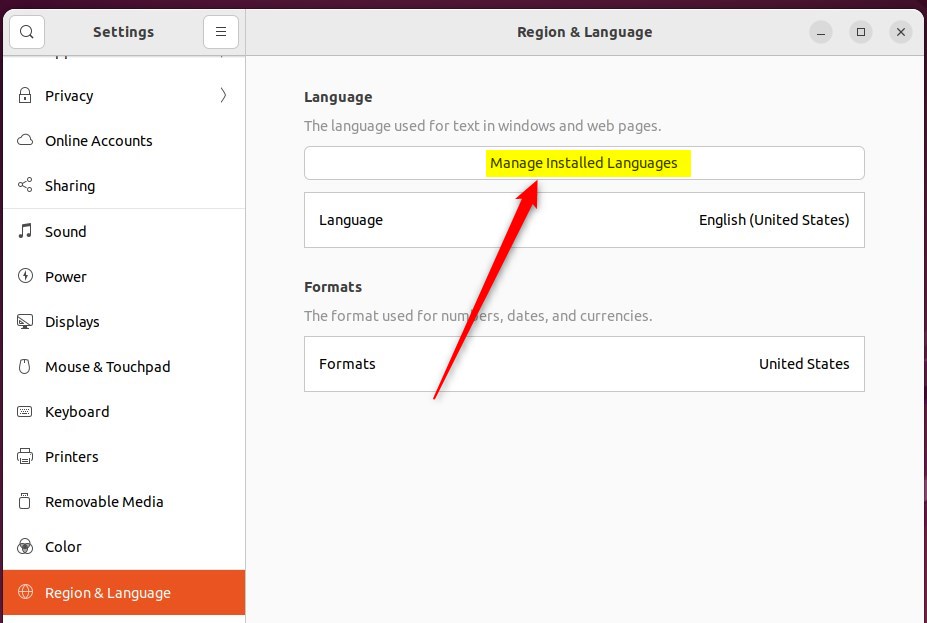
- Click Cancel to close the pop-up. You return to the Region & Language panel.
- Click the Manage Installed Languages button. This opens the Language Support window, where you control which languages are available on the system.
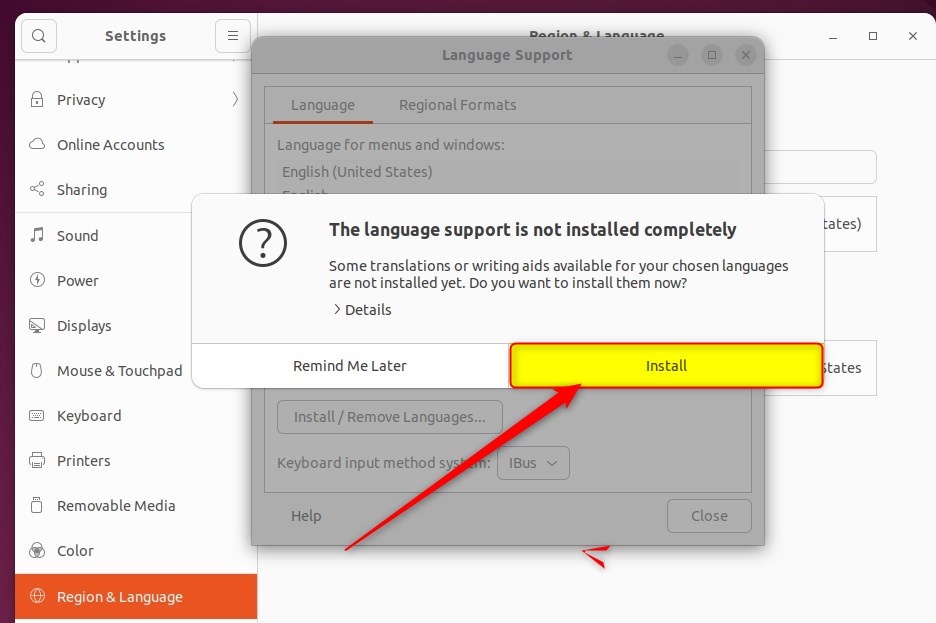
Ubuntu may find that language support is incomplete and show a prompt about it.
- When the prompt asks to install support for additional languages, click Install.
- Enter your password if asked. Installing software needs an administrator account, and it needs an internet connection.
- Wait for the download to finish. It can take a few minutes.
Once that installation is done, you can add more languages from the Language Support window.
- In the Language Support window, click Install / Remove Languages.
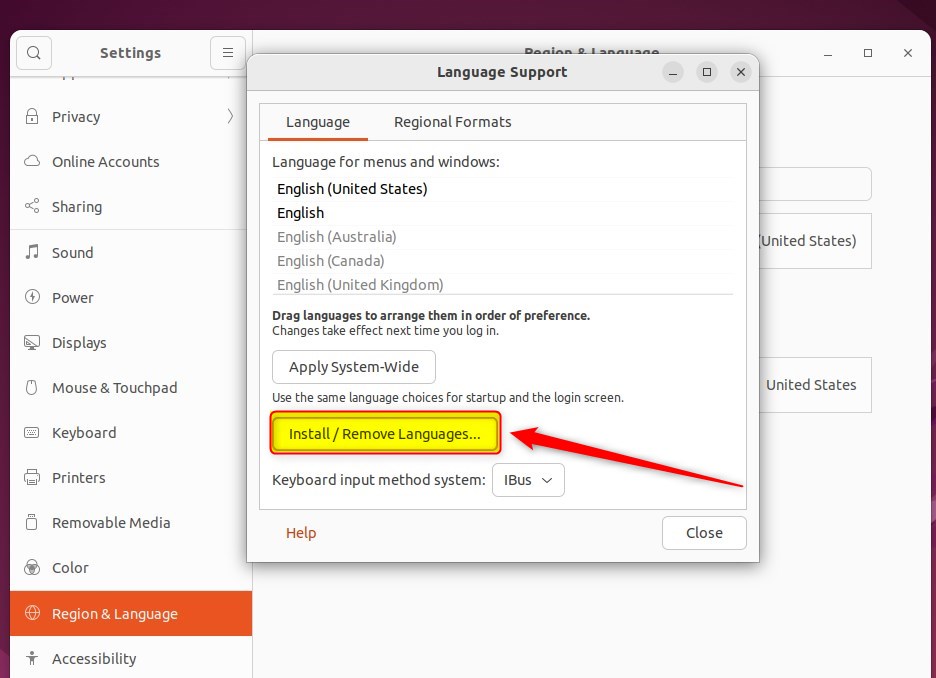
A list of languages appears.
- Tick the box next to each language you want to install.
- Click Apply and enter your password if asked. Ubuntu downloads and installs the packs.
- When it finishes, log out or restart the computer so the new languages register properly.
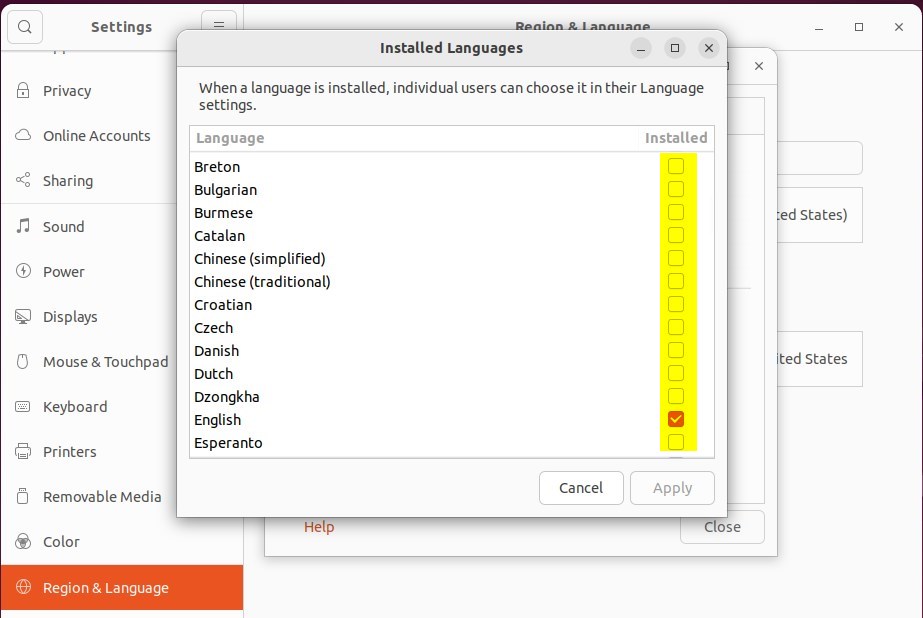
With the extra languages installed, you can go back to the previous screen and set your default.
- Open Settings Region & Language again.
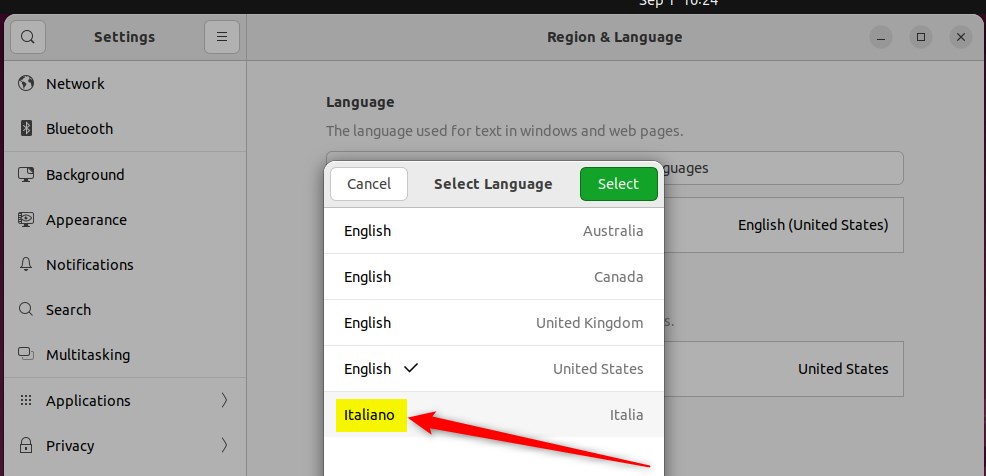
- Click the Language tile and choose your new language from the list.
- Click Select, then log out and sign back in. Menus, windows, and most apps now show the new language.
Choose Update Names to translate them, or Keep Old Names to leave them as they are. Keeping the old names is safer if you have scripts or links that point to those folders.
Some translations may be incomplete, and certain applications may not fully support your chosen language. Where a translation is missing, that part of the app stays in English.
To undo the change, repeat the steps above and select your original language, then log out and back in. That is all you need to do, and you can now close the Settings app.
Changing your display language lets you personalize your Ubuntu desktop.
- Changing the display language in Ubuntu Linux is essential to personalize your experience.
- Ubuntu Linux allows you to select and install multiple display languages.
- Install additional language packs if your preferred display language is unavailable.
- Remember that some translations may be incomplete, and certain applications may not fully support your chosen language.
- Finally, once you've completed the process, you can enjoy Ubuntu Linux in your preferred display language.
Have a question about this guide?
Answered by AI from this guide. Good questions may be added to this page — please don't include personal details.
Did this guide fix your problem?

About the Author
Richard
Tech Writer, IT Professional
Richard is a writer at Geek Rewind who turns complex IT tasks into clear, step-by-step guides. He draws on years of hands-on experience in system administration and enterprise IT operations, focusing on Windows, Linux and WordPress: the problems people actually run into, and the fixes that work. His server and WordPress guides come from systems he runs himself. Richard builds and maintains the platform behind Geek Rewind, from its Ubuntu servers and Nginx configuration to its custom WordPress plugins. Many new tutorials start with readers' questions, and he's always glad to answer them in the comments.
[…] The default keyboard layout will also be installed when you install a new preferred language in Ubuntu Linux. […]
[…] display language you choose at setup can also be changed after installing Ubuntu Linux. You can have multiple display languages that you can switch between […]