Change Region and Format in Ubuntu Linux

- 11 steps
- Includes a restart or sign-out
Regional formats in Ubuntu Linux control how your system displays dates, times, numbers, and currency symbols across apps and files. These settings change how information appears on your screen. For example, they decide whether a date reads day-month-year or month-day-year, whether a decimal uses a point or a comma, and whether weeks start on Sunday or Monday.
You adjust these rules in the Region & Language settings to match your local customs. They are separate from the display language. Changing the format does not translate menus or buttons.
To change the region and format in Ubuntu Linux, open Settings, go to System, and choose Region & Language. Click Formats, select the region whose date, time, and number style you want, check the preview, then log out and back in to apply it. This changes formats only, not the display language.
How to choose regions and formats in Ubuntu Linux
Open the Settings app, go to the System panel, and choose Region & Language. Then pick your country from the list of formats and restart your computer, or log out and back in, to apply the changes across all your apps.
The steps below walk through each screen. They are based on the GNOME desktop that Ubuntu ships. The layout of the sidebar can differ slightly between Ubuntu releases.
Prerequisite for changing region and format in Ubuntu Linux
Before you change anything, review your current configuration so you know what will change and what to go back to if you don’t like the result.
Once you have checked your current setup, open the Region & Language settings to change your formats.
Most of Ubuntu’s settings are in one place. You can manage everything from system configuration to user accounts and updates from the System Settings panel. Region & Language is part of it. There are two ways to open the Settings app.
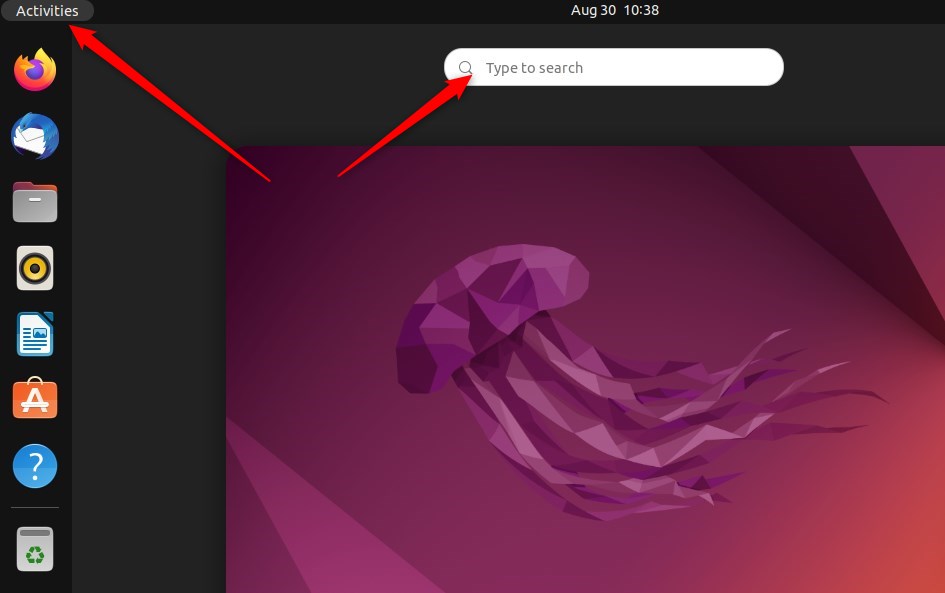
- Click Activities in the top-left corner of the screen.
- Type Settings in the search box. The Settings app appears in the results.
- Click the Settings icon, or press Enter, to open it.
If you prefer the mouse, use the System menu instead.
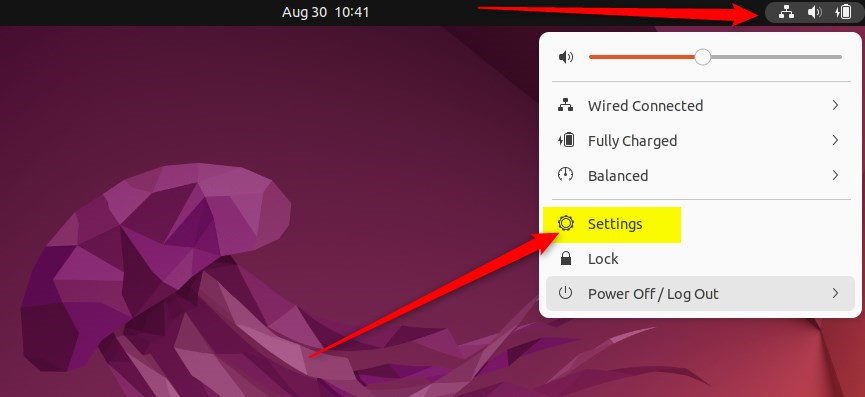
- Click the System menu at the top-right corner of the top bar. It holds the network, sound, and power icons.
- Select Settings, as highlighted below. The Settings window opens with a list of categories in the left sidebar.
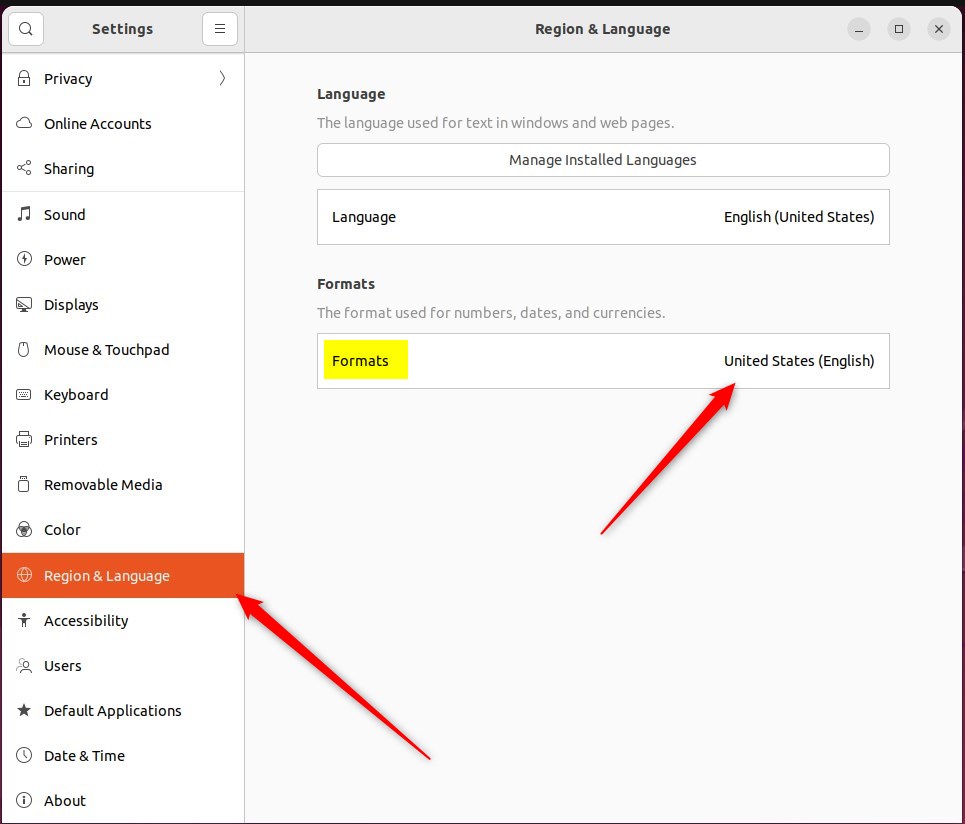
- In the Settings app, find Region & Language. On some Ubuntu releases it is its own item in the sidebar. On newer ones it sits inside the System category.
- Click Region & Language to open the panel. You should see rows for your language and your formats.
- In Settings Region & Language, click Formats. A window opens with a list of regions and a preview area.
Don’t click the Language row by mistake. That changes the language of the interface, not the date and number formats.
- Under Common Formats, select the region and language that most closely matches the formats you want. For example, choose a region that uses day-month-year dates if that is what you are used to.
If your region is not in the list, its locale may not be installed on the system. Check the Region & Language panel for a Manage Installed Languages button, which is available on some Ubuntu releases.
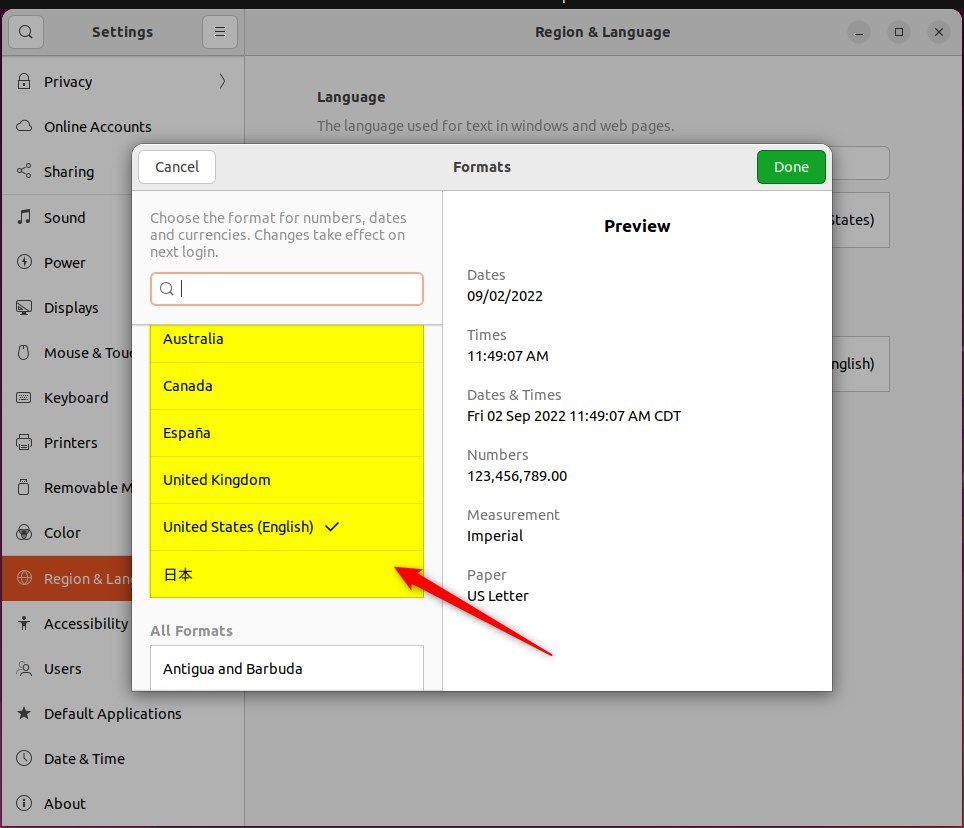
After you select a region, the area to the right shows examples of how dates, times, numbers, and currency will appear. Check that the preview matches what you expect. If it doesn’t, pick a different region from the list. Nothing is final until you restart or log out.
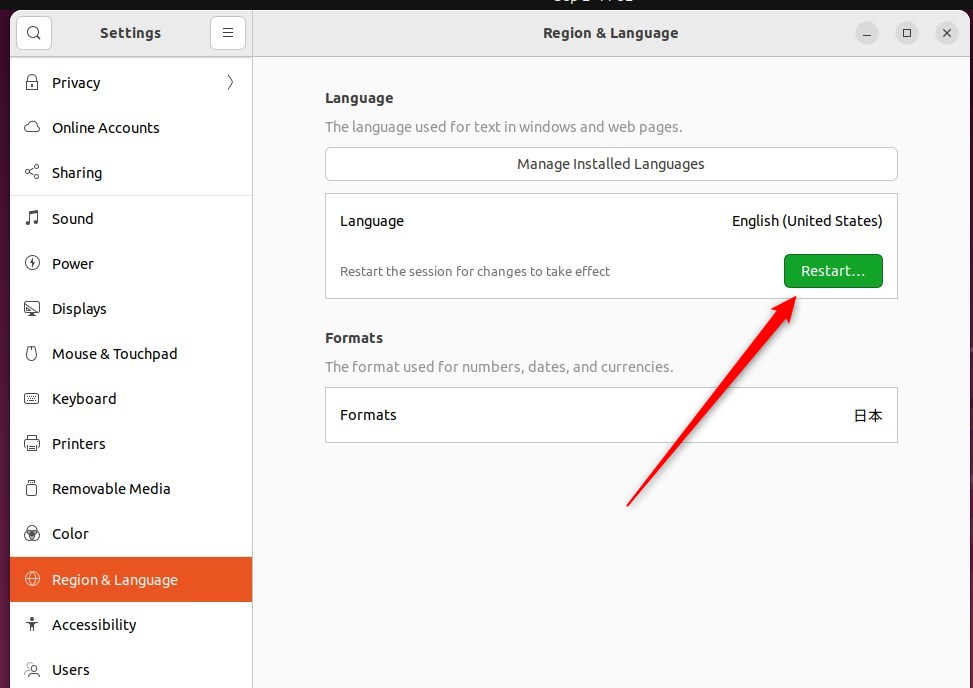
- Close the Formats window if it is still open.
- Log out and back in, or restart the computer, to apply the changes. Apps that are already open keep the old formats until they are restarted.
That should do it. You can now close the Settings app. If you want to go back, open Settings Region & Language Formats, select your previous region, and log out and back in again.
Restart your computer, or log out and back in, to apply the new region settings. A full restart works, but logging out is usually enough. After you sign in, open a calendar or a spreadsheet and check that dates and numbers use the new format.
- Ubuntu Linux provides comprehensive support for configuring regions and formats to match local customs and languages. The formats control dates, times, numbers, and currency, not the interface language.
- You can change your region and formats from the Settings app under Region & Language, according to your preferences. The change applies to your user account.
- After selecting a region and language, restart or log out and back in so the changes apply everywhere. To undo the change, pick your old region in Formats and log out again.
Have a question about this guide?
Answered by AI from this guide. Good questions may be added to this page — please don't include personal details.
Did this guide fix your problem?

About the Author
Richard
Tech Writer, IT Professional
Richard is a writer at Geek Rewind who turns complex IT tasks into clear, step-by-step guides. He draws on years of hands-on experience in system administration and enterprise IT operations, focusing on Windows, Linux and WordPress: the problems people actually run into, and the fixes that work. His server and WordPress guides come from systems he runs himself. Richard builds and maintains the platform behind Geek Rewind, from its Ubuntu servers and Nginx configuration to its custom WordPress plugins. Many new tutorials start with readers' questions, and he's always glad to answer them in the comments.
[…] time zone is a geographic region where the same standard time is used. Your device’s time and dates will be set based on your […]
[…] That said, Ubuntu Linux allows users to manually manage their system’s time zone. But, of course, when you manually change the system’s time zone, you must do it every time you change your region. […]