Automatically Set Time Zone in Ubuntu: A Step-by-Step Guide


Automatic time zone detection in Ubuntu adjusts your computer clock based on your physical location without manual setup. Ubuntu 22.04 LTS and newer versions include a location service switch that keeps your system time accurate when you travel or when daylight saving time starts.
Turning on this feature stops clock drift from breaking daily tasks, file backups, and calendar alerts. You can enable automatic time updates directly through the system settings menu in a few seconds.
Enable automatic time zone detection by opening Settings, navigating to Date & Time, and toggling the Automatic Time Zone switch to On. Ensure location services are also enabled for accurate detection. This automatically adjusts your system’s time zone and daylight saving settings.
How to enable or disable set time zone automatically in Ubuntu Linux
You can turn automatic time zone Ubuntu detection on or off using the Date & Time settings menu. Turning this feature on lets Ubuntu use your location to pick the correct time zone automatically. If you turn it off, you have to set your time zone by hand.
This automatic time zone setting can be turned on or off within Ubuntu Linux through System Settings. Choosing this option lets Ubuntu pick the correct region for you. Disabling the feature leaves room for manual adjustments.
Manual configuration is necessary if background detection remains disabled. Automatic time zone detection uses your computer’s location to ensure your clock stays correct, preventing issues with time-sensitive applications or scheduling.
Here’s how to enable or disable it.
System configurations, user accounts, and daily updates live inside the main Settings app in Ubuntu.

Alternatively, click on the System menu in the top-right corner of your desktop's top bar.
From the System menu, select Settings, as shown below.

Open Settings and select Date & Time.
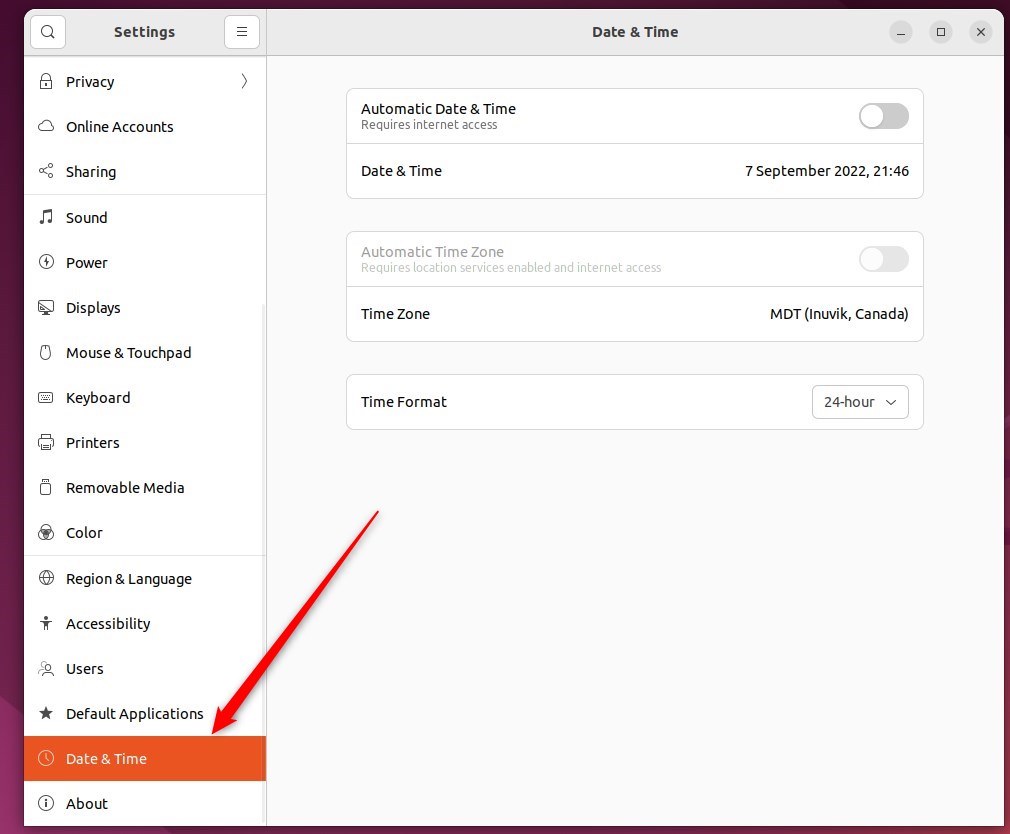
Within the System Settings - Date & Time panel, flip the Automatic Time Zone switch to the On position.
Active internet connections and enabled location services allow the time zone to update dynamically.
Switching this toggle to Off permits manual time zone selection.
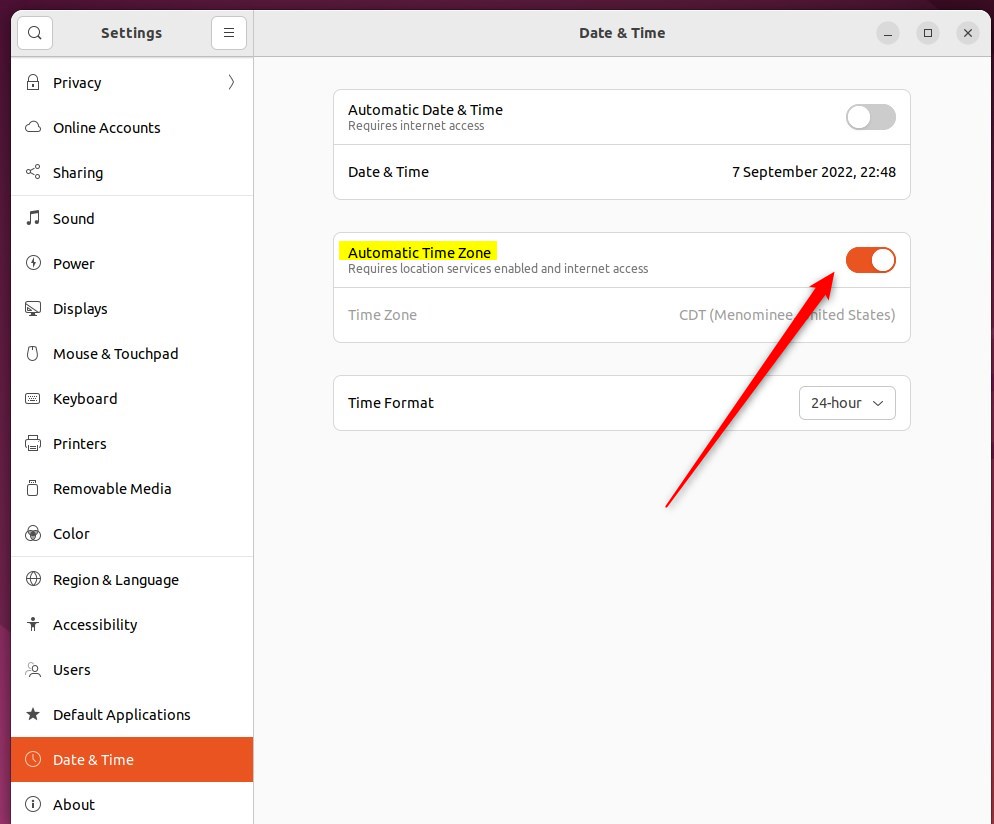
Active location services are required for the automatic time zone feature to function properly.
How to enable or disable location services in Ubuntu Linux
Following these steps completes the configuration process.
Enabling automatic time zones keeps your system clock accurate without manual adjustments.
- Enabling the automatic time zone feature in Ubuntu Linux can ensure that your system's date and time stay accurate without manual intervention.
- When the automatic time zone setting is enabled, the system will also manage daylight saving time adjustments.
- However, for users who prefer manual control over their time zone, Ubuntu Linux provides a straightforward method to toggle the automatic time zone setting off and update it manually as needed.
- It's important to ensure that location services are enabled in Ubuntu Linux so that the automatic time zone feature will function correctly.
Was this guide helpful?

About the Author
Richard
Tech Writer, IT Professional
Richard is a writer at Geek Rewind who turns complex IT tasks into clear, step-by-step guides. He draws on years of hands-on experience in system administration and enterprise IT operations, focusing on Windows, Linux and WordPress: the problems people actually run into, and the fixes that work. His server and WordPress guides come from systems he runs himself. Richard builds and maintains the platform behind Geek Rewind, from its Ubuntu servers and Nginx configuration to its custom WordPress plugins. Many new tutorials start with readers' questions, and he's always glad to answer them in the comments.




[…] cannot set the time zone manually when Automatic Time Zone is set to On. Turn off Automatic Time Zone to manually set your system’s time […]