How to Change Time Zone in Ubuntu Linux


- 7 steps
- Needs administrator rights
- Includes a restart or sign-out
Changing your time zone in Ubuntu Linux updates your system clock for daily tasks, app logs, and schedules. You can do it from the desktop settings menu or with a single terminal command. Ubuntu 22.04 LTS and other modern versions rely on this geographic region setting to keep your local time accurate when you travel or when the system detects the wrong location.
A wrong clock causes scheduling mix-ups, odd timestamps in logs, and calendar events that show up at the wrong hour. This tutorial uses the graphical route, which takes a few seconds. The steps are written for the GNOME desktop in Ubuntu 22.04 LTS, and later releases look much the same.
You can change the time zone in Ubuntu by going to Settings, then Date & Time. Toggle off Automatic Time Zone, then click Time Zone to select your location from the map or by searching for your city.
How to manually change the time zone in Ubuntu Linux
You can change the time zone manually by opening the Settings app, going to the Date & Time tab, and turning off the automatic time zone setting. After that you pick your exact region and city from the list. You no longer have to wait for the computer to work out your location online.
The automatic option depends on location services and an internet connection. If you are offline, behind a VPN, or the guess is simply wrong, setting the zone by hand is the quicker fix.
First, open the Settings app. This is where Ubuntu keeps system configuration, user accounts, and update options. There are two ways to reach it, and both end up in the same place.
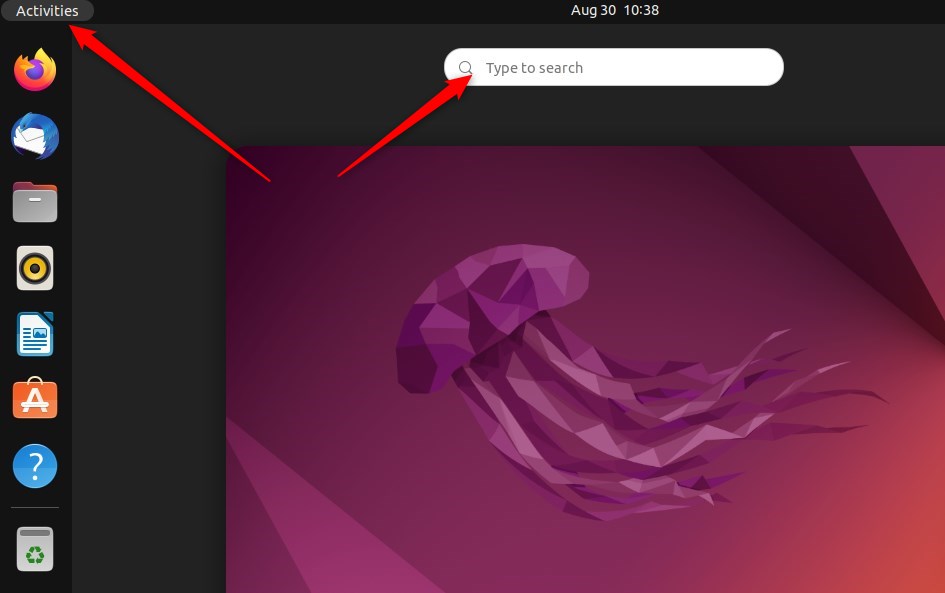
The first way is to open the Activities overview, type “Settings”, and click the Settings icon. The second is to use the System menu in the top-right corner of your desktop’s top bar, which is the one with the network, volume, and battery icons. Both are described below.
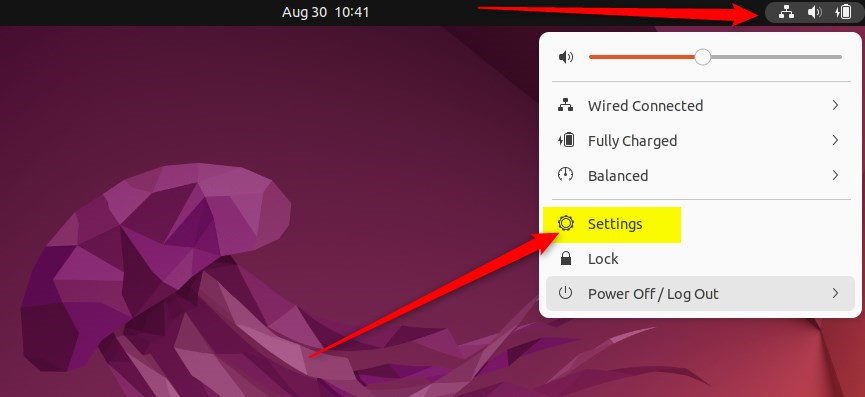
- Click the System menu in the top-right corner of the top bar. A small panel drops down with quick toggles and a row of icons.
- Click Settings (the gear or wrench icon) in that panel, as shown below. The Settings window should open.
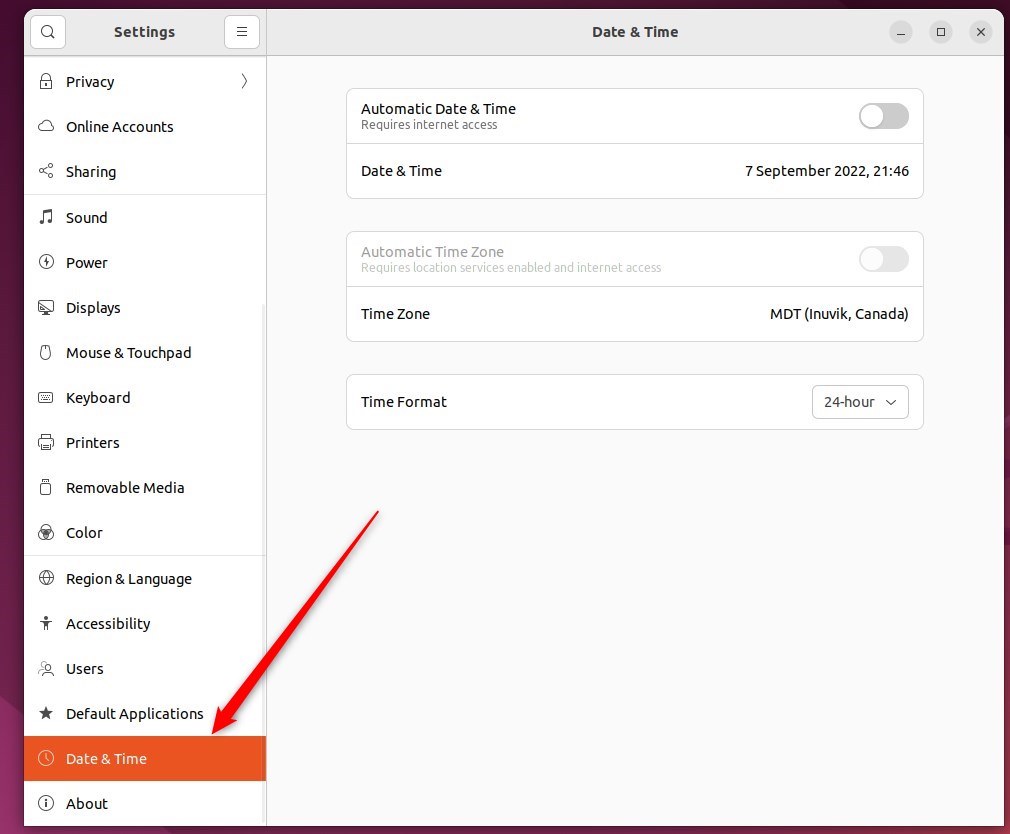
- Scroll the left sidebar of the Settings window until you see Date & Time. It sits near the bottom of the list, below Users and Default Applications.
- Click Date & Time to open the panel. You should see switches for automatic date and time and automatic time zone, and a Time Zone button.
Now you need to stop Ubuntu from choosing the time zone for you. In Settings Date & Time, find the Automatic Time Zone switch and click it so it shows Off.
If the switches look greyed out, the panel is locked. Click Unlock if it appears and enter your password. Changing the system time zone requires an administrator account.
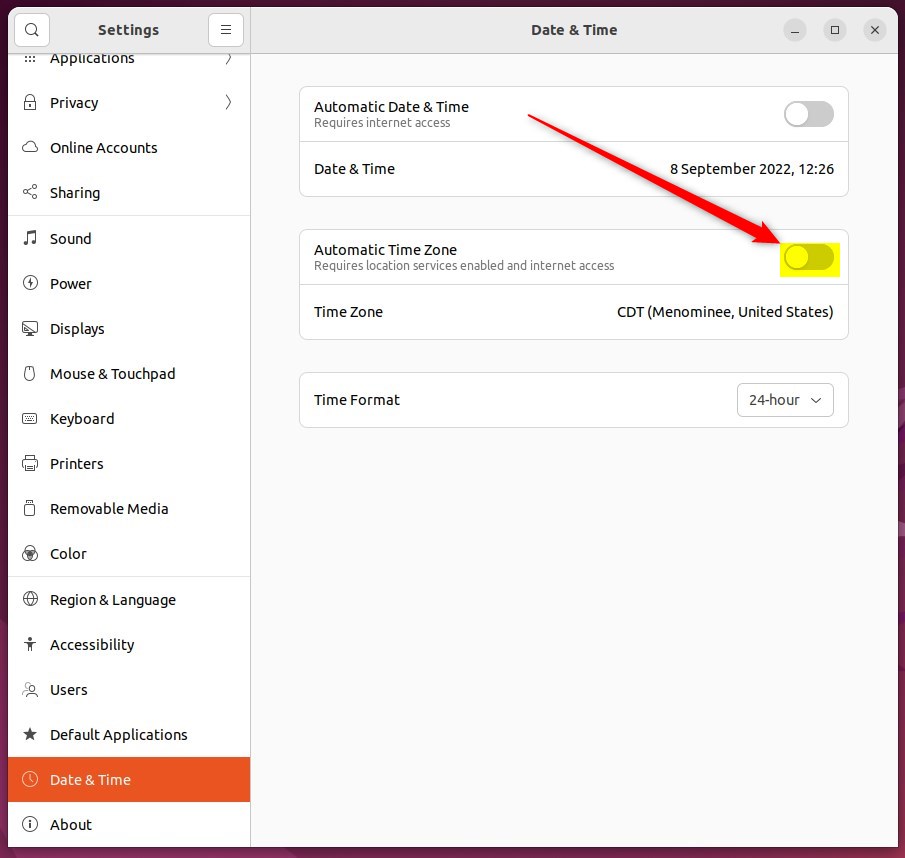
While automatic detection is on, Ubuntu locks the manual time zone controls, so the Time Zone button stays greyed out. Turning the switch off makes the button clickable. Turn off Automatic Time Zone to manually set your system’s time zone.
If you cannot find the Automatic Time Zone switch at all, check your Ubuntu version. Very old releases laid out this panel differently. Ubuntu 22.04 LTS and newer match the steps in this guide.
With automatic detection off, you can click the time zone button and choose a region from the list. The button stays unavailable until you have done that, so if it is greyed out, go back and check that the switch is off.
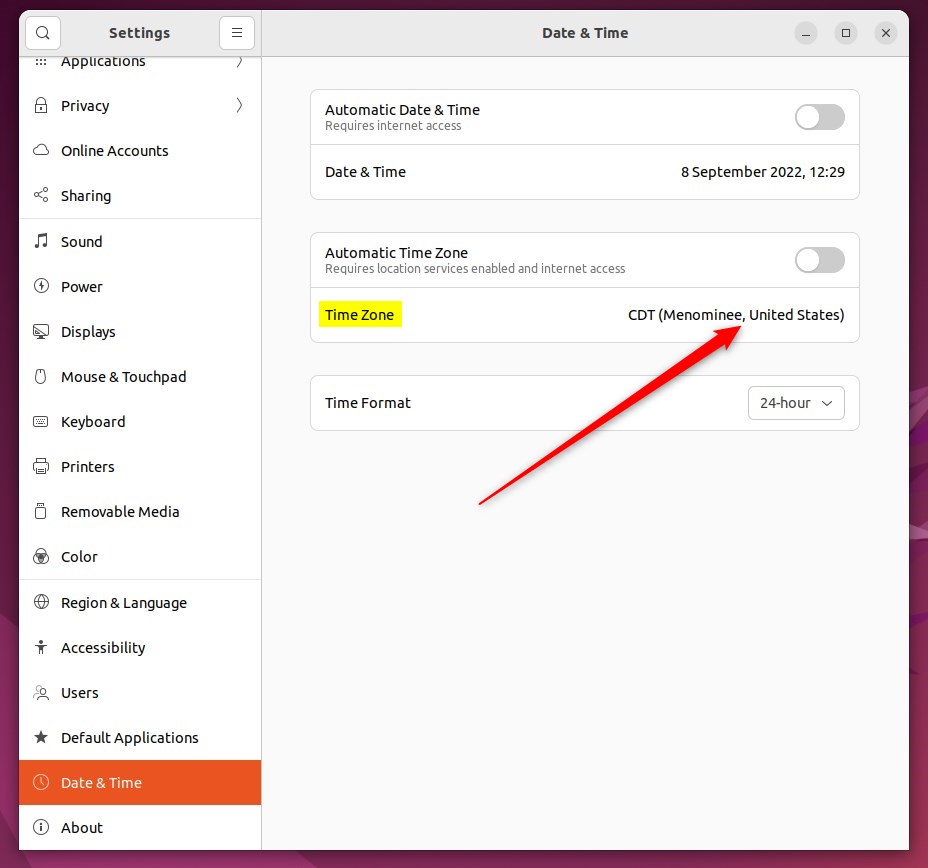
- Click Time Zone. A window opens with a world map and a search box.
- Select your location by clicking it on the map, or type your current city into the search box and pick it from the results. The search is often faster, because a map click can land on the wrong neighbouring city.
- Check that the city and its UTC offset shown in the window are the ones you want.
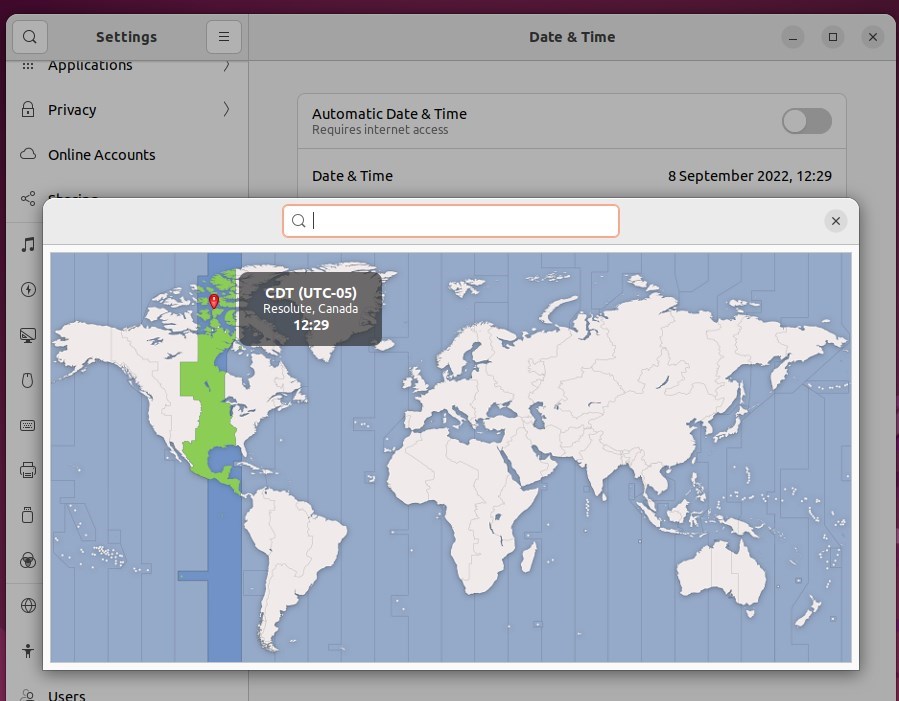
The clock updates immediately after you select a new location. Look at the top bar and confirm it shows the correct local time. You do not need to restart the computer or log out.
The configuration is complete, and you can close the Settings app. To undo the change, go back to Settings Date & Time and switch Automatic Time Zone back on. This only works while Location Services are allowed in Ubuntu’s privacy settings.
Conclusion:
- Manually changing the time zone in Ubuntu Linux can be useful when you want more control over your system’s time settings.
- You can manually set the time zone by toggling off the Automatic Time Zone switch in the Date & Time settings panel.
- Selecting your location on the map or searching for your current city allows you to update the time zone easily.
- Remember that when managing the time zone manually, you must make adjustments if you change your region or travel to a different location with a distinct time zone.
Have a question about this guide?
Answered by AI from this guide. Good questions may be added to this page — please don't include personal details.
Did this guide fix your problem?

About the Author
Richard
Tech Writer, IT Professional
Richard is a writer at Geek Rewind who turns complex IT tasks into clear, step-by-step guides. He draws on years of hands-on experience in system administration and enterprise IT operations, focusing on Windows, Linux and WordPress: the problems people actually run into, and the fixes that work. His server and WordPress guides come from systems he runs himself. Richard builds and maintains the platform behind Geek Rewind, from its Ubuntu servers and Nginx configuration to its custom WordPress plugins. Many new tutorials start with readers' questions, and he's always glad to answer them in the comments.
No comments yet — be the first to share your thoughts!