How to Change Date and Time in Ubuntu Linux


Open Settings, click Date & Time, and toggle off Automatic Date & Time. Then, click the Date & Time section again to manually set your desired date and time.
How to manually change system date and time in Ubuntu Linux
Changing the date and time in Ubuntu Linux lets you fix a wrong clock or set your system for a new time zone, using either the Settings app or the command line. Ubuntu syncs the clock over the internet by default. To set an exact date and time by hand, you first have to turn that automatic sync off.
The command-line route is timedatectl set-time on Ubuntu 22.04 LTS. Like the Settings app, it refuses to change the time while automatic network sync is on, so you have to turn the sync off first. If you prefer buttons, the Settings app lets you pick your time zone and adjust the clock with the mouse. This tutorial covers the Settings method.
You can change the date and time manually by turning off the automatic time setting in your system preferences. The short version is: open Settings, go to Date & Time, switch off Automatic Date & Time, then set your own values. This fixes a wrong system clock right away, and no restart is needed.
Below is how to do that. The steps and menu names match Ubuntu 22.04 LTS with the default GNOME desktop. Other releases may differ slightly in layout.
The Settings app is where Ubuntu keeps its system preferences, including the clock. There are two ways to open it.
- Click Activities at the top-left of the screen, type "Settings" into the search box, and click the Settings icon. The Settings window should open.

- Or click the System menu at the top-right corner of the top bar. This is the area with the network, sound and power icons. A small panel drops down.
- On the System menu, select Settings, as highlighted below. The Settings window opens.

- Scroll down the left sidebar of the Settings app if needed, then click Date & Time. On some releases this is shown as a tile rather than a sidebar entry. The Date & Time panel opens on the right.
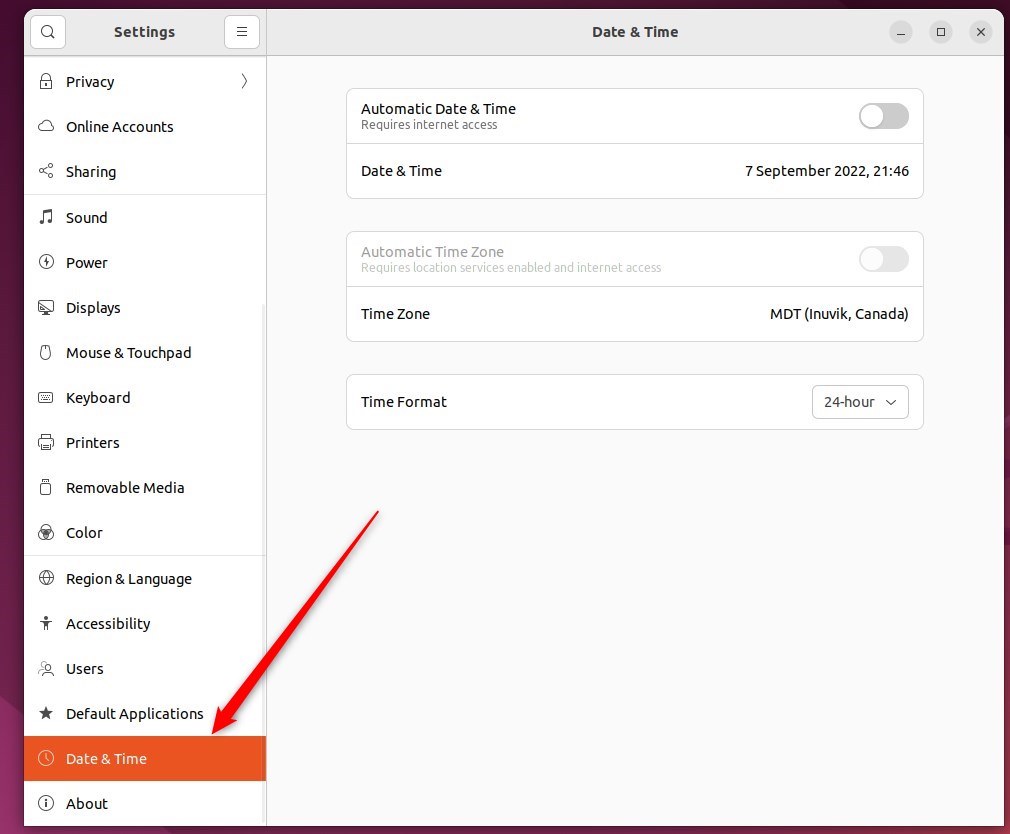
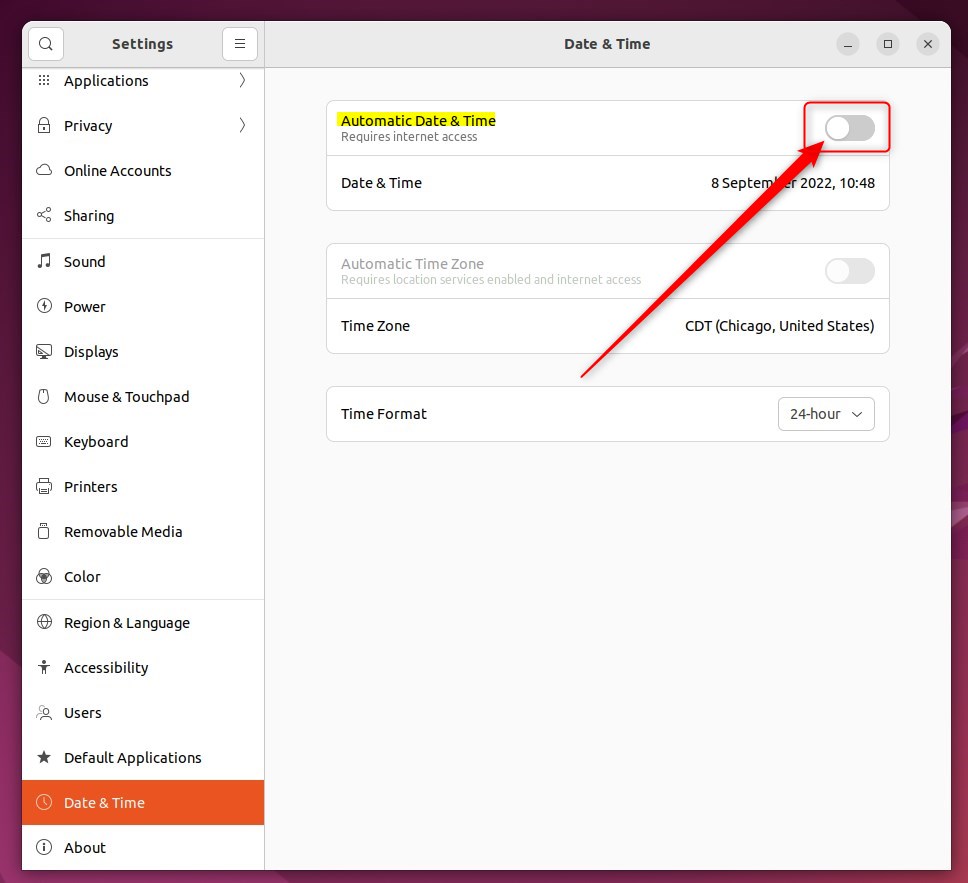
- In the Settings Date & Time panel, find the Automatic Date & Time switch and move it to the Off position. The switch turns grey, and the manual date and time controls become usable.
Ubuntu locks manual clock changes while network sync is enabled. Disable the automatic toggle first. If the option is greyed out, or you are asked for a password, your account is probably not an administrator. Only admin users can change the system clock, so enter an admin password when prompted. Also check Automatic Time Zone if your time is off by whole hours. That setting is separate from the clock itself.
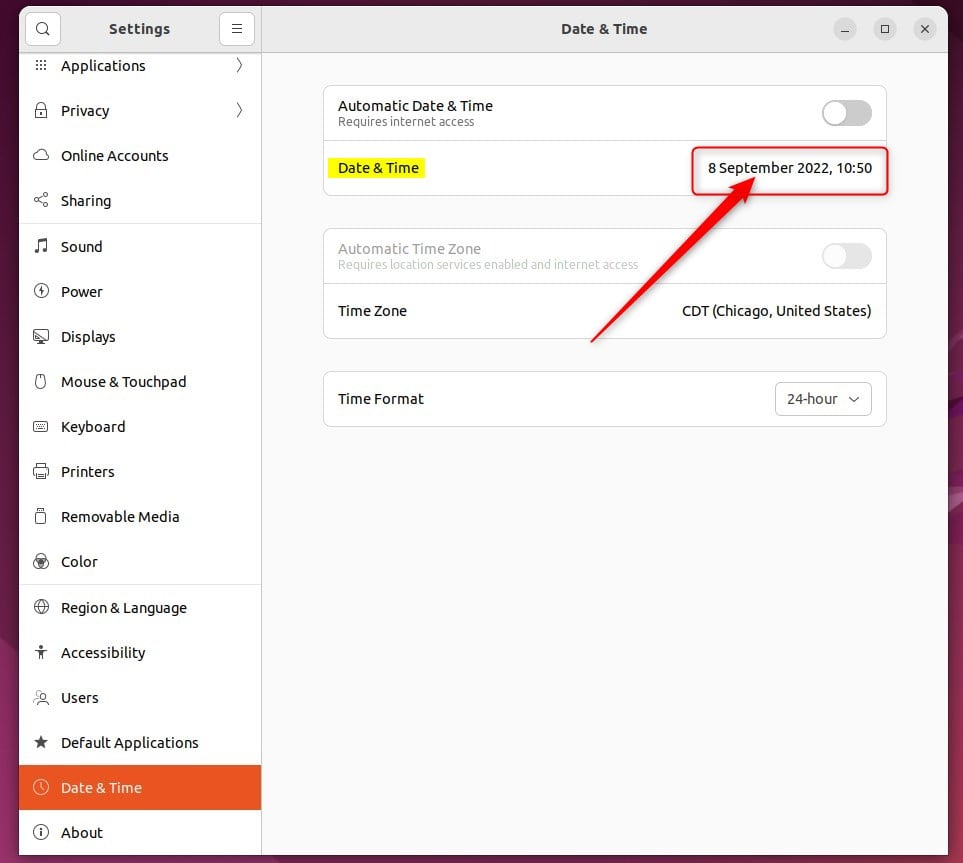
- With Automatic Date & Time turned off, click the Date & Time row in the same panel. It shows the current date and time. A small pop-up window opens.
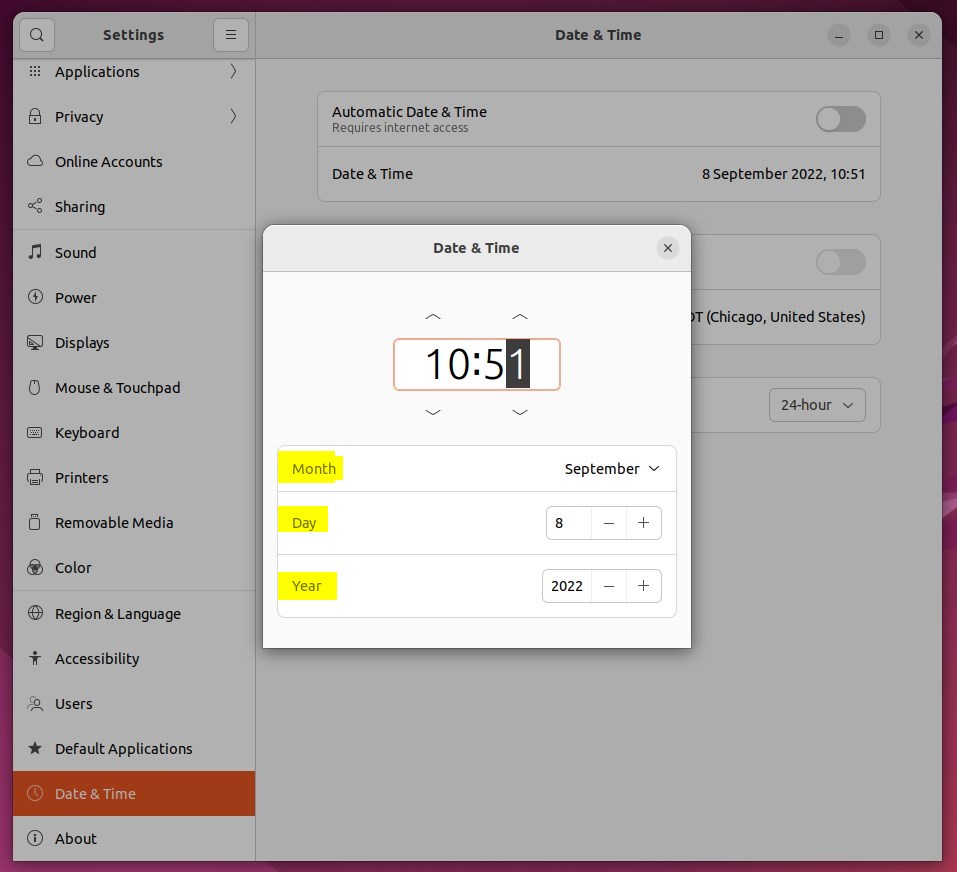
- In the pop-up, set the Time, Month, Day and Year. Use the up and down arrows or type the numbers directly. Whatever you choose here applies system-wide. The new time shows at the top of the screen as soon as you change it.
- Close the pop-up when the values are right.
That should do it! You can now close the Settings app.
To undo the change, go back to Settings Date & Time and switch Automatic Date & Time back to On. Ubuntu will then correct the clock from the network, which needs a working internet connection. On a dual-boot machine with Windows, the two systems read the hardware clock differently, so one of them may show the wrong time after a reboot. Setting the time by hand fixes it only until the next switch.
Conclusion:
- Changing the date and time in Ubuntu Linux is feasible through the System Settings panel, and an admin password may be needed.
- Toggling the Automatic Date & Time switch to the off position allows users to set the date and time manually.
- By selecting the Date & Time row, users can set the time, month, day and year according to their preferences, and turn automatic sync back on later to undo it.
Have a question about this guide?
Answered by AI from this guide. Good questions may be added to this page — please don't include personal details.
Did this guide fix your problem?

About the Author
Richard
Tech Writer, IT Professional
Richard is a writer at Geek Rewind who turns complex IT tasks into clear, step-by-step guides. He draws on years of hands-on experience in system administration and enterprise IT operations, focusing on Windows, Linux and WordPress: the problems people actually run into, and the fixes that work. His server and WordPress guides come from systems he runs himself. Richard builds and maintains the platform behind Geek Rewind, from its Ubuntu servers and Nginx configuration to its custom WordPress plugins. Many new tutorials start with readers' questions, and he's always glad to answer them in the comments.
No comments yet — be the first to share your thoughts!