How to Change Screen Brightness in Ubuntu Linux

- 2 ways to do it
- Needs administrator rights
Screen brightness in Ubuntu Linux controls how much light your display puts out. A lower level is easier on your eyes in a dark room and saves battery on a laptop. A higher level helps you read the screen in a bright room. On Ubuntu 22.04 LTS and newer versions, you can change it with a slider in the top-right corner of the screen.
Most laptop keyboards also have brightness keys marked with sun icons, often on the function row. Press one to step the brightness down, and the other to step it up. On some laptops you need to hold Fn while you press them. This guide covers the slider, the Settings app, the terminal, and a few reasons the controls may not appear.
Click the status area in the top-right corner of the Ubuntu desktop and drag the brightness slider left or right. The screen changes as you move it, with no restart or log out needed. If the slider is missing, open Settings, go to the Power tab, and use the Screen brightness slider there. On a laptop, the sun-icon brightness keys also work.
How to adjust the screen brightness in Ubuntu Linux
The quickest way to change brightness is the Quick Settings menu. Click the status area in the top-right corner of the desktop, then drag the brightness slider left or right until the screen looks comfortable. You don’t need to open the main Settings app, and the change takes effect straight away. You don’t need to restart or log out.
Method 1Using the Quick Settings Menu
- Click the status area in the top-right corner of your screen. This is where your Wi-Fi, battery, and volume icons live.
- Wait for the menu to drop down. It should look like the screenshot below, with toggles and sliders for settings you change often.

ubuntu system menu button on top bar - If nothing opens, click the status area again. The menu closes when you click outside it, so a second click may have shut it.
- Look for the brightness slider in the menu that pops up. If you can’t see one, your system may not allow software brightness control. This is common on desktop PCs with an external monitor. Use Method 2, or read the compatibility note further down.
- Drag the slider left or right to change the light level. The screen should get brighter or dimmer as you move it.
- Release the slider when the screen looks right to you.
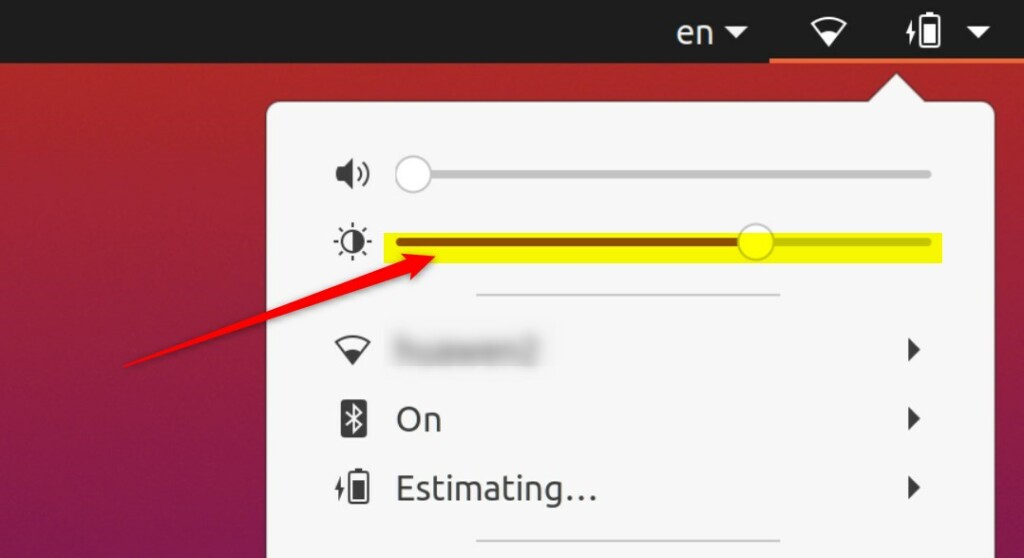
ubuntu linux screen brightness slider - Click anywhere outside the menu, or press Esc, to close it. Ubuntu keeps your brightness level until you change it again. To undo the change, open the menu and move the slider back.
Method 2Using the Settings App
- Open your app drawer and click on Settings. The Settings window opens with a list of categories in the left sidebar.
- In the left sidebar, click on the Power tab. The options for the Power page appear on the right.
- Check that the Power page is open before you go on. The exact layout can differ a little between Ubuntu versions.
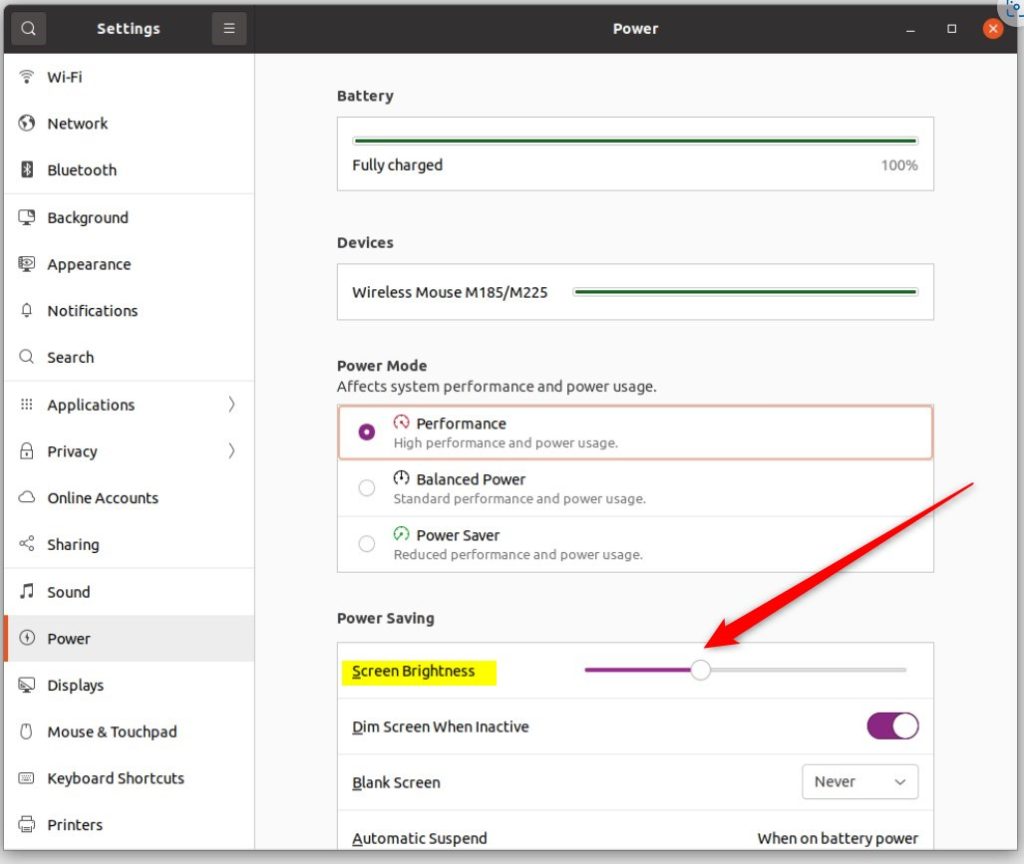
ubuntu linux screen brighness slider in settings - If the page is long, scroll down until you reach the Screen section. A desktop PC may show no brightness control here at all. That means Ubuntu can’t control the monitor’s backlight.
- Under the Screen section, move the Screen brightness slider to your preferred level. The display changes as you move it. Close the Settings window when you are done.
General
You can also change brightness from the terminal. Use a command-line tool such as xrandr, or edit the backlight system files directly. This is the advanced route. It helps when the desktop menu is missing, or when you want to script brightness changes.
The xrandr tool changes brightness in software, so it makes the picture darker or lighter without changing the real backlight. It works on X11 sessions, and it usually does not work on Wayland. Writing to the backlight files changes the real hardware level and normally needs administrator rights. Both approaches depend on your graphics drivers and display setup. Changes made this way are usually lost when you restart, unless you put them in a startup script.
X11) and your graphics drivers. If the sliders do not appear or do not work, ensure your graphics drivers are up to date. Some older hardware may not support software-based brightness control, requiring you to use the monitor’s built-in hardware menu instead.
Ubuntu normally installs updates for your graphics drivers with the rest of your system updates, so run the Software Updater and restart after it finishes. On a desktop PC with an external monitor, the buttons on the monitor itself are usually the only way to change brightness.
To gain full manual control over screen brightness, you may need to disable the automatic brightness setting. This setting uses the ambient light sensor to adjust brightness for you. It only exists on devices that have such a sensor, which is mostly laptops and tablets. If you can’t find it, your hardware likely doesn’t have one. Depending on your Ubuntu version, look in the display preferences or on the Power page in Settings. With the setting off, the brightness stays where you put it, whatever the lighting in the room. To undo this, switch the setting back on.
Adjusting your brightness helps you see better and can extend your laptop’s battery life. Follow these steps whenever your screen feels too bright or too dim.
Have a question about this guide?
Answered by AI from this guide. Good questions may be added to this page — please don't include personal details.
Did this guide fix your problem?

About the Author
Richard
Tech Writer, IT Professional
Richard is a writer at Geek Rewind who turns complex IT tasks into clear, step-by-step guides. He draws on years of hands-on experience in system administration and enterprise IT operations, focusing on Windows, Linux and WordPress: the problems people actually run into, and the fixes that work. His server and WordPress guides come from systems he runs himself. Richard builds and maintains the platform behind Geek Rewind, from its Ubuntu servers and Nginx configuration to its custom WordPress plugins. Many new tutorials start with readers' questions, and he's always glad to answer them in the comments.
No comments yet — be the first to share your thoughts!