Change Ubuntu Display Resolution: A Step-by-Step Guide


Ubuntu display resolution fixes blurry text, scales screen items, and controls the total number of pixels on your monitor.
Ubuntu normally picks the best display settings automatically based on your monitor hardware, but manual overrides let you fix incorrect scaling through the Settings app in a few clicks.
Access System Settings, then click Display. Select your desired resolution from the dropdown menu and click Apply. Confirm the changes to keep them.
How to adjust display resolutions in Ubuntu Linux
You can change Ubuntu display resolution by opening the Settings app, clicking on Displays in the sidebar, and picking a new size from the Resolution drop-down menu. This fixes blurry text, corrects stretched images, and lets you fit more windows on your screen at the same time.
This panel lets you manage everything from system-wide options to creating new user accounts and performing software updates.

Alternatively, click on the System menu at the top-right corner of the top bar on your desktop.
In the System menu, choose Settings, as highlighted in the image below.

Click on the Display tile to open the panel in the Settings app.
In the System Settings - Display settings panel, under Device Display, select a resolution that fits your needs.
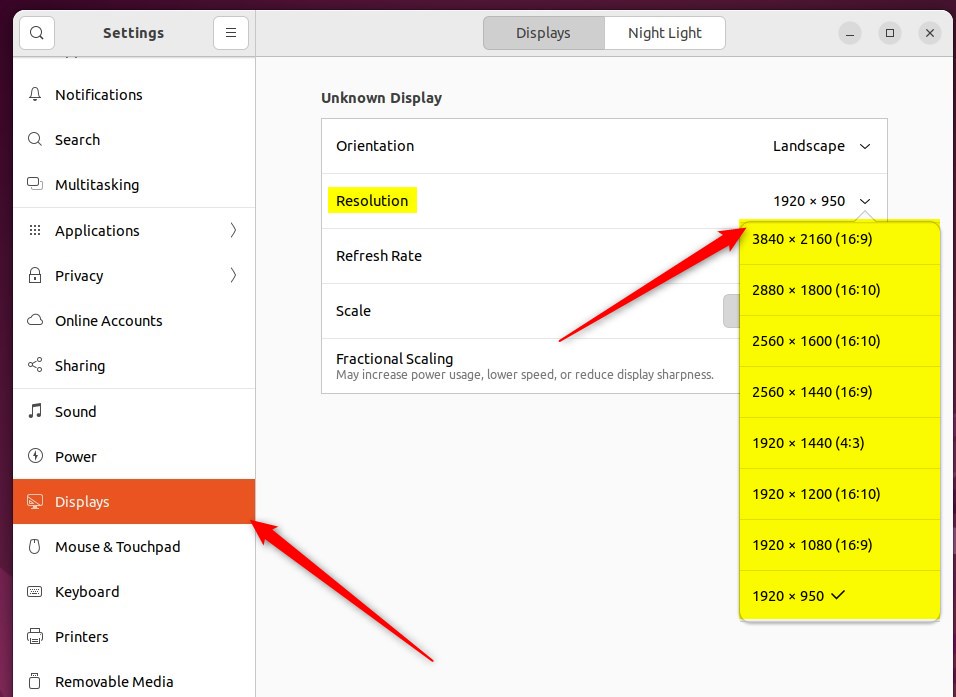
Custom configurations apply independently to each screen when multiple monitors run in extended mode. First, select a display in the preview area.
When you select a resolution, click Apply.
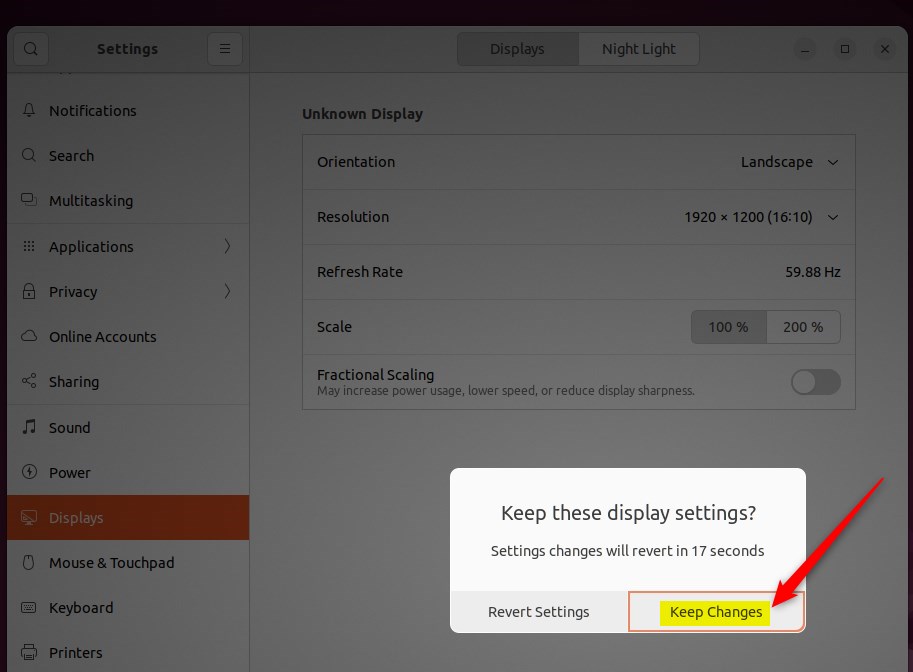
Confirm the new configuration by clicking Keep Changes.
Closing the Settings app finalises the process.
Lowering the resolution from 1920x1080 to 1280x720 makes text and icons larger, which helps when default scaling feels too small on high-density monitors.
- Changing the display resolution in Ubuntu Linux can optimize the appearance and usability of your desktop.
- Ubuntu's user-friendly interface enables easy manual adjustment of display resolutions through the System Settings panel.
- Users can fine-tune the resolution to fit their specific needs, enhancing the visual experience on their Ubuntu Linux system.
Was this guide helpful?

About the Author
Richard
Tech Writer, IT Professional
Richard is a writer at Geek Rewind who turns complex IT tasks into clear, step-by-step guides. He draws on years of hands-on experience in system administration and enterprise IT operations, focusing on Windows, Linux and WordPress: the problems people actually run into, and the fixes that work. His server and WordPress guides come from systems he runs himself. Richard builds and maintains the platform behind Geek Rewind, from its Ubuntu servers and Nginx configuration to its custom WordPress plugins. Many new tutorials start with readers' questions, and he's always glad to answer them in the comments.



[…] previous post showed you how to change your display resolution in Ubuntu […]
[…] both monitors shown, you can select each monitor’s orientation, resolution or scale, and refresh rate if they need […]