Set Up Dual Monitors in Ubuntu Linux: A Step-by-Step Guide


Dual monitors in Ubuntu Linux let you use two screens at the same time to get more work done. Ubuntu 22.04 LTS and newer versions automatically detect most second screens the moment you plug them in.
You can use the built-in display settings to arrange your screens, pick your main display, or mirror your desktop across both screens.
Connect your external monitor, then open System Settings and select the Display panel. Drag the monitor icons to arrange them, choose “Join Displays” or “Mirror,” and click Apply. You can also set a primary display and adjust resolution or orientation.
How to set up additional monitors in Ubuntu Linux
To set up dual monitors Ubuntu users can use the built-in Settings app to arrange extra screens, position displays side by side or stacked, and choose a primary monitor. Open the system menu in the top-right corner of your desktop, click Settings, and open the Displays tab to start configuring your screens right away.
The Settings app serves as the control center for your system, managing everything from user accounts to software updates.

Open the system menu in the top-right corner of your desktop, then select Settings.
On the System menu, select Settings, as highlighted below.

Click the Display tile to open the configuration panel.
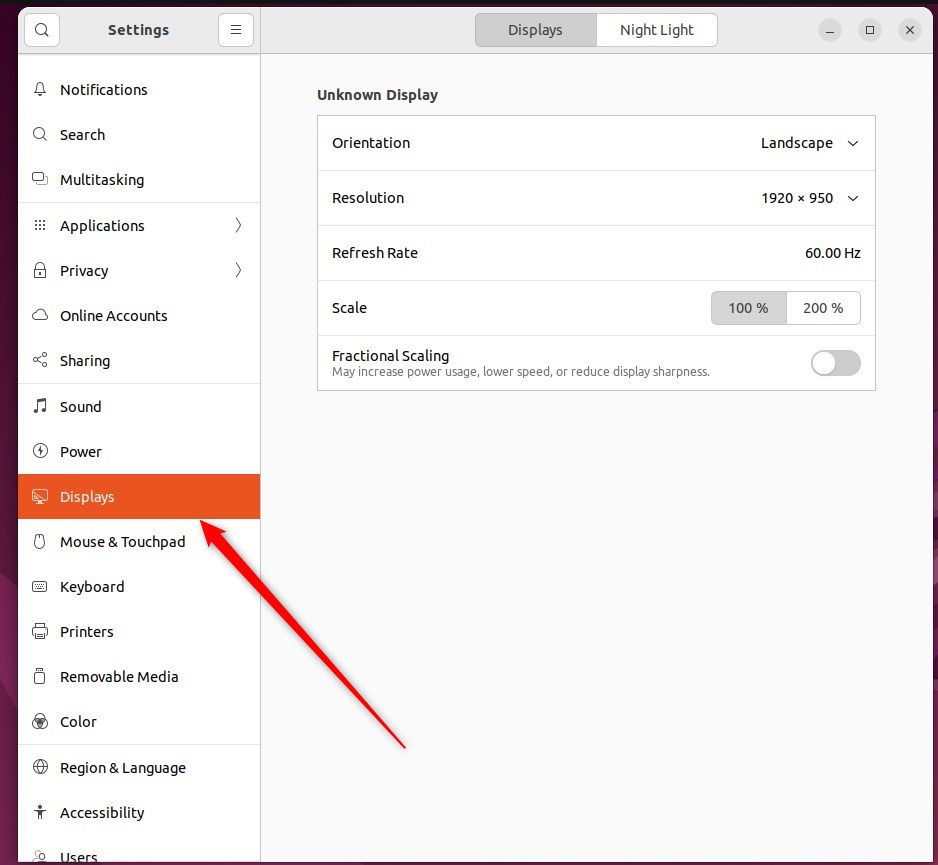
The display arrangement diagram allows you to drag your monitors to set them up in the positions you want, creating a visual representation that matches your physical desk layout.
Then, select the display number you'd like to configure as primary or secondary. Feel free to drag the screens again to get the relative positions just right.
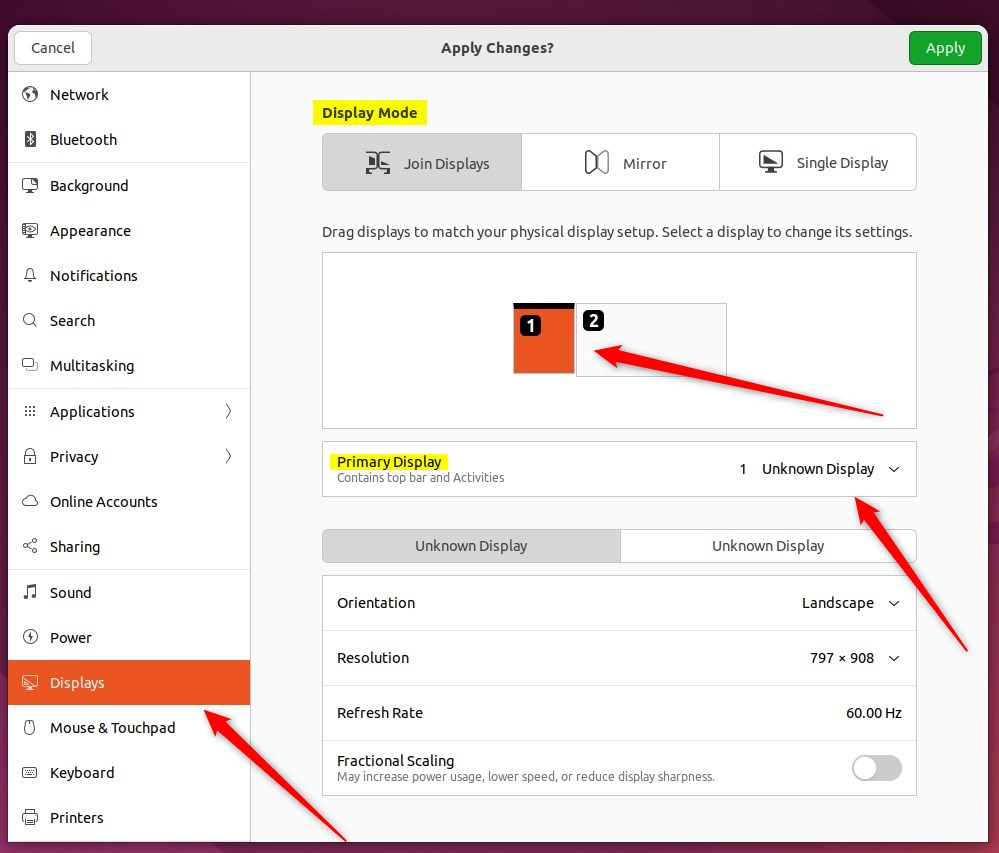
When using two screens, you have these display modes:
- Join Displays: screen edges are joined so things can pass from one Display to another.
- Mirror: the same content is shown on two displays with the same resolution and orientation.
- Single Display: only one Display is configured, effectively turning off the other.
With both monitors shown, you can select each monitor's orientation, resolution or scale, and refresh rate if they need adjustments.
The new settings will be applied for 20 seconds before reverting.
Close the Settings app when you finish.
Conclusion:
- Adding a second monitor to Ubuntu Linux is a simple process that enhances productivity.
- Ubuntu's system settings provide a user-friendly interface for configuring multiple displays, offering options for display arrangement and modes such as Join Displays, Mirror, and Single Display.
- Users can effortlessly set the primary and secondary displays, adjust the orientation, resolution, scale, and refresh rate, and apply the changes with just a click.
- Enjoy the expanded workspace and improved multitasking capabilities with the seamless integration of additional monitors in Ubuntu Linux.
Was this guide helpful?
0% of readers found this helpful (2 votes)

About the Author
Richard
Tech Writer, IT Professional
Richard is a writer at Geek Rewind who turns complex IT tasks into clear, step-by-step guides. He draws on years of hands-on experience in system administration and enterprise IT operations, focusing on Windows, Linux and WordPress: the problems people actually run into, and the fixes that work. His server and WordPress guides come from systems he runs himself. Richard builds and maintains the platform behind Geek Rewind, from its Ubuntu servers and Nginx configuration to its custom WordPress plugins. Many new tutorials start with readers' questions, and he's always glad to answer them in the comments.




how do I keep the dual display settings, i have to reset them most times I turn my laptop back on, as my second monitor has moved to the top right of the screen rather than being beside my primary screen.