How to Install Display Languages in Ubuntu Linux


- 12 steps
- Needs administrator rights
- Includes a restart or sign-out
Display languages in Ubuntu Linux change the text on menus, buttons, and apps into over 100 different languages. Language packs download automatically from the internet once you pick your preferred choice in the settings menu, so the computer needs a working connection while you do this.
You can add missing regional packs at any time if your desktop needs a different language. The steps below use the GNOME desktop that ships with current Ubuntu releases. Menu wording can differ slightly on older versions or on other Ubuntu flavors such as Kubuntu.
Open Settings, navigate to Region & Language, and click Manage Installed Languages. Select Install/Remove Languages, check the desired languages, and click Apply. Log out and back in for the changes to take effect.
How to add display language in Ubuntu Linux
You can install display language Ubuntu options by opening the Settings app, going to the Region & Language tab, and downloading your chosen language pack. This process updates the language for your desktop menus, system messages, and built-in apps. Ubuntu downloads any missing translation files automatically once you confirm the change and restart your user session. You will need an account with administrator rights, because Ubuntu asks for your password before it installs packages.
Here’s how to add more display languages in Ubuntu Linux:
- Open the Activities overview by clicking Activities in the top-left corner, or by pressing the Super (Windows) key.
- Type Settings into the search bar. The Settings app icon should appear in the results.
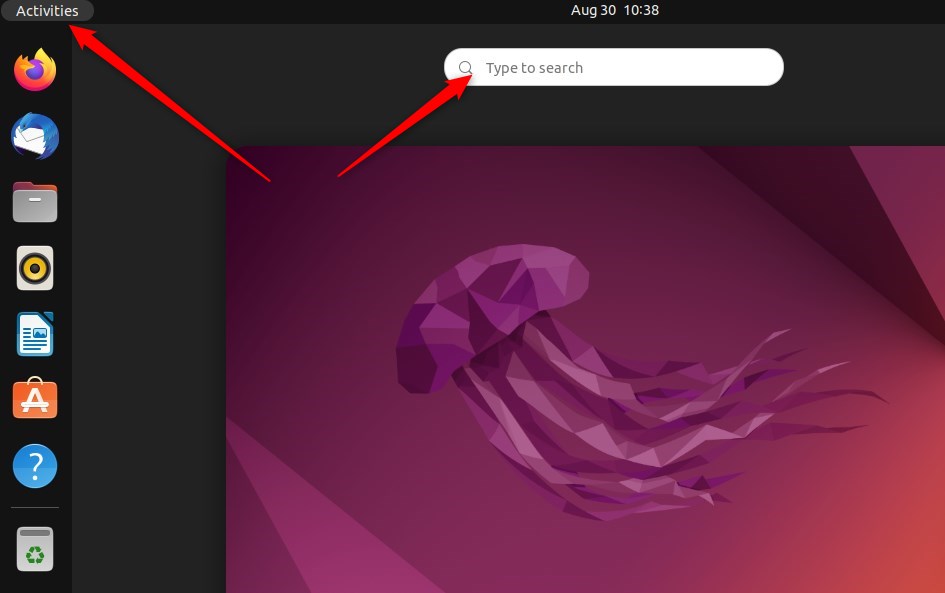
You can also open Settings without searching:
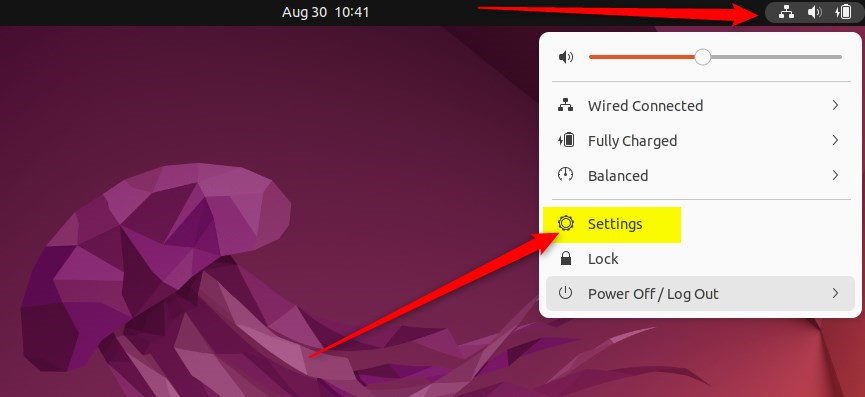
- Click the System menu in the top-right corner of the desktop’s top bar. This is the group of network, sound, and power icons.
- Select Settings from the menu, as highlighted below. The Settings window opens.
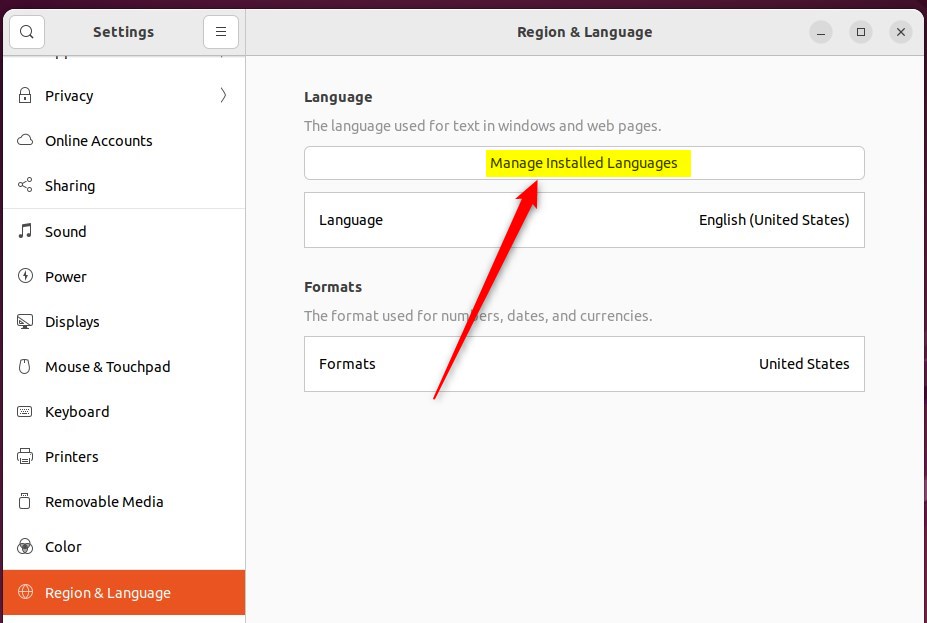
- Click the Region & Language tile inside the Settings app. On some releases you may need to scroll the left sidebar to find it. The Region & Language pane opens on the right.
- Select the Manage Installed Languages button to launch Language Support within the System Settings Region & Language settings pane. A separate Language Support window opens.
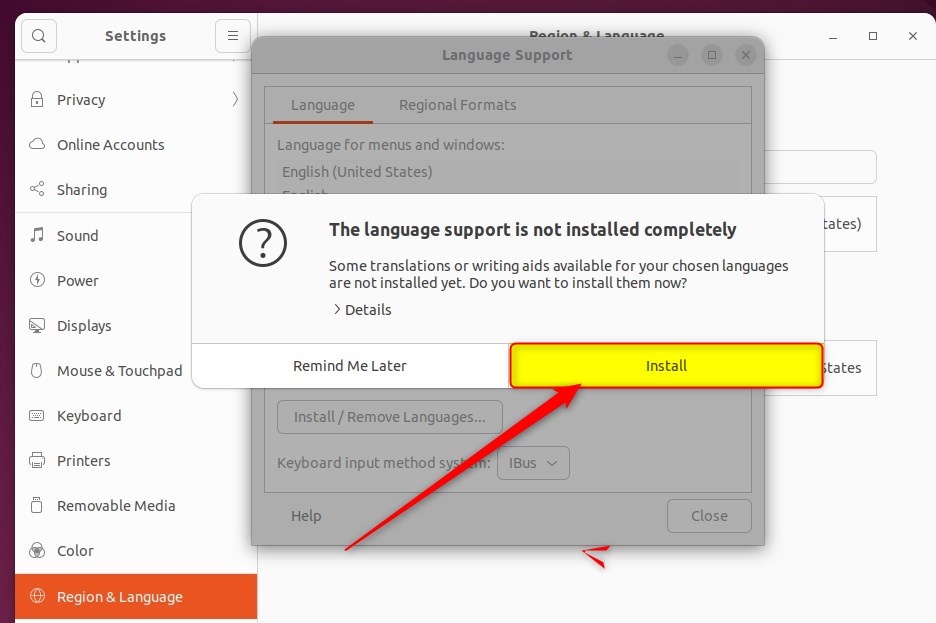
- Click Install when a prompt appears for missing language support components. This prompt only shows up if some base language files are not on the system yet. Enter your password if Ubuntu asks for it, then wait while the files download.
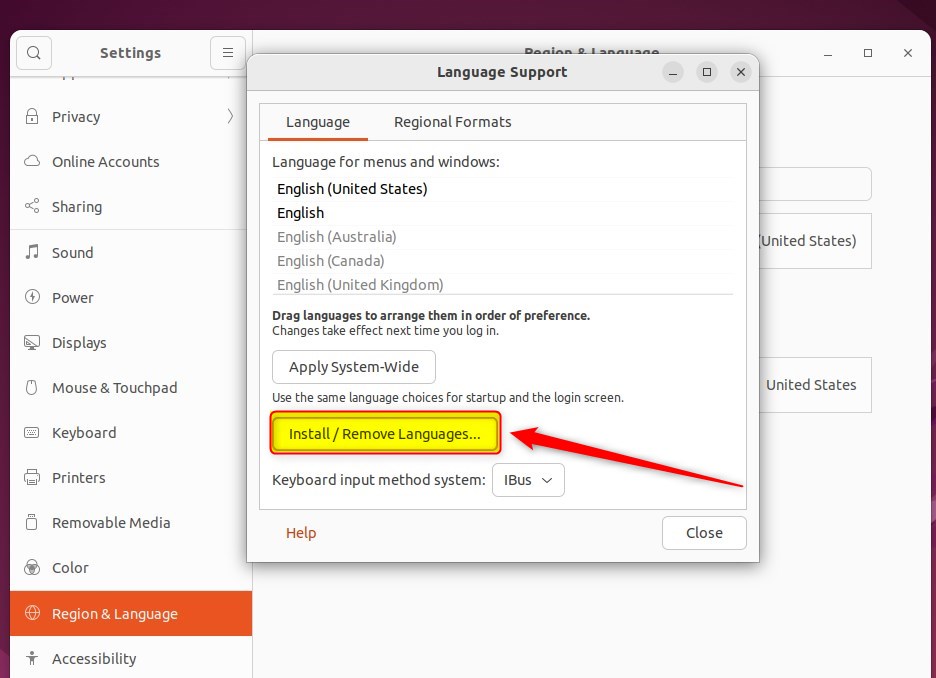
- Click Install / Remove Languages… after the base support finishes downloading . The Installed Languages window opens.
The Installed Languages window displays all available options alongside checkmarks for currently active packs. If the list looks empty or the install fails, check your internet connection and try again.
- Scroll the list and check the boxes next to the desired languages.
- Uncheck any unwanted items. Leave your current language checked unless you are sure you no longer need it.
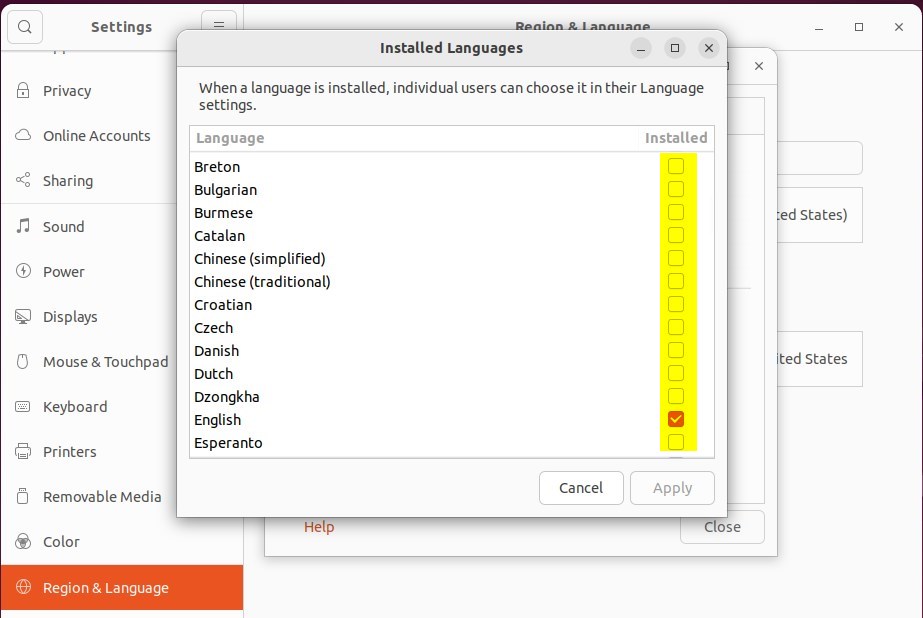
- Click Apply to confirm the selections. Ubuntu asks for your password and then downloads and installs the packs. Wait for the progress bar to finish before you continue.
- Log out or restart the computer for the system to process the new language files.
Active display options update immediately upon logging back into the desktop. If the desktop still shows the old language after you log in, open Language Support again and move your preferred language to the top of the Language for menus and windows list by dragging it. Then log out and back in once more. The language at the top of that list is the one Ubuntu uses.
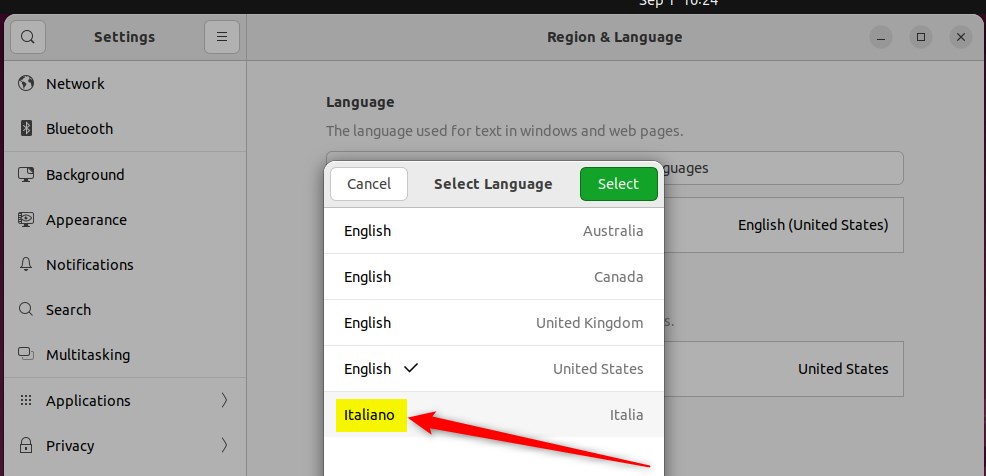
Switching display languages requires pre-installed language packs. The system settings panel handles both the installation and activation steps. To go back to your old language, set it to the top of the list, then log out and back in. You can also uncheck a language in the Installed Languages window and click Apply to remove its files.
How to change display language in Ubuntu Linux
Close the settings app to finish the configuration.
Conclusion:
- Adding a display language in Ubuntu Linux is a straightforward process, allowing you to easily switch between multiple languages.
- The System Settings panel provides a centralized location for managing installed languages, making it convenient for users to customize their language preferences.
- It's important to note that although Ubuntu Linux supports various display languages, some translations may be incomplete and certain applications may not fully support non-English languages.
- Following the outlined steps, users can seamlessly install additional display languages, providing a more tailored and user-friendly experience within Ubuntu Linux.
Have a question about this guide?
Answered by AI from this guide. Good questions may be added to this page — please don't include personal details.
Did this guide fix your problem?

About the Author
Richard
Tech Writer, IT Professional
Richard is a writer at Geek Rewind who turns complex IT tasks into clear, step-by-step guides. He draws on years of hands-on experience in system administration and enterprise IT operations, focusing on Windows, Linux and WordPress: the problems people actually run into, and the fixes that work. His server and WordPress guides come from systems he runs himself. Richard builds and maintains the platform behind Geek Rewind, from its Ubuntu servers and Nginx configuration to its custom WordPress plugins. Many new tutorials start with readers' questions, and he's always glad to answer them in the comments.
[…] How to change display language in Ubuntu Linux […]
[…] Linux also allows users to install additional languages and keyboards to support these languages for language-specific key layouts and input options. For […]