How to Hide or Show Network Icon in Windows 11 File Explorer

You hide or show the Network icon in Windows 11 File Explorer by adjusting settings within the File Explorer Options window.
The Network icon in File Explorer lets you easily access shared folders and devices on your network, similar to how it appeared in older Windows versions.
This tutorial focuses specifically on the File Explorer sidebar icon, not the network status icon found in your system tray on the taskbar.
To manage this icon, you’ll navigate through a few simple steps within Windows 11’s interface.
Why hide or show the Network icon in 🪟 Windows 11?
Windows 11 displays the Network icon in File Explorer to help you find shared devices. You might want to hide it to keep your sidebar clean. Others may need to show it to access local network locations quickly. Changing this setting does not disconnect you from the internet; it only changes how you see network folders in your file browser.
What happens when you are done?
Once you finish, the Network icon will disappear or appear in your File Explorer sidebar. This change is purely visual. Your computer will still maintain its network connection status, and you can still reach network drives if you type their path directly into the address bar.
How to show or hide the Network icon in File Explorer
You can manage this icon using the File Explorer settings. These steps do not require admin privileges.
- Open File Explorer by pressing the Windows Key + E.
- Right-click in the empty space below the Network icon in the left sidebar.
- Select Show Network to either hide or show it.
Alternatively, use the Folder Options menu:
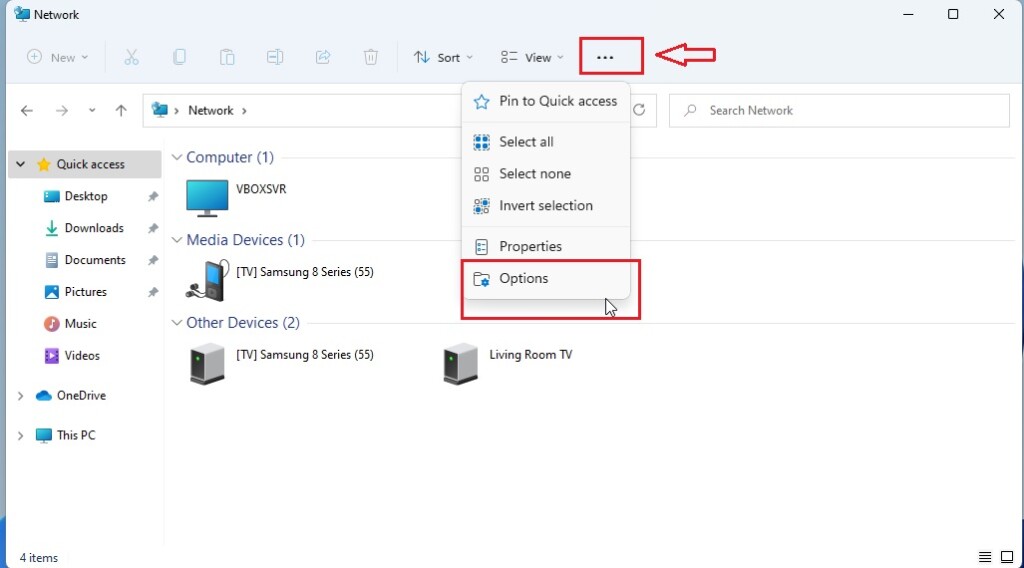
- Click the three-dot menu icon at the top of the File Explorer window.
- Select Options.
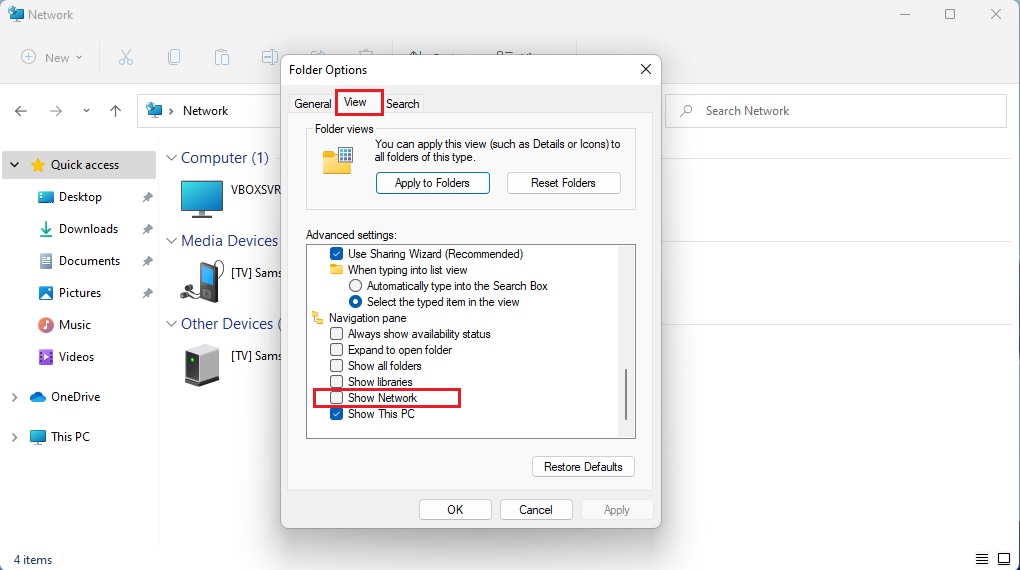
- On the Folder Options window, click the View tab.
- Look for the setting that says Show Network.
- Check or uncheck the box to show or hide the icon.
- Click OK to save your changes.
Troubleshooting: Why is my network icon missing from the taskbar?
If your network connection status icon is missing from the taskbar, it might be disabled in settings. Note: This requires admin privileges to change system-wide settings.
- Right-click the taskbar and select Taskbar settings.
- Click Taskbar corner overflow.
- Ensure the toggle for Network is set to On.
If the icon is still missing, your network adapter might be disabled. Open Network & Internet settings and ensure your adapter is enabled.
How to restart Windows Explorer to fix missing icons
Sometimes the Windows 11 UI glitches. Restarting the process can bring back missing icons.
- Press Ctrl+Shift+Esc to open Task Manager.
- Find Windows Explorer in the list.
- Right-click it and select Restart.
Does updating network drivers fix the missing icon issue?
Yes, outdated drivers can cause display issues. Open Device Manager, find your Network Adapter, right-click it, and select Update driver. If that fails, choose Uninstall device and restart your computer to let Windows reinstall it automatically.
Advanced configuration: Registry and Group Policy
For power users, you can force these settings using the Registry Editor. Warning: This requires admin privileges and carries risk if done incorrectly.
HKEY_CURRENT_USER\Software\Microsoft\Windows\CurrentVersion\Policies\Explorer
Create a new DWORD value named NoNetHood and set it to 1 to hide the icon.
Can I remove the network icon from the lock screen?
Yes, for security, you can hide the network icon on the sign-in screen. Note: This requires admin privileges. Open the Group Policy Editor (gpedit.msc) and navigate to Computer Configuration\Administrative Templates\System\Logon. Enable the policy Remove network connectivity indicator from the lock screen.
Summary
Managing the network icon in Windows 11 is simple. Whether you want to clean up your File Explorer sidebar or troubleshoot a missing taskbar icon, these steps provide the control you need. Always remember to check your taskbar settings first, as that is the most common reason for a missing connection status icon.
Why is my network icon greyed out in 🪟 Windows 11?
A greyed-out icon often means the network adapter is disabled or the driver is malfunctioning. Check your Network Connections in the Control Panel to ensure the adapter is enabled. If it is, try running the Network Troubleshooter or updating your network adapter drivers to restore full functionality.
Does hiding the network icon disconnect me from the internet?
No, hiding the network icon in File Explorer or the taskbar is purely a visual change. It does not affect your actual internet connection, your network adapter settings, or your ability to browse the web. Your computer will remain connected to your local network and the internet as usual.
How do I reset the network icon in 🪟 Windows 11?
If the icon is broken or missing, you can reset your network settings. Go to Settings, select Network & internet, and click Advanced network settings. Choose Network reset. This will reinstall your network adapters and set all networking components back to their original factory defaults. You will need to restart your computer.
Was this guide helpful?

About the Author
Richard
Tech Writer, IT Professional
Richard, a writer for Geek Rewind, is a tech enthusiast who loves breaking down complex IT topics into simple, easy-to-understand ideas. With years of hands-on experience in system administration and enterprise IT operations, he’s developed a knack for offering practical tips and solutions. Richard aims to make technology more accessible and actionable. He's deeply committed to the Geek Rewind community, always ready to answer questions and engage in discussions.


No comments yet — be the first to share your thoughts!