How to Enable or Disable Surf Game in Microsoft Edge


The hidden surf game in Microsoft Edge is a built-in minigame. You ride waves, dodge obstacles and collect hearts. It is meant for moments when your internet connection drops. On Edge version 83 or newer, you can start it at any time by typing edge://surf into the address bar.
If you want the game gone, for example to tidy up the browser or to stop family members from playing it, you can turn it off with the Registry Editor. The Registry Editor is the Windows tool for changing advanced system settings. A registry change blocks the game for the whole PC, so you don’t have to hunt for hidden browser flags. The same change can be reversed, so the game can come back whenever you want it.
To turn off the Surf game in Microsoft Edge, open Registry Editor as an administrator, go to 🗝️HKEY_LOCAL_MACHINE\
Enable/disable Surf game in Edge
You can enable or disable the Surf game in Microsoft Edge with one value in the Registry Editor, which is the database Windows uses for system configuration settings. The change works on both Windows 11 Home and Pro. It lets you remove the game completely, so it never shows up, or bring it back to the error page. You need an administrator account, because the setting is stored for the whole computer.
Start by opening the Registry Editor and going to the Edge policy key.
- Open Registry Editor, the database for system configuration settings. If Windows shows a User Account Control prompt, click Yes.
- Go to the key shown below. Use the folder tree on the left side of the window and expand each folder in turn. You can also paste the path into the address bar at the top of the Registry Editor.
A wrong edit in the registry can cause problems, and either option gives you an easy way back. It takes a minute and is worth doing.
Edge does not create it until a policy is set. In that case, right-click the key one level above it in the path, select New Key, and name the new key Edge. Then open the new key.
Computer\HKEY_LOCAL_MACHINE\SOFTWARE\Policies\Microsoft\Edge
Now create the value that controls the game.
- Right-click the Edge key in the left sidebar.
- Select New DWORD (32-bit) Value.
- Type AllowSurfGame as the name and press Enter. Check the spelling, because Edge ignores a value with the wrong name.
The new value should now appear in the right pane of the Registry Editor with a data of 0.
Next, set the data for the value so the game is switched off.
- Double-click the new AllowSurfGame value.
- In the Value data box, type
0. This disables the game. - Leave Base on its default setting and click OK.
The Registry Editor should now show the value with the data you entered.
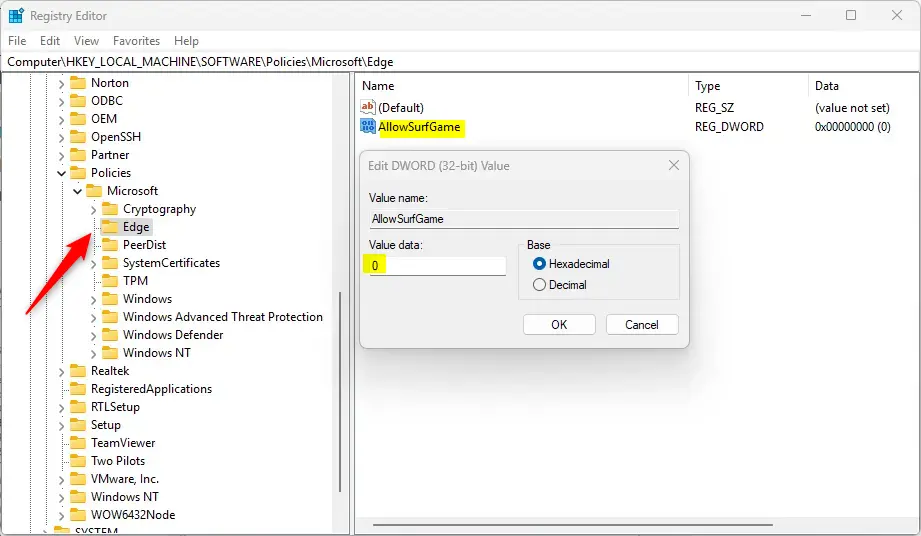
To get the game back, remove the value you created. Deleting the AllowSurfGame entry restores the surfing minigame.
- Go back to the Edge key in the Registry Editor.
- Right-click the AllowSurfGame value and select Delete.
- Click Yes when Windows asks you to confirm.
The value should disappear from the right pane. Deleting it is a clean undo, because Edge goes back to its default behavior when the policy is no longer set.
AllowSurfGame
Edge reads this setting when it starts, so close every Edge window and open the browser again. A computer restart may prove necessary for the update to take effect. If the game still behaves the same way after you reopen Edge, restart Windows and try edge://surf again.
That completes the process. You can close the Registry Editor now. If you disabled the game, typing edge://surf should no longer start it. If you removed the value, the game should be available again.
Summary:
Registry adjustments control the availability of this hidden browser attraction. Keep these technical details in mind:
- The Surf Game is a built-in browser game for casual fun while browsing.
- It can be accessed easily by entering edge://surf in the address bar.
- The game can be played offline and supports various input methods.
- Admins can disable the feature through the Windows Registry if needed. Deleting the AllowSurfGame value turns it back on.
- Always back up your registry or create a System Restore point before making changes.
- Rebooting your computer may be necessary to apply changes after modifying the registry. Restarting Edge is often enough.
Browse safely and enjoy the waves!
Have a question about this guide?
Answered by AI from this guide. Good questions may be added to this page — please don't include personal details.
Did this guide fix your problem?

About the Author
Richard
Tech Writer, IT Professional
Richard is a writer at Geek Rewind who turns complex IT tasks into clear, step-by-step guides. He draws on years of hands-on experience in system administration and enterprise IT operations, focusing on Windows, Linux and WordPress: the problems people actually run into, and the fixes that work. His server and WordPress guides come from systems he runs himself. Richard builds and maintains the platform behind Geek Rewind, from its Ubuntu servers and Nginx configuration to its custom WordPress plugins. Many new tutorials start with readers' questions, and he's always glad to answer them in the comments.
No comments yet — be the first to share your thoughts!