How to Enable Respect Power Settings when Indexing in Windows 11


Respect Power Settings when Indexing in Windows 11 stops background search indexing to save laptop battery life when your device runs on low power or Battery Saver mode.
This setting tells Windows 11 whether to pause file indexing tasks so your processor uses less energy. Turning this option on helps your battery last longer on a single charge by cutting down on heavy background work when power gets low.
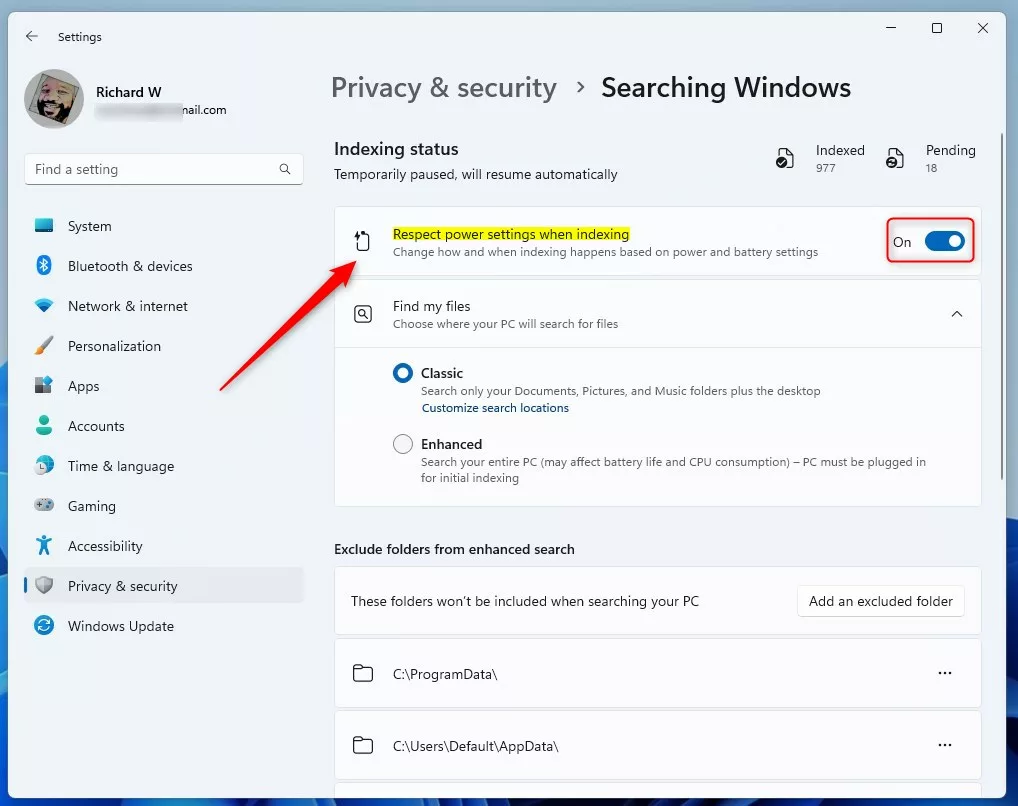
Enable “Respect power settings when indexing” in Windows 11 Settings under Privacy & security Searching Windows This prevents the search indexer from draining your battery by pausing when your PC is in a power-saving mode.
Method 1Using the Settings App
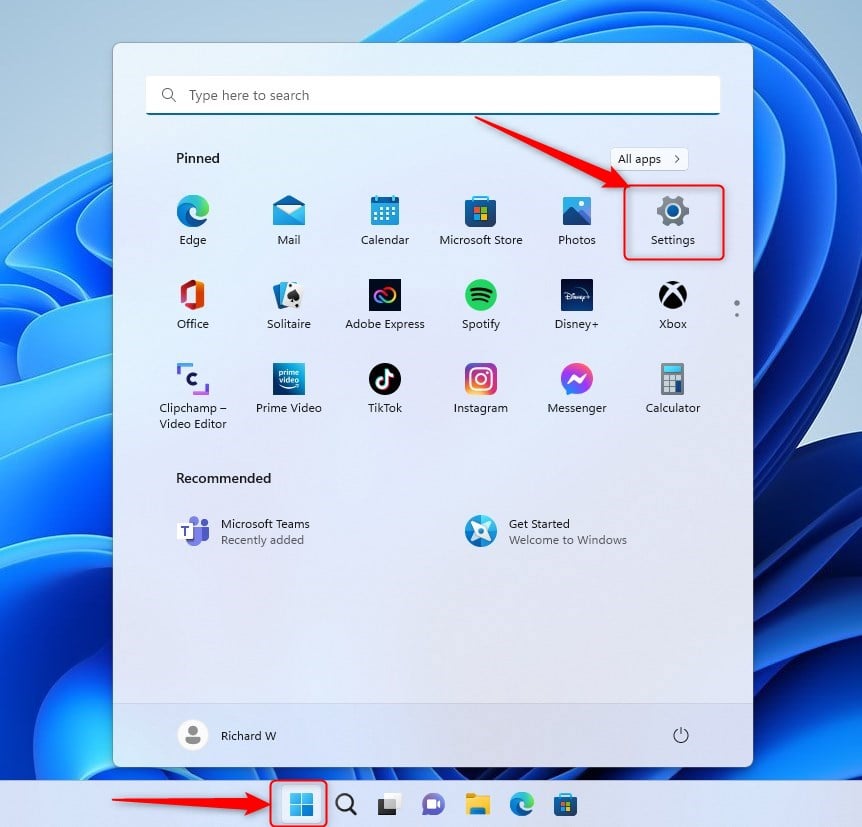
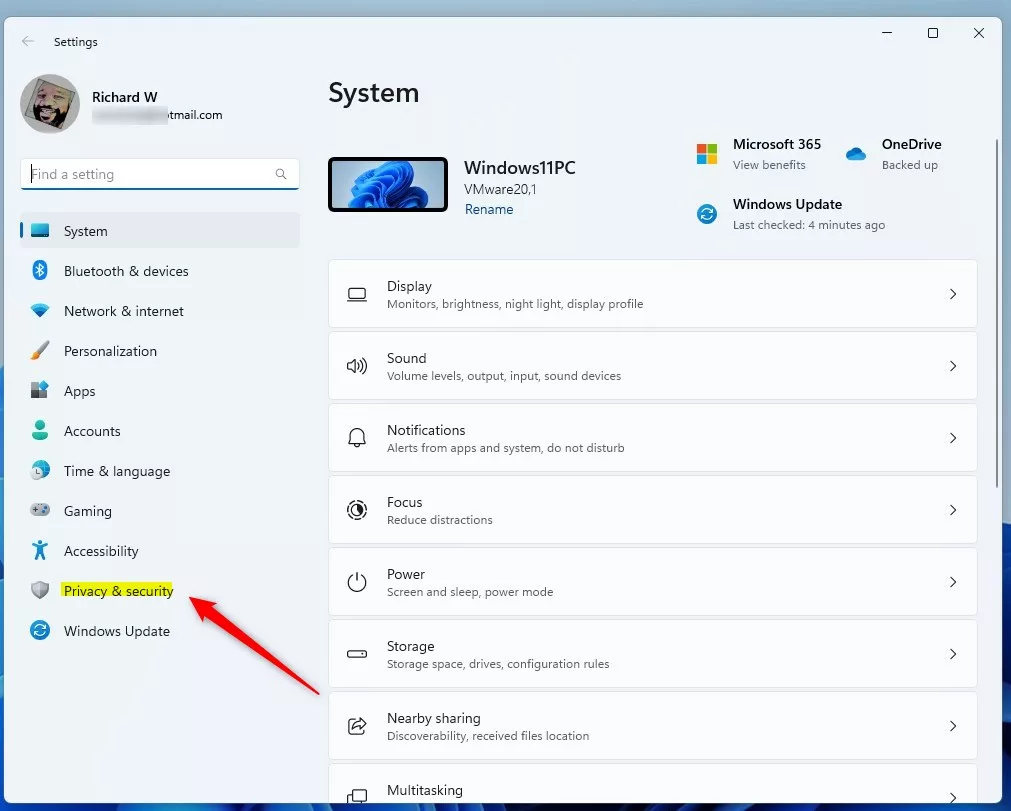
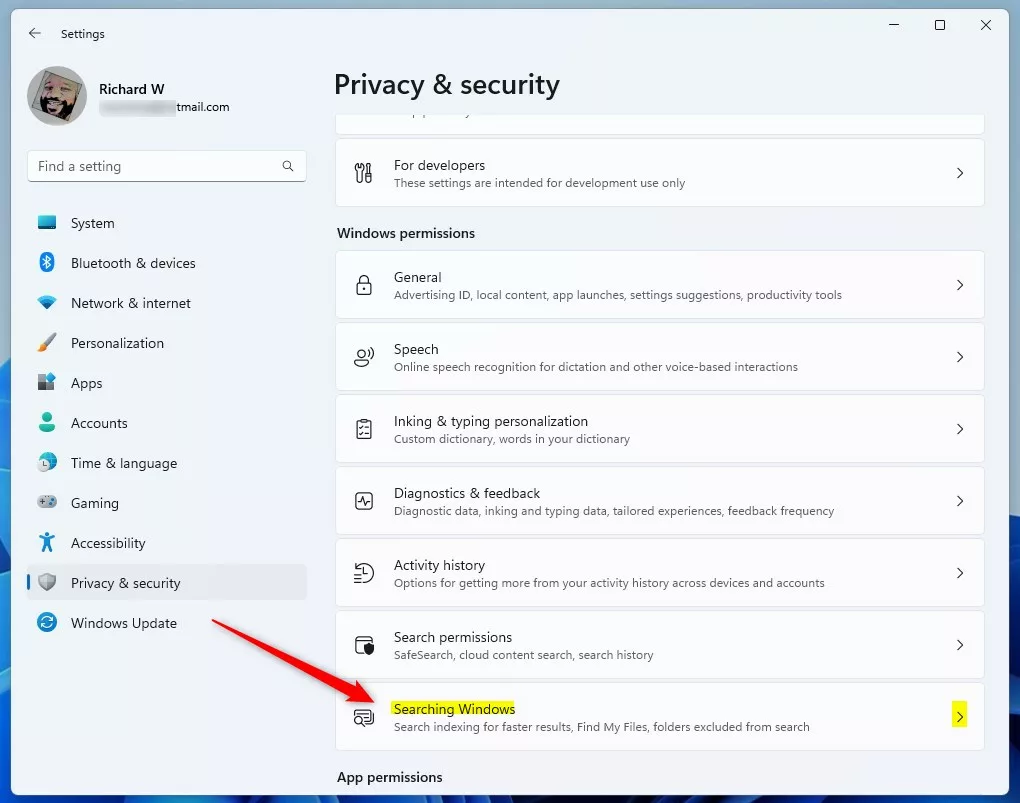
You can turn on respect power settings Windows 11 through the main Settings app to stop search indexing from draining your laptop battery when you are not plugged in. Open Settings , click Privacy & security, select Searching Windows, and look for the option that stops indexing when your device runs on battery power.
- Open the Windows Settings app. You can click the Start menu and select Settings, or press the Win+I on your keyboard.
- Click Privacy & security on the left sidebar.
- Click the Searching Windows tile on the right.
- Look for Respect power settings when indexing. Toggle the switch to On to enable it, or Off to disable it.
Method 2Using the Windows Registry Editor
You can force respect power settings Windows 11 by adding a new DWORD value inside the Registry Editor if the standard menu option is missing. Open the Registry Editor, go to 🗝️HKEY_LOCAL_MACHINE\
- Open the Windows Registry.
- Navigate to this path:
HKEY_LOCAL_MACHINE\SOFTWARE\Microsoft\Windows Search\Gather\Windows\SystemIndex - If you do not see the SystemIndex folder, right-click the Windows folder, select New, and create a subkey named SystemIndex.
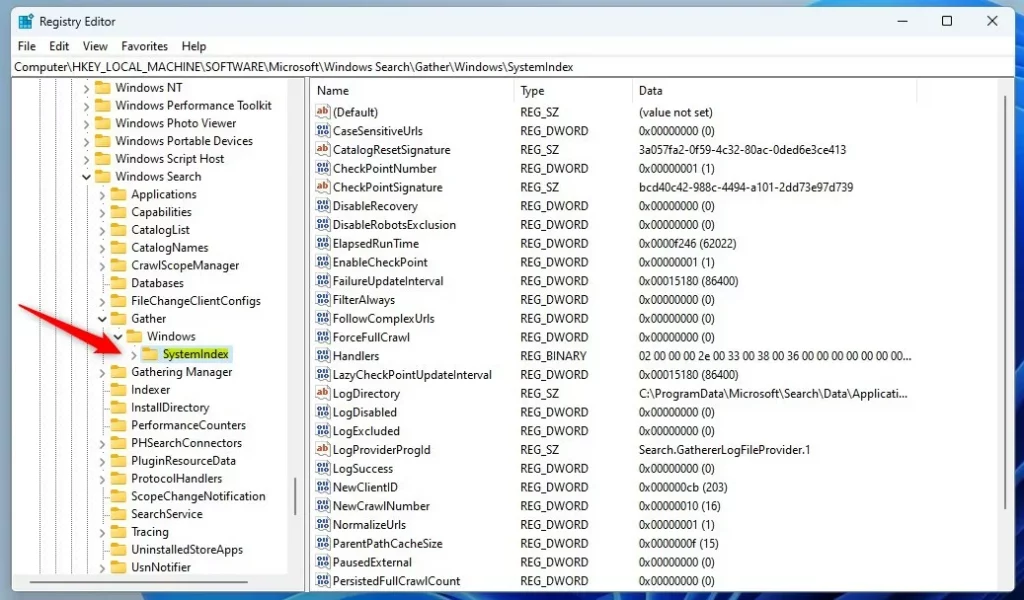
- Right-click in the empty space on the right side and select New DWORD (32-bit) Value. Name it
RespectPowerModes. - Double-click
RespectPowerModesand change the Value data to1to turn the feature on. Set it to0to turn it off.
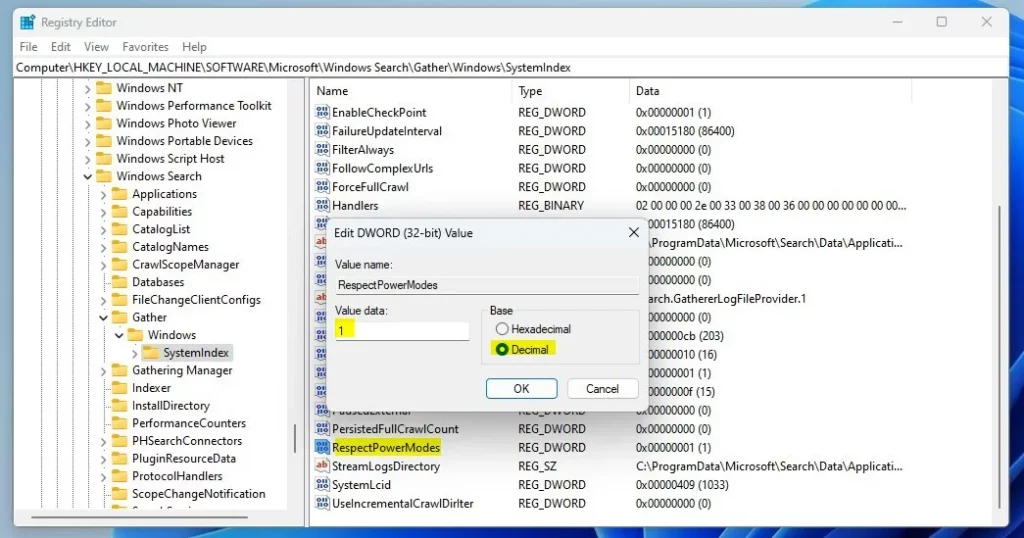
- Restart your computer to apply the changes.
Troubleshooting Power Plan Overrides
Windows 11 may override your power settings during indexing, especially after an update, causing the system to appear unresponsive to your preferences. This happens because the Windows Search Indexer, a background process, consumes significant resources. It might temporarily disable power-saving features to finish its tasks faster.
Summary
Windows 11 lets you control how your computer uses power when it’s organizing files for searching, and you can choose to respect power settings to save battery.
Why does 🪟 Windows 11 reset my power plan to 100%?
Windows 11 might reset your power plan to high performance after updates to keep things running smoothly.
Does indexing affect battery life on 🪟 Windows 11?
Yes, the background indexing service consumes CPU cycles to scan and catalog files. When indexing runs constantly, it prevents your processor from entering low-power states, which increases battery consumption. Enabling power-aware indexing helps mitigate this by pausing the service during periods of low battery or when using power-saving modes.
Was this guide helpful?

About the Author
Richard
Tech Writer, IT Professional
Richard, a writer for Geek Rewind, is a tech enthusiast who loves breaking down complex IT topics into simple, easy-to-understand ideas. With years of hands-on experience in system administration and enterprise IT operations, he’s developed a knack for offering practical tips and solutions. Richard aims to make technology more accessible and actionable. He's deeply committed to the Geek Rewind community, always ready to answer questions and engage in discussions.



No comments yet — be the first to share your thoughts!