How to Enable or Disable Open Widgets Board on Hover in Windows 11

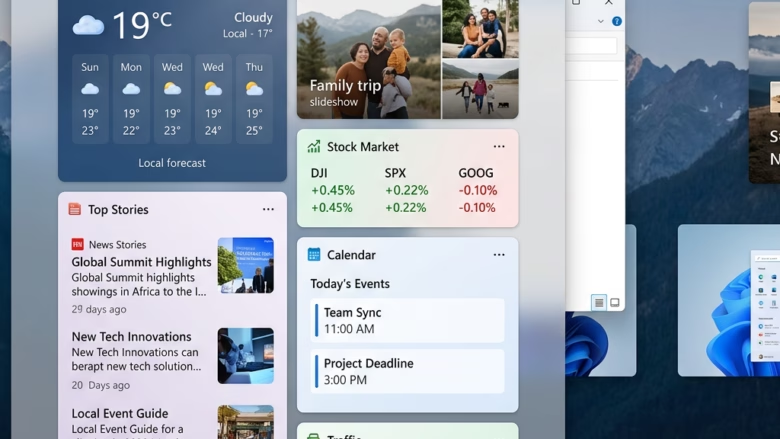
The Widgets board (a panel showing news, weather, and calendar info) opens automatically in Windows 11 version 22H2 and later builds whenever your mouse rests on the taskbar weather icon. This hover trigger often pops up by accident when you try to click something nearby.
Turning off this hover behavior stops the panel from appearing on its own. You can still open the board whenever you want by clicking the taskbar icon instead.
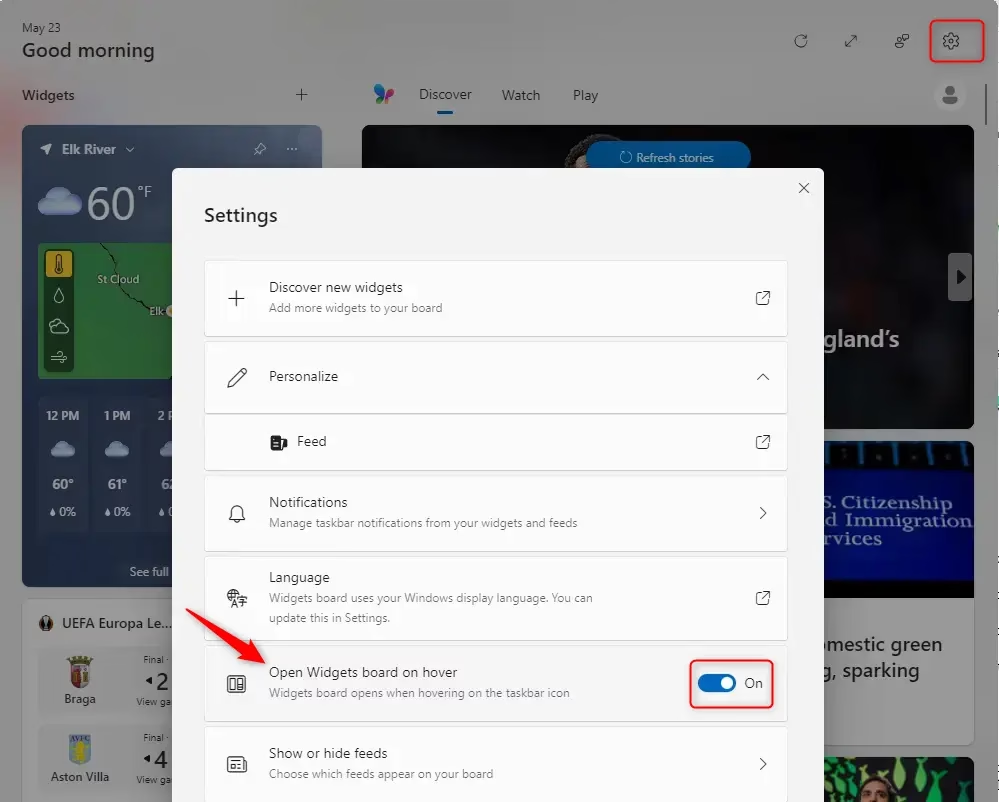
To disable opening the Widgets board on hover, open the Widgets board, click the settings gear, and toggle off “Open Widgets board on hover.” The board will then only open when you click the taskbar icon.
How to Stop Widgets from Opening When You Hover
Unwanted hover behavior interrupts focus when accidental cursor sweeps pull up feeds unexpectedly. Restricting the panel to manual clicks restores a cleaner desktop experience.
Step 1Open the Widgets Board
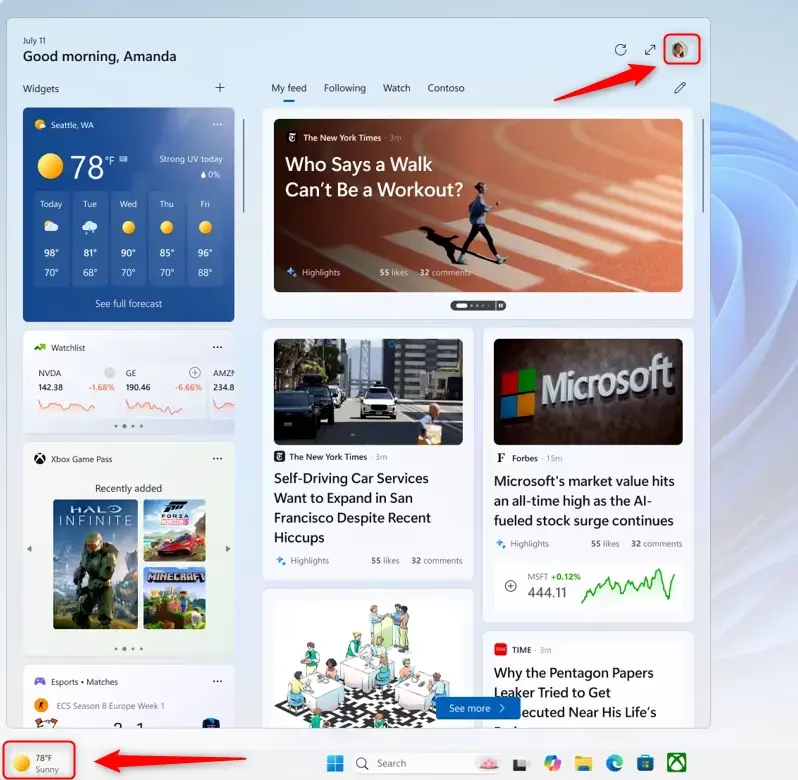
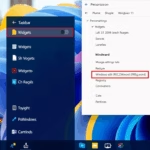
Opening the windows 11 widgets hover board requires pressing the Win+W shortcut on your keyboard or clicking the dedicated taskbar icon. If you do not see the icon on your taskbar , right-click any empty space on the taskbar, select Taskbar settings, and turn on the toggle for Widgets under the Taskbar items list.
Displaying the icon requires right-clicking the taskbar and selecting Taskbar settings. Under Taskbar items, change the Widgets setting to On. Missing icons typically indicate that the Widgets feature requires a system update.
Step 2Go to Widgets Settings
With the Widgets board open, locate the gear icon in the top right corner for its settings.
Multiple icons may be present, but the target icon specifically controls how the Widgets board behaves.
Step 3Find the "Open Widgets board on hover" Setting
Inside the settings menu, locate options matching "Open Widgets board on hover" or "Show widgets board by hovering over the taskbar icon".
Step 4Turn Off the Hover Feature
Disabling the windows 11 widgets hover feature stops the panel from popping up every time your mouse cursor accidentally drifts over the taskbar icon. Open your taskbar settings, locate the settings menu for the widgets feature, and switch off the specific toggle that allows the board to open automatically on mouse hover.
Practical Tip: Turning off this setting means the board opens exclusively via clicks on the taskbar icon or the Windows key + W shortcut. Complete control over panel visibility returns to you.
Why Turn Off "Open on Hover"?
Disabling windows 11 widgets hover prevents annoying accidental pop-ups that interrupt your workflow when your mouse cursor strays across the bottom of the screen. Turning off this automatic trigger also ensures that the news and weather feeds only run when you actively choose to look at them.
- Accidental Openings: Like we said, it's easy to open the Widgets board by mistake. This can be distracting if you're trying to do something important.
- Performance: Widgets are usually small and don't use much power. But if you have an older computer or like to have fewer things running in the background, turning this off can help a little.
- Personal Choice: Some people just like to be in full control. They want to start every action themselves and don't want the computer guessing what they want.
- Cleaner Desktop: If you like a simple and clean desktop, turning off hover-to-open is another way to achieve that.
What Happens When You Turn It Off?
Turning off windows 11 widgets hover leaves your taskbar icon right where it is so you can still check your personalized feeds whenever you want. The only change is that the panel stays hidden until you explicitly click the icon or press your keyboard shortcut, stopping surprise windows from appearing on your desktop.
Full control over panel visibility stays with you.
Summary
Adjusting the hover setting creates a smoother workflow by ensuring the Widgets board appears exclusively upon active command.
How to disable open widgets board on hover on 🪟 Windows 11?
To disable opening the Widgets board on hover in Windows 11, go to Settings Personalization Taskbar. Find the 'Widgets' section and toggle off the 'Open Widgets board on hover' option. This ensures the Widgets panel only opens when you click the Widgets icon.
How to enable or disable widgets feature in 🪟 Windows 11?
Enabling or disabling the Widgets feature in Windows 11 occurs via Taskbar settings. Navigate to Settings Personalization Taskbar Under the 'Widgets' section, toggle the main Widgets icon on or off. Hover behavior is controlled by toggling 'Open Widgets board on hover' on or off.
How do I open widgets board on hover registry?
Modifying the registry to control the Widgets board hover behavior is not the recommended method. The most direct way is through Windows Settings. Go to Settings Personalization Taskbar and toggle the 'Open Widgets board on hover' option to your preference.
How to disable taskbar hover preview 🪟 Windows 11?
Disabling the windows 11 widgets hover preview takes just a few clicks through your main system settings menu. Open the Settings app, go to Personalization and then Taskbar, expand the Taskbar items section, and turn off the specific switch that controls the open widgets board on hover feature.
Was this guide helpful?

About the Author
Richard
Tech Writer, IT Professional
Richard, a writer for Geek Rewind, is a tech enthusiast who loves breaking down complex IT topics into simple, easy-to-understand ideas. With years of hands-on experience in system administration and enterprise IT operations, he’s developed a knack for offering practical tips and solutions. Richard aims to make technology more accessible and actionable. He's deeply committed to the Geek Rewind community, always ready to answer questions and engage in discussions.
No comments yet — be the first to share your thoughts!