Manage Lock Screen Notifications in Ubuntu Linux


- 12 steps
- Needs administrator rights
Lock screen notifications show app alerts while your Ubuntu system is locked. Anyone walking past your desk can read message senders, email previews and calendar reminders without signing in. Ubuntu 22.04 LTS and newer versions turn these alerts on by default.
You can hide notifications from specific apps or turn them off completely to keep your personal data private. No restart or log-out is needed, and the change applies the next time you lock the screen.
To turn off lock screen notifications in Ubuntu, open Settings, click Notifications in the sidebar, and switch Lock Screen Notifications off. Alerts stop appearing when the screen is locked, and no restart is needed. To hide only certain apps, leave the switch on and turn off the lock screen setting for each app in the list.
How to turn on or off lock screen notifications in Ubuntu Linux
Lock screen notifications are controlled in the Settings app. There you decide whether alerts appear on the lock screen at all, and you can also choose per app which ones are allowed to show. Turning them off keeps private messages away from prying eyes while you are away from your desk. You can change the setting back at any time in a few clicks, and you don’t need administrator rights, because it is a per-user setting.
They are written for the standard Ubuntu desktop (GNOME) in 22.04 LTS and newer. Labels can differ slightly in other versions or flavors, such as Kubuntu or Xubuntu, which use different settings tools.
Ubuntu keeps most system configuration in a single place, the Settings app. From it you can manage user accounts, apply software updates, adjust display settings and change notification behavior. You can open it in two ways, shown next.
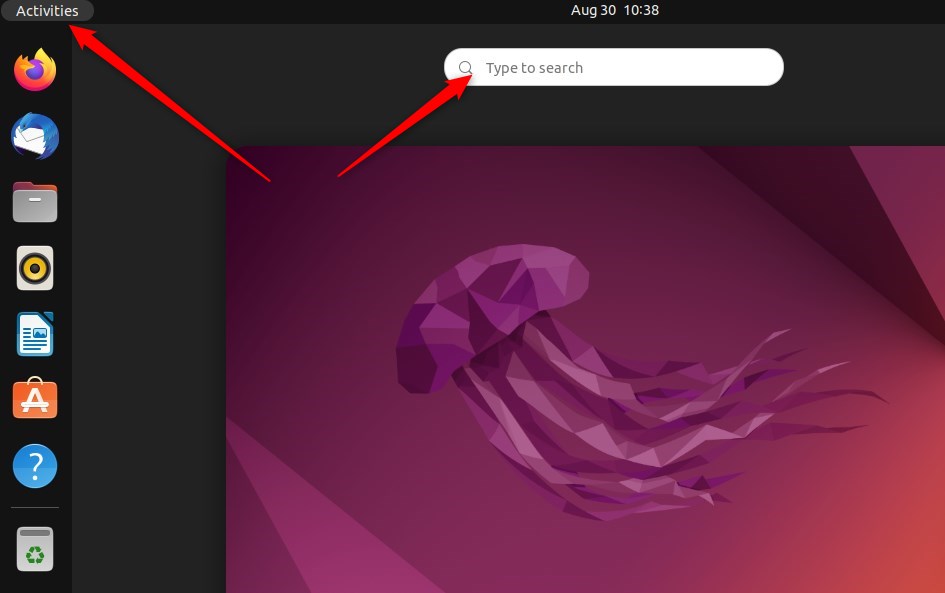
The first way is through the Activities overview, which is where you search for applications:
- Click Activities in the top-left corner of the screen, or press the Super (Windows) key.
- Start typing Settings. The search results appear as you type.
- Click the Settings icon (the gear). The Settings window opens.
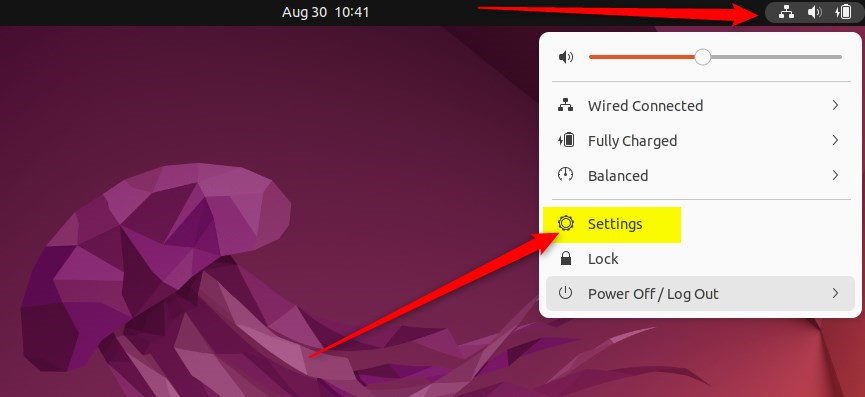
The second way is through the system menu in the top bar:
- Click the System menu in the top-right corner of the top bar. This is the area with the network, volume and power icons. A panel drops down.
- Select Settings from the menu (it’s highlighted below). The Settings window opens.
With Settings open, go to the notification options:
- Click Notifications in the sidebar. If you can’t see it, scroll the sidebar down or make the window taller. The Notifications panel opens on the right.
To hide notifications on the lock screen:
- Switch Lock Screen Notifications off. The switch turns grey, and alerts no longer appear when the screen is locked.
Scroll down the Notifications panel to the app list, click an app, and turn off its own lock screen notification setting. That way a chat app stays hidden while, for example, a calendar reminder still shows.
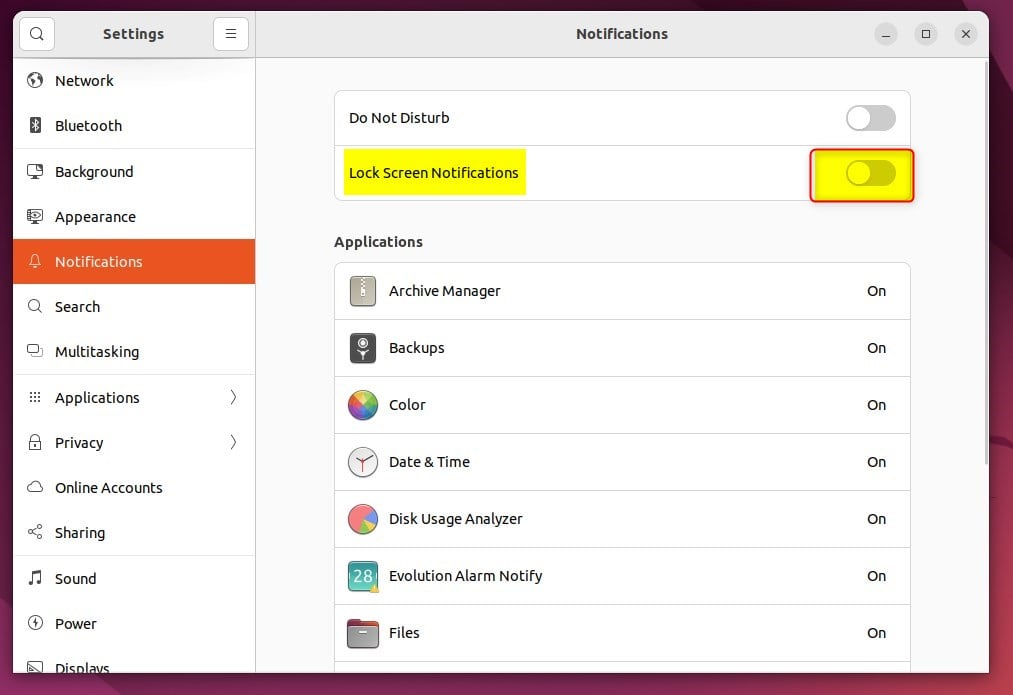
To show them again, reverse the change:
- Open Settings Notifications.
- Switch Lock Screen Notifications to On. The switch changes color to show it is active.
If an individual app still shows nothing on the lock screen, open that app in the list and check its own lock screen setting, because it can be off even when the main switch is on.
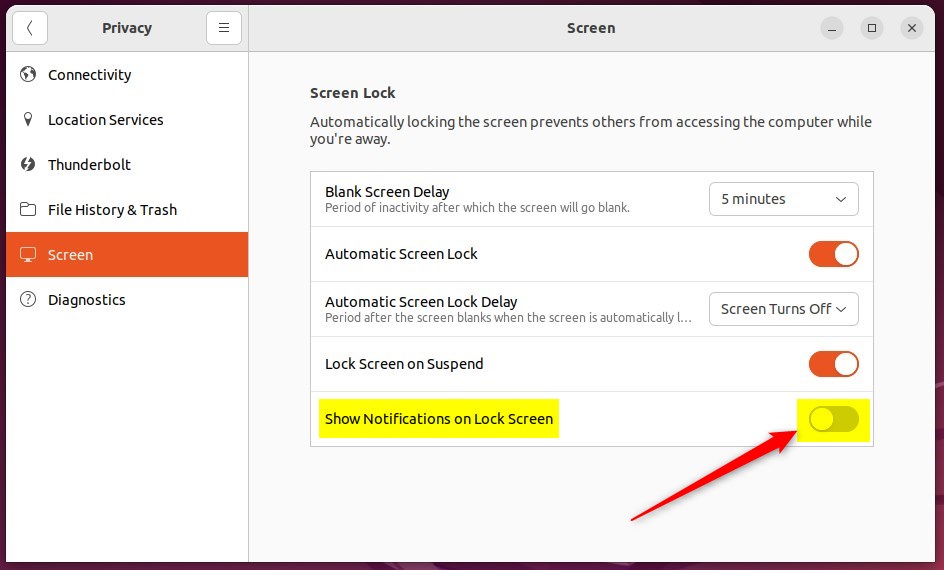
You can also control this from the privacy settings. The exact label depends on your Ubuntu version.
- Open the System menu and select Settings.
- Click Privacy in the sidebar, then click Screen. On some versions this page is called Screen Lock.
- Find the Lock Screen notifications tile, labeled 'Show Notifications on the Lock Screen', and toggle its switch to Off or On.
This switch does the same job as the one in the Notifications panel, so use whichever you find first.
Close the Settings app when you finish. Your choice is saved automatically, so there is no Apply or Save button. To check it, press Super+L to lock the screen, send yourself a test message or email, and see whether a preview appears on the lock screen.
Conclusion:
- Managing lock screen notifications in Ubuntu Linux can help improve privacy and security, because message previews are no longer visible to anyone who can see your locked screen.
- Controlling the display of notifications on the lock screen can be easily toggled through the System Settings panel, and the change takes effect without a restart.
- Customizing lock screen notification settings adds a layer of control over displayed information, whether for personal or professional use. You can turn all alerts off or limit the change to individual apps.
Have a question about this guide?
Answered by AI from this guide. Good questions may be added to this page — please don't include personal details.
Did this guide fix your problem?

About the Author
Richard
Tech Writer, IT Professional
Richard is a writer at Geek Rewind who turns complex IT tasks into clear, step-by-step guides. He draws on years of hands-on experience in system administration and enterprise IT operations, focusing on Windows, Linux and WordPress: the problems people actually run into, and the fixes that work. His server and WordPress guides come from systems he runs himself. Richard builds and maintains the platform behind Geek Rewind, from its Ubuntu servers and Nginx configuration to its custom WordPress plugins. Many new tutorials start with readers' questions, and he's always glad to answer them in the comments.
[…] Linux will display the date and time on the Lock Screen, the System menu on your desktop, and other applications that depend on your system’s […]