How to Enable or Disable Microsoft Vulnerable Driver Blocklist in Windows 11


- 15 steps
- Needs administrator rights
- Includes a restart or sign-out
The Microsoft Vulnerable Driver Blocklist is on by default in Windows 10 (KB5018482) and Windows 11 (KB5018483 and KB5018496). Turn the Microsoft Vulnerable Driver Blocklist on or off for all users in Windows 10 and Windows 11. Two methods work: the Windows Security toggle, or a registry change.
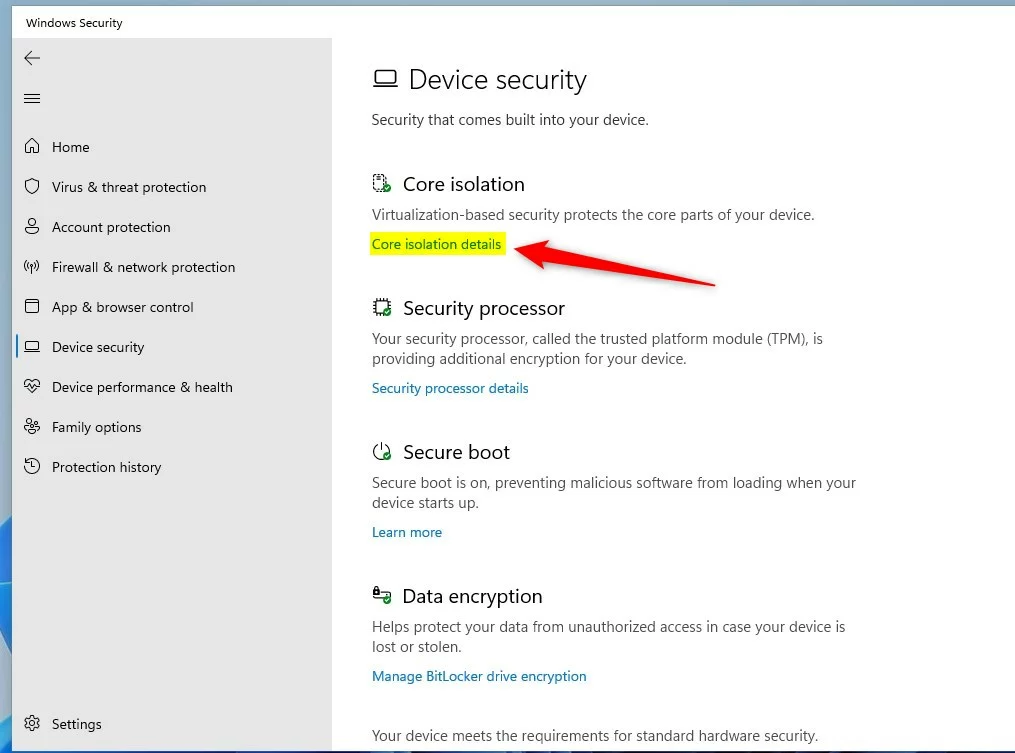
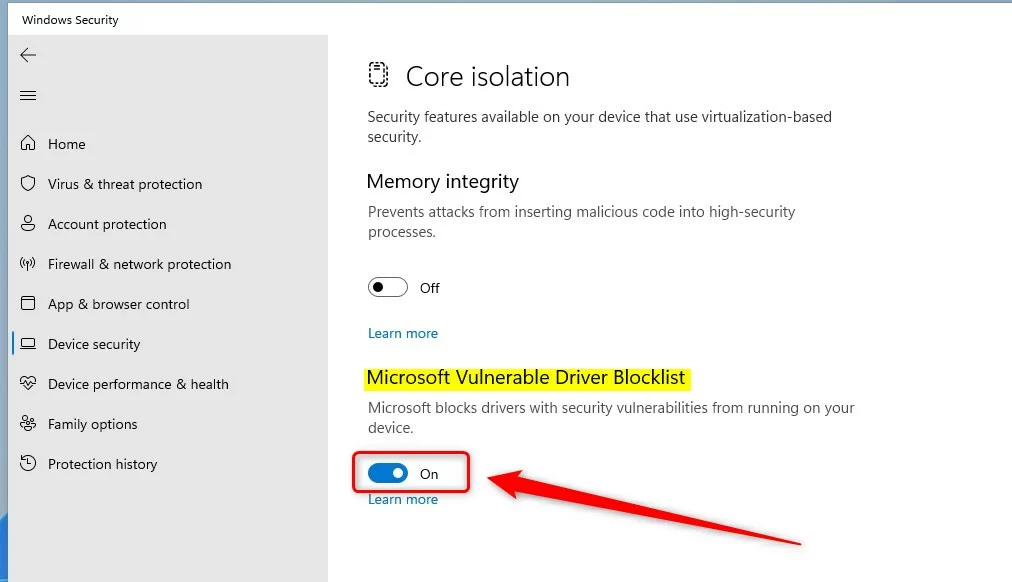
Open Windows Security, select Device security, then select Core isolation details and set the Microsoft Vulnerable Driver Blocklist toggle to On or Off. Approve the UAC prompt if it appears. The toggle is grayed out while Memory Integrity (HVCI), Smart App Control, or S mode is on, so turn those off first, then restart.
The blocklist helps protect your system from third-party drivers that have any of these traits:
- Known security vulnerabilities that attackers can exploit to gain higher privileges in the Windows kernel (the core part of Windows that controls the hardware).
- Malicious behavior (malware), or certificates used to sign malware.
- Behavior that isn’t malicious but bypasses the normal Windows security checks, and that attackers can exploit to gain higher privileges in the Windows kernel.
Windows also enforces the blocklist whenever memory integrity (also called hypervisor-protected code integrity, or HVCI), Smart App Control, or S mode (a locked-down Windows mode that allows only apps from the Microsoft Store) is active. You can opt in to HVCI in the Windows Security app, and most new Windows 11 devices ship with it on.
For more detail, see Microsoft’s support article KB5020779—The vulnerable driver blocklist after the October 2022 preview release | Microsoft Support, which covers the vulnerable driver blocklist after the October 2022 preview release.
Administrator required: You must sign in as an administrator to turn the blocklist on or off.
The blocklist option in Windows Security is grayed out while HVCI (Memory Integrity), Smart App Control, or S mode is on. Turning the blocklist off means first turning off HVCI (Memory Integrity), Smart App Control, or S mode. Those features protect the device, so only do this if you have a specific reason. Then restart the computer.
Option 1Turn the Blocklist On or Off in Windows Security
- Open Windows Security.
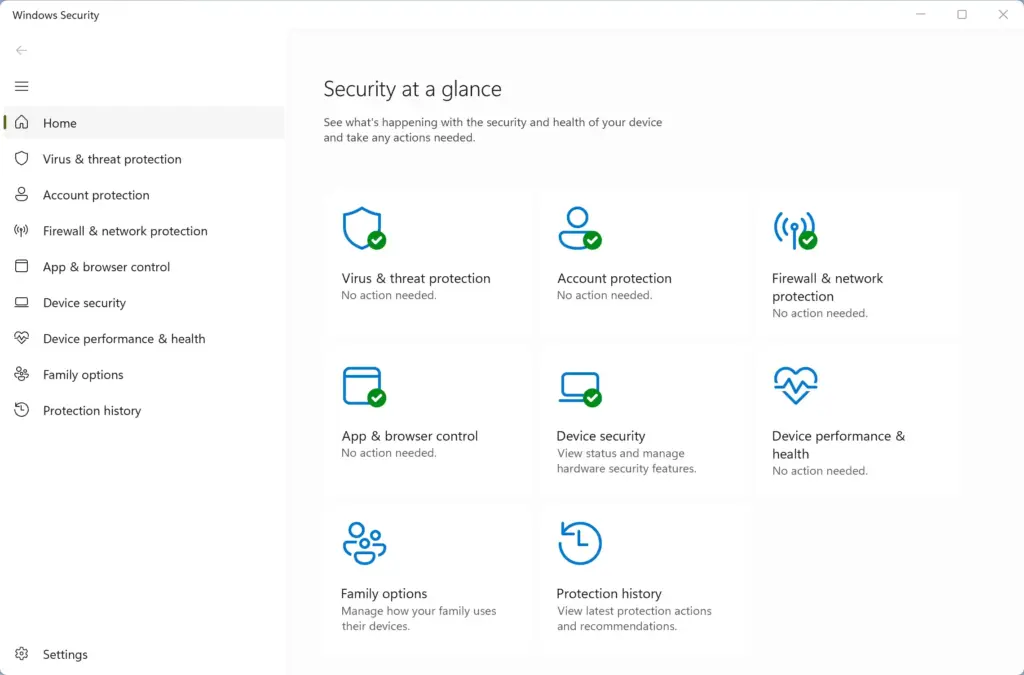
Windows Security - Select Device security on the left, then select the Core isolation details link on the right.
windows 11 core isolation details link - Set the Microsoft Vulnerable Driver Blocklist toggle to On (the default) or Off.
windows 11 microsoft vulnerable driver blocklist button - Select Yes if UAC (User Account Control, the prompt that asks you to approve changes) appears. This step requires administrator privileges.
- Close Windows Security.
Option 2Turn the Blocklist On or Off Using the Registry
It requires administrator privileges. Use the steps under “Turn On” or “Turn Off”, depending on what you want.
Turn On the Microsoft Vulnerable Driver Blocklist
This is the default setting. Follow these steps to restore it.
- Open Registry Editor: press Win+R, type regedit, and press Enter. Select Yes if User Account Control asks.
- Go to
HKEY_LOCAL_MACHINE\SYSTEM\CurrentControlSet\Control\CI\Config— paste the path into the address bar at the top of Registry Editor and press Enter. - If there is no Config key, right-click CI in the left pane, select New Key, name it Config, and select it. Create any other missing key in the path the same way.
- Right-click an empty area of the right pane, select New DWORD (32-bit) Value, and name it VulnerableDriverBlocklistEnable. If VulnerableDriverBlocklistEnable is already there, skip this step.
- Double-click VulnerableDriverBlocklistEnable, set Base to Hexadecimal, then type 1 in Value data and select OK.
Turn Off the Microsoft Vulnerable Driver Blocklist
Follow these steps to disable the blocklist. The same grayed-out restrictions described above apply.
- Open Registry Editor: press Win+R, type regedit, and press Enter. Select Yes if User Account Control asks.
- Go to
HKEY_LOCAL_MACHINE\SYSTEM\CurrentControlSet\Control\CI\Config— paste the path into the address bar at the top of Registry Editor and press Enter. - If there is no Config key, right-click CI in the left pane, select New Key, name it Config, and select it. Create any other missing key in the path the same way.
- Right-click an empty area of the right pane, select New DWORD (32-bit) Value, and name it VulnerableDriverBlocklistEnable. If VulnerableDriverBlocklistEnable is already there, skip this step.
- Double-click VulnerableDriverBlocklistEnable, set Base to Hexadecimal, then type 0 in Value data and select OK.
If this didn’t work
To undo either change, repeat the same option and choose the opposite setting. If the Windows Security toggle stays grayed out, turn off HVCI (Memory Integrity) or Smart App Control, or switch out of S mode, then restart and try again.
Have a question about this guide?
Answered by AI from this guide. Good questions may be added to this page — please don't include personal details.
Did this guide fix your problem?

About the Author
Richard
Tech Writer, IT Professional
Richard is a writer at Geek Rewind who turns complex IT tasks into clear, step-by-step guides. He draws on years of hands-on experience in system administration and enterprise IT operations, focusing on Windows, Linux and WordPress: the problems people actually run into, and the fixes that work. His server and WordPress guides come from systems he runs himself. Richard builds and maintains the platform behind Geek Rewind, from its Ubuntu servers and Nginx configuration to its custom WordPress plugins. Many new tutorials start with readers' questions, and he's always glad to answer them in the comments.
No comments yet — be the first to share your thoughts!