How to Enable or Disable Inline AutoComplete in Windows 11


- 3 ways to do it
- Needs administrator rights
- Group Policy needs Windows 11 Pro, Enterprise or Education
- Includes a restart or sign-out
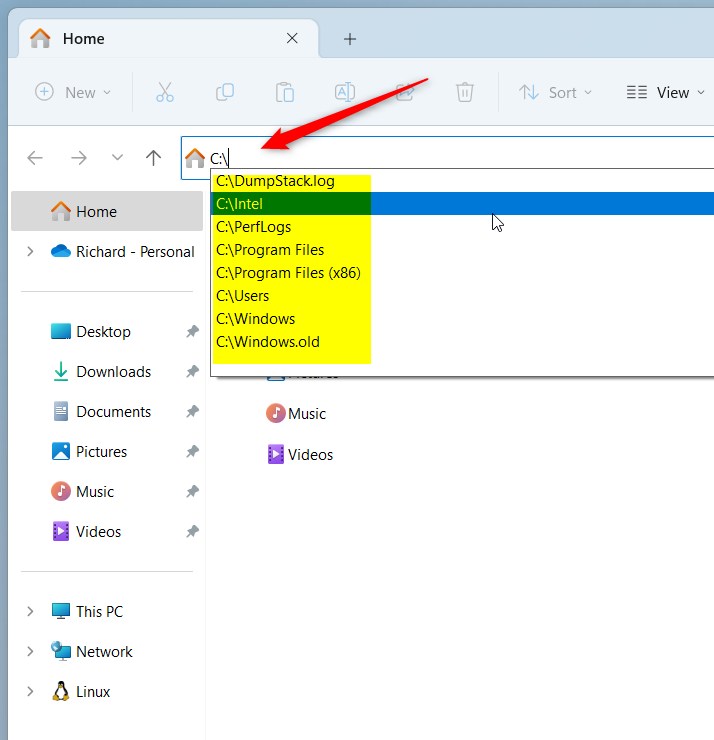
Inline AutoComplete in Windows 11 predicts file and folder paths as you type in the address bar of File Explorer. It also works in the Run dialog. When it is on, Windows fills in the rest of a path as you type, and you press Enter to accept it. When it is off, you get a plain address bar with no predicted text. This tutorial covers the Control Panel, Registry Editor, PowerShell and Group Policy methods, plus a fix for suggestions that look wrong.
Open Internet Options from the Control Panel, go to the Advanced tab, and check or uncheck “Use inline AutoComplete” under Browsing. This setting immediately affects how file paths are suggested in File Explorer.
Prerequisites
Some methods need administrative access. Sign in with an administrator account before you change the registry or Group Policy. The Control Panel method changes a setting for your own account, so a standard user can usually use it.
Before you edit the registry, create a restore point or export the key you are about to change. That way you can undo a mistake quickly.
[Administrative privileges required]Method 1Using Internet Options
This is the simplest method and works on both Windows 11 Home and Pro. The setting lives in Internet Options, which looks odd, but that same dialog controls inline AutoComplete for File Explorer and the Run dialog. It takes a minute and needs no restart in most cases.
- Open the Control Panel . Click Start , type Control Panel , and select it from the results. The Control Panel window opens.
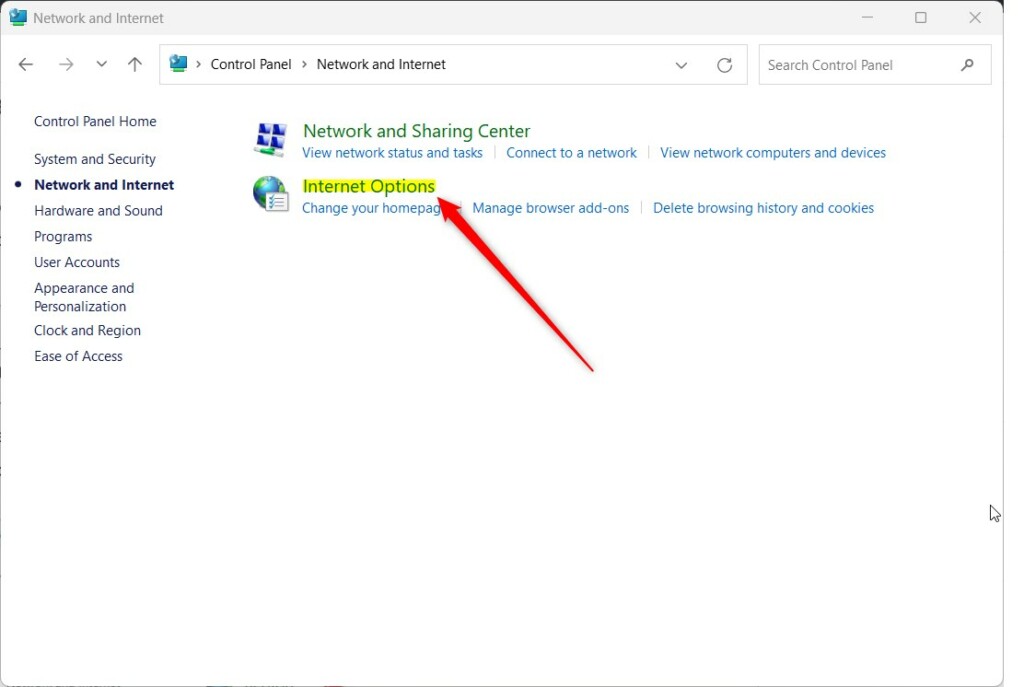
- Go to Network and Internet Internet Options. If your Control Panel is set to Category view, you will see Network and Internet on the main page. In the large or small icons view, click Internet Options directly. The Internet Properties window appears.
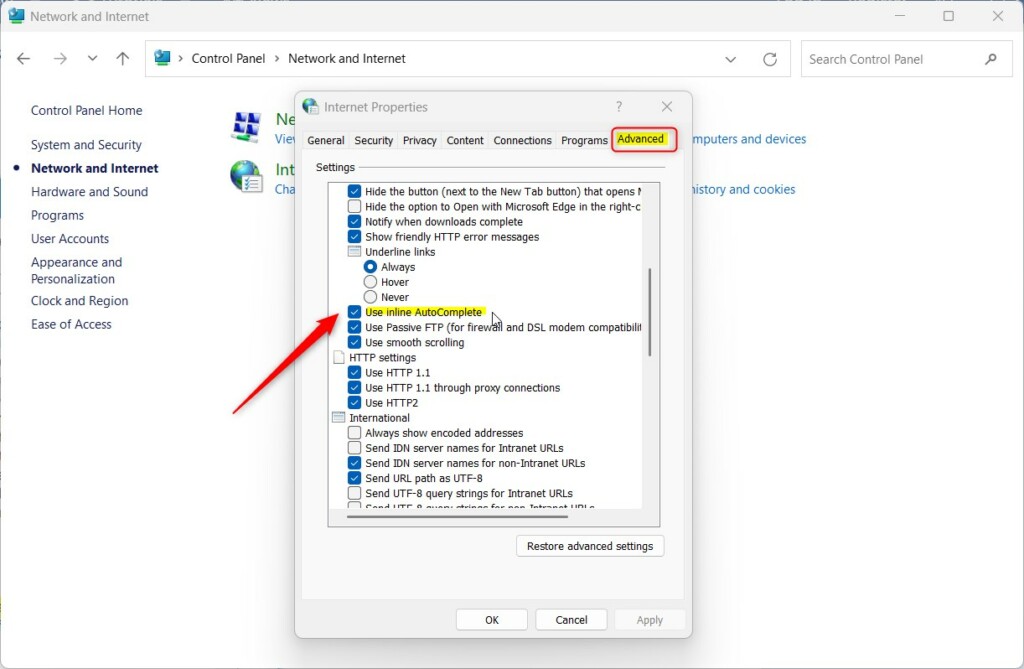
- Click the Advanced tab. You will see a long list of settings in a scrolling box.
- Scroll to the Browsing section and find Use inline AutoComplete. On Windows 11 the full label usually reads “Use inline AutoComplete in File Explorer and Run Dialog”.
- Tick the box to enable inline AutoComplete, or clear the tick to disable it.
- Click OK. The window closes and the setting is saved. Open a new File Explorer window and type a partial path in the address bar to check the result. If nothing changes, close all File Explorer windows and try again.
To undo the change, repeat the steps and set the box back to its original state.
Method 2Using the Registry Editor (Advanced)
Registry Editor (a tool for changing advanced system settings) lets you control inline autocomplete by editing specific system keys. Use it when the standard settings do not work, or when you want to see exactly what Windows stores. You open Registry Editor, go to 🗝️HKEY_CURRENT_USER\
This method works on Home and Pro. The change applies to the current user only, because it sits under 🗝️HKEY_CURRENT_USER. Back up the key first: right-click it in Registry Editor, choose Export, and save the .reg file somewhere safe. To restore it later, double-click that file.
- Press Win+R, type
regedit, and press Enter. If User Account Control asks for permission, click Yes. Registry Editor opens. - In the left pane, navigate to:
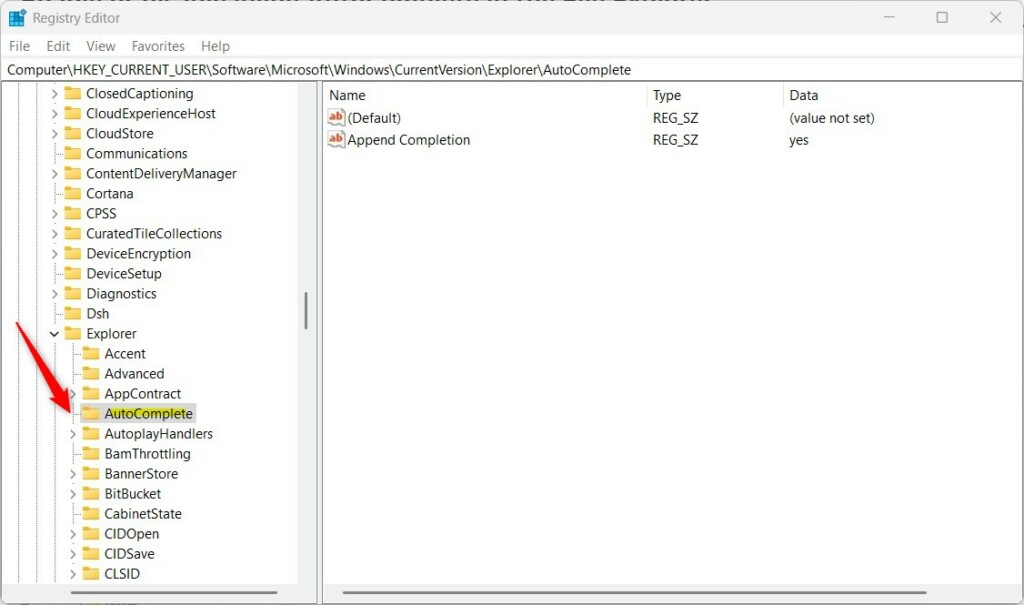
HKEY_CURRENT_USER\Software\Microsoft\Windows\CurrentVersion\Explorer\AutoComplete. You can also paste the path into the address bar at the top of Registry Editor and press Enter. - If the key is missing, right-click Explorer and select New Key. Name the new key
AutoComplete. It now appears under Explorer in the left pane, and you should select it. - Right-click an empty area in the right pane and select New String Value. Name it
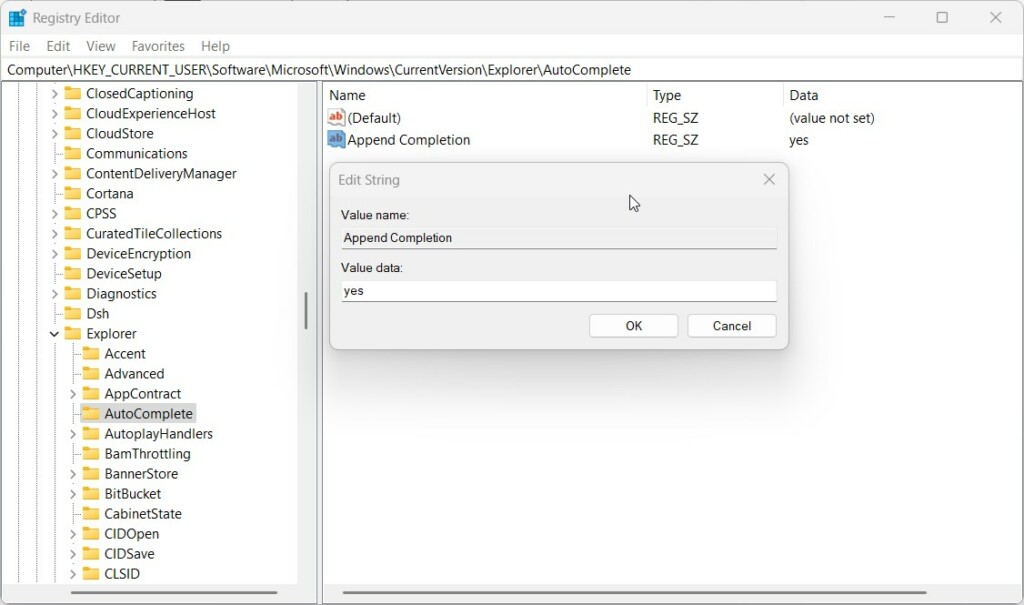
Append Completion. The new value appears in the right pane. If a value with that name already exists, skip this step. - Double-click the value and set Value data to
yesto enable the feature, ornoto disable it. Click OK.
Close Registry Editor, then close and reopen File Explorer. If the change does not show up, sign out and back in, or restart the PC. To undo it, set the value back or delete the value you created.
Method 3Automation via PowerShell
PowerShell (a command-line shell for system administration) lets you set inline autocomplete on one or many computers without clicking through menus. You run a short command in the terminal that updates the same registry value described in the previous method, in the background. This saves time when you set up several Windows 11 machines.
Because PowerShell writes to the same registry location, the same rules apply. The change affects the user account that runs the command. A restart or a sign-out and sign-in may be needed before File Explorer shows it.
Group Policy Editor (a tool for configuring system settings across a network) lets you manage settings for many machines at once and keeps them consistent for all users. The Local Group Policy Editor is only included in Windows 11 Pro, Enterprise and Education. On Windows 11 Home, gpedit.msc will not open, so use the Control Panel or Registry method instead.
- Press Win + R, type
gpedit.msc, and press Enter. The Local Group Policy Editor opens. - In the left pane, go to User Configuration Administrative Templates Windows Components File Explorer. The policies for File Explorer are listed in the right pane.
- Find Turn off display of recent search entries in the File Explorer search box and double-click it. Its settings window opens.
- Choose Not Configured, Enabled or Disabled as needed, then click OK. This policy controls recent entries in the search box, so check the result in File Explorer after you apply it. To undo the change, set the policy back to Not Configured.
Policy changes usually apply after you sign out and back in, or after a restart. Domain-joined PCs may also pick up the setting at the next policy refresh.
Troubleshooting Common Issues
If the feature does not work, or suggestions look outdated, start by clearing your File Explorer history:
- Click Start, type File Explorer Options, and open it. The File Explorer Options window appears.
- Select the General tab.
- Under Privacy, click Clear next to Clear File Explorer history. The old suggestions are removed.
If the setting still does not take effect, check these things:
- Verify that your user account has permission to modify the registry.
- Check that no Group Policy setting is overriding your change, especially on work or school PCs managed by an organization.
- Close all File Explorer windows and reopen them, or sign out and back in, so the new setting loads.
Summary
You can configure inline autocomplete using the Control Panel, Registry Editor, or PowerShell. Group Policy is also an option on Pro and higher editions. The Control Panel method is the easiest for a single PC, and the registry and PowerShell methods suit repeatable setups. Clear your File Explorer history if suggestions become outdated.

Have a question about this guide?
Answered by AI from this guide. Good questions may be added to this page — please don't include personal details.
Did this guide fix your problem?

About the Author
Richard
Tech Writer, IT Professional
Richard is a writer at Geek Rewind who turns complex IT tasks into clear, step-by-step guides. He draws on years of hands-on experience in system administration and enterprise IT operations, focusing on Windows, Linux and WordPress: the problems people actually run into, and the fixes that work. His server and WordPress guides come from systems he runs himself. Richard builds and maintains the platform behind Geek Rewind, from its Ubuntu servers and Nginx configuration to its custom WordPress plugins. Many new tutorials start with readers' questions, and he's always glad to answer them in the comments.
No comments yet — be the first to share your thoughts!