How to Enable or Disable Click to Do in Windows 11


Click to Do is a Windows 11 feature that lets you act on on-screen text and images straight away. When you highlight text, it picks out details such as addresses or phone numbers. It then offers to open the right app, such as Maps or your phone app, so you don’t have to copy and paste.
The tool analyzes selected text or pictures so you can open links, set up calendar events, or finish other quick tasks in seconds. It is currently in preview for Copilot+ PCs and is part of the Windows Insider Program. If your PC isn’t a Copilot+ PC, or isn’t on a build that includes the preview, you may not see the feature or its settings at all.
This guide covers three ways to turn it on or off: Settings, the Local Group Policy Editor, and the Registry Editor.
Open Settings , go to Privacy & security, click Click to Do (preview), and toggle the feature on or off. The change takes effect immediately, though a restart prompt may appear.
Enable or Disable Click to Do
The Settings app is the easiest way to turn Click to Do on or off, and it works on both Windows 11 Home and Pro. The option is under Privacy & security, listed as Click to Do (preview). If you don’t see it, your PC or Windows build probably doesn’t support the preview yet.
Method 1Using the Settings App
You can reach the setting in a few clicks from the main Settings app . The keyboard shortcut is the fastest way in: press the Win+I and Settings opens right away.
- Click the Start menu and select Settings. You can also press the Win+I.
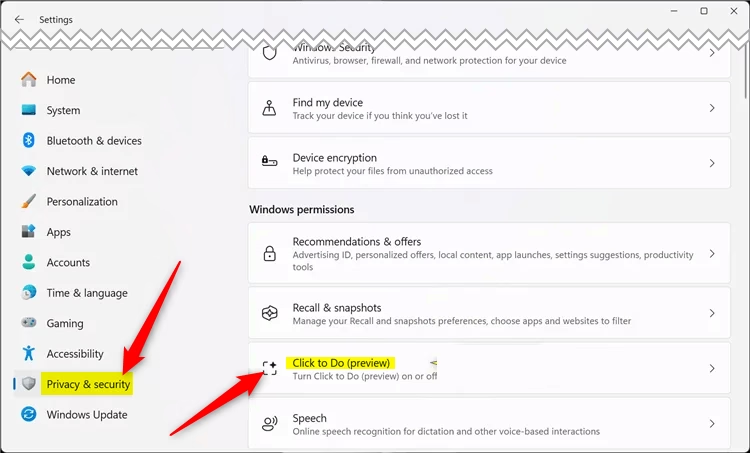
- Click Privacy & security in the left pane. The privacy options appear on the right.
- Under Windows permissions on the right, click Click to Do (preview). The Click to Do settings page opens.
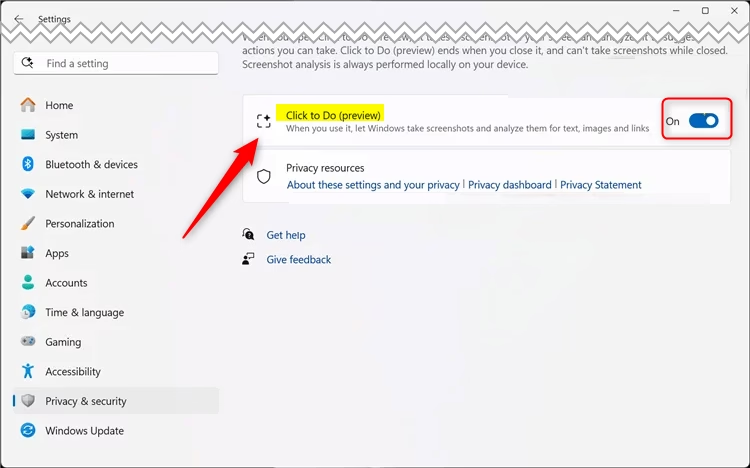
- Use the toggle to turn the feature on or off. The change takes effect right away.
To undo it, return to the same page and flip the toggle back.
If it does, save your work and restart so the change applies fully.
Restart your computer to apply the changes. Close open apps and save your work first.
Method 2Using Group Policy Editor
The Local Group Policy Editor is useful if you want to manage this setting across several computers or organization devices. It is only included in Windows 11 Pro, Enterprise and Education. On Windows 11 Home the tool is missing, so use the Settings or Registry method instead.
Be aware that this policy is worded as "Disable Click to Do", so the options work the opposite way from what you might expect. The list below explains each one.
- Click the Start menu and search for "Edit group policy".
- Open the Edit group policy result. The Local Group Policy Editor opens.
Next, use the left pane to expand the folders in this path:
Computer Configuration > Administrative Templates > Windows Components > Windows AI
When you select the last folder, the right-hand pane labeled "Windows AI details" shows its policies. Find the "Disable Click to Do" setting and double-click it.
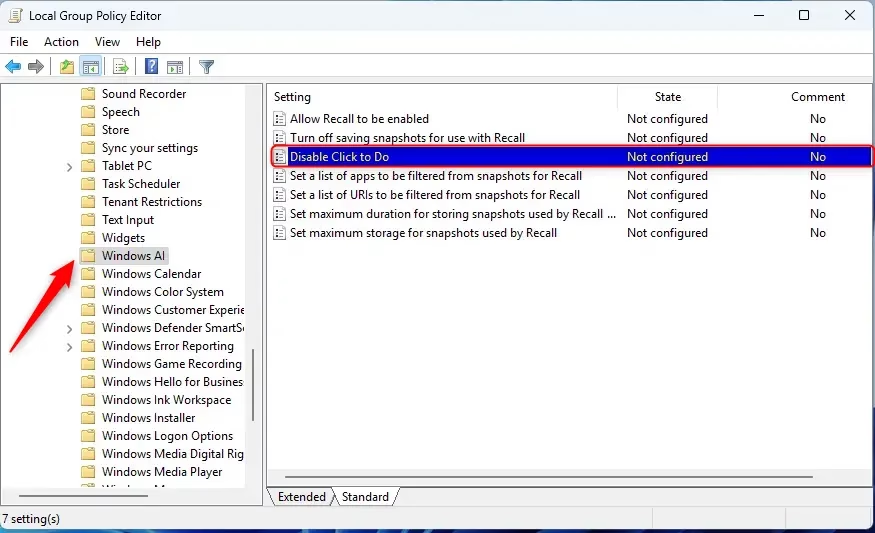
A new window will appear for "Disable Click to Do." Choose one of these options:
- Not Configured (default) - Same as Disabled. Click to Do stays available.
- Enabled - Click to Do component and entry points will not be available to users. Choose this to turn the feature off.
- Disabled - Users will have Click to Do available on their device. Choose this, or Not Configured, to keep the feature on.
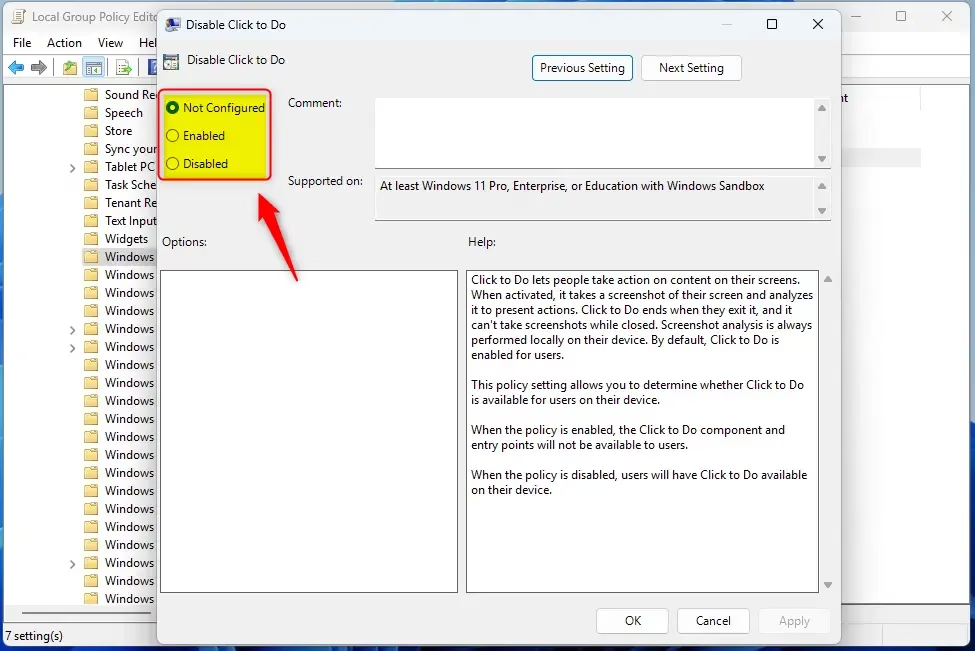
Click OK to save your changes. If the change doesn't seem to apply, restart the computer. To undo it later, open the same policy and set it back to Not Configured.
Method 3Using the Registry Editor
Editing the wrong key can cause system problems, so back up your registry or create a System Restore point before you start.
The Registry Editor is another way to enable or disable the "Click to Do" feature. Don't skip the backup. If something goes wrong, you can restore from it.
- Open the Windows Registry.
- Navigate to this folder path:
Computer\HKEY_CURRENT_USER\Software\Policies\Microsoft\Windows\WindowsAI- Right-click WindowsAI and select New DWORD (32-bit) Value. If the WindowsAI key doesn't exist, create it first by right-clicking its parent key and choosing New Key
- Name the new DWORD DisableClickToDo. The new value appears in the right pane.
- Double-click the DisableClickToDo value to open it.
- Set the Value data to 1 to disable the "Click to Do" feature, then click OK.
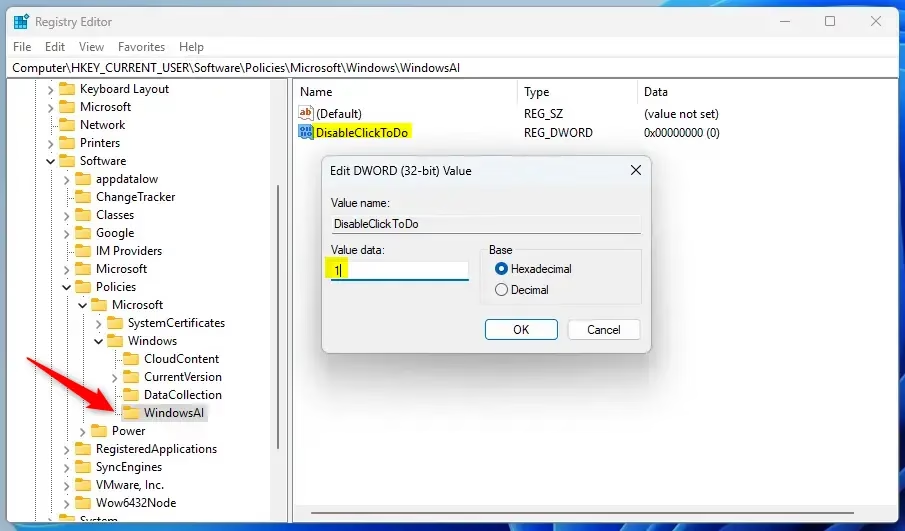
To use the feature again and revert Windows to its original settings, right-click the DisableClickToDo item you created, select Delete, and confirm. Only delete the value you added yourself, nothing else in that key.
Restart your computer to apply the changes, whether you added or removed the value.
That should do it!
Reference
Summary
Click to Do is a handy feature that helps you interact with content more quickly. You can turn it on or off using Windows Settings, the Group Policy Editor, or the Registry Editor, depending on what works best for you. Settings is the simplest choice for one PC. Group Policy suits managed devices on Pro and higher editions. The registry works as a fallback when the others aren't available.
Was this guide helpful?

About the Author
Richard
Tech Writer, IT Professional
Richard is a writer at Geek Rewind who turns complex IT tasks into clear, step-by-step guides. He draws on years of hands-on experience in system administration and enterprise IT operations, focusing on Windows, Linux and WordPress: the problems people actually run into, and the fixes that work. His server and WordPress guides come from systems he runs himself. Richard builds and maintains the platform behind Geek Rewind, from its Ubuntu servers and Nginx configuration to its custom WordPress plugins. Many new tutorials start with readers' questions, and he's always glad to answer them in the comments.




No comments yet — be the first to share your thoughts!